מָבוֹא
תודה על הרכישהasing the Klipsch ProMedia Lumina 2.1 Computer Gaming Speaker System. This manual provides essential information for setting up, operating, and maintaining your new speaker system to ensure optimal performance and longevity. The ProMedia Lumina system is designed to deliver powerful audio with deep bass and customizable RGB lighting, enhancing your gaming, music, and movie experiences.
מידע בטיחות
אנא קרא את כל הוראות הבטיחות לפני השימוש במוצר זה. שמור מדריך זה לעיון עתידי.
- מקור כוח: Connect the system only to the type of power source indicated on the marking label.
- אוורור: Ensure proper ventilation around the speakers and subwoofer. Do not block any ventilation openings.
- מים ולחות: Do not expose the system to water, rain, or moisture. Do not place objects filled with liquids on the system.
- חוֹם: Keep the system away from heat sources such as radiators, heat registers, stoves, or other apparatus that produce heat.
- ניקוי: נקה רק עם מטלית יבשה.
- שֵׁרוּת: אל תנסה לתת שירות למוצר זה בעצמך. הפנה את כל השירות לאנשי שירות מוסמכים.
תוכן החבילה
ודא שכל הפריטים נמצאים בחבילה שלך:
- 1 x Klipsch ProMedia Lumina Subwoofer
- 2 רמקולים לווייניים (שמאל וימין)
- 1 x Bluetooth Speaker (This is listed as "Included Components" in the product data, but typically refers to the system's Bluetooth capability rather than a separate speaker unit. The system itself has Bluetooth functionality.)
- כבל חשמל
- כבלי חיבור רמקולים
- כבל USB-C
- כבל AUX 3.5 מ"מ
- מדריך למשתמש (מסמך זה)
המוצר נגמרview
The Klipsch ProMedia Lumina system consists of a powerful subwoofer and two satellite speakers, designed for a rich 2.1 audio experience. The system features integrated controls and multiple connectivity options.

איור 1: The complete Klipsch ProMedia Lumina 2.1 speaker system, showing the central subwoofer unit flanked by two satellite speakers. The speakers are black with silver accents and sit on small stands.
רמקולים לווין
The two satellite speakers feature a re-envisioned cabinet design with tiltable stands for optimal sound projection. They are equipped with Microtractrix horn tweeters for pinpoint clarity.
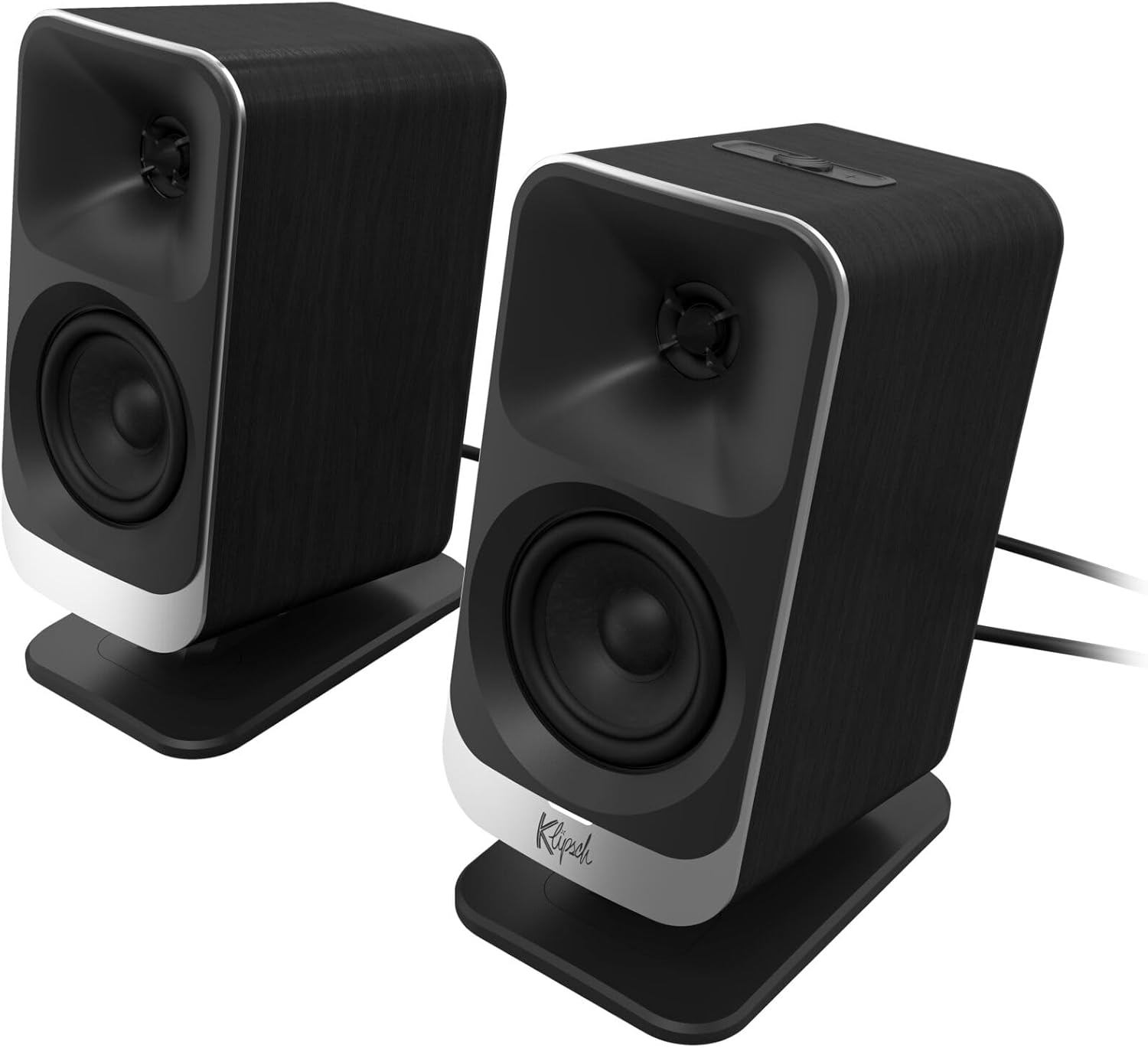
איור 2: תקריב חזיתי view of the two Klipsch ProMedia Lumina satellite speakers, highlighting their black finish, silver base, and speaker cones.

איור 3: אחורי view of the two Klipsch ProMedia Lumina satellite speakers, showing the various ports and controls on their back panels. The left speaker has a settings button and a headphone jack, while the right speaker has a USB-C port and a power/Bluetooth button.
סאב וופר
המקצוען הנמוךfile subwoofer delivers powerful low-end punch. It features an adjustable gain knob and cable management design for minimal floor space and maximum impact.
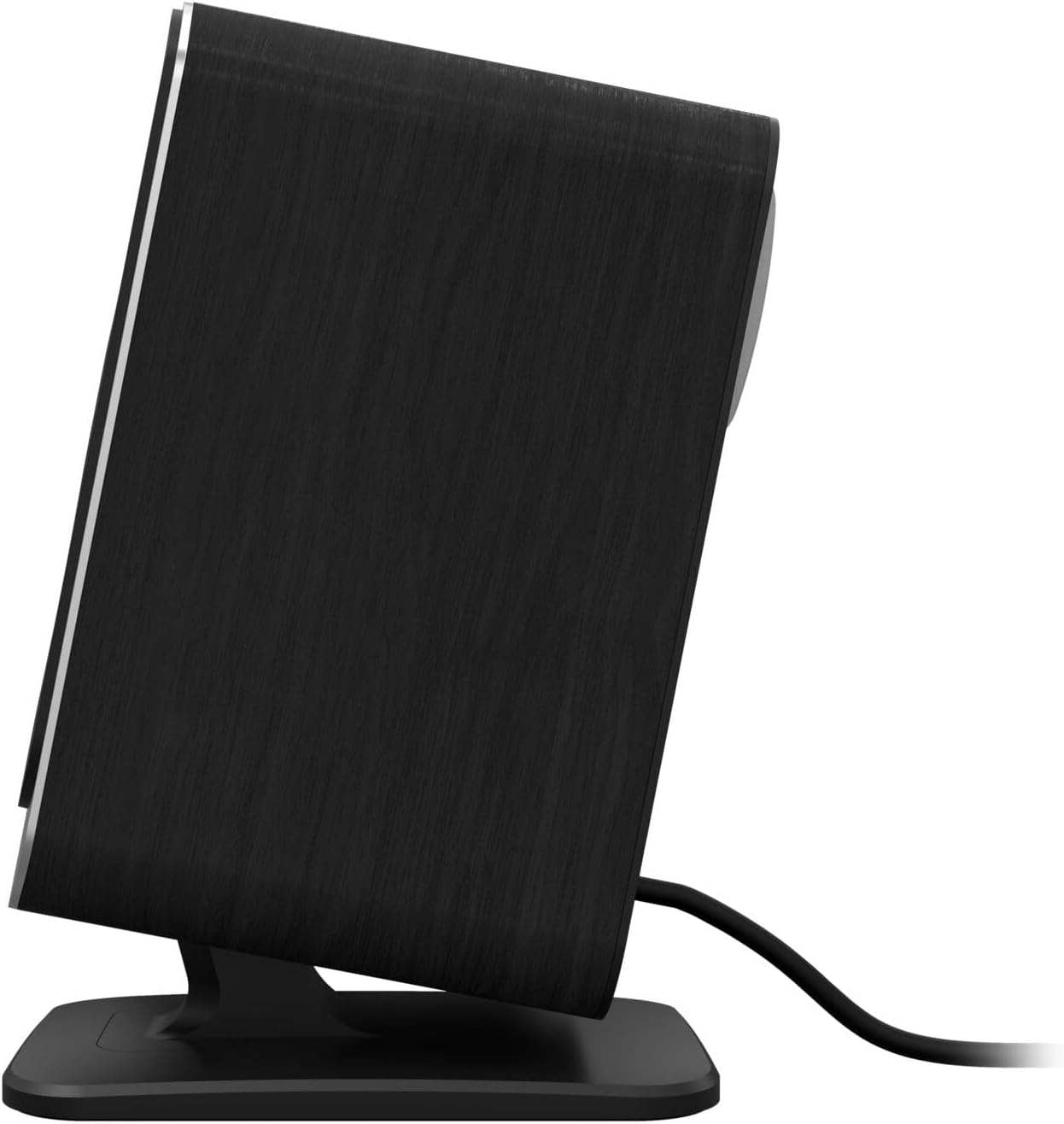
איור 4: צד view of the Klipsch ProMedia Lumina subwoofer, showcasing its compact design and textured black finish.
הווידאו 1: An official product video from Klipsch showcasing the ProMedia Lumina Computer Speakers with LED Lighting. The video highlights the design and lighting features of the speaker system.
הגדרה
Follow these steps to set up your Klipsch ProMedia Lumina speaker system:
- מיקום: Place the subwoofer on the floor or a sturdy surface near your computer. Position the satellite speakers on either side of your monitor, ensuring they are at ear level for the best audio experience.
- חיבור רמקולים לווייניים: Connect the left and right satellite speakers to the corresponding outputs on the back of the subwoofer using the provided speaker cables. Ensure a secure connection.
- התחבר למקור שמע:
- USB-C: Connect the USB-C cable from your computer to the USB-C input on the right satellite speaker.
- חיבור AUX (3.5 מ"מ): Connect the 3.5mm AUX cable from your audio source (e.g., computer, smartphone) to the AUX input on the left satellite speaker.
- בלוטות': For wireless connection, ensure Bluetooth is enabled on your device and the speaker system. Press and hold the power/Bluetooth button on the right satellite speaker to enter pairing mode. Select "Klipsch ProMedia Lumina" from your device's Bluetooth settings.
- חיבור חשמל: חבר את כבל החשמל לסאב וופר ולאחר מכן חבר אותו לשקע בקיר.
- הפעלה: Press the power/Bluetooth button on the right satellite speaker to turn on the system.

איור 5: The Klipsch ProMedia Lumina speaker system integrated into a gaming desktop setup, showing the satellite speakers flanking a monitor and the subwoofer placed discreetly.
פועל
Once your system is set up, you can begin enjoying your audio. The main controls are located on the subwoofer and the right satellite speaker.
בקרות בסיסיות
- כֶּרֶך: Use the volume knob on the subwoofer to adjust the overall sound level.
- טרבל / בס: Adjust the treble and bass knobs on the subwoofer to fine-tune your audio preferences.
- בחירת קלט: Use the input button (if available on the subwoofer or remote) to switch between connected sources (USB-C, AUX, Bluetooth).
Klipsch Control App
Enhance your experience with the Klipsch Control desktop app, available on all app stores. The app allows for precision command over various settings:
- התאמה אישית של EQ: Adjust equalization settings to match your audio content.
- מצבי תאורה: Customize RGB lighting effects, including night mode and music react mode.
- בקרת תכונה: גישה לתכונות והגדרות נוספות עבור אודיו מותאם אישית.

איור 6: A laptop screen displaying the Klipsch Control App interface, with a satellite speaker visible next to it, illustrating the app's role in customizing the speaker system.

איור 7: The rear of the Klipsch ProMedia Lumina satellite speakers displaying different customizable light patterns, showcasing the RGB lighting effects.
תַחזוּקָה
To ensure the longevity and optimal performance of your Klipsch ProMedia Lumina system, follow these maintenance guidelines:
- ניקוי: השתמשו במטלית רכה ויבשה לניקוי משטחי הרמקולים והסאב-וופר. הימנעו משימוש בחומרי ניקוי שוחקים, שעווה או ממסים.
- נִעוּר: Regularly dust the speaker grilles and vents to prevent dust buildup, which can affect sound quality and ventilation.
- ניהול כבלים: Keep cables organized and untangled to prevent damage and ensure a tidy setup.
- תנאים סביבתיים: הימנע מחשיפת המערכת לטמפרטורות קיצוניות, לחות גבוהה או אור שמש ישיר.
פתרון בעיות
If you encounter any issues with your speaker system, refer to the following common troubleshooting steps:
| בְּעָיָה | פִּתָרוֹן |
|---|---|
| אין סאונד |
|
| Static or Distortion |
|
| בעיות התאמת Bluetooth |
|
מפרטים
| תכונה | פְּרָט |
|---|---|
| שם הדגם | Klipsch ProMedia Lumina |
| מספר דגם של פריט | 1073625 |
| סוג רמקול | מחשב רמקול |
| מצב פלט שמע | לְהַקִיף |
| טכנולוגיית קישוריות | Bluetooth (5.3), USB-C, AUX (3.5mm) |
| תכונה מיוחדת | LED Light (Customizable RGB) |
| רמקול כוח פלט מרבי | 10 וואט |
| תגובת תדר | 20 הרץ |
| מידות המוצר | 6.5" D x 4" W x 9.75" H |
| משקל פריט | 13.1 פאונד |
| צֶבַע | שָׁחוֹר |
אחריות ותמיכה
Klipsch products are designed for years of enjoyment. For warranty information and technical support, please refer to the official Klipsch webאתר או צרו קשר עם שירות הלקוחות שלהם. שמרו את הוכחת הרכישה שלכם לכל תביעת אחריות.


