מָבוֹא
This manual provides essential information for setting up, operating, maintaining, and troubleshooting your Dell Pro Slim QCS1250 Small Form Factor (SFF) Desktop. Please read these instructions carefully before using your new computer.
המוצר נגמרview
The Dell Pro Slim QCS1250 SFF Desktop is a compact and powerful computing solution designed for various professional and personal applications. It features a 14th Gen Intel Core i5-14500 processor and runs on Windows 11 Pro.
פאנל קדמי

איור 1: חזית view of the Dell Pro Slim QCS1250 SFF Desktop with included keyboard and mouse.

איור 2: מפורט view of the front panel ports.
הפאנל הקדמי מספק גישה נוחה ליציאות הנמצאות בשימוש תכוף:
- 1x USB 3.2 Gen 1 (5 Gbps) Type-A: להעברת נתונים במהירות גבוהה.
- 1x USB 3.2 Gen 1 (5 Gbps) Type-C: Versatile port for data and charging compatible devices.
- 2x USB 2.0 (480 Mbps) Type-A: לחיבור התקני USB סטנדרטיים.
- שקע משולב לאוזניות/מיקרופון אחד (3.5 מ"מ): עבור קלט ופלט שמע.
- לחצן הפעלה: כדי להפעיל או לכבות את המערכת.
פאנל אחורי
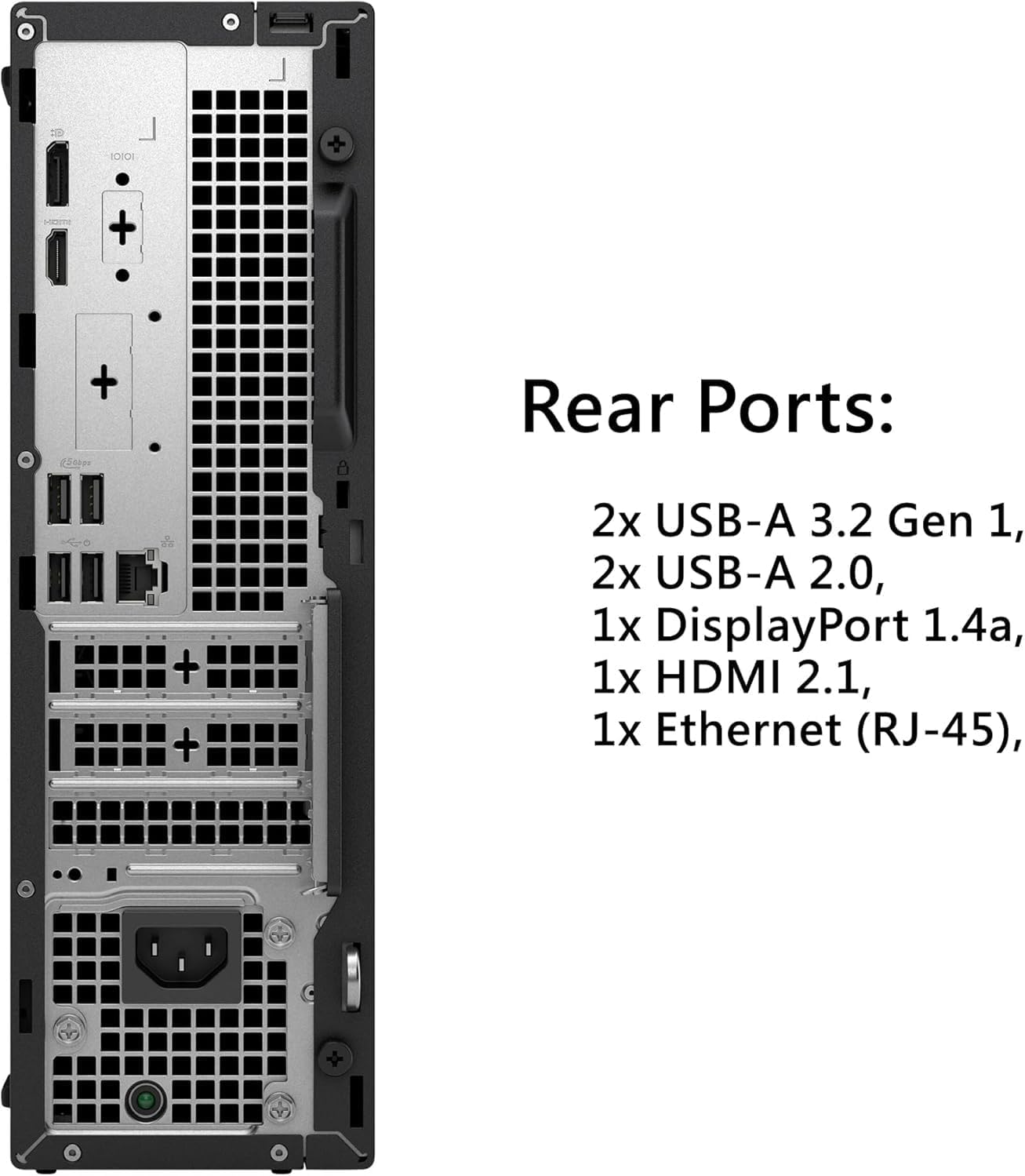
איור 3: מפורט view of the rear panel ports.
The rear panel includes ports for essential connections:
- 2x USB 3.2 Gen 1 (5 Gbps) Type-A: יציאות USB נוספות במהירות גבוהה.
- 2x USB 2.0 (480 Mbps) Type-A with SmartPower On: Standard USB ports, some supporting SmartPower On feature.
- יציאת DisplayPort 1.4a אחת: Supports resolutions up to 4096 x 2304 @60Hz.
- יציאת HDMI 2.1 אחת: Supports resolutions up to 4096 x 2160 @60Hz.
- 1x Ethernet (RJ-45): עבור חיבור רשת קווית.
- מחבר חשמל: לחיבור כבל החשמל.
הוראות התקנה
Follow these steps to set up your Dell Pro Slim QCS1250 SFF Desktop:
1. Connect Peripherals
- Connect the included keyboard and mouse to any available USB Type-A ports on the front or rear of the desktop.
- Connect your monitor(s) to the DisplayPort 1.4a and/or HDMI 2.1 ports on the rear panel. The system supports up to two monitors natively, and up to four with additional compatible hardware (not included).
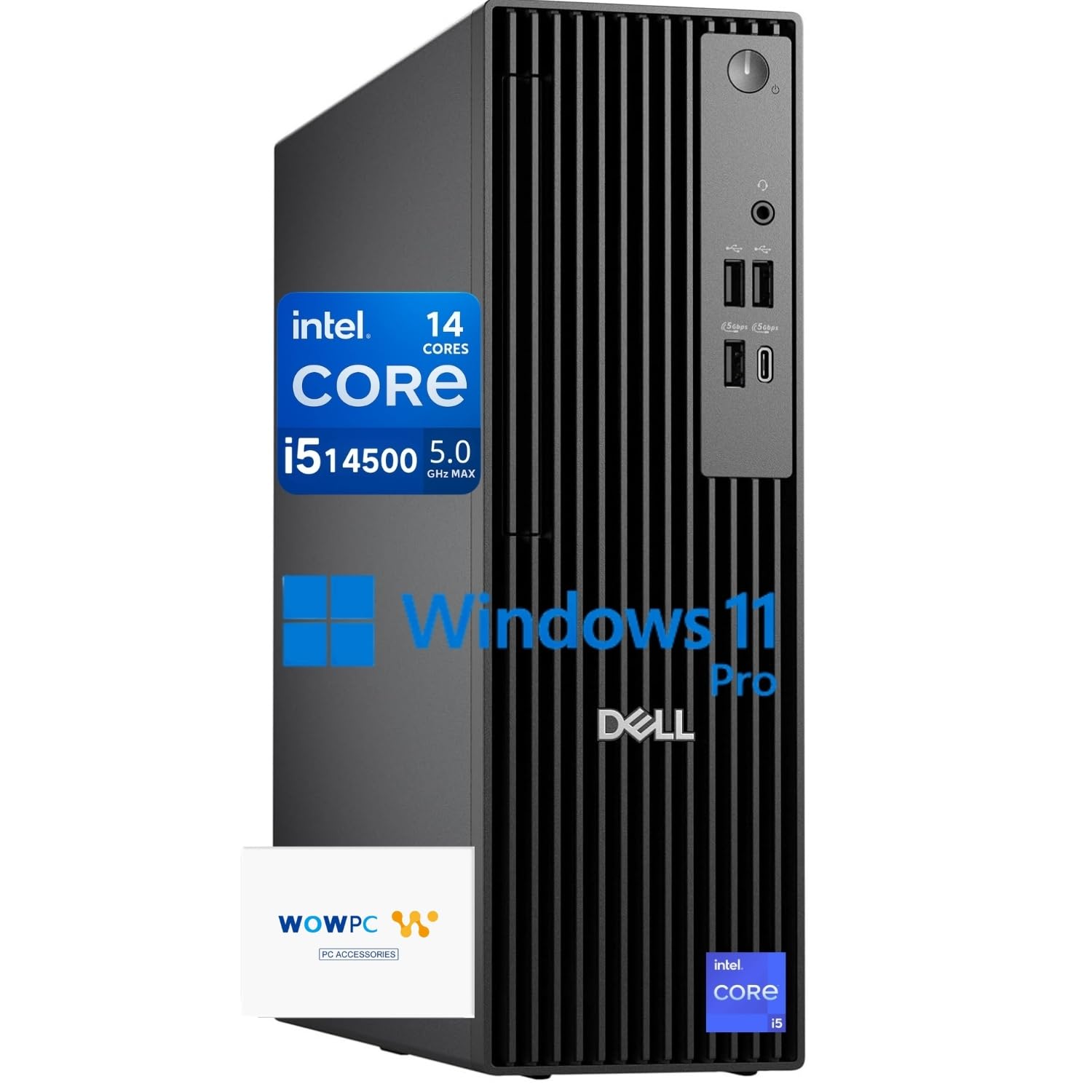
Figure 4: Desktop connected to two monitors for a multi-display setup.

Figure 5: The desktop is capable of supporting up to four displays for enhanced productivity.
2. התחבר לחשמל
- Connect the power cable to the power connector on the rear of the desktop and then to a power outlet.
3. הדלק
- Press the power button on the front panel of the desktop.
- פעל לפי ההוראות שעל המסך כדי להשלים את ההתקנה הראשונית של Windows 11 Pro.
הוראות הפעלה
Your Dell Pro Slim QCS1250 SFF Desktop comes pre-installed with Windows 11 Pro, offering a secure and efficient operating environment.
קישוריות רשת
The desktop supports both wired and wireless network connections:
- קווית: חבר כבל Ethernet ליציאת RJ-45 בלוח האחורי.
- אַלחוּט: The system features Wi-Fi 6E for high-speed wireless connectivity. Access Wi-Fi settings through the Windows 11 Pro operating system to connect to your preferred network.
USB-C Port Usage
The front USB-C port can be used for connecting various compatible devices, including external storage, docking stations, or charging mobile devices.
תַחזוּקָה
תחזוקה שוטפת מסייעת להבטיח את אורך החיים והביצועים האופטימליים של שולחן העבודה שלך.
ניקוי
- Keep the desktop clean by regularly wiping the exterior with a soft, dry cloth.
- Ensure ventilation openings are free from dust and obstructions to maintain proper airflow.
- Do not use liquid cleaners directly on the components.
עדכוני תוכנה
- Regularly check for and install Windows updates to ensure system security and performance.
- Update Dell drivers and firmware as recommended by Dell Support.
שחזור מערכת
A complimentary system recovery USB drive is included with your product. This drive allows you to reinstall or restore Windows 11 Pro if needed, providing a convenient solution for system issues or fresh installations.
פתרון בעיות
If you encounter issues with your Dell Pro Slim QCS1250 SFF Desktop, consider the following basic troubleshooting steps:
- אין כוח: Ensure the power cable is securely connected to both the desktop and a working power outlet. Try a different outlet if necessary.
- אין תצוגה: Verify that the monitor cables are securely connected to both the desktop and the monitor. Ensure the monitor is powered on and set to the correct input source.
- ציוד היקפי לא עובד: Check the connections of the keyboard, mouse, or other peripherals. Try connecting them to a different USB port.
- המערכת לא מגיבה: Press and hold the power button for 10-15 seconds to perform a hard shutdown. Wait a few seconds, then press the power button again to restart the system.
- בעיות תוכנה: If software problems persist, consider using the included system recovery USB drive to reinstall Windows 11 Pro.
For more complex issues, refer to the Dell support webאתר או צור קשר עם תמיכת הלקוחות.
מפרטים
| תכונה | מִפרָט |
|---|---|
| מעבד | מעבד Intel Core i5-14500 (14 ליבות, 20 הליכים, עד 5.0 גיגה-הרץ) |
| מַעֲרֶכֶת הַפעָלָה | Windows 11 Pro, 64 סיביות, אנגלית |
| גרָפִיקָה | Intel UHD Graphics 770 |
| זיכרון (RAM) | זיכרון RAM DDR5 בנפח 16 ג'יגה-בייט (ניתן להרחבה עד 64 ג'יגה-בייט) |
| אִחסוּן | כונן SSD PCIe M.2 בנפח 1TB |
| קישוריות | Wi-Fi 6E, Bluetooth, Ethernet (RJ-45) |
| יציאות קדמיות | 1x USB 3.2 Gen 1 Type-A, 1x USB 3.2 Gen 1 Type-C, 2x USB 2.0 Type-A, 1x Headphone/Mic Combo Jack |
| יציאות אחוריות | 2x USB 3.2 Gen 1 Type-A, 2x USB 2.0 Type-A (with SmartPower On), 1x DisplayPort 1.4a, 1x HDMI 2.1, 1x Ethernet (RJ-45) |
| מידות (ב x D x H) | 3.74 x 11.54 x 11.95 אינץ' (9.5 x 29.3 x 30.3 ס"מ) |
| מִשׁקָל | 8.61 פאונד (3.9 ק"ג) |
| ציוד היקפי כלול | Dell Black Wired Keyboard and Mouse, System Recovery USB Drive |
מידע על אחריות
This Dell Pro Slim QCS1250 SFF Desktop is covered by a one-year limited seller warranty. For specific terms and conditions, please refer to the warranty documentation provided with your purchase or contact the seller directly.
תְמִיכָה
For technical assistance, driver downloads, or further information regarding your Dell Pro Slim QCS1250 SFF Desktop, please visit the official Dell support website or contact Dell customer service. Keep your product's serial number or service tag readily available when seeking support.
ניתן למצוא משאבים נוספים ופרטי יצירת קשר באתר תמיכה של Dell Webאֲתַר.


