מָבוֹא
Welcome to the user manual for your Logitech Alto Keys K98M Wireless Mechanical Keyboard. This guide provides comprehensive instructions for setup, operation, maintenance, and troubleshooting to ensure optimal performance and a satisfying typing experience. Please read this manual thoroughly before using your new keyboard.

תיאור תמונה: The main product image of the Logitech Alto Keys K98M Wireless Mechanical Keyboard, presented in a graphite color, showcasinהפריסה והעיצוב המלאים שלו.
תכונות מפתח
- Immersive Typing with UniCushion: Experience a mechanical keyboard feel where the gasket mount absorbs vibrations for smoother keystrokes, delivering comfort and precision.
- Seamlessly Smooth Typing: Features hot-swappable Marble Switches with concave keys, offering stable and responsive typing for all-day comfort.
- White Backlighting: Durable keycaps with white backlighting ensure functionality and style in any lighting condition.
- Customizable for Productivity: Program Action Keys via the Logi Options+ App to tailor the keyboard to your needs and boost productivity with one-click access to features.
- Functional and Stylish Design: Combines a transparent top case, 98-key layout, and vibrant colors for a practical, stylish, and satisfying tactile typing experience.
- חיי סוללה מורחבים: Enjoy up to 12 months of wireless use with Bluetooth Low Energy or Logi Bolt USB Receiver, with convenient USB-C recharging.
- Seamless Multi-Device Connectivity: Connects via Bluetooth and Logi Bolt, compatible with Windows, macOS, Chrome OS, Linux, and iOS for versatile use across devices.
תוכן החבילה
אנא ודא שכל הפריטים נמצאים באריזת המוצר שלך:

תיאור תמונה: The image displays the typical contents found in the Logitech Alto Keys K98M package: the mechanical keyboard itself, a Logi Bolt USB receiver, and a USB-C charging cable.
- Logitech Alto Keys K98M Wireless Mechanical Keyboard
- מקלט USB של Logi Bolt
- כבל טעינה USB-C
הגדרה וקישוריות
טעינת המקלדת
Before initial use, or when the battery indicator shows low power, connect the keyboard to a power source using the provided USB-C cable. The keyboard can be used normally while it is charging.

תיאור תמונה: א מפורט view of the Logitech Alto Keys K98M keyboard, highlighting the USB-C charging port located on its side, indicating where to connect the charging cable.
מתחבר באמצעות בלוטות'
- ודא שהמקלדת טעונה כראוי.
- הפעל את המקלדת באמצעות מתג ההפעלה.
- Activate Bluetooth pairing mode on the keyboard. This is typically done by pressing and holding a dedicated Bluetooth pairing button or a function key combination (refer to your keyboard's specific layout for the Bluetooth icon).
- On your device (PC, Mac, Laptop, Tablet, Smartphone), navigate to the Bluetooth settings and select "Logitech Alto Keys K98M" from the list of available devices.
- פעל לפי כל ההנחיות שעל המסך כדי להשלים את תהליך ההתאמה.
Connecting via Logi Bolt USB Receiver
- Insert the Logi Bolt USB receiver into an available USB port on your computer.
- ודא שהמקלדת מופעלת.
- The keyboard should automatically connect to the receiver. If the connection is not established, use the Logi Options+ software to manually pair the devices.
Software Installation (Logi Options+ App)
For full customization and to unlock all features of your keyboard, download and install the Logi Options+ App from the official Logitech webאתר. תוכנה זו מאפשרת לך:
- Customize Action Keys for specific functions.
- Manage multi-device connections.
- Check battery status and receive notifications.

תיאור תמונה: This image displays a complete desktop workstation featuring the Logitech Alto Keys K98M keyboard. The computer monitor shows the Logi Options+ application interface, demonstrating how users can customize the keyboard's functions and settings.
הפעלת המקלדת
ניסיון בהקלדה
The Alto Keys K98M is engineered with UniCushion gasket mount technology, which effectively absorbs vibrations to provide a smoother, more acoustically pleasing, and tactile keystroke. The hot-swappable Marble Switches, combined with concave keycaps, ensure a stable and responsive typing experience suitable for extended use.

תיאור תמונה: מקצוען צדדיfile view of the Logitech Alto Keys K98M keyboard, clearly showing the UniCushion gasket design integrated into the keyboard's structure, which is responsible for vibration absorption.
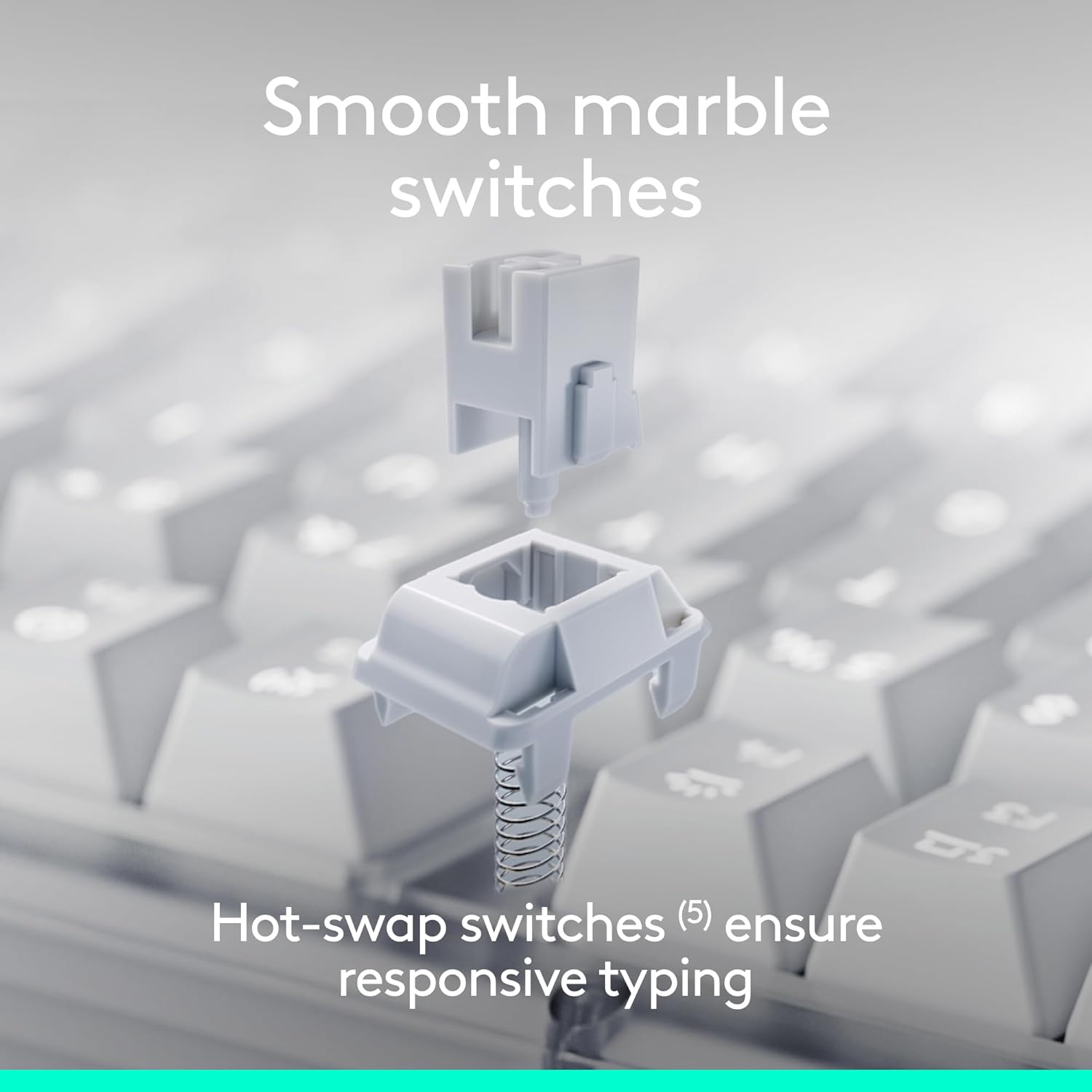
תיאור תמונה: An exploded diagram illustrating the individual components of a hot-swappable Marble Switch, demonstrating its modular design for easy replacement or customization.
בקרת תאורה אחורית
The keyboard features white backlighting to enhance visibility in various lighting conditions. Adjust the backlighting intensity using the dedicated function keys (typically F5 and F6, or similar keys marked with a sun icon). Pressing these keys will cycle through different brightness levels or turn the backlighting on/off.

תיאור תמונה: A close-up photograph of the Logitech Alto Keys K98M keyboard in a low-light environment, showcasing the clear and bright white backlighting of the keys.
Customizing Action Keys
Leverage the Logi Options+ App to personalize the Action Keys (the function row keys) on your keyboard. You can assign specific tasks, launch applications, or create custom macros to streamline your workflow and boost productivity.
מיתוג מרובה מכשירים
The Alto Keys K98M supports seamless switching between up to three connected devices. Use the Easy-Switch keys (usually F1, F2, F3, marked with device icons) to instantly switch between your paired computers, tablets, or smartphones.
תַחזוּקָה
כדי להבטיח את אורך החיים והביצועים האופטימליים של המקלדת, יש לפעול לפי הנחיות התחזוקה הבאות:
- ניקוי: Regularly clean the keycaps and the keyboard chassis with a soft, dry, lint-free cloth. For stubborn dirt, a slightly damp cloth with mild soap can be used, ensuring no moisture enters the keyboard.
- הימנע מכימיקלים קשים: Do not use abrasive cleaners, solvents, or harsh chemicals, as these can damage the keyboard's finish and keycap legends.
- טיפול סביבתי: Keep the keyboard away from excessive moisture, direct sunlight, and extreme temperatures to prevent damage to internal components and battery degradation.
- טיפול בכיסוי המקשים והמתגים: If you are replacing hot-swappable switches, handle them gently to avoid bending pins. Ensure keycaps are re-seated firmly after cleaning or customization.
פתרון בעיות
If you encounter issues with your Logitech Alto Keys K98M keyboard, refer to the following common solutions:
המקלדת לא מגיבה
- בדוק את הסוללה: Ensure the keyboard has sufficient battery charge. Connect it to a power source using the USB-C cable.
- הפעלה: Verify that the keyboard's power switch is in the 'On' position.
- יצירת קשר מחדש:
- For Bluetooth: Go to your device's Bluetooth settings, forget the keyboard, and then re-pair it.
- For Logi Bolt: Ensure the USB receiver is securely plugged into a working USB port. Try a different USB port. If issues persist, use the Logi Options+ App to re-pair the keyboard with the receiver.
- הפעל מחדש מכשירים: Restart your computer or the device connected to the keyboard.
תאורה אחורית לא עובדת או עמומה
- התאם את הבהירות: Use the dedicated backlighting function keys (e.g., F5/F6) to increase brightness.
- רמת סוללה: Low battery can cause backlighting to dim or turn off to conserve power. Charge the keyboard.
Specific Keys Not Registering
- Check Keycap Seating: Gently press down on the affected keycap to ensure it is fully seated on the switch.
- פסולת נקייה: Remove any debris or dust that may be lodged around or under the keycap.
- Switch Inspection (for hot-swappable): If comfortable, gently remove the keycap and then the switch. Inspect the switch pins for any bends or damage, and re-insert it carefully.
- עדכון תוכנה/קושחה: Ensure your Logi Options+ App and keyboard firmware are up to date.
מפרטים
| תכונה | פְּרָט |
|---|---|
| מותג | Logitech |
| מספר דגם | 920-013575 |
| טכנולוגיית קישוריות | Bluetooth, RF (Logi Bolt), USB |
| סוג מקלדת | מֵכָנִי |
| מתגים | Hot-swappable Marble Switches |
| תאורה אחורית | White, Single Color |
| תאימות מערכת הפעלה | Chrome OS, Linux, Mac OS, Windows 10, iOS |
| משקל פריט | 2.43 פאונד |
| מידות המוצר | 15.79 x 5.79 x 1.56 אינץ' |
| מקור כוח | מופעל על סוללה (נטענת USB-C) |
| חיי סוללה | Up to 12 months (with Bluetooth Low Energy) |
פֶּתֶק: המפרט נתון לשינוי ללא הודעה מוקדמת.
אחריות ותמיכה
For detailed warranty information, technical assistance, and access to additional resources for your Logitech Alto Keys K98M keyboard, please visit the official Logitech support webאֲתַר:
You can also find more product information and register your device at the Logitech Store on Amazon:
מוצר רשמי נגמרview
תיאור הסרטון: This official product video from Logitech provides an overview of the Alto Keys K98M Wireless Customizable Mechanical Keyboard, showcasing its design, key features, and the overall typing experience.


