מָבוֹא
This manual provides detailed instructions for the setup, operation, and maintenance of your Polaring M8 Wireless Retro Game Console. Please read this manual thoroughly before use to ensure proper functionality.

Image: The Polaring M8 Wireless Retro Game Console, including the game stick, two wireless controllers, and various cables.
תוכן החבילה
אנא ודא שכל הפריטים המפורטים להלן כלולים בחבילה שלך. אם פריטים חסרים או פגומים, אנא פנה לתמיכת הלקוחות.
- 1 x Game Stick
- 2 x בקרים אלחוטיים
- 1 x כבל HDMI
- 1 x כבל חשמל USB
- כרטיס TF אחד בנפח 64 ג'יגה-בייט (מותקן מראש או נפרד)
- 1 x מקלט אלחוטי
- מדריך למשתמש אחד (מסמך זה)

Image: Visual representation of the Polaring M8 package contents.
הוראות התקנה
Follow these steps to set up your Polaring M8 Wireless Retro Game Console.
- הכנס כרטיס TF: Ensure the 64GB TF card is inserted into the game stick.
- Connect Wireless Adapter: Plug the wireless receiver into the USB port on the game stick.
- חבר כבל HDMI: Connect one end of the HDMI cable to the game stick and the other end to an available HDMI input port on your TV, PC monitor, or projector.
- חבר חשמל: Plug the USB power cable into the game stick's power input, then connect the other end to a USB power source (e.g., a USB wall adapter, not included, or a USB port on your display device).
- הכנס סוללות בקר: Open the battery compartment on the back of each wireless controller and insert 2 AAA batteries (not included), ensuring correct polarity. Close the compartment.
- הפעלה: Turn on your display device and select the correct HDMI input source. The game console should power on automatically.
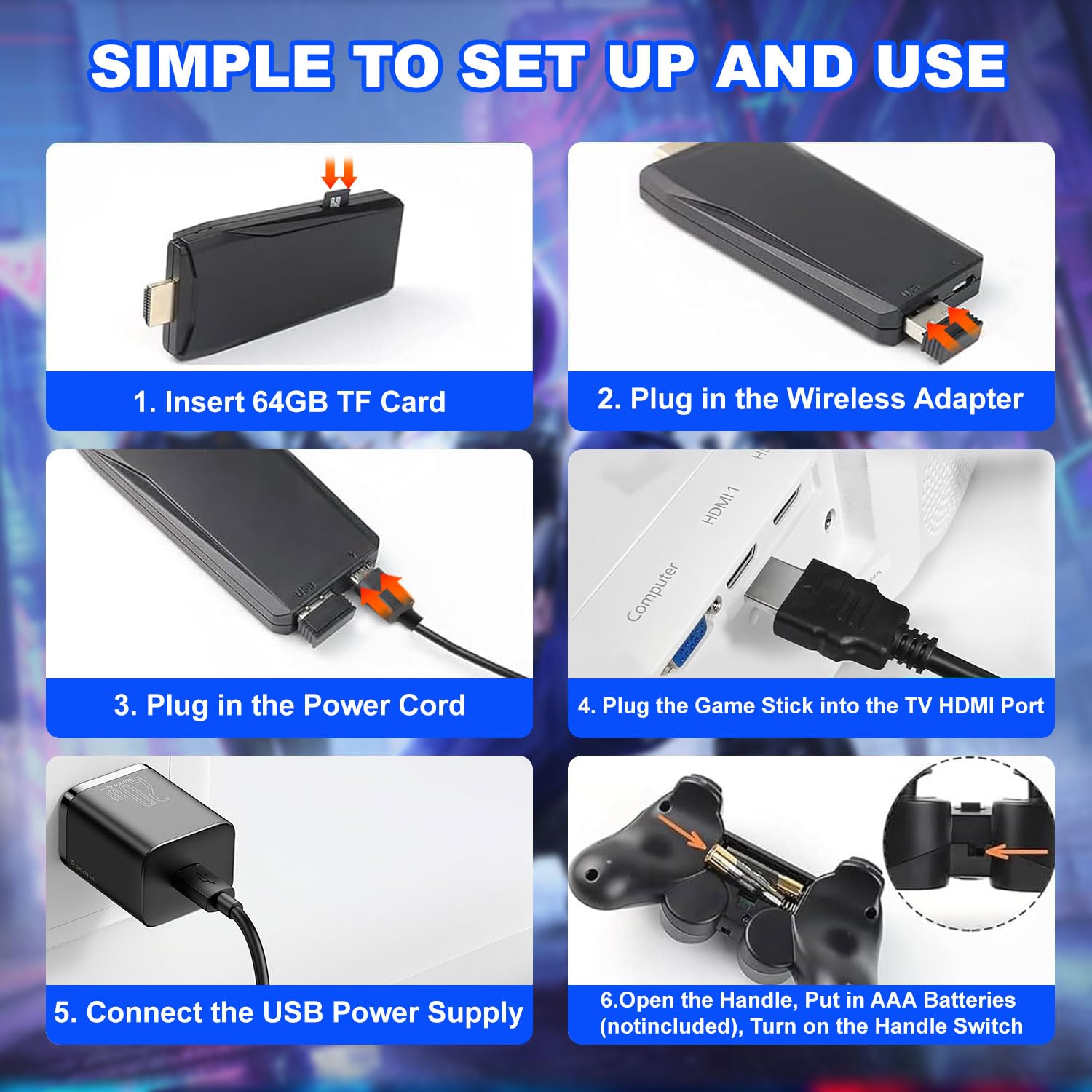
Image: Detailed setup steps for the Polaring M8 console.
הוראות הפעלה
Controller Pairing and Usage
The wireless controllers are designed to automatically pair with the game stick upon power-on, provided the receiver is connected.
- ניווט: Use the directional pad (D-pad) or left analog stick to navigate through menus.
- בְּחִירָה: הקש על A button (or equivalent action button) to select options.
- חזרה/יציאה: הקש על B button (or equivalent back button) to go back or exit a menu.
- התחלת משחק: Select a game from the menu and press the הַתחָלָה כפתור כדי להתחיל.
- Pause/Menu: During gameplay, pressing the MODE button (or a combination like SELECT + START) may bring up an in-game menu or pause the game.
Game Selection and Emulators
The Polaring M8 console comes pre-loaded with over 40,000 games across 23 emulators, offering a wide range of classic gaming experiences.
- Browse through the emulator categories to find your desired game.
- The system supports various classic game genres including action, adventure, puzzle, and role-playing games.

Image: Gameplay demonstration with wireless controllers.
תַחזוּקָה
To ensure the longevity and optimal performance of your Polaring M8 console, follow these maintenance guidelines:
- ניקוי: השתמשו במטלית רכה ויבשה לניקוי הקונסולה והבקרים. הימנעו משימוש בחומרי ניקוי נוזליים או בחומרים שוחקים.
- אִחסוּן: אחסנו את הקונסולה והאביזרים במקום קריר ויבש, הרחק מאור שמש ישיר וטמפרטורות קיצוניות.
- טיפול בסוללה: Remove batteries from controllers if they will not be used for an extended period to prevent leakage.
- אוורור: Ensure the game stick has adequate ventilation during operation to prevent overheating.
פתרון בעיות
If you encounter any issues with your Polaring M8 console, please refer to the following troubleshooting steps:
| בְּעָיָה | סיבה אפשרית | פִּתָרוֹן |
|---|---|---|
| No power/Console not turning on | כבל החשמל אינו מחובר כראוי; אספקת חשמל לא מספקת. | Ensure USB power cable is securely connected. Try a different USB power adapter or port. |
| No signal on TV/Monitor | Incorrect HDMI input selected; HDMI cable loose or faulty. | Verify the correct HDMI input is selected on your display. Reconnect the HDMI cable firmly. Try a different HDMI port or cable. |
| הבקרים לא מגיבים | Low or dead batteries; controllers not paired; wireless receiver disconnected. | Replace AAA batteries in controllers. Ensure the wireless receiver is securely plugged into the game stick. Re-pair controllers if necessary (refer to specific pairing instructions if provided separately). |
| Game lag or input delay | Wireless interference; console overheating; game emulation issues. | Ensure controllers are close to the receiver. Provide adequate ventilation for the game stick. Some emulated games may exhibit minor input delays. |
| Games resetting or not saving progress | TF card issues; specific game emulation behavior. | Ensure the TF card is properly inserted and not corrupted. Some retro games may not have built-in save features or require specific in-game actions to save. |
| Console gets hot during use | פעולה רגילה; אוורור לא מספק. | It is normal for the device to generate some heat. Ensure it is in an open area with good airflow. If it becomes excessively hot, discontinue use and contact support. |
מפרטים
- דֶגֶם: M8
- מותג: קוטביות
- אִחסוּן: 64GB TF Card (expandable storage supported)
- משחקים: Over 40,000 pre-installed games
- אמולטורים: 23 supported emulators
- תְפוּקָה: 4K HD HDMI (supports 1080P, 2K, 4K TVs/projectors/monitors)
- בקרים: Dual 2.4GHz Wireless Controllers
- קישוריות: HDMI, USB
- משקל פריט: בערך 13.1 אונקיות (371 גרם)
- מידות חבילה: בערך 6.57 x 4.69 x 4.17 אינץ' (16.7 x 11.9 x 10.6 ס"מ)

Image: The Polaring M8 console supports 4K HD output to various display devices.
סרטוני מוצר רשמיים
לא נמצאו סרטוני מוצר רשמיים מהמוכר בנתונים שסופקו.
אחריות ותמיכה
For warranty information, technical support, or any inquiries regarding your Polaring M8 Wireless Retro Game Console, please refer to the contact information provided with your purchase or visit the official Polaring webאֲתַר.
אנא שמור את הוכחת הרכישה שלך עבור תביעות אחריות.


