1. הקדמה
Thank you for choosing the Nelko PM220 Bluetooth Thermal Label Printer. This portable device is designed for efficient label printing without the need for ink cartridges, making it ideal for small businesses, address labeling, logo printing, and various organizational tasks. This manual provides detailed instructions for setup, operation, maintenance, and troubleshooting to ensure optimal performance.
2. המוצר נגמרview
The Nelko PM220 is a compact thermal label printer that connects wirelessly via Bluetooth to your smartphone or PC. It supports various label sizes and offers clear, high-resolution printing for text, barcodes, and QR codes.
2.1 תכולת החבילה
- Nelko PM220 Label Printer
- Label Paper Roll (starter roll)
- כבל טעינה USB
- מדריך למשתמש

איור 1: The Nelko PM220 Bluetooth Thermal Label Printer shown with a roll of blank labels. The printer features a sleek navy blue design with a power button and a paper feed button on the front panel.
3. מדריך התקנה
3.1 Loading Label Tape
- Open the printer cover by gently pushing the release button or lifting the designated area.
- Insert the label roll into the paper bin, ensuring the labels face upwards and the leading edge extends slightly out of the printer slot.
- Adjust the paper slot guide to the right to ensure the label paper is tightly attached to the far right side of the paper bin, preventing misalignment during printing.
- סגור היטב את מכסה המדפסת.

איור 2: A label roll being correctly inserted into the paper compartment of the Nelko PM220 printer. The roll is placed with the labels facing upwards.
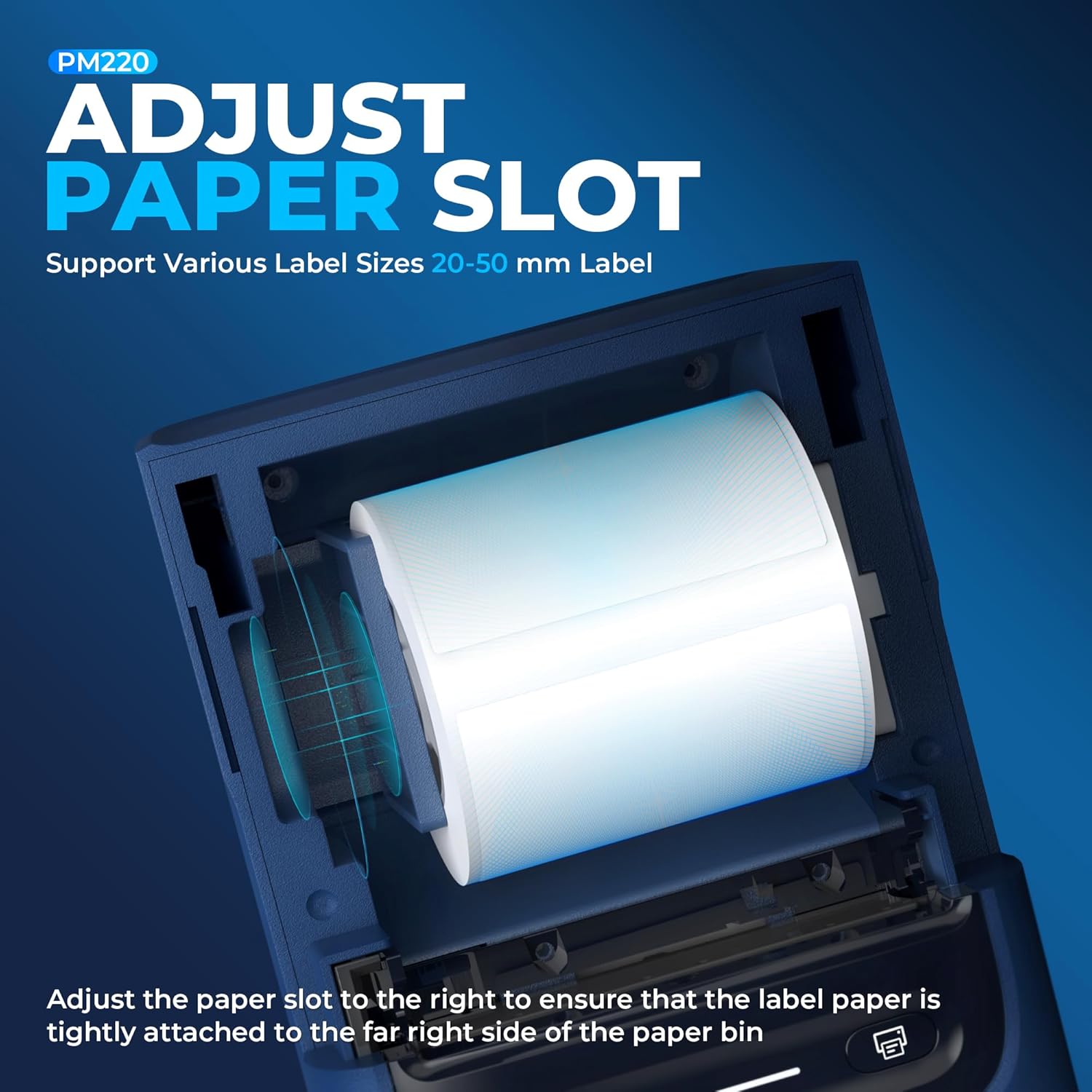
איור 3: תקריב view demonstrating how to adjust the paper slot guide within the Nelko PM220 printer. The guide is moved to the right to secure the label roll.
3.2 חיבור לחשמל
- חבר את כבל הטעינה USB המצורף ליציאת הטעינה של המדפסת.
- חבר את הקצה השני של כבל ה-USB לספק כוח USB תואם (לא כלול) או ליציאת USB של מחשב.
- Allow the printer to charge fully before first use. The indicator light will typically change color to indicate a full charge.
3.3 התקנת אפליקציה וצימוד Bluetooth
- Download the official Nelko label printing application from your device's app store (e.g., Apple App Store for iOS, Google Play Store for Android). For PC connectivity, download the appropriate driver and software from the official Nelko webאֲתַר.
- Ensure Bluetooth is enabled on your smartphone or PC.
- Power on the Nelko PM220 printer by pressing and holding the power button until the indicator light illuminates.
- Open the Nelko app (or PC software) and navigate to the device connection section.
- חפש available Bluetooth devices and select 'Nelko PM220' from the list.
- Follow any on-screen prompts to complete the pairing process. A successful connection will be indicated by a change in the printer's indicator light or a message within the app.
4. הוראות הפעלה
4.1 הפעלה/כיבוי
- כדי להפעיל: Press and hold the power button for approximately 2-3 seconds until the indicator light turns on.
- כדי לכבות: Press and hold the power button for approximately 2-3 seconds until the indicator light turns off.
4.2 הדפסת תווית
- ודא שהמדפסת דולקת ומחוברת בהצלחה למכשיר שלך באמצעות Bluetooth.
- Open the Nelko app or PC software.
- Select your desired label template or create a new label design.
- Enter the text, add images, barcodes, or QR codes as needed.
- Adjust label size and print settings within the app to match the loaded label tape.
- מִרֹאשׁview התווית כדי להבטיח דיוק.
- Tap the 'Print' button in the app. The printer will feed and print the label.
- Carefully tear off the printed label along the serrated edge.

איור 4: The Nelko PM220 printer actively printing various labels, including shipping labels, product labels, and decorative stickers, demonstrating its versatility.
5. תחזוקה
5.1 ניקוי ראש ההדפסה
Regular cleaning of the print head ensures optimal print quality and extends the life of your printer. Use a soft, lint-free cloth lightly dampהסתיים עם איזופרופיל אלכוהול.
- Ensure the printer is powered off and disconnected from power.
- פתח את מכסה המדפסת.
- Gently wipe the print head surface with the dampened cloth. Avoid touching the print head with bare hands.
- יש לאפשר לראש ההדפסה להתייבש לחלוטין לפני סגירת המכסה והפעלת המדפסת.
5.2 אחסון
Store the printer in a cool, dry place away from direct sunlight and extreme temperatures. Remove any label rolls if storing for an extended period.
6. פתרון תקלות
If you encounter issues with your Nelko PM220 printer, refer to the table below for common problems and solutions.
| בְּעָיָה | סיבה אפשרית | פִּתָרוֹן |
|---|---|---|
| המדפסת לא נדלקת | סוללה חלשה או שאין חיבור לחשמל | Charge the printer using the provided USB cable. Ensure the power adapter is working. |
| לא ניתן להתחבר באמצעות Bluetooth | Bluetooth is off, printer is not in pairing mode, or incorrect device selected | Ensure Bluetooth is enabled on your device. Restart the printer and try pairing again. Verify you are selecting 'Nelko PM220'. |
| איכות הדפסה ירודה (עמומה, מטושטשת) | Dirty print head, incorrect label type, or low battery | Clean the print head as described in Section 5.1. Ensure you are using thermal labels. Charge the printer. |
| Labels are not feeding correctly | Label roll improperly loaded or paper slot not adjusted | Re-load the label roll, ensuring it is seated correctly and the paper slot guide is adjusted tightly against the roll (refer to Section 3.1). |
| Printer stops printing mid-label | Out of labels or low battery | Replace the label roll. Charge the printer. |
7. מפרט טכני
| תכונה | מִפרָט |
|---|---|
| מותג | נלקו |
| שם הדגם | PM220 |
| טכנולוגיית הדפסה | תֶרמִי |
| טכנולוגיית קישוריות | בלוטות' |
| פלט מדפסת | מונוכרום |
| רזולוציית הדפסה מרבית בשחור לבן | 203 dpi |
| Max Printspeed מונוכרום | 45 מ"מ לשנייה |
| גדלי מדיה נתמכים | 23-54mm (width) |
| מידות המוצר | 13.3 x 8 x 10.2 אינץ' |
| משקל פריט | 13.4 אונקיות |
| סוג דיו למדפסת | אין דיו (תרמי) |
| רכיבים כלולים | Printer, Paper |
8. אחריות ותמיכה
Nelko products are designed for reliability and performance. For specific warranty information, please refer to the warranty card included with your purchase or visit the official Nelko website. If you require technical assistance or have questions not covered in this manual, please contact Nelko customer support through their official channels.
תמיכה מקוונת: Visit the official Nelko webאתר לשאלות נפוצות, מנהלי התקנים והורדות תוכנה.
תמיכה בדוא"ל: עיין באריזת המוצר שלך או במסמך הרשמי webאתר לכתובות דוא"ל של שירות לקוחות.


