1. המוצר נגמרview
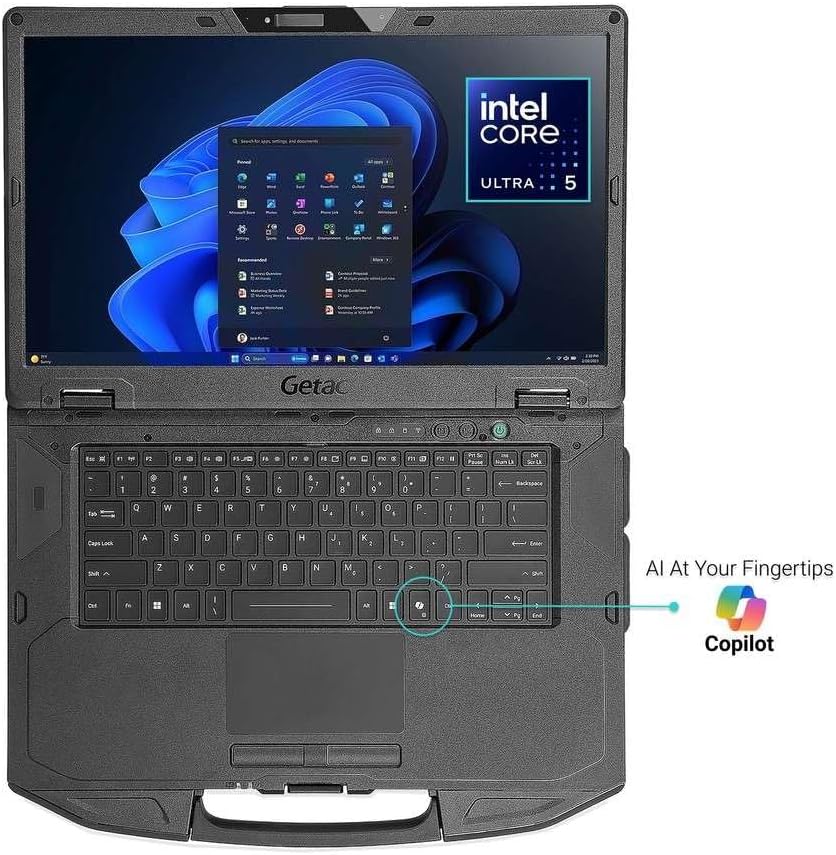
The Getac S510 is a rugged laptop designed for demanding environments, featuring an Intel Core Ultra 5 125U processor, a 15.6-inch Full HD sunlight-readable display, and robust construction meeting MIL-STD-810H and IP53 standards. This manual provides essential information for setting up, operating, and maintaining your device.
תכונות עיקריות:
- Intel Core Ultra 5 125U Processor with AI-powered performance
- 15.6-inch TFT LCD FHD Sunlight Readable Display (1,000 nits)
- 32GB DDR5 RAM and 1TB PCIe NVMe SSD for high performance
- MIL-STD-810H and IP53 certified rugged design
- LED Backlit membrane Keyboard with dedicated Copilot key
- Comprehensive connectivity: USB 3.2 x2, Thunderbolt 4, HDMI, LAN, Audio In/Out, Docking Connector
- 5MP Webcam with Windows Hello for secure authentication
מה יש בקופסה:
- Getac S510 Rugged Laptop
- 1x סוללה
- מתאם מתח AC 65W
תמונות מוצר:


2. התקנה
הפעלה ראשונית:
- Connect the provided 65W AC power adapter to the laptop's DC power jack and a power outlet.
- לחץ על לחצן ההפעלה הממוקם במכשיר כדי להפעיל אותו.
- פעל לפי ההוראות שעל המסך כדי להשלים את ההתקנה הראשונית של Windows 11 Pro.
התקנה/החלפה של סוללה:
The Getac S510 features a hot-swappable battery. To install or replace the battery:
- Ensure the laptop is powered off or in a safe state for battery removal.
- אתר את תא הסוללה בחלק התחתון של המחשב הנייד.
- Slide the release latches to unlock the battery.
- Carefully remove the old battery and insert the new battery, ensuring it clicks into place.
- Secure the latches.
התקנת כרטיס SIM:
To install a SIM card for mobile data connectivity:
- Power off the laptop and disconnect the AC adapter.
- Locate the access panel on the underside of the laptop, typically secured by screws.
- Carefully unscrew and remove the panel.
- Identify the SIM card slot. It may be located near the SSD or other internal modules.
- Insert the SIM card into the slot, ensuring correct orientation.
- Replace the access panel and secure the screws.
- Power on the laptop. The system should detect the SIM card.
3. הוראות הפעלה
התאמת בהירות התצוגה:
The 1,000 nits sunlight-readable display ensures visibility in bright conditions. Adjust brightness using the function keys (e.g., Fn + F5/F6) or through Windows display settings.
תאורה אחורית של המקלדת:
The LED backlit membrane keyboard allows for typing in low-light environments. Activate or adjust the backlight using the dedicated function key (e.g., Fn + Spacebar or a specific F-key).
נעילת טביעות אצבע:
Utilize the integrated fingerprint reader for fast and secure login via Windows Hello. Set up your fingerprint in Windows Settings > Accounts > Sign-in options.
קישוריות:
- Wi-Fi: Connect to wireless networks via the Windows network settings.
- בלוטות': Pair Bluetooth devices (e.g., headphones, mouse) through Windows Bluetooth settings.
- Thunderbolt 4: Use the Thunderbolt 4 Type-C port for high-speed data transfer, video output, and power delivery.
- HDMI: Connect to external displays using the HDMI port.
- LAN: Use the RJ45 Gigabit Ethernet port for wired network connections.
Using the 5MP Webפִּקָה:
מצלמת 5MP משולבת webcam supports Windows Hello face authentication and is suitable for video conferencing. Ensure proper lighting for optimal performance.
4. תחזוקה
ניקוי המכשיר:
Due to its rugged design, the S510 can withstand harsh conditions. Clean the exterior with a soft, damp cloth. For the display, use a microfiber cloth and a screen-safe cleaning solution. Avoid harsh chemicals or abrasive materials.
טיפול בסוללה:
To prolong battery life, avoid extreme temperatures and fully discharging the battery frequently. Store the laptop with a partial charge if not used for extended periods.
הרחבת אחסון:
The laptop features a 1TB PCIe NVMe SSD. Consult a qualified technician for any storage upgrades or replacements to maintain the device's ruggedness and warranty.
Ruggedness Guidelines:
The S510 is MIL-STD-810H and IP53 certified. While designed to be durable, avoid intentional abuse. Ensure all port covers are securely closed to maintain IP53 water and dust resistance.
5. פתרון תקלות
| לְהַנפִּיק | פתרון אפשרי |
|---|---|
| המחשב הנייד לא נדלק | Ensure the AC adapter is securely connected and the battery is charged. Try removing and reinserting the battery. |
| התצוגה עמומה מדי או בהירה מדי | Adjust display brightness using Fn keys or Windows display settings. |
| אין חיבור Wi-Fi | Check Wi-Fi settings in Windows. Ensure Airplane mode is off. Restart the laptop and your router. |
| כרטיס SIM לא זוהה | Verify the SIM card is correctly installed in its slot. Restart the laptop. Check network settings in Windows. |
| System performance is slow | Close unnecessary applications. Check for background processes. Ensure sufficient free storage space. Run a system diagnostic. |
6. מפרטים
| תכונה | פְּרָט |
|---|---|
| מעבד | Intel Core Ultra 5 125U (up to 4.3GHz) |
| אַיִל | זיכרון DDR5 בנפח 32 ג'יגה-בייט (5600 מגה-הרץ) |
| אִחסוּן | כונן SSD PCIe NVMe בנפח 1 טרה-בייט |
| לְהַצִיג | 15.6-inch TFT LCD FHD (1920 x 1080 pixels), 1,000 nits Sunlight Readable, Non-Touch |
| גרָפִיקָה | המשולב Intel Graphics |
| מַעֲרֶכֶת הַפעָלָה | Windows 11 Pro |
| Webפִּקָה | 5 MP (Windows Hello compatible) |
| קישוריות אלחוטית | 802.11ax (Wi-Fi), Bluetooth |
| נמלים | USB 3.2 x2, Thunderbolt 4 (Type-C), HDMI, LAN (RJ45), Audio In/Out Jack, Docking Connector |
| מידות (WxDxH) | 14.8 x 10.9 x 1.5 אינץ' |
| מִשׁקָל | 5.18 פאונד (בערך) |
| קשיחות | MIL-STD-810H, IP53 Certified, Vibration & 3ft (0.9m) drop resistant |
| סוֹלְלָה | סוללת ליתיום יון אחת (כלול) |
7. אחריות ותמיכה
For warranty information, technical support, or service inquiries, please refer to the official Getac website or contact your authorized Getac reseller. Keep your purchase receipt and product serial number readily available when seeking support.
Note: No official product videos from the seller for the Getac S510 were provided in the available data. Videos for other brands/models were excluded to maintain product relevance and accuracy.


