AULA WIN60 HE PRO 60% Mechanical Gaming Keyboard User Manual
Model: WIN60 HE PRO | Brand: AULA
1. הקדמה
This manual provides detailed instructions for the AULA WIN60 HE PRO 60% Mechanical Gaming Keyboard. Designed for high-performance gaming, this keyboard features Hall Effect magnetic switches, rapid trigger mode, an 8000Hz polling rate, and customizable RGB lighting. Please read this manual thoroughly to ensure proper setup, operation, and maintenance of your keyboard.
Figure 1: AULA WIN60 HE PRO 60% Mechanical Gaming Keyboard with highlighted features.
2. התקנה
2.1 Unboxing
הוציאו בזהירות את כל הרכיבים מהאריזה. ודאו שהפריטים הבאים נמצאים:
AULA WIN60 HE PRO Keyboard
כבל USB-C
פולר Keycap
Extra Switches (if included)
Video 1: Unboxing the AULA WIN60 HE Gaming Keyboard, showing the contents including the keyboard, USB-C cable, and switch puller.
2.2 חיבור המקלדת
אתר את יציאת ה-USB-C בגב המקלדת.
חבר את כבל ה-USB-C המצורף למקלדת.
חבר את הקצה השני של כבל ה-USB-C ליציאת USB זמינה במחשב שלך.
The keyboard will automatically be recognized by your operating system (Windows PC/Laptop compatible).
Note: This keyboard is not compatible with PlayStation 5/4 (PS5/PS4) and OBOX.
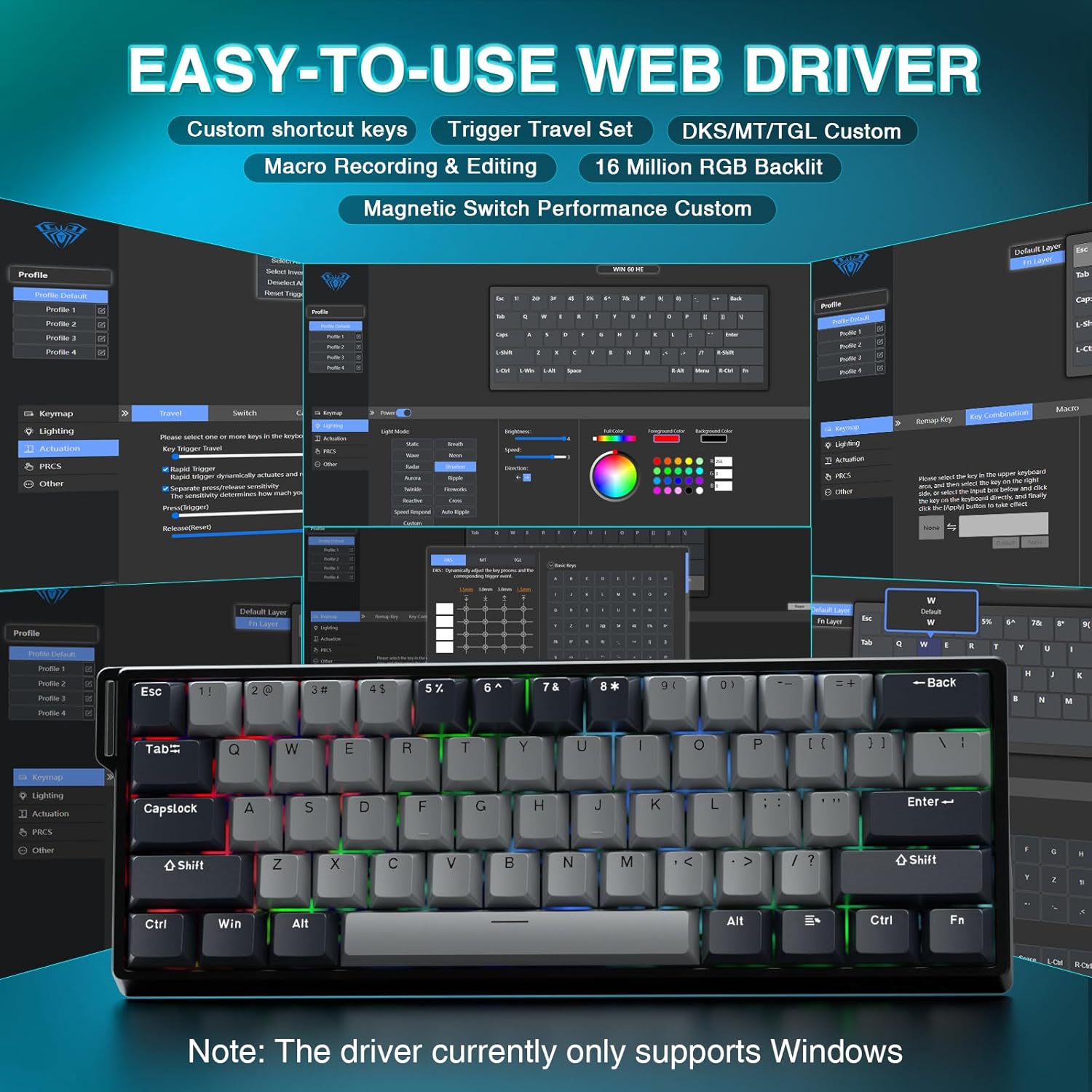
2.3 Driver Installation (Web-Based)
The AULA WIN60 HE PRO utilizes a web-based driver for customization, eliminating the need for software downloads.
ודא שהמחשב שלך מחובר לאינטרנט.
פתח את המועדף עליך web דפדפן.
Navigate to the official AULA web driver portal (refer to the product packaging or manufacturer's webאתר עבור המדויק URL).
ה web interface will allow you to customize settings directly.
איור 2: קל לשימוש web driver interface for customization.
הערה: ה web driver currently only supports Windows operating systems.
3. תפעול
3.1 Hall Effect Magnetic Switches & Rapid Trigger
The AULA WIN60 HE PRO features advanced Hall Effect magnetic switches, which detect key presses using magnetic fields rather than physical contact. This design provides:
הפעלה מתכווננת: Customize the actuation point of each key to your preference for faster response or more deliberate presses.
מצב טריגר מהיר: Allows keys to activate and deactivate based on movement rather than a fixed actuation point, enabling ultra-fast repeated inputs and precise control, especially beneficial for FPS games. The ultra-low RT step distance is 0.02mm.
עֲמִידוּת: Absence of physical contact reduces wear and tear.
Figure 3: Rapid Trigger technology for enhanced gaming performance.
Video 2: Demonstrating the hot-swappable magnetic switches, including Gray Wood Magnetic Switch and Wing Chun Magnetic Switch variants.
קצב סקר של 3.2 8000 הרץ
The keyboard features an 8000Hz polling rate, meaning it reports key presses to your computer 8000 times per second. This results in:
Ultra-Fast Response Times: Minimizes input lag for immediate in-game actions.
בקרת דיוק: Ensures every keystroke is registered accurately and without delay.
Figure 4: 8000Hz Hyper-Polling Technology for minimal latency.
3.3 תאורת RGB דינמית
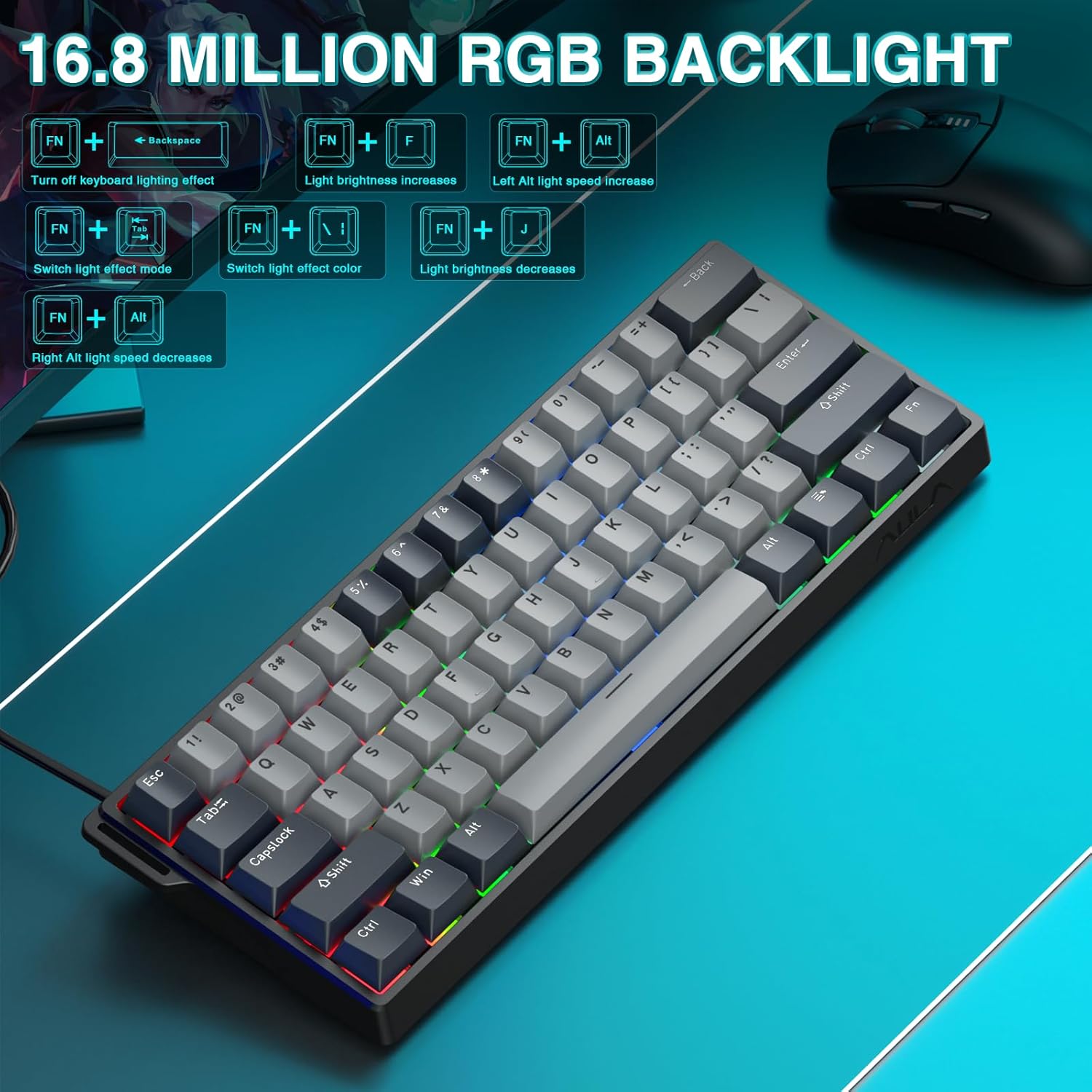
The keyboard offers 16.8 million customizable RGB color options and various lighting effects. Use the following key combinations for quick adjustments:
RGB Lighting Control Hotkeys
שילוב מפתחות
פוּנקצִיָה
FN + Backspace
Turn off keyboard lighting effect
FN + [
בהירות האור עולה
FN + ]
בהירות האור יורדת
FN + {
Left Alt light speed increase
FN + }
Right Alt light speed decrease
FN + \
החלפת מצב אפקט אור
FN + Alt
החלפת צבע אפקט אור
איור 5: פקדי תאורת רקע RGB ואפקטים.
3.4 Customization with Web נֶהָג
ה web-based driver provides extensive customization options:
מיפוי מחדש של מפתחות: הקצה כל פונקציה לכל מקש.
יצירת מאקרו: Record and assign complex sequences of commands to a single key.
התאמה אישית של תאורת RGB: Fine-tune lighting effects, colors, and patterns beyond the basic hotkeys.
כוונון נקודת הפעלה: Precisely set the actuation distance for each magnetic switch.
גישה אל web driver as described in Section 2.3.
4. תחזוקה
4.1 ניקוי המקלדת
כדי לשמור על ביצועים ומראה אופטימליים:
נתק את המקלדת מהמחשב לפני ניקוי.
השתמש במטלית רכה נטולת מוך מעט דampנגב את מכסי המקשים והמארז במים או בתמיסת ניקוי עדינה.
עבור אבק ופסולת בין מכסי המקשים, השתמש באוויר דחוס.
הימנע מכימיקלים קשים או חומרים שוחקים.
4.2 מתגים הניתנים להחלפה חמה
The AULA WIN60 HE PRO features hot-swappable magnetic switches, allowing for easy replacement or customization without soldering.
השתמש במושך מכסה המקשים המצורף כדי להסיר בעדינות את מכסה המקשים.
Use a switch puller (not explicitly mentioned as included, but implied by "hot-swappable" and video) to carefully remove the switch.
Align the new switch with the socket and press firmly until it clicks into place.
החלף את מכסה המקשים.
Caution: Apply gentle force to avoid damaging the switch sockets.
5. פתרון תקלות
5.1 המקלדת לא מגיבה
ודא שכבל ה-USB-C מחובר היטב גם למקלדת וגם למחשב.
נסה לחבר את המקלדת ליציאת USB אחרת במחשב שלך.
בדוק את המקלדת במחשב אחר כדי לשלול בעיות ספציפיות למערכת.
הפעל מחדש את המחשב.
5.2 תאורת RGB לא עובדת
Check if the lighting is turned off using the FN + Backspace מקש קיצור.
כוונן את הבהירות באמצעות FN + [ or FN + ].
להבטיח את web driver settings haven't disabled lighting.
5.3 מקשים נתקעים או לא נרשמים
Clean around the affected keycap to remove any debris.
If a specific switch is faulty, consider replacing it using the hot-swappable feature (refer to Section 4.2).
Check the actuation point settings in the web driver; it might be set too high or too low for your preference.
6. מפרטים
תכונה
פְּרָט
דֶגֶם
WIN60 HE PRO
סוג מקלדת
60% Mechanical Gaming Keyboard
סוג מתג
Hall Effect Magnetic Switch, Hot-Swappable
קישוריות
USB-C קווי
שיעור סקרים
8000 הרץ
תכונות מיוחדות
Rapid Trigger Mode, Adjustable Actuation, RGB Backlit, Programmable Keys, Hotkeys and Media Keys, Portable
מכשירים תואמים
Laptop, PC Windows (Not compatible with PS5/PS4, OBOX)
מידות המוצר
11 x 5 x 1.1 אינץ' (27.94 x 12.7 x 2.79 ס"מ)
משקל פריט
2.18 פאונד (0.99 ק"ג)
יַצרָן
אולה
Figure 6: Detailed comparison of AULA WIN60 HE series magnetic switches.
7. אחריות ותמיכה
For warranty information, technical support, or service inquiries, please refer to the warranty card included with your product or visit the official AULA/CORBOBO webאתר. ניתן גם ליצור קשר עם המוכר ישירות דרך פלטפורמת הרכישה שלך לקבלת סיוע.
מדריך למוצר של מקלדת AULA WIN60 עם מתג מגנטי חוטי מדריך זה מספק מדריך מקיף למקלדת AULA WIN60 Wired Magnetic Switch, המכסה את התכונות, הפונקציות ומצבי ההפעלה שלה הן עבור מהדורות PRO/Max והן עבור מהדורות Standard. למד על כוונון תאורה אחורית, החלפת מערכת, תיאורי מקשי קיצור ושיטות כוונון מתג מגנטי.
מדריך למשתמש של מקלדת מכנית AULA F99 מדריך למשתמש עבור מקלדת מכנית AULA F99 3-in-1 עם אטם RGB הניתן להחלפה חמה, המפרט את התכונות, המפרט והוראות ההפעלה עבור מצבי קווי, 2.4G ו-Bluetooth.
מדריך למשתמש של מקלדת מכנית AULA F75 גלו את התכונות והוראות ההפעלה עבור מקלדת מכנית AULA F75 3-in-1 עם אטם RGB הניתן להחלפה חמה. מדריך זה מכסה קישוריות, פונקציות, מפרטים ופתרון בעיות.
AULA F108 Pro 3-in-1 Mechanical Keyboard: User Manual & Features Comprehensive guide to the AULA F108 Pro 3-in-1 mechanical keyboard. Details connectivity (Wired, 2.4G, Bluetooth), RGB lighting, LCD screen functions, shortcut keys, system compatibility, and specifications.