1. הקדמה
This manual provides essential information for the safe and efficient use of your KOORUI G2711P 27-inch IPS Full HD Gaming Monitor. Please read it thoroughly before operating the device and retain it for future reference.
The KOORUI G2711P monitor features a 27-inch IPS non-glare panel with Full HD (1920x1080) resolution, a 200Hz refresh rate, and a 1ms MPRT response time, designed for an immersive gaming and viewing experience. It includes multiple connectivity options and eye-care features.

תמונה 1.1: חזית view of the KOORUI G2711P 27-inch IPS Full HD Gaming Monitor.
2. מידע בטיחות
- אין לחשוף את הצג לגשם או לחות כדי למנוע שריפה או התחשמלות.
- אל תפתח את הצג גasinז. אין חלקים בפנים הניתנים לתיקון על ידי המשתמש. יש לפנות לכל טיפול וטיפול באנשי שירות מוסמכים.
- הנח את הצג על משטח יציב ושטוח כדי למנוע ממנו ליפול.
- ודא אוורור נאות סביב הצג. אין לחסום פתחי אוורור.
- השתמשו רק במתאם החשמל המצורף לצג.
- נתק את הצג משקע החשמל במהלך סופות ברקים או כאשר אינו בשימוש למשך תקופות ארוכות.
3. התקנה
3.1 פירוק
Carefully remove all components from the packaging. Ensure all parts listed in the packing list are present and undamaged. Keep packaging materials for future transport or return.
3.2 הרכבת המעמד
- חבר את בסיס המעמד לצוואר המעמד.
- Secure the assembled stand to the back of the monitor panel. Refer to the product images for visual guidance on the attachment method.

Image 3.1: Monitor dimensions and side view, illustrating the stand attachment area.
3.3 התחברות למכשיר
The monitor supports various input options:
- HDMI: Connect an HDMI cable from your computer or other device to one of the two HDMI 2.0 ports on the monitor.
- DisplayPort (DP): Connect a DisplayPort cable from your computer to the DP 1.4 port on the monitor.
- Audio Out (A/O): Connect external speakers or headphones to the audio output port if desired, as the monitor does not have built-in speakers.

תמונה 3.2: אחורי view of the monitor showing HDMI, DisplayPort, and Audio Out connections, along with the 75x75mm VESA mount.
3.4 חיבור מתח
Connect the power adapter to the monitor's power input, then plug the power cable into a wall outlet. The monitor is designed for 110V power input.
4. הוראות הפעלה
4.1 הפעלה/כיבוי
Press the power button, typically located on the back or bottom of the monitor, to turn the monitor on or off. An indicator light will show the power status.
4.2 ניווט בתפריטי תצוגה על המסך (OSD)
The monitor features a 5-way joystick for intuitive OSD menu navigation. This joystick allows you to access and adjust various display settings.
- לחץ על הג'ויסטיק: אשר את הבחירה.
- Move joystick up/down: Adjust or select options.
- Move joystick left/right: Adjust or select options.
- Move joystick back (usually left): Exit menu or go back.

Image 4.1: Illustration of the 5-way joystick control for OSD menu navigation.
4.3 הגדרות תצוגה
- הַחְלָטָה: The native resolution is 1920x1080 Full HD. Ensure your device is set to this resolution for optimal display quality.
- קצב רענון: The monitor supports up to 200Hz. Adjust your graphics card settings to utilize the higher refresh rate for smoother visuals.
- זמן תגובה (MPRT): The monitor features 1ms MPRT (Moving Picture Response Time) for reduced motion blur. This setting can usually be enabled or adjusted in the OSD menu.
- סנכרון אדפטיבי: This technology synchronizes the monitor's refresh rate with your graphics card's frame rate to eliminate screen tearing and stuttering. Enable it in the OSD menu and your graphics card control panel.
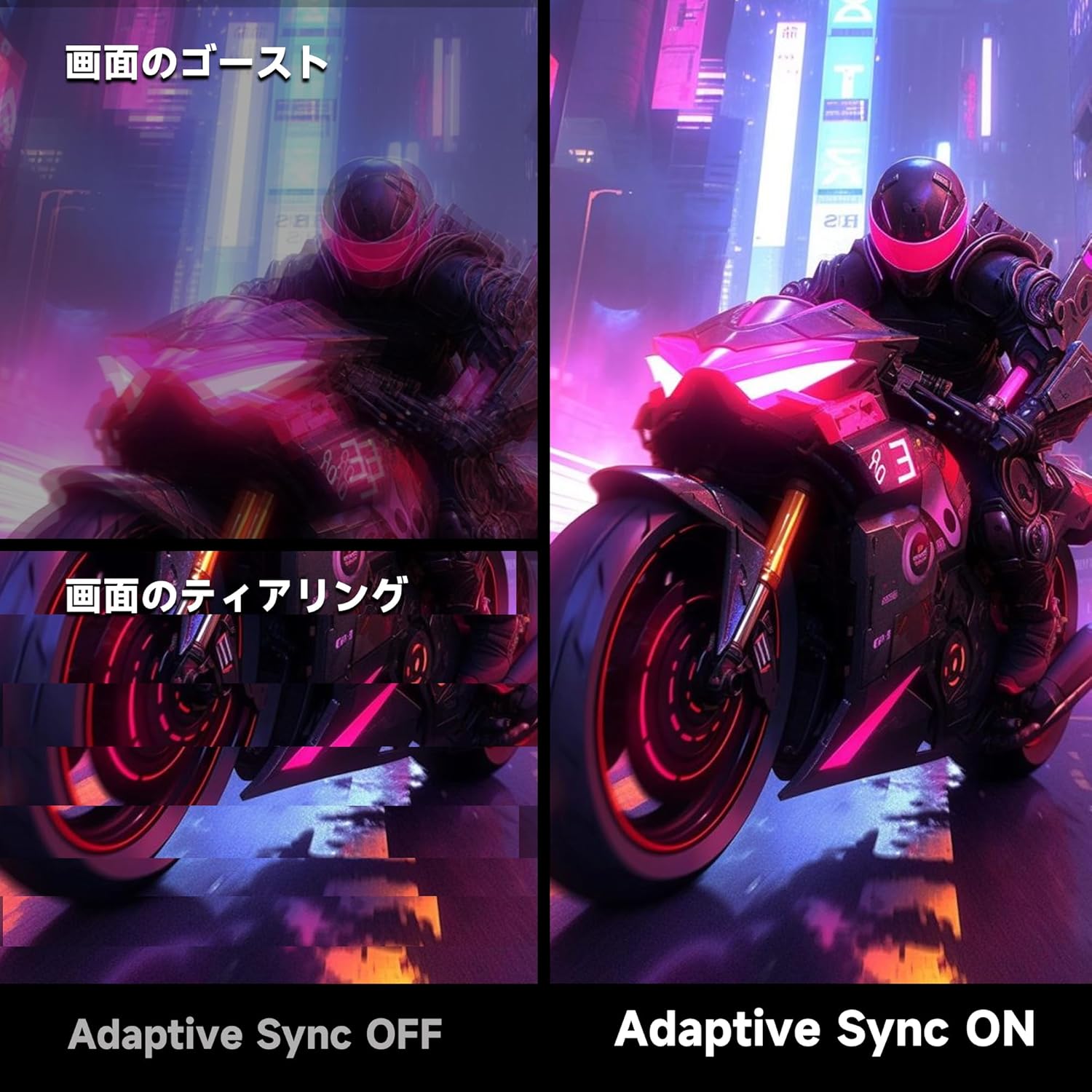
Image 4.2: Visual comparison demonstrating the effect of Adaptive Sync being OFF (showing ghosting and tearing) versus ON (smooth image).

Image 4.3: Comparison illustrating the difference in motion clarity between 200Hz 1ms MPRT and 75Hz 5ms settings.
- HDR 400: The monitor supports HDR 400 for enhanced contrast and color depth. Enable HDR in your operating system settings for compatible content.

Image 4.4: Visual representation of HDR 400 providing more impressive and vibrant images compared to standard HDR 10.
- הגדרות צבע: The monitor offers 93% DCI-P3 color gamut for accurate and vibrant color reproduction. Adjust brightness, contrast, and color temperature via the OSD menu.

Image 4.5: Display showing a wide range of colors, indicating 93% DCI-P3 color gamut coverage for accurate and vivid visuals.
- תכונות טיפוח עיניים: The monitor incorporates 'Blue Light Reduction' and 'Flicker-Free' technologies to minimize eye strain during prolonged use. These settings can be adjusted in the OSD menu.
- פונקציית צלב: For shooting games, a built-in crosshair overlay can be enabled via the OSD menu to assist with aiming.

Image 4.6: A gaming scene demonstrating the monitor's crosshair function, which can be toggled ON or OFF to assist players in shooting games.
5. תחזוקה
5.1 ניקוי המסך
נגבו בעדינות את המסך בעזרת מטלית רכה ונטולת סיבים. במקרה של סימנים עקשניים,ampen the cloth with a small amount of screen cleaner specifically designed for monitors. Do not spray cleaner directly onto the screen.
5.2 ניקוי ה-Casing
השתמשו במטלית רכה ויבשה כדי לנגב את הצג.asing. Avoid using abrasive cleaners or solvents that may damage the surface.
6. פתרון תקלות
- אין כוח: ודא שכבל החשמל מחובר היטב הן לצג והן לשקע החשמל. בדוק אם שקע החשמל תקין.
- אין קליטה: Verify that the video cable (HDMI or DisplayPort) is correctly connected to both the monitor and your computer. Ensure the correct input source is selected in the monitor's OSD menu.
- מסך מהבהב: Check the video cable connection. Try a different cable or port. Ensure your graphics card drivers are up to date.
- Image Distortion/Tearing: Ensure Adaptive Sync is enabled in both the monitor's OSD and your graphics card settings. Check for correct resolution and refresh rate settings.
- Poor Color Quality: Adjust color settings (brightness, contrast, color temperature) in the OSD menu. Ensure HDR is enabled for HDR content.
7. מפרטים
| תכונה | מִפרָט |
|---|---|
| מותג | KOORUI |
| דֶגֶם | G2711P |
| גודל מסך | 27 אינץ' |
| סוג פאנל | IPS, Non-Glare |
| הַחְלָטָה | 1920 x 1080 (Full HD) |
| יחס גובה-רוחב | 16:9 |
| קצב רענון | 200 הרץ |
| זמן תגובה | 1ms MPRT (GTG) |
| בְּהִירוּת | 300 תקליטורים/מ"ר |
| יחס ניגודיות | 1000:1 |
| Viewזווית | 178° (אופקי/אנכי) |
| סולם צבעים | 93% DCI-P3 |
| תמיכה ב-HDR | HDR 400 |
| קישוריות | 2x HDMI 2.0, 1x DisplayPort 1.4, 1x יציאת שמע |
| רמקולים | לא כלול |
| תאימות VESA Mount | 75x75 מ"מ |
| מידות (B x H x D) | 61.34 x 47.23 x 21.49 ס"מ (עם מעמד) |
| מִשׁקָל | 5.8 ק"ג |
| קלט כוח | 110V |
8. אחריות
The KOORUI G2711P monitor screen is covered by a אחריות לשנה from the date of purchase. All other included accessories are covered by a אחריות לשנהאנא שמור את הוכחת הרכישה שלך לצורך תביעות אחריות. האחריות מכסה פגמי ייצור ותקלות בתנאי שימוש רגילים.
9. תמיכה
For technical assistance, troubleshooting, or warranty inquiries, please contact KOORUI customer support through the retailer where you purchased the product or visit the official KOORUI website for contact information. When contacting support, please have your monitor model number (G2711P) and proof of purchase readily available.


