1. הקדמה
This manual provides comprehensive instructions for setting up, operating, and maintaining your Logitech MK250 Bluetooth Wireless Keyboard and Mouse Combo. This combo offers a reliable and efficient wireless solution for your computing needs, compatible with Windows and macOS operating systems. Please read this manual thoroughly before using your new device.

Image: The Logitech MK250 Bluetooth Wireless Keyboard and Mouse Combo.
2. תכולת החבילה
ודא שכל הפריטים נמצאים בחבילה שלך:
- מקלדת אלחוטית Logitech MK250
- עכבר אלחוטי Logitech M196
- 2 AAA Batteries (pre-installed in keyboard)
- 1 AA Battery (pre-installed in mouse)
- תיעוד משתמש

Image: Contents of the Logitech MK250 combo package, showing the keyboard, mouse, and included batteries.
3. התקנה
3.1. התקנת סוללה
The keyboard requires 2 AAA batteries and the mouse requires 1 AA battery. These are typically pre-installed. Remove the battery pull tabs before first use.
- אתר את תא הסוללה בחלק התחתון של המקלדת והעכבר.
- פתח את מכסה התא.
- Remove the protective pull tab(s) if present.
- Ensure batteries are correctly oriented according to the polarity indicators (+/-).
- סגור היטב את מכסה תא הסוללות.
3.2. זיווג Bluetooth
The Logitech MK250 combo connects via Bluetooth, eliminating the need for a USB receiver.
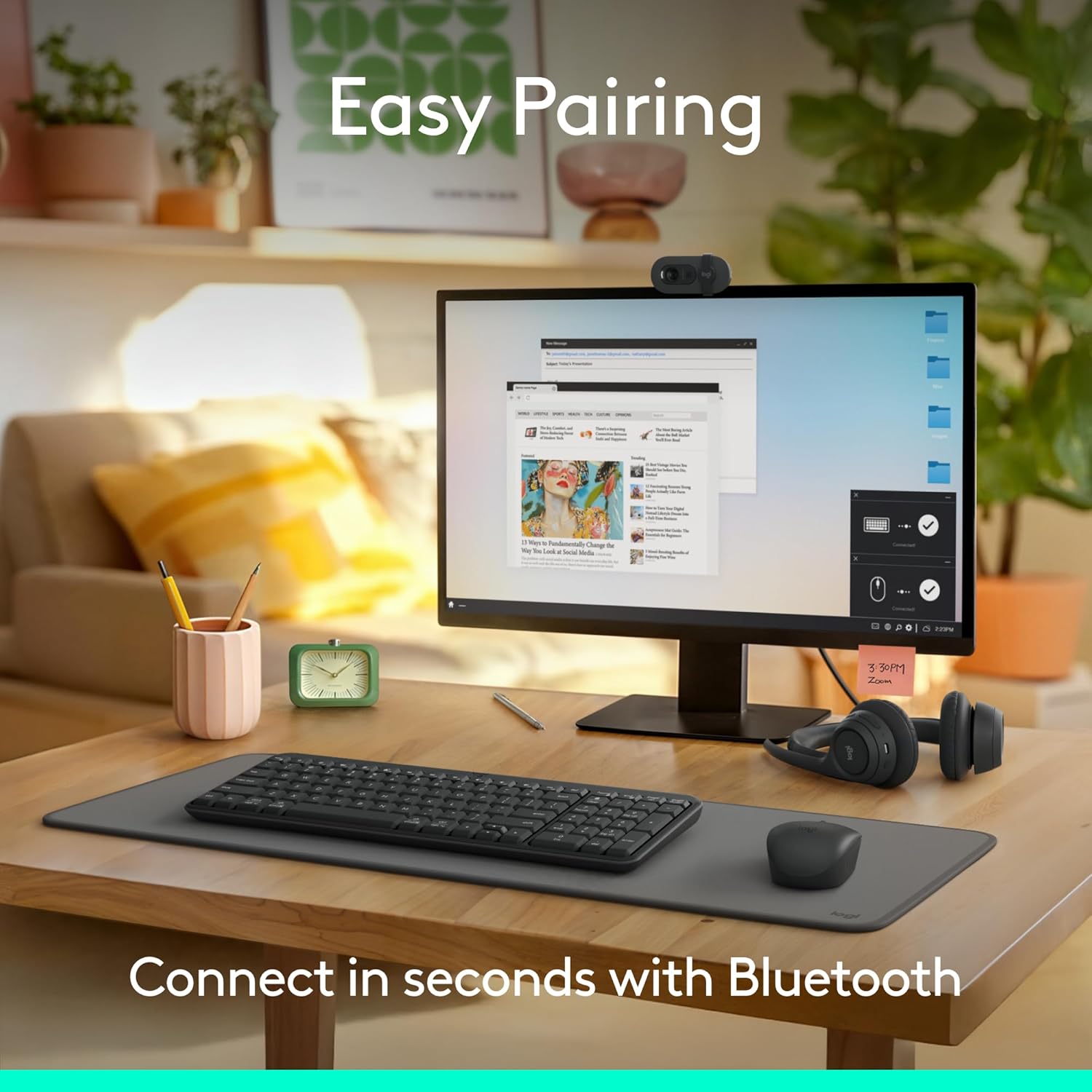
Image: A workspace demonstrating the easy pairing process of the Logitech MK250 combo.
3.2.1. Keyboard Pairing
- הפעל את המקלדת באמצעות מתג ההפעלה/כיבוי הממוקם בתחתית המקלדת.
- Press and hold the Bluetooth pair button on the underside of the keyboard for 3 seconds until the LED indicator starts blinking rapidly.
- On your computer (Windows or macOS), navigate to Bluetooth settings.
- Select "Add a device" or "Bluetooth & other devices".
- Choose "Bluetooth" and wait for "Logitech MK250 Keyboard" to appear in the list of available devices.
- Click on "Logitech MK250 Keyboard" to initiate pairing. Follow any on-screen prompts, such as entering a code.
- Once paired, the LED indicator on the keyboard will stop blinking and remain solid for a few seconds, then turn off to conserve power.

תמונה: מפורט view of the keyboard's underside, highlighting the Bluetooth pairing button.
3.2.2. Mouse Pairing
- Turn on the mouse using the ON/OFF switch on its underside.
- Press and hold the pairing button (often labeled with a Bluetooth symbol or similar) on the underside of the mouse for 3 seconds until the LED indicator starts blinking.
- On your computer, in the same Bluetooth settings, wait for "Logitech MK250 Mouse" or "Logitech M196" to appear.
- Click on the mouse name to pair.
- The LED indicator will stop blinking upon successful connection.

Image: Underside of the mouse, indicating the pairing button and battery compartment.
4. הוראות הפעלה
4.1. תכונות המקלדת
- Compact Layout with Numpad: The keyboard features a space-saving design while retaining a full numeric keypad and essential function keys.
- Deep-Profile מפתחות: Designed for comfortable and familiar typing experience.
- רגלי הטיה מתכווננות: Located on the underside, these allow you to adjust the keyboard angle for ergonomic comfort.
- Handy F-key Shortcuts: Access media controls, volume, and other functions directly from the F-keys.

Image: User's hands demonstrating comfortable typing on the keyboard.

Image: The compact keyboard and mouse combo on a desk, showing its space-saving benefits.
4.2. תכונות עכבר
- עיצוב דו-דמי: The mouse is shaped to comfortably fit both left and right hands.
- מעקב חלק: Provides precise and responsive cursor control.
- גודל קומפקטי: Ideal for portability and use in various environments.
5. תחזוקה
5.1. ניקיון
To clean your keyboard and mouse:
- ודא ששני המכשירים כבויים.
- השתמש קלות במטלית רכה נטולת מוך דampened with water or an approved electronics cleaner.
- Avoid excessive moisture and do not spray cleaners directly onto the devices.
- The keyboard features a spill-resistant design, meaning it can withstand minor liquid spills. However, it is not waterproof. In case of a spill, immediately turn off the keyboard, disconnect it, and allow it to dry completely before reuse.

Image: The keyboard demonstrating its spill-resistant capabilities.
5.2. החלפת סוללה
החלף סוללות כאשר הביצועים יורדים או כאשר מחוון סוללה חלשה (אם קיים) נדלק.
- Keyboard: 2 AAA batteries (approximately 12-month battery life).
- Mouse: 1 AA battery (approximately 12-month battery life).
- בצע את שלבי התקנת הסוללה בסעיף 3.1.
- השלך סוללות ישנות באחריות בהתאם לתקנות המקומיות.
6. פתרון תקלות
6.1. בעיות קישוריות
- המכשיר לא מתחבר:
- ודא שהמקלדת והעכבר מופעלים.
- ודא ש-Bluetooth מופעל במחשב שלך.
- Re-initiate pairing mode on the keyboard/mouse and re-scan for devices on your computer.
- בדוק את רמות הסוללה והחלף במידת הצורך.
- Move the devices closer to your computer to rule out range issues.
- חיבור לסירוגין:
- Ensure there are no other strong wireless signals or devices causing interference (e.g., Wi-Fi routers, other Bluetooth devices).
- עדכן את מנהלי ההתקנים של Bluetooth במחשב שלך.
- הפעל מחדש את המחשב.
6.2. Keyboard/Mouse Not Responding
- בדוק את רמות הסוללה.
- ודא שהמכשיר מופעל.
- If connected, try turning the device off and on again.
- For the mouse, ensure the optical sensor is clean and unobstructed.
7. מפרטים
| מותג | Logitech |
| שם הדגם | מקלדת ועכבר MK250 |
| מספר דגם של פריט | 920-013510 |
| טכנולוגיית קישוריות | בלוטות' |
| מכשירים תואמים | מחשב נייד, מחשב אישי, טאבלט |
| תאימות מערכת הפעלה | Chrome OS, Windows 10/11 or later, macOS 12 or later |
| סוג סוללת המקלדת | 2 x AAA (כלול) |
| סוג סוללת עכבר | 1 x AA (כלול) |
| חיי סוללה משוערים | 12 months (keyboard and mouse) |
| מידות המוצר (LxWxH) | 18.03 x 5.98 x 1.73 inches (Combo Package) |
| משקל פריט | 1.53 pounds (Combo Package) |
| חוֹמֶר | Plastic parts made with minimum 66% (mouse) and 64% (keyboard) recycled materials. |

Image: The Logitech MK250 combo highlighting its construction from recycled materials.
8. אחריות ותמיכה
Logitech products are manufactured to high quality standards and are backed by a limited hardware warranty. For detailed warranty information, please refer to the warranty card included with your product or visit the official Logitech webאֲתַר.
לתמיכה טכנית, שאלות נפוצות והורדות מנהלי התקנים, אנא בקרו באתר התמיכה של Logitech webאֲתַר:


