1. הקדמה
Thank you for choosing the HUPEJOS V30-4CH Dash Cam. This device is designed to provide comprehensive surveillance for your vehicle with its 4-channel recording capabilities, offering a 360-degree field of view. It features 2K Full HD recording, built-in WiFi for app control, voice command functionality, advanced night vision with WDR technology, and a 24/7 parking mode for continuous protection. This manual will guide you through the installation, operation, and maintenance of your dash cam to ensure optimal performance.
2. מה בקופסה
אנא ודא שכל הפריטים המפורטים להלן כלולים בחבילה שלך:
- 1 x V30-4CH Dash Cam (Main Unit)
- 1 x 1080P Rear Camera (Waterproof)
- 1 x כבל חשמל מסוג C
- 1 x 19.6 רגל כבל מצלמה אחורית
- 2 x מדבקה אלקטרוסטטית
- 1 x 64GB כרטיס SD
- 1 x תושבת יניקה
- 1 x כלי לקיצוץ חוטי רכב
- 1 x קופסת אריזה
- 1 x מדריך למשתמש

Image: All components included in the HUPEJOS V30-4CH Dash Cam package.
3. תכונות עיקריות
3.1. 4-Channel 360° View
The V30-4CH Mini Dash Cam provides a 150°*4 super wide-angle field of view. The left and right cameras can be rotated to adjust the angle, ensuring 360° all-around protection. It offers two main recording modes:
- 2K קדמי + 1080P אחורי
- 1080P Front + 2560x720P Left/Right + 720P Rear
The left and right lens footage is stitched together into a single frame for easy viewing, capturing every detail seamlessly.
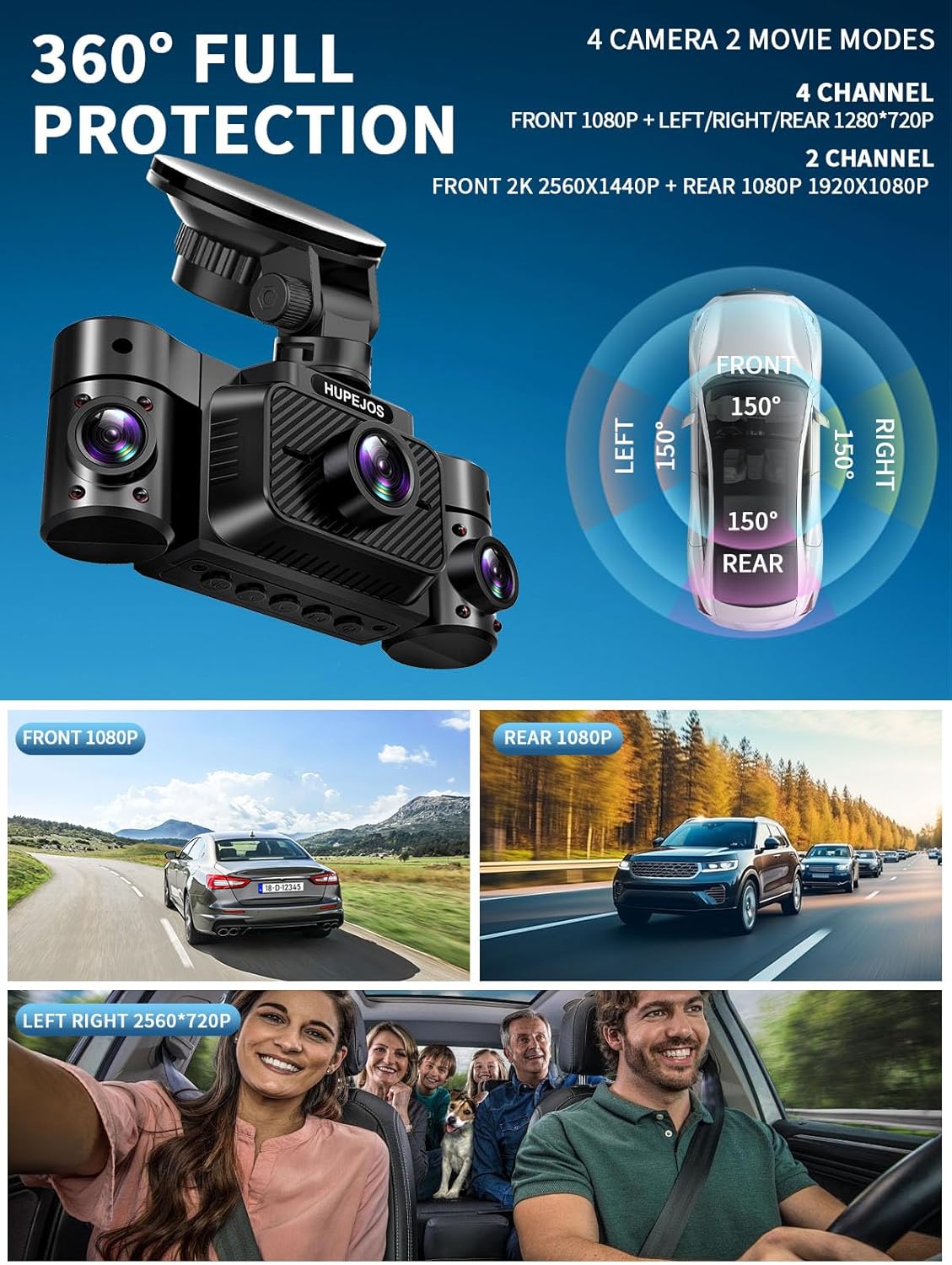
Image: Visual representation of the 360-degree full protection provided by the 4-channel dash cam.
3.2. הקלטת לולאה וחיישן G
The dash cam supports loop recording, overwriting the oldest videos when the included 64GB SD card (maximum support 256GB) is full. Recording segments are typically 3 minutes long. The built-in sensitivity G-sensor automatically detects sudden shakes or collisions, locking the footage to prevent it from being overwritten during loop recording, ensuring critical event data is preserved.

Image: Loop recording mechanism, illustrating how the dash cam manages storage by overwriting old files.

Image: G-sensor automatically locking emergency recordings during an impact.
3.3. 24-Hour Parking Mode
When your vehicle is parked and turned off, the dash cam automatically switches to parking mode. This feature provides 24/7 surveillance. The time-delay recording function allows continuous recording with low power consumption and a low frame rate, offering 360° protection. To enable this feature, a hardwire kit (ASIN: B0DBR2SLFH) must be purchased separately and connected.

Image: Radar intelligent monitoring system for 24-hour parking mode, detecting objects within 3-4 meters.
3.4. Super Night Vision with WDR Technology
Equipped with a large F/1.8 aperture and 6 layers of optical lenses, the dash camera utilizes HDR/WDR technology to automatically balance light and dark areas in the video. This ensures clear capture of details like license plates, day or night. The IR LED can be manually turned ON or OFF via the dash camera Menu, or set to automatic.

Image: Super Night Vision with WDR technology, enhancing clarity in low-light conditions.
3.5. Built-in WiFi & App Control
The integrated WiFi allows you to connect your smartphone to the dash cam via a dedicated app. Through the app, you can instantly view, manage, and download recorded videos. This enables easy sharing of footage with friends and family on social media platforms. The WiFi range is approximately 6-7 meters from the dash cam. Note that this is not a cloud dash cam, and real-time remote viewing beyond this range is not supported; videos must be downloaded to your phone's album.

Image: App control interface for viewing, managing, and sharing dash cam videos via WiFi.
3.6. שליטה קולית
Control your dash cam hands-free using simple English voice commands. This feature allows you to operate the device while keeping your focus on driving safely. Supported commands include:
- "צלם תמונה"
- "Start Video"
- "Stop Video"
- "Turn On Audio" / "Turn Off Audio"
- "Turn On WiFi" / "Turn Off WiFi"
- "Turn On Screen" / "Turn Off Screen"
- "Show Front Camera"
Note: Only the voice options available in the dash camera menu are supported.

Image: Smart voice control feature, enabling hands-free operation of the dash cam.
3.7. סופר-קבל
The dash cam is equipped with a super capacitor, providing reliable and long-lasting performance even in extreme temperatures, enhancing durability and safety.

Image: Super capacitor benefits, highlighting durability and temperature resistance.
4. התקנה והתקנה
Before permanent installation, it is recommended to test the dash cam's functionality. Ensure all cables are connected correctly and the device powers on.

Image: Visual guide for the installation process of the dash cam.
- Step 1: Prepare Windshield. Find a suitable spot on the front windshield, ideally near the rearview מראה, שלא חוסם את view. Thoroughly clean the windshield surface using water or alcohol, then wipe it dry with a clean cloth. Peel off the electrostatic sticker from its cellophane backing and transfer it to the desired location. Eliminate any air bubbles. It is recommended to let the sticker set for at least half an hour to ensure strong adhesion.
- Step 2: Attach Suction Mount. Attach the suction mount to the camera's mount connector, pushing it in until it clicks. Clean the suction mounting pad. Securely attach the suction mount to the electrostatic sticker on the windshield. Rotate the locking clamp on the mount 90° upward until it clicks into place, ensuring a firm grip.
- Step 3: Route Power Cable. Carefully route the Type-C power cable around the windshield and tuck it under the trim using the provided car wire trim tool. Connect the other end to your car's cigarette lighter socket or a hardwire kit (if installed).
- Step 4: Rear Camera Installation. We recommend positioning the rear camera in the center of your rear windshield, avoiding the defogging lines to prevent interference with video quality. Remove the protective film from the sticky pad and the camera lens. Fix the rear camera in the selected position. Adjust the angle as needed. Connect the rear camera cable to the main front camera unit. (NOTE: The rear camera is waterproof.)
5. הוראות הפעלה
5.1. הפעלה/כיבוי
- אוֹטוֹמָטִי: The dash cam will automatically power on and begin recording when your vehicle's engine starts. It will power off automatically when the engine is turned off.
- ידני: Press and hold the power button for a few seconds to manually turn the device on or off.
5.2. ניווט בתפריט
השתמשו בכפתורים הפיזיים במצלמת הרכב כדי לנווט בין אפשרויות התפריט. בדרך כלל, ישנם כפתורים עבור תפריט, למעלה, למטה, אישור/אישור ומצב. עיינו בהנחיות שעל המסך עבור פונקציות ספציפיות.
5.3. שליטה קולית
Once enabled in the settings, simply speak the supported commands (listed in Section 3.6) clearly to control the dash cam without touching it.
5.4. Mobile App Control (WiFi)
- Download the dedicated HUPEJOS app from your smartphone's app store.
- Turn on WiFi on your dash cam (via voice command or menu).
- Connect your smartphone to the dash cam's WiFi network (SSID and password usually displayed on the dash cam screen or in the manual).
- פתח את האפליקציה כדי view פו חיtagה, עיין בסרטונים מוקלטים, הורד files, והתאם הגדרות.
5.5. Adjusting Camera Angles
The left and right cameras on the main unit can be manually rotated to achieve the desired viewing angle for interior or side coverage.
6. תחזוקה
- ניקוי עדשות: יש לנקות באופן קבוע את עדשות המצלמה בעזרת מטלית רכה ונטולת סיבים כדי להבטיח איכות וידאו ברורה. יש להימנע מחומרים שוחקים.
- ניהול כרטיסי SD: Format the SD card periodically (e.g., once a month) to maintain optimal performance and prevent data corruption. This can usually be done through the dash cam's menu settings. Back up any important footage לפני העיצוב.
- עדכוני קושחה: Check the official HUPEJOS webאתר או אפליקציה לקבלת עדכוני קושחה זמינים. שמירה על קושחת מצלמת הרכב מעודכנת יכולה לשפר את הביצועים ולהוסיף תכונות חדשות.
- טֶמפֶּרָטוּרָה: Avoid exposing the dash cam to extreme temperatures for prolonged periods when not in use. The super capacitor provides resilience, but prolonged exposure to very high or low temperatures can still affect electronic components.
7. פתרון תקלות
- מצלמת הרכב לא נדלקת:
- Ensure the power cable is securely connected to both the dash cam and the car's power source.
- Check the car's cigarette lighter socket or hardwire kit for power.
- נסה מקור חשמל או כבל אחר אם זמין.
- וידאו Footage is Unclear/Blurry:
- נקו את עדשות המצלמה בעזרת מטלית רכה.
- Ensure the protective film has been removed from all lenses.
- בדוק אם אזור השמשה הקדמית שבו מותקנת המצלמה נקי.
- Verify that the video resolution settings are set to the highest quality.
- SD Card Error/Recording Issues:
- Format the SD card through the dash cam's menu.
- Ensure the SD card is a high-speed (Class 10 or U3) card from a reputable brand, with a maximum supported capacity of 256GB.
- נסה כרטיס SD אחר כדי לשלול תקלה בכרטיס.
- App Connection Issues (WiFi):
- ודא שה-WiFi מופעל במצלמת הרכב.
- Confirm your phone is connected to the dash cam's specific WiFi network.
- הפעילו מחדש את מצלמת הרכב ואת הטלפון החכם שלכם.
- Ensure you are within the 6-7 meter WiFi range.
- בקרת קול לא מגיבה:
- דבר בצורה ברורה וישירה לכיוון מצלמת הרכב.
- Ensure the voice control feature is enabled in the dash cam's settings.
- הפחתת רעשי רקע ברכב.
- מצב חניה לא מופעל:
- Confirm that the hardwire kit is correctly installed and connected. Parking mode requires a continuous power supply.
- בדוק את הגדרות מצב החניה בתפריט מצלמת הרכב.
8. מפרטים
| תכונה | מִפרָט |
|---|---|
| שם הדגם | V30-4CH |
| מידות המוצר | 1.76 x 4.8 x 1.8 אינץ' |
| משקל פריט | 1.43 פאונד |
| טכנולוגיית קישוריות | USB, Wi-Fi |
| רזולוציית לכידת וידאו | 2K Front + 1080P Rear; 1080P Front + 2560*720P Left/Right + 720P Rear |
| תכונות מיוחדות | 2" IPS Screen, 360 Degree Protection, G-Sensor Lock, Loop Recording, App Control, Audio Recording, Built-In WiFi, Super Night Vision, WDR, 24/7 Radar Parking Mode, Voice Control |
| כרטיס SD כלול | 64GB (Max support 256GB) |
| סוג הרכבה | השמשה הקדמית |
| שיטת בקרה | אפליקציה, קול |
| יַצרָן | HUPEJOS |
9. אחריות ותמיכה
The HUPEJOS V30-4CH Dash Cam typically comes with a 2-year warranty from the date of purchase, covering manufacturing defects. Please retain your proof of purchase for warranty claims.
For technical support, troubleshooting assistance, or warranty inquiries, please contact HUPEJOS customer service via email. Refer to the contact information provided on the product packaging or the official HUPEJOS webאֲתַר.


