1. הקדמה
This manual provides essential instructions for the proper setup, operation, and maintenance of your Zebra TC72 Wireless Android Handheld Barcode Scanner. Please read this manual thoroughly before using the device to ensure optimal performance and longevity.
2. המכשיר נגמרview
The Zebra TC72 is a rugged, enterprise-class mobile computer designed for various data capture applications. It features an Android operating system, wireless connectivity, and an integrated 2D/1D/QR code barcode scanner.
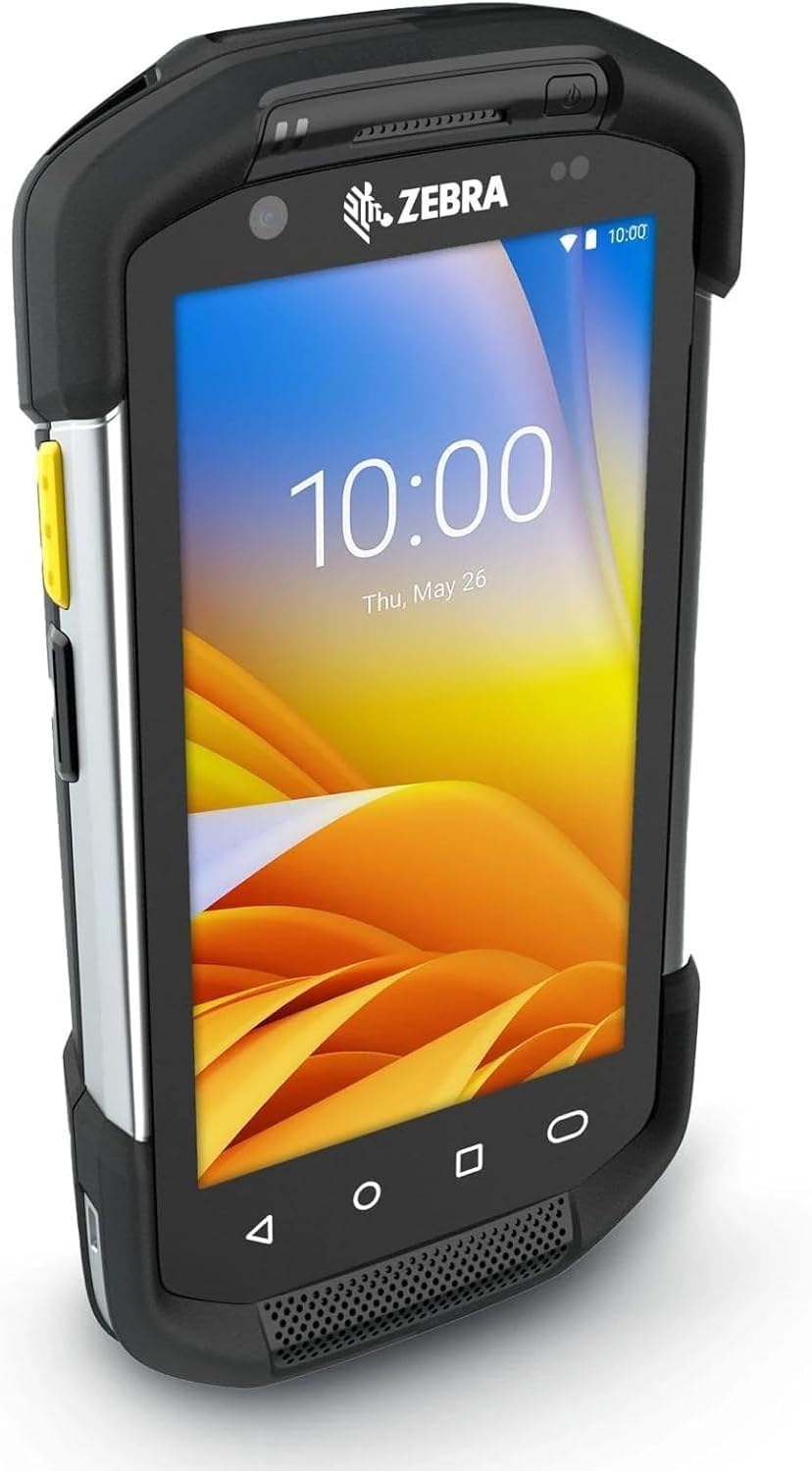
Figure 2.1: Zebra TC72 Handheld Scanner. This image displays the device from an angled perspective, highlighting its robust design and the display screen.
3. התקנה
3.1 פריקה ובדיקה ראשונית
Carefully unpack all components. Verify that the package contains the Zebra TC72 device, battery, and charger. Inspect all items for any signs of damage. If any components are missing or damaged, contact your supplier immediately.
3.2 התקנה וטעינה של הסוללה
- אתר את תא הסוללה בחלקו האחורי של המכשיר.
- הכנס את הסוללה, וודא שהמגעים מיושרים כראוי.
- סגור היטב את מכסה תא הסוללות.
- Connect the charger to the device's charging port or cradle. Plug the charger into a power outlet. The device will indicate charging status.
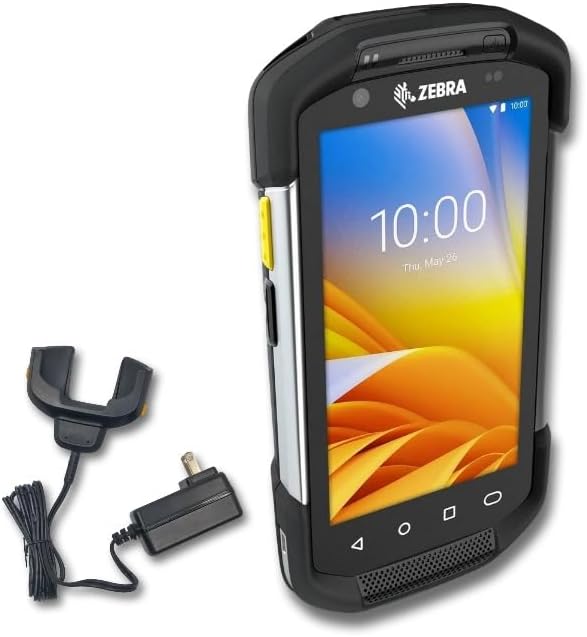
Figure 3.1: Zebra TC72 with Charger. This image shows the TC72 device alongside its charging cradle and power adapter, illustrating the components required for power management.
3.3 הפעלה/כיבוי
- כדי להפעיל: Press and hold the Power button (typically on the side) until the Zebra logo appears on the screen.
- כדי לכבות: Press and hold the Power button until the power options menu appears. Select 'Power Off'.
3.4 תצורה ראשונית
Upon first power-on, follow the on-screen prompts to complete the initial setup, including language selection, Wi-Fi network connection, and Google account setup (optional).
4. הוראות הפעלה
4.1 ניווט בסיסי (מערכת הפעלה אנדרואיד)
The TC72 operates on the Android platform. Navigate the interface using touch gestures: tap to select, swipe to scroll, and pinch to zoom. The navigation bar at the bottom of the screen provides 'Back', 'Home', and 'Recent Apps' functions.

Figure 4.1: Zebra TC72 Front View. This image shows the front of the device with its display active, illustrating the Android user interface.
4.2 סריקת ברקוד
The TC72 features an integrated industrial-class barcode scanner capable of reading 1D, 2D, and QR codes.

Figure 4.2: Built-in Barcode Scanner. A detailed view of the integrated barcode scanner module located at the top of the device.
- Open the scanning application on your device.
- Point the scanner window (located at the top of the device) at the barcode.
- Press the scan trigger button (typically on the side) to activate the scanner.
- Ensure the red aiming pattern covers the entire barcode for optimal reading. A successful scan is usually indicated by an audible beep and/or a visual confirmation on the screen.
4.3 Data Capture and Transfer
Scanned data is typically entered into the active field of an application. Data can be transferred via Wi-Fi, Bluetooth, or USB connection, depending on your specific application and network configuration.
5. תחזוקה
5.1 הוראות ניקוי
- מָסָך: השתמש במטלית רכה נטולת מוך מעט דampened with water or an approved screen cleaner. Do not use abrasive materials or harsh chemicals.
- Scanner Window: Gently wipe the scanner window with a clean, soft cloth. Ensure no dust or debris obstructs the scanning path.
- מכשיר Casing: נגב עם מודעהamp בד. הימנעו מלחות מוגזמת.
5.2 טיפול בסוללה
To maximize battery life, avoid extreme temperatures. Charge the battery regularly and do not allow it to fully discharge for extended periods. Replace the battery if its performance significantly degrades.
5.3 עדכוני תוכנה
Regularly check for and install software updates to ensure optimal performance, security, and access to new features. Updates can typically be found in the device's settings menu under 'System Updates'.
5.4 הנחיות אחסון
When storing the device for extended periods, ensure it is powered off and stored in a cool, dry place away from direct sunlight and extreme temperatures. It is recommended to charge the battery to approximately 50% before storage.
6. פתרון תקלות
- המכשיר לא מופעל: Ensure the battery is properly installed and charged. Connect the device to the charger and attempt to power on again.
- בעיות סריקה: Verify the scanner window is clean and unobstructed. Ensure the barcode is not damaged and is within the scanner's optimal range. Check the scanning application settings.
- אין קישוריות Wi-Fi: Check if Wi-Fi is enabled in settings. Verify the network password and ensure you are within range of a known network. Restart the device and the Wi-Fi router if necessary.
- המכשיר לא מגיב: If the device becomes unresponsive, perform a soft reset by pressing and holding the Power button for approximately 10-15 seconds until the device restarts.
7. מפרטים
| תכונה | תֵאוּר |
|---|---|
| מספר דגם | TC72 |
| מַעֲרֶכֶת הַפעָלָה | דְמוּי אָדָם |
| יכולת סריקה | 2D, 1D, QR Code Barcode Reader |
| קישוריות | אַלחוּט |
| אביזרים כלולים | מַטעֵן |
| הערת תאימות | Not compatible with Walmart or Fedex software. |
| יַצרָן | Symbol (Zebra) |
| UPC | 611393758937 |
8. אחריות ותמיכה
For information regarding warranty coverage and technical support, please refer to the documentation provided with your purchase or contact your point of sale. For manufacturer-specific support, visit the official Zebra Technologies webאֲתַר.


