מָבוֹא
The STRONG Leap-UNA TV Streaming Stick is a compact and powerful device designed to transform your television into a smart TV, providing instant access to a vast array of streaming content. Powered by Android TV 11, it offers seamless 2K resolution streaming with Wi-Fi 5 connectivity. This manual provides detailed instructions for setting up, operating, and maintaining your Leap-UNA streaming stick to ensure an optimal entertainment experience.
מידע בטיחות
- קרא את כל ההוראות לפני השימוש במכשיר.
- אין לחשוף את המכשיר לגשם, לחות או טמפרטורות קיצוניות.
- ודא אוורור נאות סביב המכשיר כדי למנוע התחממות יתר.
- השתמש רק במתאם החשמל שסופק עם המכשיר.
- אל תנסה לפרק או לתקן את המכשיר בעצמך. יש לפנות לכל מטפל מוסמך בתחום התחזוקה.
- הרחק את המכשיר מאור שמש ישיר וממקורות חום.
תוכן החבילה
אנא בדקו שכל הפריטים נמצאים ובמצב תקין:
- STRONG Leap-UNA 2K Android TV Streaming Stick
- שְׁלַט רָחוֹק
- Power Adapter (or USB cable for power)
- מאריך HDMI (אם כלול)
- מדריך למשתמש (מסמך זה)
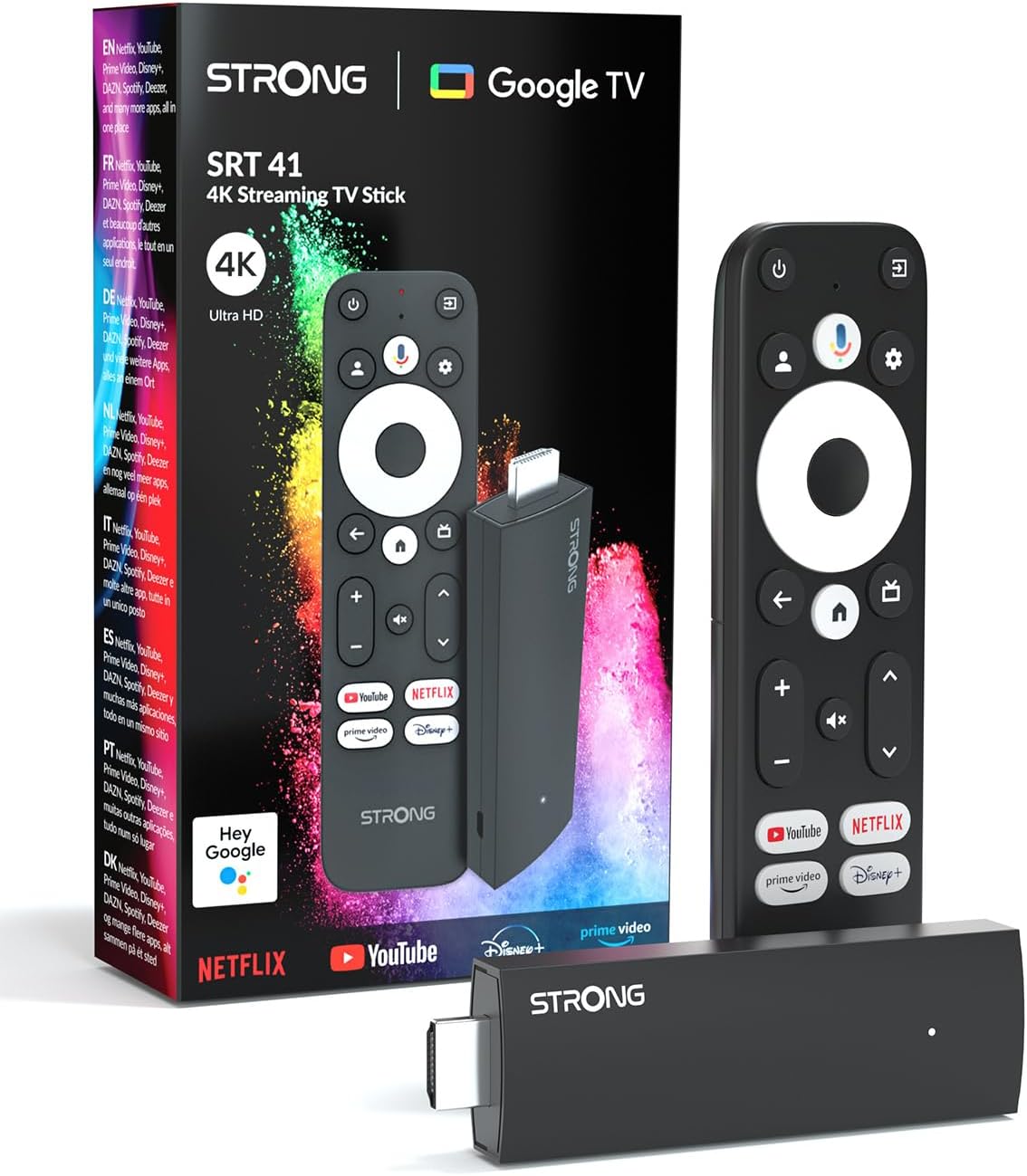
Image: The STRONG Leap-UNA streaming stick, its remote control, and the product packaging. This shows the main components included in the box.
המוצר נגמרview
The Leap-UNA stick is designed for ease of use and portability. It connects directly to your TV's HDMI port.
רכיבי המכשיר:
- Streaming Stick: Compact device with an HDMI connector for TV and a Micro USB port for power.
- שְׁלַט רָחוֹק: Features dedicated buttons for power, navigation, volume, Google Assistant, and quick access to popular streaming services like Netflix and YouTube.

Image: A close-up of the STRONG Leap-UNA streaming stick, highlighting its compact design and connectivity options including HDMI and Micro USB ports.
הגדרה
Follow these steps to set up your STRONG Leap-UNA streaming stick:
- חיבור לטלוויזיה: Plug the STRONG Leap-UNA streaming stick directly into an available HDMI port on your television. If space is limited, use an HDMI extender (if provided).
- הפעלה: Connect the power adapter to the Micro USB port on the streaming stick and then plug the adapter into a power outlet. The device will power on automatically.
- בחר כניסת HDMI: Use your TV's remote control to select the correct HDMI input source to which the Leap-UNA stick is connected.
- צמד שלט רחוק: Follow the on-screen instructions to pair your remote control. This usually involves pressing and holding specific buttons on the remote close to the stick.
- התחבר ל-Wi-Fi: On the screen, select your Wi-Fi network from the list and enter the password. Ensure you have a stable internet connection for optimal streaming.
- הגדרת חשבון Google: Sign in with your Google account. This is necessary to access the Google Play Store, Google Assistant, and other Google services. If you don't have one, you can create one.
- התקן אפליקציות: After initial setup, you can download and install your favorite streaming applications like Netflix, Amazon Prime Video, YouTube, and Disney+ from the Google Play Store.

Image: Visual representation of the simple setup process: 1. Connect the stick to your TV. 2. Connect to your internet box (Wi-Fi). 3. Start streaming your content.
הוראות הפעלה
שימוש בשלט הרחוק:
The included remote control allows you to navigate the Android TV interface and control your streaming experience.
- משטח ניווט: Use the circular pad to move through menus and select items.
- כפתור חזרה: חוזר למסך הקודם.
- כפתור בית: חוזר למסך הבית של Android TV.
- כפתור העוזר של גוגל: לחץ כדי להפעיל פקודות קוליות.
- לחצני עוצמת הקול: כוונן את עוצמת הקול של הטלוויזיה.
- כפתורי אפליקציה ייעודיים: Quickly launch Netflix, YouTube, Prime Video, and Disney+ (if available).

Image: The remote control for the STRONG Leap-UNA, highlighting its dedicated app buttons and the wide range of applications available through Google Play.
שליטה קולית עם גוגל אסיסטנט:
The integrated Google Assistant allows you to control your device and search for content using your voice. Press the Google Assistant button on your remote and speak your command. Exampהנושאים כוללים:
- "פתח את נטפליקס"
- "מצא סרטי פעולה"
- "Play [Movie Title]"
- "What's the weather?"

Image: The STRONG Leap-UNA remote control positioned in front of a TV screen, illustrating the use of Google Assistant for voice commands, such as "Avvia Netflix" (Start Netflix).
Chromecast Built-in:
With Chromecast built-in, you can cast content directly from your smartphone, tablet, or computer to your TV. Simply open a compatible app on your mobile device and tap the Cast icon ▶ to send the content to your TV.

Image: A TV screen displaying content being cast via Google Cast, with a smartphone in the foreground demonstrating the casting functionality.
תַחזוּקָה
To ensure the longevity and optimal performance of your STRONG Leap-UNA streaming stick, follow these maintenance guidelines:
- ניקוי: השתמשו במטלית רכה ויבשה לניקוי המכשיר. אין להשתמש בחומרי ניקוי נוזליים או בתרסיסים.
- אוורור: Ensure the device is placed in a well-ventilated area and that its vents are not blocked.
- עדכוני תוכנה: ייתכן שהמכשיר יקבל עדכוני תוכנה אוטומטיים. ודא שהוא מחובר לאינטרנט כדי לקבל עדכונים אלה, אשר ישפרו את הביצועים ויוסיפו תכונות חדשות.
- אִחסוּן: כאשר המכשיר אינו בשימוש למשך תקופות ממושכות, יש לאחסן אותו במקום קריר ויבש.
פתרון בעיות
If you encounter issues with your STRONG Leap-UNA streaming stick, refer to the following common problems and solutions:
| בְּעָיָה | סיבה אפשרית | פִּתָרוֹן |
|---|---|---|
| אין חשמל/המכשיר לא נדלק | Power cable not connected properly; Faulty power adapter; Power outlet issue. | Check all power connections. Try a different power outlet. Ensure the power adapter is working. |
| אין תמונה בטלוויזיה | Incorrect HDMI input selected; Loose HDMI connection; TV compatibility issue. | Ensure your TV is on the correct HDMI input. Reconnect the HDMI cable. Try a different HDMI port on your TV. |
| השלט רחוק לא מגיב | Batteries are low or dead; Remote not paired; Obstruction between remote and stick. | Replace batteries. Re-pair the remote control (refer to Setup section). Ensure no obstructions. |
| אחסון במאגר או איכות סטרימינג ירודה | Weak Wi-Fi signal; Internet speed issues; Network congestion. | Move the stick closer to your Wi-Fi router. Restart your router. Check your internet speed. Reduce other network activity. |
| אפליקציות קורסות או קופאות | App error; Insufficient memory; Software glitch. | Restart the app. Clear the app's cache (Settings > Apps > [App Name] > Clear cache). Restart the streaming stick. |
מפרטים
| תכונה | פְּרָט |
|---|---|
| מותג | חָזָק |
| שם הדגם | Leap-UNA |
| מַעֲרֶכֶת הַפעָלָה | אנדרואיד TV 11 |
| הַחְלָטָה | 2K |
| טכנולוגיית קישוריות | Bluetooth, HDMI, IR, Wi-Fi (Wi-Fi 5) |
| שירותי אינטרנט נתמכים | Netflix, Amazon Prime Video, Disney+, YouTube |
| גודל זיכרון RAM | 1 ג'יגה-בייט |
| מידות | 9L x 3W x 1.5H סנטימטרים |
| מכשירים תואמים | TV, smartphone, tablet, personal computer, laptop |
| צֶבַע | שָׁחוֹר |
אחריות ותמיכה
STRONG products are designed for reliability and performance. For warranty information and technical support, please refer to the warranty card included with your product or visit the official STRONG website. You can also contact customer support through the details provided on the packaging or website for assistance with any issues not covered in this manual.
למידע ותמיכה עדכניים, אנא בקרו באתר: www.strong.tv


