1. הקדמה
This manual provides detailed instructions for the setup, operation, maintenance, and troubleshooting of your Phomemo D520BT Bluetooth Thermal Label Printer. Please read this manual thoroughly before using the device to ensure proper functionality and to extend the product's lifespan.

Figure 1: Phomemo D520BT printer in purple, printing a shipping label, with a smartphone displaying a label design connected via Bluetooth. This image illustrates the printer's compact design and wireless printing capability.
2. תכולת החבילה
ודא שכל הפריטים המפורטים להלן כלולים בחבילה שלך. אם פריטים חסרים או פגומים, אנא צור קשר עם תמיכת הלקוחות.
- Phomemo D520BT Thermal Printer
- Roll Label (sample)
- מדריך להתחלה מהירה
- מדריך למשתמש (מסמך זה)
- כבל חשמל
- כבל USB
- מתאם מסוג C
- מתאם מתח

Figure 2: All components included in the Phomemo D520BT product package.
3. מדריך התקנה
3.1 פירוק
- הוציאו בזהירות את המדפסת ואת כל האביזרים מהאריזה.
- Remove any protective films or packing materials from the printer.
3.2 טעינת תוויות
The Phomemo D520BT supports both roll paper and folding paper labels.
- פתח את מכסה המדפסת על ידי הרמה עדינה שלו.
- For Roll Paper: Place the label roll into the internal paper holder, ensuring the labels feed from the bottom and the printing side faces upwards. Guide the first label through the output slot until it is slightly visible.
- For Folding Paper: Place the stack of folding labels behind the printer, ensuring the labels feed smoothly into the rear input slot and the printing side faces upwards. Guide the first label through the output slot until it is slightly visible.
- סגור היטב את מכסה המדפסת.

Figure 3: The Phomemo D520BT printer supports both folding paper and roll paper labels.
3.3 חיבור המדפסת
The D520BT offers both USB and Bluetooth connectivity.
3.3.1 USB Connection (Windows, Mac, Chrome OS, Linux)
- Connect one end of the USB cable to the printer and the other end to your computer.
- חבר את מתאם המתח למדפסת וחבר אותו לשקע חשמל.
- הפעל את המדפסת.
- Install the necessary printer drivers for your operating system. Drivers can typically be found on the official Phomemo webאֲתַר.
3.3.2 Bluetooth Connection (Android, iOS, iPad)
- חבר את מתאם המתח למדפסת וחבר אותו לשקע חשמל.
- הפעל את המדפסת.
- הורד והתקן את “Labelife” אפליקציה מחנות האפליקציות של המכשיר שלך.
- Open the Labelife app and follow the in-app instructions to pair your device with the D520BT printer via Bluetooth.

Figure 4: The Phomemo D520BT supports both Bluetooth and USB connectivity for various devices and operating systems.
4. הוראות הפעלה
4.1 הפעלה/כיבוי
- הפעלה: Press the power button located on the printer. The indicator light will illuminate.
- כיבוי: לחץ והחזק את לחצן ההפעלה עד שנורית החיווי תכבה.
4.2 Printing a Label
- Ensure the printer is powered on and connected to your device (computer via USB or mobile device via Bluetooth).
- פתח את המסמך או את היישום שמהם ברצונך להדפיס.
- Select the Phomemo D520BT as your printer.
- Adjust print settings as needed (e.g., label size, orientation). The printer supports a width range of 1 to 4.6 inches.
- הפעל את פקודת ההדפסה.
The Labelife app provides various free templates for customizing shipping labels, address labels, barcode labels, and thank-you stickers.
4.3 תכונות עיקריות
- High Speed Printing: The D520BT can print up to 72 labels per minute (150mm/s), suitable for high-volume printing tasks.
- רזולוציה גבוהה: Prints at 203 DPI, ensuring sharp and precise details on each label.
- Wide Printing Range: Supports label widths from 1 inch to 4.6 inches, accommodating various label types including 4x6 inch shipping labels.
- Ink-Free Thermal Technology: Utilizes direct thermal printing, eliminating the need for ink or toner cartridges.
- עיצוב חוסך מקום: Features a built-in paper holder, reducing the need for external label racks and optimizing desktop space.
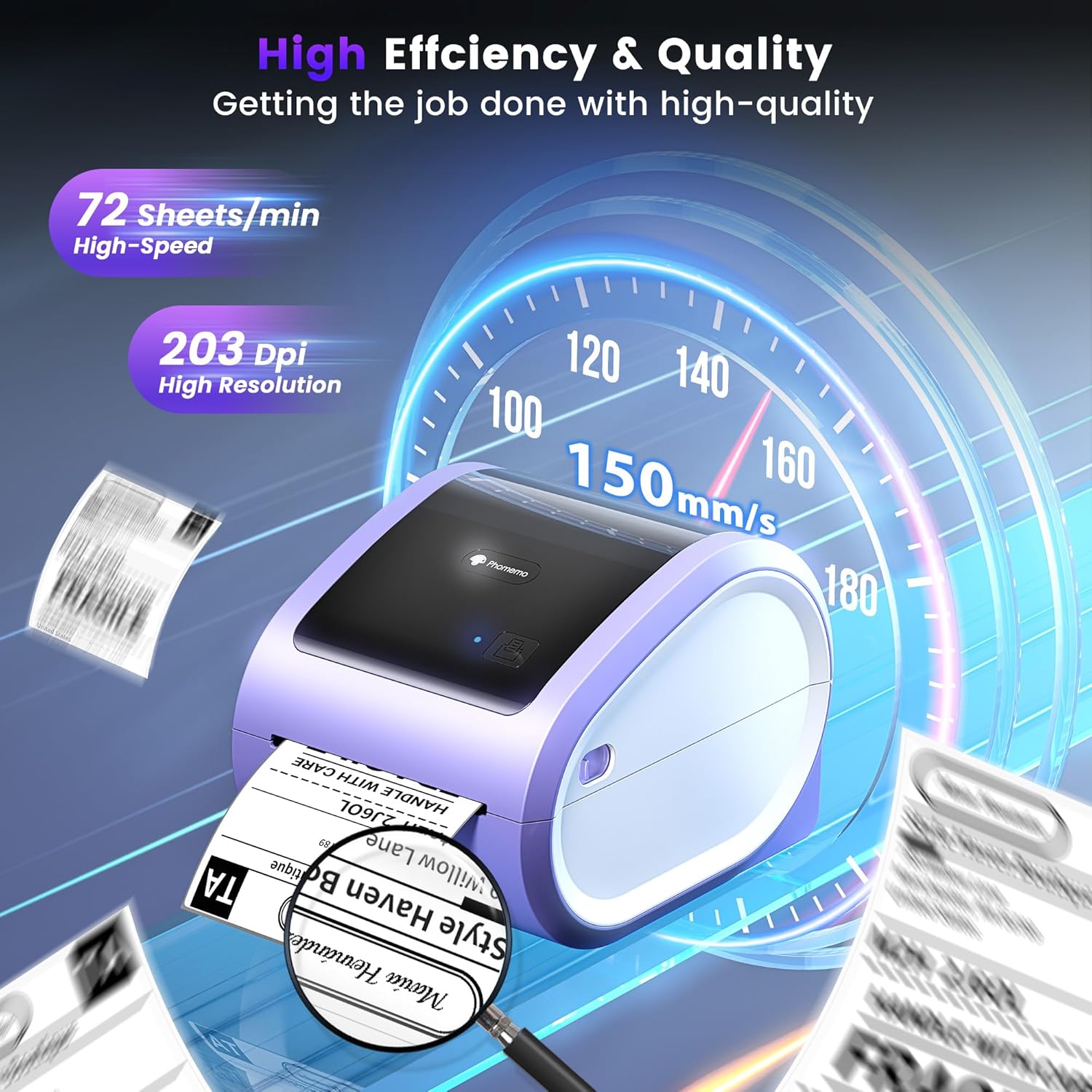
Figure 5: The Phomemo D520BT offers high efficiency and quality with a print speed of 150mm/s and 203 DPI resolution.

Figure 6: The Phomemo D520BT is compatible with various label sizes, from 1 inch to 4.6 inches wide.

Figure 7: The Phomemo D520BT supports multi-scenario applications for various labeling needs.

Figure 8: The Phomemo D520BT is compatible with all major shipping and sales platforms.
5. תחזוקה
5.1 ניקוי ראש ההדפסה
Regular cleaning of the print head ensures optimal print quality and extends the printer's life.
- כבה את המדפסת ונתק את כבל החשמל.
- פתח את מכסה המדפסת.
- Gently wipe the print head with an alcohol swab or a soft, lint-free cloth lightly dampהסתיים עם איזופרופיל אלכוהול.
- יש לאפשר לראש ההדפסה להתייבש לחלוטין לפני סגירת המכסה והפעלת המדפסת.
5.2 אחסון
Store the printer in a cool, dry place away from direct sunlight and extreme temperatures. Avoid exposing the printer to dust or moisture.
6. פתרון תקלות
If you encounter issues with your Phomemo D520BT printer, refer to the following common problems and solutions:
- Printer not powering on:
- Ensure the power adapter is securely connected to both the printer and a working power outlet.
- Check if the power button has been pressed firmly.
- Labels not printing or feeding incorrectly:
- Verify that labels are loaded correctly with the printing side facing up.
- Ensure there are no obstructions in the label path.
- Check if the label roll or stack is depleted.
- Poor print quality (faded, streaky, or blank labels):
- נקו את ראש ההדפסה כמתואר בסעיף 5.1.
- ודא שאתה משתמש במדבקות תרמיות איכותיות.
- Check print density settings in your printer preferences.
- בעיות חיבור בלוטות':
- Ensure Bluetooth is enabled on your mobile device and the printer.
- הפעל מחדש את המדפסת ואת המכשיר הנייד שלך.
- Ensure you are within the Bluetooth range.
- Re-pair the printer through the Labelife app.
- בעיות בחיבור USB:
- Verify the USB cable is securely connected to both the printer and the computer.
- Ensure the correct printer drivers are installed.
- נסה יציאת USB או כבל אחר.
For further assistance, refer to the detailed video tutorials and user manuals available online, or contact Phomemo customer support.
7. מפרטים
| תכונה | מִפרָט |
|---|---|
| מותג | פומומו |
| שם הדגם | D520BT |
| טכנולוגיית קישוריות | בלוטות', USB |
| טכנולוגיית הדפסה | תֶרמִי |
| תכונה מיוחדת | Portable, Built-in Holder |
| פלט מדפסת | מונוכרום |
| מהירות הדפסה מקסימלית | 150 mm/s (72 labels/min) |
| רזולוציית הדפסה | 203 DPI |
| רוחב הדפסה מקסימלי | 4.6 אינץ' |
| משקל פריט | 2.4 פאונד |
| מידות המוצר | 10.31" D x 10.31" W x 7.87" H |
8. אחריות ותמיכה
Phomemo provides customer support to assist with any questions or issues you may encounter. For detailed warranty information, please refer to the warranty card included with your product or visit the official Phomemo website. Our customer support team is available via phone, email, or remote support.
For additional resources, including video tutorials and updated user manuals, please visit the Phomemo support page.


