1. הקדמה
The Tera P150 is a robust Android 12 handheld barcode scanner PDA designed for efficient data collection in various environments such as logistics, warehouses, retail, and construction. It features a high-precision Zebra SE4710 scanning head, a powerful octa-core processor, and advanced wireless connectivity options to streamline operations.
2. תכולת החבילה
אנא ודא שכל הפריטים המפורטים להלן כלולים בחבילה שלך. אם פריטים חסרים או פגומים, אנא פנה לתמיכת הלקוחות.
- 1x Tera P150 Android 12 Handheld Barcode Scanner
- 1x כבל USB
- מגן מסך אחד
- 1x מגש ה- SIM מפליט
- 1x שרוך
- מדריך למשתמש אחד (מסמך זה)
- 1x SDK (Software Development Kit)
- 1x Rugged Rubber Boot
- 1x רצועת יד

Image: Tera P150 Android Barcode Scanner and its included accessories, such as the USB cable, screen protector, hand strap, and rugged rubber boot.
3. המוצר נגמרview
The Tera P150 is designed for ergonomic handling and durability. It features a 5.5-inch full touch screen, a rear-mounted barcode scanner, and various ports and buttons for operation.
מרכיבי מפתח:
- צג 5.5 אינץ': High-resolution touch screen, responsive even with gloves or wet hands.
- סורק ברקוד: Integrated Zebra SE4710 for 1D, 2D, and QR code scanning.
- לחצן הפעלה: ממוקם בצד להדלקה/כיבוי המכשיר ולנעילת מסך.
- לחצני עוצמת הקול: כוונון רמות השמע.
- יציאת USB-C: לטעינה והעברת נתונים.
- חריץ לכרטיס SIM/SD: For cellular connectivity and expandable storage.
- Hand Strap Attachment Points: לאבטחת רצועת היד המצורפת.
4. התקנה
4.1 טעינה ראשונית
Before first use, fully charge the Tera P150. Connect the provided USB cable to the device's USB-C port and a compatible power adapter. A full charge typically takes approximately 3 hours for the 5000mAh battery.

Image: The Tera P150 Barcode Scanner displaying its battery status, indicating it is designed for all-day use with a 5000mAh battery, offering over 300 hours standby and 12 hours working time.
4.2 הכנסת כרטיס SIM/SD
- אתר את מגש כרטיס ה-SIM/SD בצד המכשיר.
- השתמש בכלי חילוץ מגש ה-SIM המצורף כדי לפתוח את המגש.
- Carefully place your Nano-SIM card(s) and/or microSD card into the designated slots.
- דחף בעדינות את המגש בחזרה לתוך המכשיר עד שייכנס למקומו בנקישה.
4.3 הפעלה/כיבוי
- כדי להפעיל: Press and hold the Power button until the Tera logo appears on the screen.
- כדי לכבות: לחץ והחזק את לחצן ההפעלה עד להופעת תפריט אפשרויות צריכת החשמל. בחר "כיבוי".
- לאתחל: Press and hold the Power button until the power options menu appears. Select "Restart".
4.4 הגדרה ראשונית של אנדרואיד
Upon first power-on, follow the on-screen prompts to complete the Android 12 setup process. This includes selecting your language, connecting to a Wi-Fi network, and setting up your Google account (optional).
5. הוראות הפעלה
5.1 סריקת ברקוד
The Tera P150 is equipped with a Zebra SE4710 scanning head for rapid and accurate barcode capture.
- Open the scanning application on your device.
- Point the scanner window at the barcode you wish to scan. Ensure the red aiming line or dot covers the entire barcode.
- Press the dedicated scan button (usually on the side or front of the device).
- A successful scan will typically be indicated by an audible beep and/or a visual confirmation on the screen.

Image: A worker in a warehouse environment using the Tera P150 handheld device, demonstrating the use of its integrated Zebra SE4710 scanner to read barcodes on inventory.
5.2 תצוגה ומסך מגע
The 5.5-inch full touch screen offers a clear display and responsive interaction. It supports operation even when wearing gloves or with wet hands, enhancing usability in various work conditions.
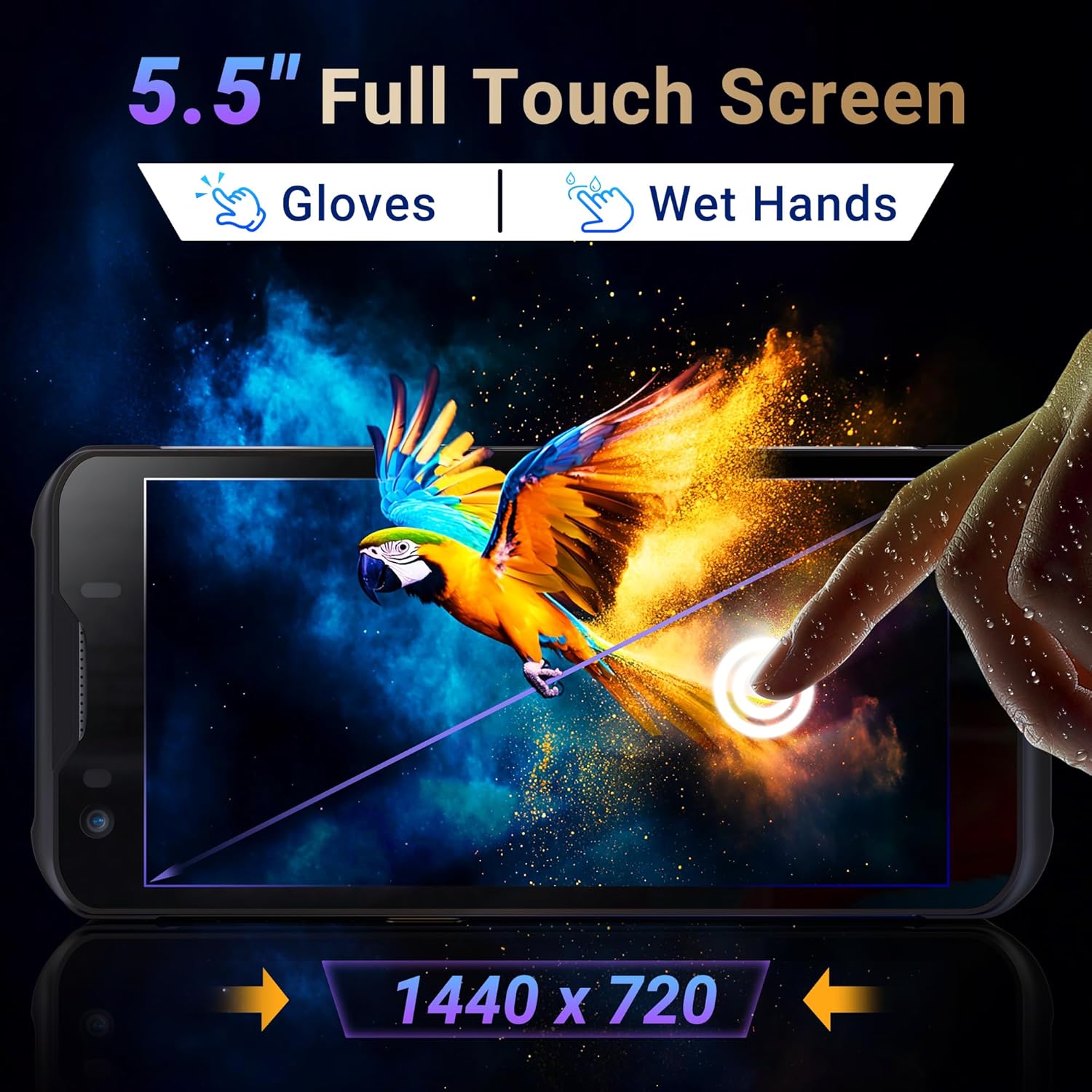
Image: The Tera P150's 5.5-inch full touch screen, highlighting its 1440x720 resolution and compatibility with both gloved and wet-hand operation.
5.3 קישוריות
The device supports multiple connectivity options for seamless data transmission.
- Wi-Fi: Go to Settings > Network & internet > Wi-Fi to connect to available wireless networks. Supports dual-band Wi-Fi for stable connections.
- Bluetooth 5.0: Go to Settings > Connected devices > Bluetooth to pair with Bluetooth-enabled accessories. Bluetooth 5.0 offers faster speeds and extended range.
- 4G/3G Cellular: Insert a SIM card (as described in Section 4.2) to enable cellular data and communication.
- GPS: The integrated GPS module allows for location tracking and navigation.
5.4 ביצועים וריבוי משימות
Powered by an MTK 2.0GHz octa-core processor with 4GB RAM and 64GB storage, the Tera P150 ensures smooth operation and efficient multitasking.

Image: The Tera P150 device highlighting its MTK 2.0GHz Octa-core processor and 4GB RAM + 64GB memory, indicating superior processing and performance compared to other devices.

Image: The Tera P150 device showcasing its Android 12 operating system and 4GB RAM + 64GB storage, illustrating its capability for seamless multitasking with multiple applications open.
6. תחזוקה
6.1 ניקוי ההתקן
To maintain optimal performance and appearance, clean the device regularly.
- השתמש במטלית רכה נטולת מוך מעט דampened with water or a mild screen cleaner.
- הימנעו משימוש בכימיקלים חזקים, חומרי ניקוי שוחקים או ממסים, מכיוון שאלה עלולים לפגוע במסך ובמכשיר.asing.
- ודא שהמכשיר כבוי ומנותק מכל מקור חשמל לפני הניקוי.
6.2 טיפול בסוללה
The Tera P150 features a 5000mAh battery designed for extended use. Proper battery care can prolong its lifespan.
- הימנעו מטמפרטורות קיצוניות, חמות וקרות כאחד, מכיוון שהן עלולות לפגוע בביצועי הסוללה.
- Do not fully discharge the battery frequently. Charge it before it drops to very low levels.
- השתמש רק באביזרי הטעינה המסופקים או שאושרו.
6.3 מאפייני עמידות
The Tera P150 is built with industrial-grade materials, featuring IP67 waterproofing and a 1.5-meter drop rating, making it suitable for harsh working environments.

Image: The Tera P150 device highlighting its IP67 grade, 4.9ft anti-drop, IP67 waterproof, and dustproof capabilities, indicating its suitability for all-weather and rugged use.
7. פתרון תקלות
This section addresses common issues you might encounter with your Tera P150.
| בְּעָיָה | סיבה אפשרית | פִּתָרוֹן |
|---|---|---|
| המכשיר לא נדלק | סוללה חלשה; קריסת מערכת | טען את המכשיר למשך 30 דקות לפחות. אם הוא עדיין לא מגיב, בצע הפעלה מחדש כפויה על ידי לחיצה ממושכת על לחצן ההפעלה למשך 10-15 שניות. |
| Barcode scanner not working | Scanning application not open; Barcode damaged/unreadable; Scanner module issue | Ensure the scanning application is active. Try scanning a different, known-good barcode. Clean the scanner window. Restart the device. |
| לא ניתן להתחבר ל-Wi-Fi | סיסמה שגויה; מחוץ לטווח; בעיית נתב | אמת את סיסמת ה-Wi-Fi. התקרב לנתב ה-Wi-Fi. הפעל מחדש את המכשיר ואת הנתב. |
| מסך מגע לא מגיב | תקלה זמנית בתוכנה; הפרעה למגן המסך | Restart the device. Ensure the screen protector is correctly applied and not interfering. |
8. מפרטים
Detailed technical specifications for the Tera P150 Android Barcode Scanner PDA.
- דֶגֶם: P150
- מַעֲרֶכֶת הַפעָלָה: אנדרואיד 12
- מעבד: MTK 2.0GHz Octa-core
- אַיִל: 4GB
- אִחסוּן: 64GB
- לְהַצִיג: 5.5-inch Full Touch Screen (1440 x 720 resolution)
- סורק ברקוד: Zebra SE4710 (1D, 2D, QR)
- סוֹלְלָה: 5000mAh (Standby >300H, Working >12H, Charging >3H)
- קישוריות: 4G, 3G, Dual-band Wi-Fi, Bluetooth 5.0, GPS
- עֲמִידוּת: IP67 Waterproof, 1.5-meter Drop Rating, Industrial-grade materials
- מכשירים תואמים: Android devices (smartphones, tablets), POS systems
- מידות החבילה: 20 x 11 x 8 ס"מ
- מִשׁקָל: 540 גרם
9. אחריות ותמיכה
Tera products are manufactured to high-quality standards. For warranty information, please refer to the warranty card included with your product or visit the official Tera webאֲתַר.
For technical support, troubleshooting assistance, or inquiries regarding your Tera P150, please contact Tera customer service:
- מספר איש קשר: +1 (626)438-1404
- תמיכה מקוונת: Refer to the official Tera webאתר לשאלות נפוצות ומשאבי תמיכה.


