מָבוֹא
The OFFNOVA Caregiver Pager System is designed to provide a reliable and easy-to-use communication solution for caregivers and individuals needing assistance. This wireless system ensures that alerts can be sent and received across various areas of a home or facility, offering peace of mind and prompt response capabilities.

Image: The OFFNOVA Caregiver Pager System, showing three plug-in receivers and three wearable call buttons.
תוכן החבילה
Your OFFNOVA Caregiver Pager System package includes the following components:
- 3 x Plug-in Receivers
- 3 x Wireless Call Buttons (each includes 1 AAA battery)
- מדריך למשתמש (מסמך זה)
תכונות המוצר
The OFFNOVA Caregiver Pager System offers a range of features designed for effective and convenient use:
- כיסוי מקיף: Includes 3 receivers and 3 call buttons, suitable for multi-room setups such as upstairs, downstairs, kitchens, and bathrooms.
- טווח אלחוטי מורחב: Provides a signal range of up to 1000 feet (300 meters) in open spaces, ensuring reliable notifications throughout large homes or facilities.
- התראות הניתנות להתאמה אישית: Offers 38 distinct ringtones and adjustable volume levels from 30dB to 80dB to suit various environments and user preferences.
- Unique Ringtones per Button: Each call button can be assigned a unique ringtone, allowing caregivers to instantly identify the location from which an alert originated.
- מערכת הניתנת להרחבה: Each receiver can pair with up to 5 call buttons, and each panic button can link to 5 receivers, providing flexible customization for different needs.
- Pre-Paired for Immediate Use: Transmitters and receivers come pre-paired from the factory, allowing for instant setup and operation.
- Portable and Versatile Call Button: The splash-proof call button can be worn as a necklace, carried in a pocket, or mounted on a wall for easy access.
- סוללה עמידה לאורך זמן: Call buttons feature a battery life of up to 1 year, based on 15 presses per day, minimizing the need for frequent battery changes.

Image: A caregiver assisting an elderly woman, highlighting key features of the OFFNOVA Caregiver Pager System.

Image: Illustrations demonstrating diverse applications of the pager system, including elderly care, senior care, childcare, maternity care, and use as a doorbell.
התקנה והתקנה
הגדרה ראשונית
The OFFNOVA Caregiver Pager System comes pre-paired for your convenience. Simply plug the receivers into standard wall outlets in desired locations. The call buttons are ready for use with pre-installed batteries.
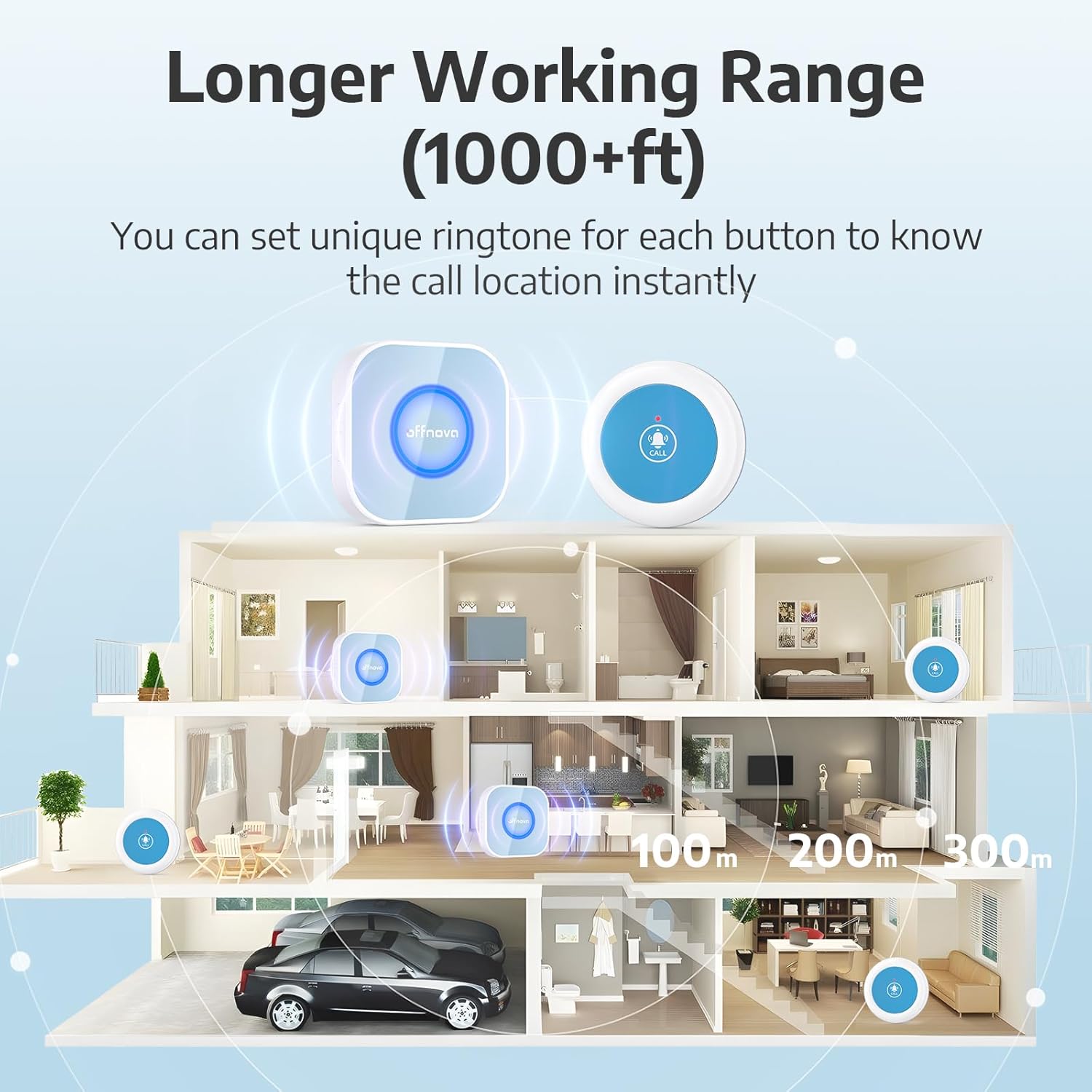
Image: A diagram illustrating the extensive wireless range of the system within a multi-level home environment.
Pairing Additional Buttons/Receivers
If you need to pair new call buttons with existing receivers, or re-pair units, follow these steps:
- חבר את המקלט לשקע חשמל.
- Press and hold the ringtone button on the receiver for 3 seconds until the indicator light flashes.
- Immediately press the call button you wish to pair. The receiver will ring, indicating successful pairing.

Image: Step-by-step visual guide for pairing call buttons with receivers.
ניקוי זיווג
To clear all existing pairings from a receiver, follow these steps:
- Simultaneously press and hold the ringtone and volume buttons on the receiver.
- While holding the buttons, plug the receiver into a power outlet.
- Continue holding until you hear "Dingdong, Dingdong", indicating that all previous pairings have been cleared.

Image: Visual instructions for clearing all paired devices from a receiver.
הוראות הפעלה
שליחת התראה
To send an alert, simply press the large "CALL" button located on the center of the wireless call button. The indicator light on the call button will illuminate, and the paired receivers will sound the selected ringtone.
התאמת עוצמת הקול
The receiver features a volume button on its side. Press this button repeatedly to cycle through the 3 adjustable volume levels (30dB to 80dB) until you reach your desired loudness.
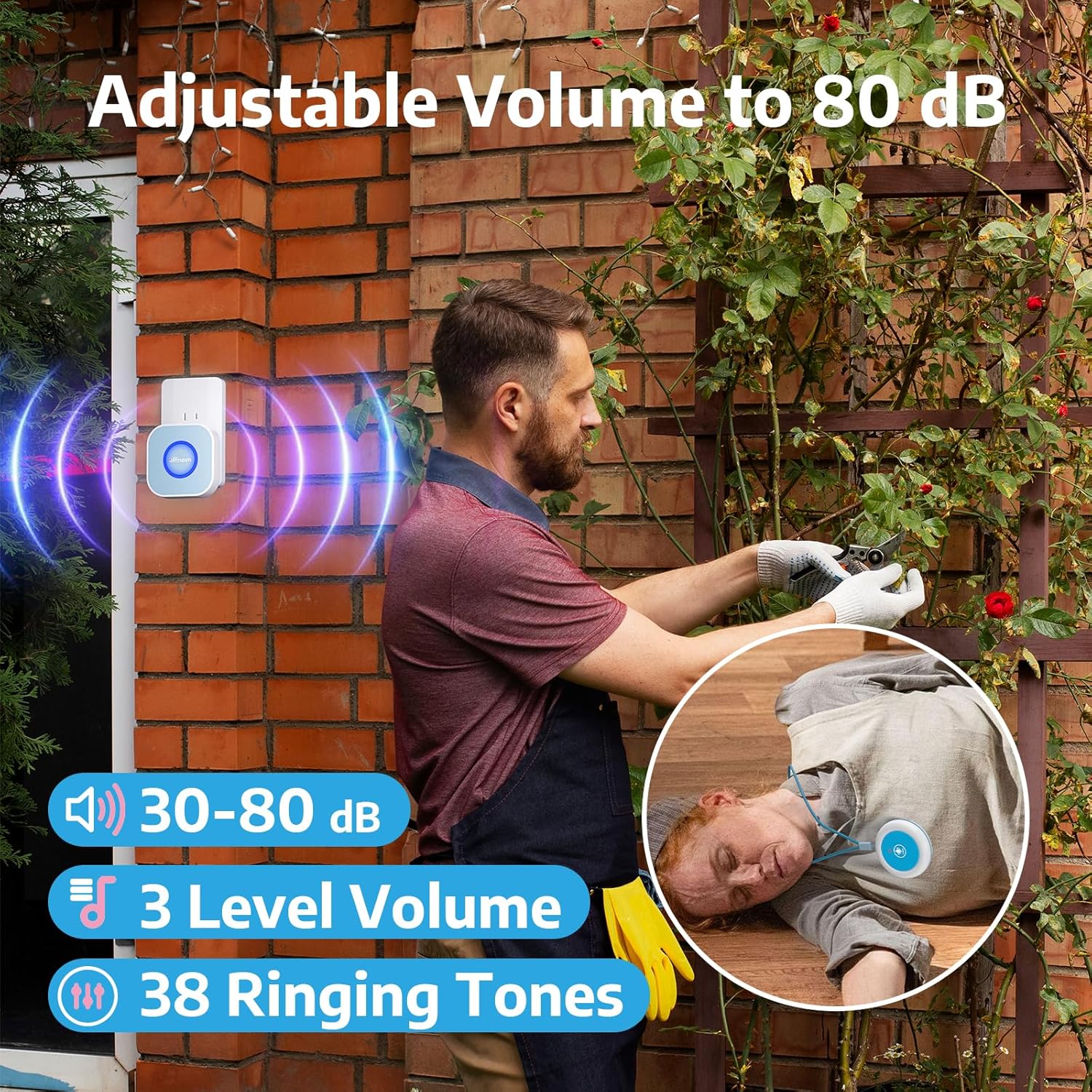
Image: Demonstrates the adjustable volume feature of the receiver, suitable for various environments.
שינוי צלצולים
The receiver has a ringtone selection button. Press this button to cycle through the 38 available melodies. Once you find a desired ringtone, it will be set for that receiver. If you wish to assign unique ringtones to different call buttons, ensure they are paired individually or re-pair them after selecting the desired tone for each.

Image: Illustrates the flexible pairing options and the ability to set unique ringtones for different call buttons.
תַחזוּקָה
החלפת סוללה
The wireless call buttons are powered by 1 AAA battery (included). When the battery is low, the indicator light on the call button may not illuminate or the signal strength may decrease. To replace the battery:
- Carefully open the battery compartment on the back of the call button.
- הסר את סוללת ה-AAA הישנה.
- הכנס סוללת AAA חדשה, תוך הקפדה על קוטביות נכונה (+/-).
- סגור היטב את תא הסוללות.

Image: Illustrates the long battery life of the call button.
ניקיון וטיפול
Wipe the devices with a soft, dry cloth. Avoid using harsh chemicals or abrasive cleaners. While the call button is splash-proof, avoid submerging it in water.
פתרון בעיות
If you encounter issues with your OFFNOVA Caregiver Pager System, please refer to the following common solutions:
| בְּעָיָה | סיבה אפשרית | פִּתָרוֹן |
|---|---|---|
| המקלט אינו נשמע בעת לחיצה על הכפתור. |
|
|
| Sound is too low or too loud. | יש צורך בכוונון הגדרת עוצמת הקול. | Press the volume button on the receiver to cycle through volume levels. |
| Cannot change ringtone. | Incorrect procedure for changing ringtone. | Press the ringtone selection button on the receiver to cycle through melodies. |
| Accidental alerts or unwanted pairings. | Previous pairings need to be cleared. | Follow the "Clearing Pairing" instructions in the "Setup and Installation" section. |
מפרטים
| תכונה | פְּרָט |
|---|---|
| מספר דגם | PGR23A |
| טווח אלחוטי | עד 300 מטרים (1000 רגל) בשטחים פתוחים |
| רינגטונים | 38 מנגינות לבחירה |
| רמות עוצמת הקול | 3 adjustable levels (30dB - 80dB) |
| Call Button Battery | 1 x AAA סוללת (כלול) |
| Call Button Water Resistance | עמיד בפני התזה |
| מידות חבילה | 10.04 x 4.45 x 2.28 אינץ' |
| משקל פריט | 13.4 אונקיות |
| יַצרָן | OFFNOVA |
אחריות ותמיכה
For warranty information or technical support, please refer to the product packaging or contact OFFNOVA customer service directly. Contact details are typically available on the manufacturer's official webבאתר או דרך נקודת הרכישה שלך.


