1. הקדמה
This manual provides detailed instructions for the operation and maintenance of your EazeID M950 Label Maker. Please read this manual thoroughly before using the device to ensure proper function and longevity.

Image 1.1: EazeID M950 Label Maker and accessories, including a label roll, USB-C cable, and printed labels.

Image 1.2: The EazeID M950 Label Maker being used to organize kitchen containers, demonstrating its practical application.
2. תכולת החבילה
ודא שכל הפריטים נמצאים בחבילה:
- 1 x EazeID M950 Label Maker
- 1 x Label Tape Cassette (12mm x 4M, Black on White)
- 1 x כבל נתונים מסוג C
- 1 x מדריך למשתמש

Image 2.1: Visual representation of the EazeID M950 Label Maker, tape cassette, Type-C cable, and user manual as included in the product package.
3. המוצר נגמרview
Familiarize yourself with the components and features of the EazeID M950 Label Maker.

Image 3.1: Key features of the EazeID M950, including the built-in 1200mAh Li-ion battery, safety label cutter, 203 DPI resolution, Bluetooth keyboard labeler functionality, and backlighting LCD screen.
תכונות עיקריות:
- Dual Printing Modes: Supports both QWERTY keyboard input and Bluetooth connectivity via the "Print Master" app.
- סוללה נטענת: Integrated 1200mAh lithium battery for portable use.
- מסך LCD עם תאורה אחורית: Ensures visibility in various lighting conditions.
- חותך מובנה: For precise label cutting.
- הדפסה תרמית: No ink or toner required.
- Waterproof Labels: Produces durable, water-resistant labels.
4. התקנה
4.1 טעינת המכשיר
The EazeID M950 Label Maker is equipped with a built-in 1200mAh rechargeable lithium-ion battery. Before first use, fully charge the device.
- Connect the provided Type-C USB cable to the charging port on the side of the label maker.
- חבר את הקצה השני של הכבל לספק כוח USB (לא כלול) או ליציאת USB של המחשב.
- נורית חיווי הטעינה תידלק. טעינה מלאה אורכת בדרך כלל 1-2 שעות.

Image 4.1: The EazeID M950 Label Maker being charged via its Type-C port, illustrating the fast charging capability.
4.2 Loading Label Tape
Ensure the device is powered off before loading or replacing label tape.
- Open the tape compartment cover located on the top of the label maker.
- Insert the label tape cassette with the tape end facing the printing slot. Ensure it clicks into place.
- סגור את מכסה תא הקלטת היטב.

Image 4.2: A visual comparison showing the integrated design of the EazeID M950's tape compartment with its rechargeable battery, contrasting with other models that use AAA batteries and separate covers.
4.3 הפעלה/כיבוי
Press and hold the power button (usually located on the top right of the keyboard) for a few seconds to turn the device on or off. The backlit LCD screen will illuminate upon power-on.
5. הוראות הפעלה
The EazeID M950 offers two primary printing methods: direct input via the QWERTY keyboard or connection via Bluetooth to the "Print Master" app.

Image 5.1: The EazeID M950 supports two printing modes: connecting via Bluetooth to a smartphone app or direct input using the integrated QWERTY keyboard.
5.1 QWERTY Keyboard Mode
This mode allows for direct text input and printing without needing a smartphone.
- הפעלה: Turn on the label maker.
- קלט טקסט: Use the QWERTY keyboard to type your desired label text. The text will appear on the backlit LCD screen.
- עיצוב: Use the function keys (e.g., 'Fn' key combined with other keys) to access formatting options such as font size, bold, italic, and symbols. Refer to the on-screen indicators for available options.
- הֶדפֵּס: Press the 'Print' button to generate the label.
- גְזִירָה: After printing, press the built-in cutter lever (located on the left side) to cut the label.

Image 5.2: Instructions for QWERTY keyboard use: 1. Power On, 2. Keyboard input, 3. Print, 4. Built-in cutter.

Image 5.3: The EazeID M950 keyboard layout, highlighting access to over 100 frames, 23 languages, 3 sizes, 1000+ symbols, and accented characters.
5.2 Bluetooth App Mode (Print Master)
For advanced customization and template use, connect your label maker to the "Print Master" app.
- הורד אפליקציה: Download the "Print Master" app from your smartphone's app store (available on App Store and Google Play).
- הפעלה: Turn on the label maker.
- אפשר Bluetooth: ודא שה-Bluetooth מופעל בטלפון החכם שלך.
- לְחַבֵּר: Open the "Print Master" app and follow the on-screen instructions to connect to your EazeID M950 device.
- תווית עיצוב: Use the app's interface to create your label. The app offers a library of customizable templates, fonts, icons, barcodes, and QR codes.
- הֶדפֵּס: Send the label design from the app to the label maker for printing.
- גְזִירָה: After printing, press the built-in cutter lever to cut the label.

Image 5.4: Instructions for Bluetooth app connection: 1. Power On, 2. Turn on Bluetooth, 3. Connect to "Print Master" app, 4. Printing.
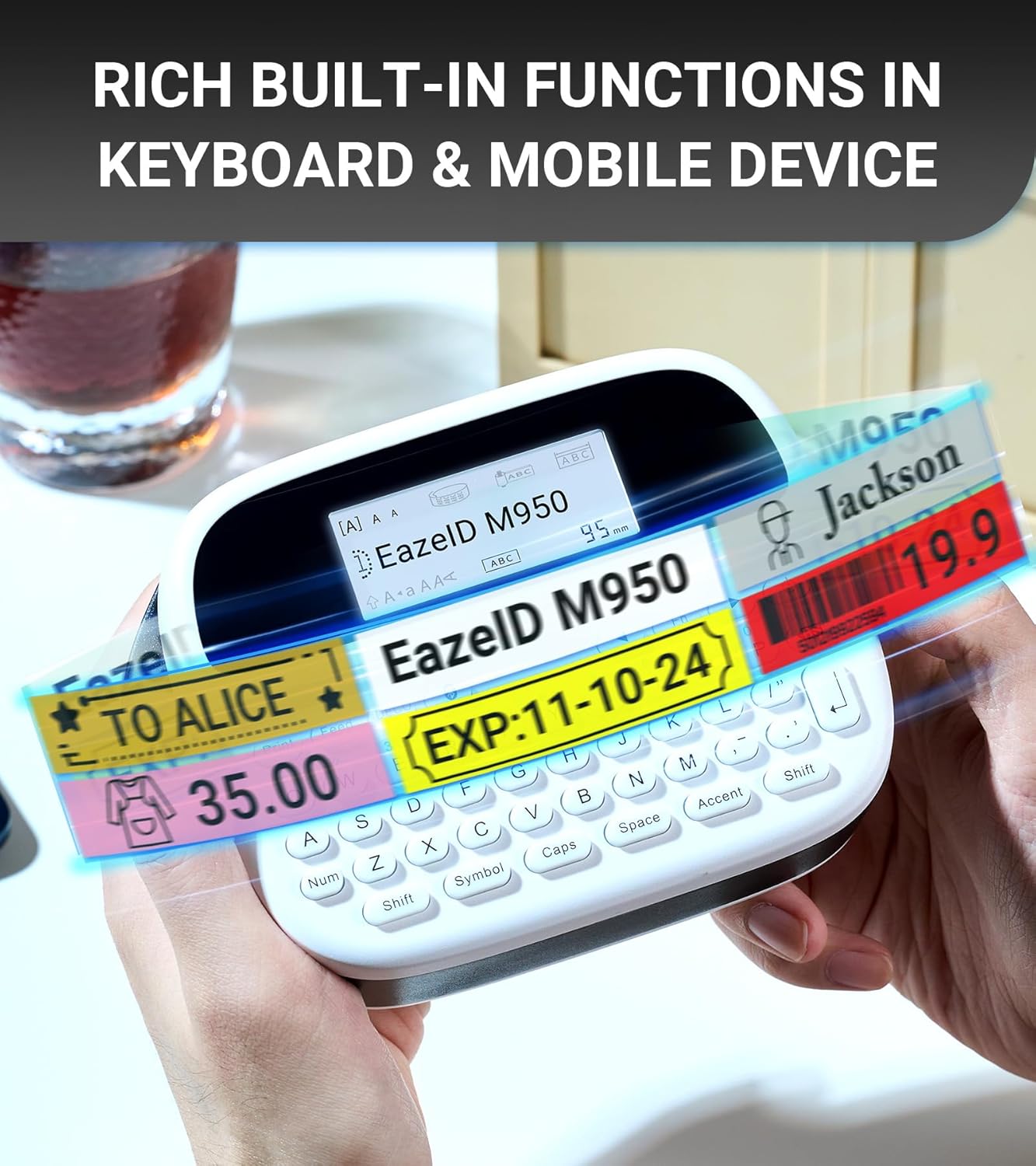
תמונה 5.5: דוגמהamples of labels showcasing the rich built-in functions available through the keyboard and mobile app, including text, symbols, and barcodes.
6. תחזוקה
6.1 ניקוי ראש ההדפסה
Regular cleaning of the print head ensures optimal print quality.
- כבה את המכשיר.
- Open the tape compartment.
- Gently wipe the print head with a soft, lint-free cloth moistened with isopropyl alcohol.
- Allow the print head to dry completely before closing the compartment and powering on the device.
6.2 טיפול בסוללה
- כדי להאריך את חיי הסוללה, הימנעו מפריקת הסוללה לחלוטין לעתים קרובות.
- אם מאחסנים את המכשיר למשך תקופה ממושכת, טען אותו עד לכ-50% ואחסן אותו במקום קריר ויבש.
- Recharge the device every 3-6 months during storage.
6.3 Label Durability
EazeID M950 labels are designed for durability in various environments.

Image 6.1: The labels produced by the EazeID M950 are designed to withstand high temperatures, low temperatures, water exposure, and resist fading over time.
7. פתרון תקלות
| בְּעָיָה | סיבה אפשרית | פִּתָרוֹן |
|---|---|---|
| המכשיר לא נדלק | סוללה חלשה; תקלה במכשיר | Charge the device; Contact customer support if issue persists. |
| איכות הדפסה ירודה | Dirty print head; Incorrect tape loading; Low battery | Clean the print head (Section 6.1); Re-load tape correctly; Charge the device. |
| לא ניתן להתחבר באמצעות Bluetooth | Bluetooth off; App not installed; Device not discoverable | Ensure Bluetooth is on; Install "Print Master" app; Restart device and app. |
| Label tape jams | Improper tape loading; Foreign object in compartment | Open compartment, remove tape, clear any obstructions, re-load tape. |
8. מפרטים
| תכונה | מִפרָט |
|---|---|
| שם הדגם | EazeID M950 Label Maker |
| מידות המוצר | 1"D x 1"W x 1"H (approx. 159mm x 112mm) |
| משקל פריט | 1.08 פאונד (כ-489 גרם) |
| טכנולוגיית הדפסה | תֶרמִי |
| רזולוציית הדפסה | 203 dpi (Black and White) |
| גודל מדיה מקסימלי | 12 מ"מ (0.47 אינץ') |
| קישוריות | בלוטות', USB Type-C |
| סוֹלְלָה | סוללת ליתיום-יון 1200mAh (כלולה) |
| שיטת בקרה | App, Push Button (QWERTY Keyboard) |
| תכונות מיוחדות | Backlit LCD Screen, Waterproof Labels, Portable, Built-in Cutter |

Image 8.1: Dimensions of the EazeID M950 Label Maker (159mm x 112mm) and its weight (489g), illustrating its compact and portable design.
9. אחריות ותמיכה
9.1 מידע אחריות
The EazeID M950 Label Maker comes with a Limited Warranty. Please refer to the warranty card included in your package for specific terms and conditions. This warranty typically covers manufacturing defects under normal use.
9.2 תמיכת לקוחות
For technical assistance, troubleshooting not covered in this manual, or warranty claims, please contact EazeID customer support through the retailer where the product was purchased or visit the official EazeID webאתר ליצירת קשר.


