מָבוֹא
This manual provides comprehensive instructions for the setup, operation, maintenance, and troubleshooting of your Logitech G915 X Lightspeed Wireless Mechanical Gaming Keyboard. Designed for high-performance gaming and versatile connectivity, this keyboard features LIGHTSPEED wireless technology, GL mechanical switches, customizable G-keys, and LIGHTSYNC RGB lighting. Please read this manual thoroughly to ensure optimal use and longevity of your device.

תמונה: מלמעלה למטה view of the Logitech G915 X Lightspeed Wireless Mechanical Gaming Keyboard, showcasinהפריסה המלאה ותאורת האחורית RGB שלה.
מה יש בקופסה
Upon unboxing your Logitech G915 X Lightspeed keyboard, verify that all the following components are present:
- Logitech G915 X Lightspeed Wireless Mechanical Gaming Keyboard
- LIGHTSPEED USB Receiver
- מאריך USB
- USB-C Data/Charging Cable
- תיעוד למשתמש (מדריך זה)

Image: All components included in the Logitech G915 X keyboard packaging, including the keyboard, USB-A to USB-C cable, USB extender, and USB wireless receiver.
הגדרה
טעינה ראשונית
Before first use, it is recommended to fully charge the keyboard.
- Connect the supplied USB-C data/charging cable to the USB-C port on the keyboard (located on the top edge).
- Connect the other end of the cable (USB-A) to a powered USB port on your computer or a USB wall adapter.
- The battery indicator light on the keyboard will show charging status. A full charge typically takes approximately 4 hours.
חיבור המקלדת
The G915 X offers three connectivity options: LIGHTSPEED Wireless, Bluetooth, and Wired USB.

Image: Close-up of the Logitech G915 X keyboard's connectivity buttons (LIGHTSPEED, Bluetooth, Wired) located above the F5-F8 keys.
LIGHTSPEED Wireless (Recommended for Gaming)
- Locate the LIGHTSPEED USB receiver. For optimal signal, use the USB extender to position the receiver closer to the keyboard.
- Plug the LIGHTSPEED USB receiver into an available USB-A port on your computer.
- On the keyboard, slide the power switch to the ON position (located on the top right).
- Press the LIGHTSPEED button (indicated by a wireless signal icon) on the keyboard. The indicator light above the button will turn solid cyan when connected.
קישוריות בלוטות'
- ודא שהמקלדת מופעלת.
- Press and hold the Bluetooth button (indicated by a Bluetooth icon) on the keyboard until the indicator light above it starts blinking blue rapidly. This indicates pairing mode.
- On your computer or device, navigate to Bluetooth settings and select "G915 X" from the list of available devices.
- The indicator light will turn solid blue when successfully paired.
מצב USB קווי
- Connect the USB-C data/charging cable to the keyboard and the USB-A end to your computer.
- המקלדת תעבור אוטומטית למצב קווי ותתחיל להיטען.
הוראות הפעלה
תכונות עיקריות נגמרוview
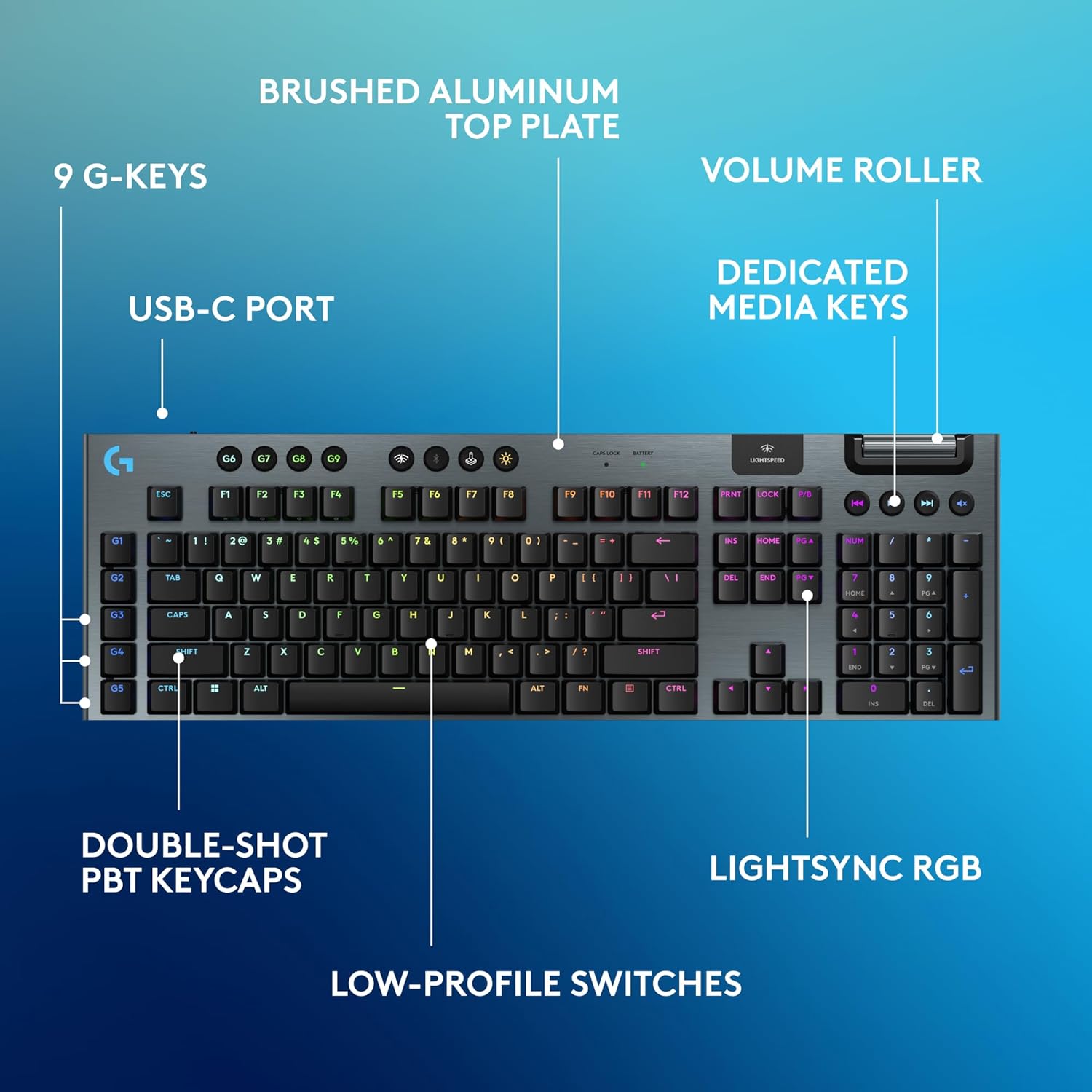
Image: Diagram highlighting key features of the Logitech G915 X keyboard, including G-keys, USB-C port, double-shot PBT keycaps, low-profile switches, brushed aluminum top plate, volume roller, dedicated media keys, and LIGHTSYNC RGB.
- GL Mechanical Switches: בעל מקצוע נמוךfile switches designed for speed, precision, and comfort with a 1.3mm actuation point.
- LIGHTSPEED Wireless: Pro-grade wireless technology for ultra-fast and reliable connection.
- בלוטות': For connecting to other devices that support Bluetooth.
- מקשי מדיה ייעודיים: Control audio and video playback with ease.
- רולר נפח: Smoothly adjust audio volume.
- LIGHTSYNC RGB: Customizable per-key RGB lighting with approximately 16.8 million colors.
- G-Keys (G1-G5): Five dedicated programmable macro keys on the left side of the keyboard.
- מכסי מפתח PBT כפולים: Durable keycaps resistant to wear and shine.
Customizing with G HUB Software
To unlock the full potential of your G915 X keyboard, download and install the Logitech G HUB software from the official Logitech website. G HUB allows for extensive customization.
- G-Key Programming: Assign custom macros, commands, or system functions to the G1-G5 keys. You can create multiple profileעבור משחקים או יישומים שונים.
- LIGHTSYNC RGB Customization: Personalize lighting effects, colors, and animations. Sync lighting with other Logitech G devices.
- מצב משחק: Disable specific keys (e.g., Windows key) during gaming to prevent accidental interruptions.
- KEYCONTROL: Set up to 15 functions per key for advanced control.

Image: Screenshot of the Logitech G HUB software interface showing options for customizing commands and assigning functions to G-keys on the G915 X keyboard.
Media Controls and Volume
Dedicated media controls and a volume roller are located on the top right of the keyboard for quick access.
- רולר נפח: Roll up to increase volume, roll down to decrease.
- כפתורי מדיה:
- המסלול הקודם
- הפעל/השהה
- המסלול הבא
- לְהַשְׁתִיק
ניהול סוללות
The Logitech G915 X keyboard provides up to 36 hours of continuous battery life with lighting enabled. Battery life may vary based on usage and lighting intensity.
- מחוון סוללה: A dedicated battery indicator light is located near the LIGHTSPEED logo on the top right. It changes color to indicate battery level.
- טְעִינָה: Connect the USB-C cable to the keyboard and a powered USB port. You can continue to use the keyboard in wired mode while it charges.
- חסכון באנרגיה: The keyboard will enter a low-power state after a period of inactivity to conserve battery.
תַחזוּקָה
תחזוקה נכונה מבטיחה את אורך החיים והביצועים של המקלדת שלכם.
- ניקוי מכסי מקשים: השתמש במטלית רכה נטולת מוך מעט דampשטוף במים או בתמיסת ניקוי עדינה. הימנע מכימיקלים חזקים.
- Removing Dust/Debris: Use compressed air to clear dust and debris from between the keycaps and switches.
- ניקוי פני השטח: Wipe the aluminum top plate with a soft, dry cloth.
- אִחסוּן: כאשר המקלדת אינה בשימוש למשך תקופות ממושכות, יש לאחסן אותה במקום יבש וקריר, הרחק מאור שמש ישיר.
פתרון בעיות
If you encounter issues with your Logitech G915 X keyboard, refer to the following common troubleshooting steps.
| בְּעָיָה | פתרון אפשרי |
|---|---|
| המקלדת לא מגיבה (אלחוטי) |
|
| בעיות בחיבור בלוטות' |
|
| מפתחות לא נרשמים או מקלידים פעמיים |
|
| תאורת RGB לא עובדת או שגויה |
|
| G-keys or macros not working |
|
מפרטים
| תכונה | פְּרָט |
|---|---|
| מספר דגם | 920-012670 |
| קישוריות | LIGHTSPEED Wireless (2.4 GHz RF), Bluetooth, Wired USB-C |
| סוג מתג | GL Tactile Mechanical Switches (Low-Profile) |
| נקודת הפעלה | 1.3 מ"מ |
| מרחק נסיעה כולל | 3.2 מ"מ |
| מפתחות מפתחות | PBT כפול |
| תְאוּרָה | LIGHTSYNC RGB (ניתן להתאמה אישית לכל מקש) |
| מקשים ניתנים לתכנות | 5 dedicated G-keys, up to 15 functions per key via KEYCONTROL |
| חיי סוללה | Up to 36 hours (with lighting) |
| זמן טעינה | כ. 4 שעות |
| מידות (LxWxH) | 18.7 x 5.91 x 0.87 אינץ' (47.5 x 15 x 2.2 ס"מ) |
| מִשׁקָל | 2.38 פאונד (1.08 ק"ג) |
| חוֹמֶר | פלטת אלומיניום עליונה |
| תאימות מערכת הפעלה | PC, Mac OS |
אחריות ותמיכה
Logitech products are designed for durability and performance. For information regarding warranty coverage, technical support, and frequently asked questions, please visit the official Logitech support webאֲתַר.
תמיכה של Logitech Webאֲתַר: https://support.logi.com/
להגנה נוספת, שקלו לרכושasing an extended protection plan available at the time of purchase.


