1. הקדמה
This manual provides essential information for the proper setup, operation, and maintenance of your NexiGo NG17QH 4K Portable Monitor. Please read this manual thoroughly before using the device to ensure optimal performance and to prevent damage. Keep this manual for future reference.

Image: The NexiGo NG17QH 4K Portable Monitor, showcasing its sleek design and smart cover.
2. תכולת החבילה
Verify that all items listed below are included in your package. If any items are missing or damaged, please contact NexiGo customer support.
- NexiGo NG17QH 4K Portable Monitor
- Smart Cover / Stand
- כבל USB-C ל-USB-C
- כבל מיני HDMI ל- HDMI
- כבל חשמל USB-A ל-USB-C
- מתאם מתח
3. המוצר נגמרview
Familiarize yourself with the ports and controls on your NexiGo NG17QH portable monitor.
תמונה: מפורט view of the monitor's ports and controls.
יציאות וכפתורים:
- יציאת USB-C מובלטת: Used for power, video, and audio transmission with compatible devices.
- יציאת מיני HDMI: Used for video and audio transmission with HDMI-compatible devices.
- לחצן הפעלה: Press and hold to power the monitor on or off. Short press to access the OSD menu.
- נורית חיווי כוח: Indicates the monitor's power status.
- Multi-Function Key: Used to navigate the OSD menu and adjust settings.
- OTG Interface (USB-C): Allows connection of USB peripherals like keyboards or mice when the monitor is connected via the full-featured USB-C port.
- שקע אוזניות 3.5 מ"מ: לחיבור התקני שמע חיצוניים.
4. התקנה
Follow these steps to set up your NexiGo NG17QH portable monitor.
4.1 הפעלת הצג
- Using a single USB-C cable (Full-Featured): If your device (laptop, smartphone) supports full-featured USB-C output, connect the monitor to your device using the provided USB-C to USB-C cable. This single cable can provide both power and display signal.
- Using an external power adapter: If your device does not provide sufficient power or if you are using the Mini HDMI port, connect the provided USB-A to USB-C power cable to the monitor's full-featured USB-C port and plug the USB-A end into the power adapter, then into a wall outlet.
4.2 התחברות למכשירים
- Laptop/PC (USB-C): Connect the monitor to your laptop/PC using the USB-C to USB-C cable. Ensure your laptop's USB-C port supports DisplayPort Alternate Mode.
- Laptop/PC (HDMI): Connect the monitor to your laptop/PC using the Mini HDMI to HDMI cable. Ensure the monitor is powered externally via the USB-C power cable.
- קונסולות משחקים (PS5, Xbox, Switch): Connect the monitor to your console using the Mini HDMI to HDMI cable. Ensure the monitor is powered externally via the USB-C power cable.
- סמארטפון: Connect the monitor to your smartphone using the USB-C to USB-C cable. Ensure your smartphone's USB-C port supports video output.
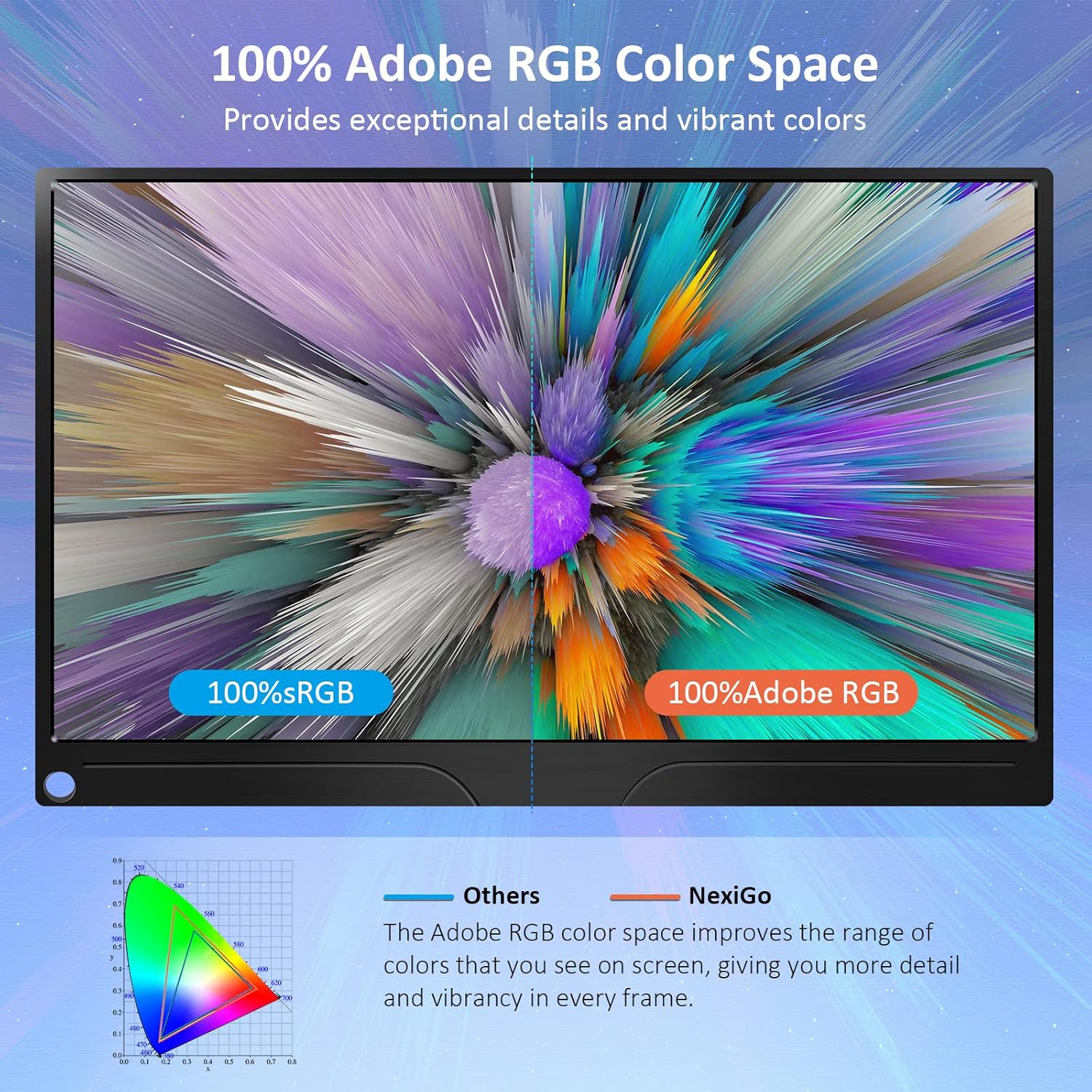
Image: The portable monitor connected to a laptop, demonstrating an extended display setup.
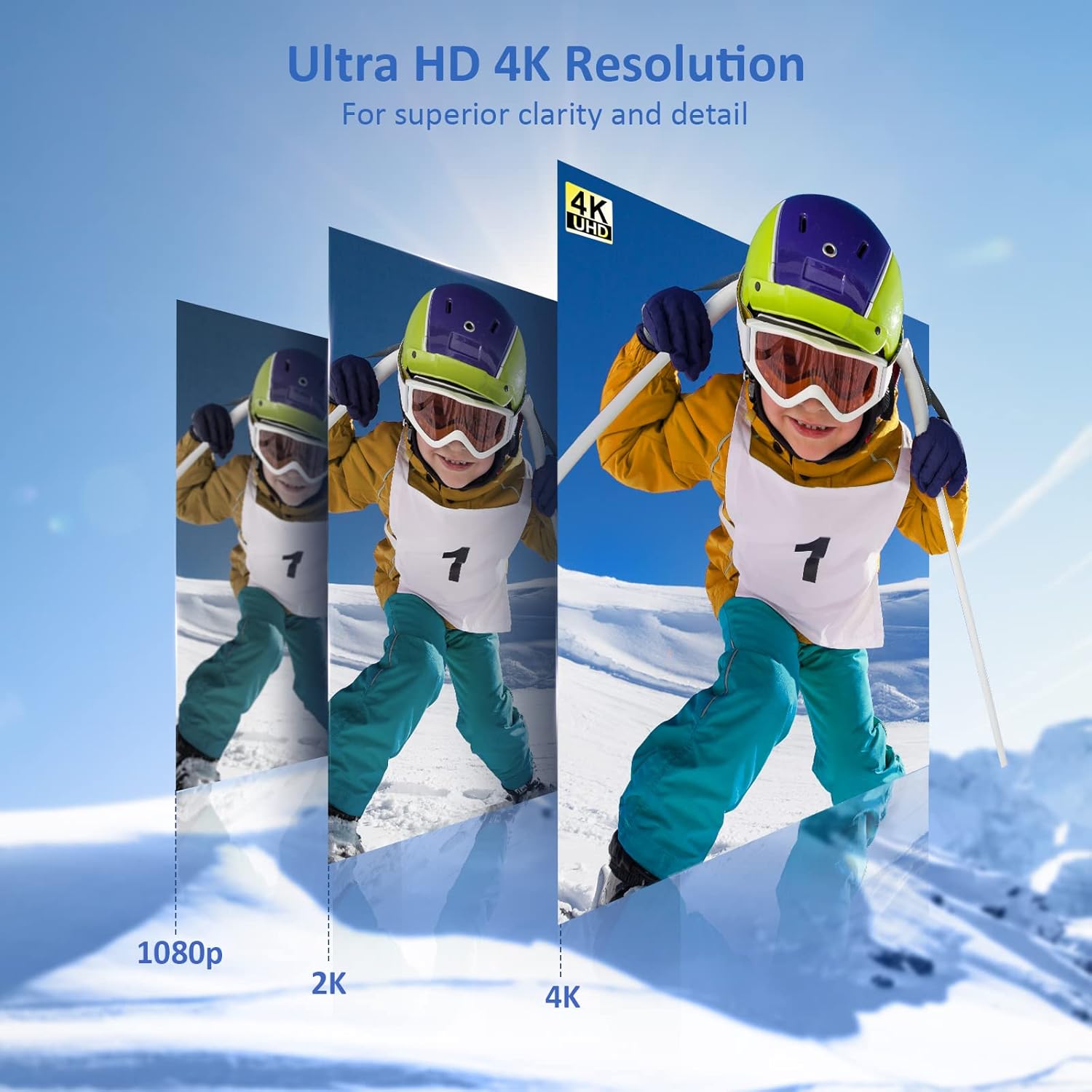
Image: The portable monitor connected to a smartphone, displaying content.
4.3 הרכבה של VESA
The monitor is compatible with VESA mounts (75x75mm). To mount the monitor, remove the smart cover and attach it to a compatible VESA arm or wall mount using appropriate screws (not included).
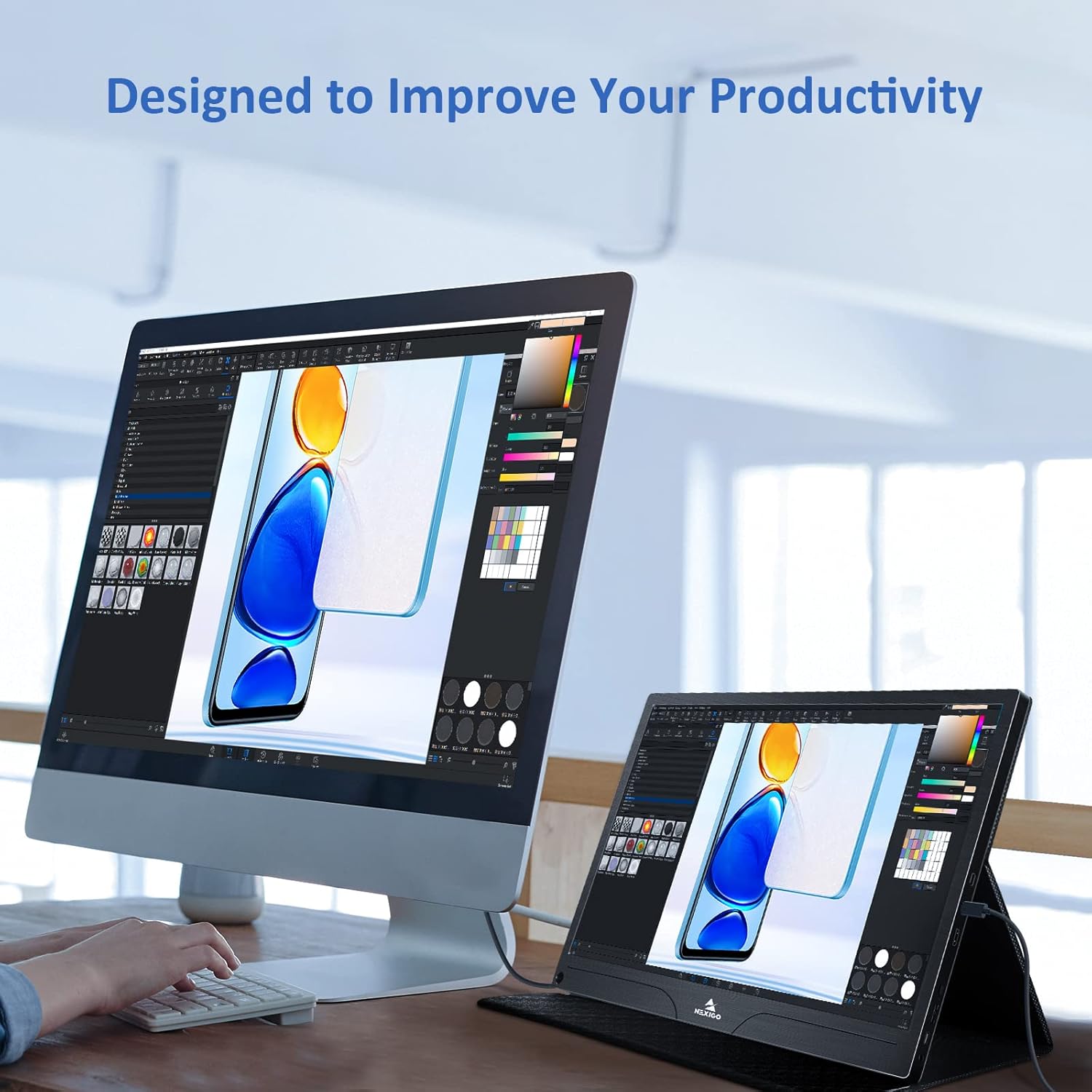
Image: The monitor mounted on a VESA-compatible desk arm.
5. הפעלת המוניטור
5.1 הפעלה/כיבוי
לחץ והחזק את כפתור הפעלה for approximately 3 seconds to turn the monitor on or off.
5.2 תפריט תצוגה על המסך (OSD).
The OSD menu allows you to adjust various display settings. Short press the כפתור הפעלה to open the OSD menu. Use the מקש רב פונקציה כדי לנווט ולבחור אפשרויות.
- למעלה למטה: Move the Multi-Function Key up or down to navigate through menu options.
- לְהַכנִיס: Press the Multi-Function Key inward to select an option or confirm a setting.
- יְצִיאָה: Press the Power Button to exit the current menu or the OSD.
5.3 הגדרות תצוגה
- ניגוד בהירות: כוונן את הבהירות והניגודיות הכוללת של התצוגה.
- הגדרות צבע: שינוי טמפרטורת צבע, גוון ורוויה.
- מצב HDR: Enable or disable High Dynamic Range for enhanced visual quality with compatible content.
- FreeSync: Enable FreeSync for smoother gaming experiences by synchronizing the monitor's refresh rate with your GPU's frame rate.
- יחס גובה-רוחב: Adjust the display aspect ratio (e.g., 16:9, 4:3).
5.4 הגדרות שמע
Adjust the volume of the built-in dual speakers or connected headphones through the OSD menu.
6. תחזוקה
- ניקוי המסך: השתמש קלות במטלית רכה נטולת מוך דampנשטף במים או בחומר ניקוי מסך שאינו שוחק. אין לרסס נוזל ישירות על המסך.
- ניקוי ה-Casing: נגב את הצג גasing with a soft, dry cloth. Avoid using harsh chemicals or solvents.
- אִחסוּן: When not in use, store the monitor in a cool, dry place, preferably in its original packaging or smart cover to protect it from dust and scratches.
- הימנע מתנאים קיצוניים: אין לחשוף את הצג לטמפרטורות קיצוניות, לחות או אור שמש ישיר.
7. פתרון תקלות
אם נתקלת בבעיות עם הצג שלך, עיין בטבלה הבאה לקבלת בעיות נפוצות ופתרונות.
| בְּעָיָה | סיבה אפשרית | פִּתָרוֹן |
|---|---|---|
| No display / "No Signal" message | חיבור כבל שגוי, חשמל לא מספיק, מקור קלט שגוי. | Ensure cables are securely connected. Verify external power is supplied if needed. Check the input source setting in the OSD menu. |
| המסך לא נדלק | No power supply, faulty cable. | Ensure the power adapter is connected and working. Try a different USB-C cable or power source. |
| מסך מהבהב | Faulty cable, unstable power, incompatible resolution/refresh rate. | Replace the cable. Ensure stable power. Adjust the display resolution or refresh rate on your connected device. |
| אין אודיו | Volume too low, incorrect audio output setting, faulty cable. | Increase volume via OSD or connected device. Ensure the monitor is selected as the audio output device on your source. Check cable connections. |
| OTG port not working | Monitor not powered via full-featured USB-C, device incompatibility. | Ensure the monitor is connected to a device via the full-featured USB-C port that supports OTG functionality. |
8. מפרטים
Detailed technical specifications for the NexiGo NG17QH 4K Portable Monitor.
| תכונה | מִפרָט |
|---|---|
| מספר דגם | NG17QH |
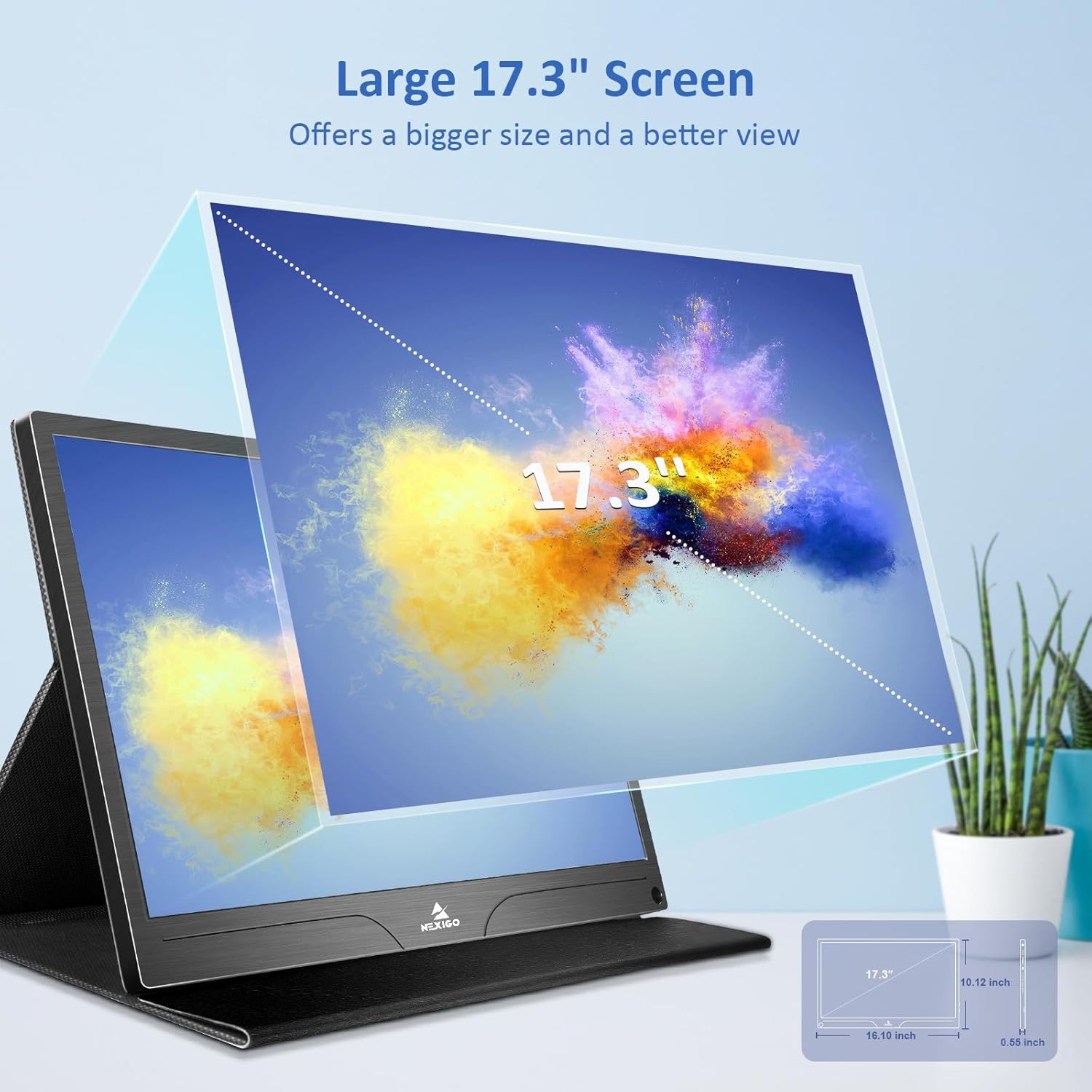
| גודל מסך | 17.3 אינץ' |
| הַחְלָטָה | 3840 x 2160 (4K UHD) |
| סוג פאנל | IPS |
| בְּהִירוּת | 400 תקליטורים/מ"ר |
| סולם צבעים | 100% Adobe RGB |
| יחס גובה-רוחב | 16:9 |
| Viewזווית | 178° |
| תכונות | FreeSync, HDR, Eye Care Screen |
| רמקולים | רמקולים מובנים כפולים |
| קישוריות | Full-Featured USB-C (x1), Mini HDMI (x1), OTG USB-C (x1), 3.5mm Audio Jack (x1) |
| תאימות VESA | 75 x 75 מ"מ |
| מידות המוצר | 16.1 x 10.12 x 0.55 אינץ' |
| משקל פריט | 6.39 פאונד |

Image: Visual comparison of 1080p, 2K, and 4K resolutions, demonstrating the clarity of the 4K display.
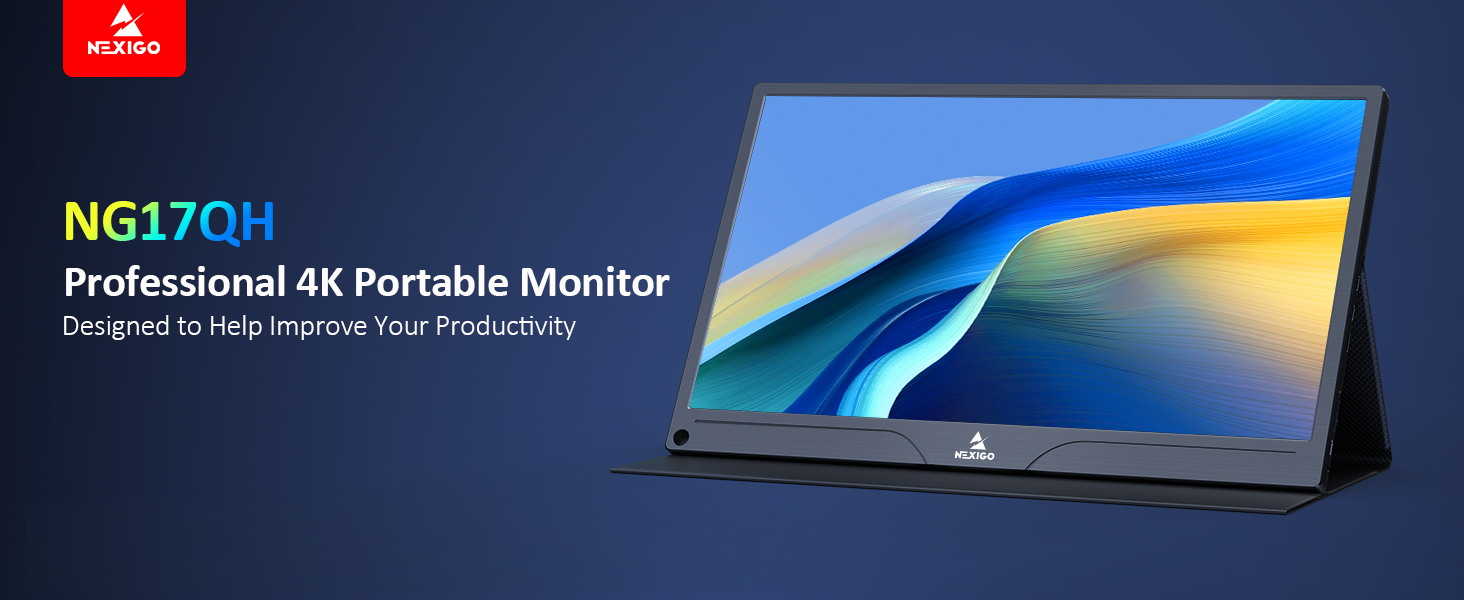
Image: A visual representation of 100% Adobe RGB color space coverage, indicating vibrant and detailed color reproduction.
9. אחריות ותמיכה
Your NexiGo NG17QH Portable Monitor comes with a manufacturer's warranty. For detailed warranty information, product registration, or technical support, please visit the official NexiGo webאתר או צרו קשר ישירות עם שירות הלקוחות שלהם. שמרו את קבלת הרכישה כהוכחת קנייה לתביעות אחריות.
NexiGo Official Webאֲתַר: www.nexigo.com


