מָבוֹא
The Kingston DataTraveler SE9 G3 USB 3.2 Gen 1 Flash Drive is designed for reliable data storage and transfer. This manual provides essential information for setting up, operating, maintaining, and troubleshooting your 512GB DataTraveler SE9 G3 drive. Its compact design and durable metal casing make it suitable for everyday use and portability.
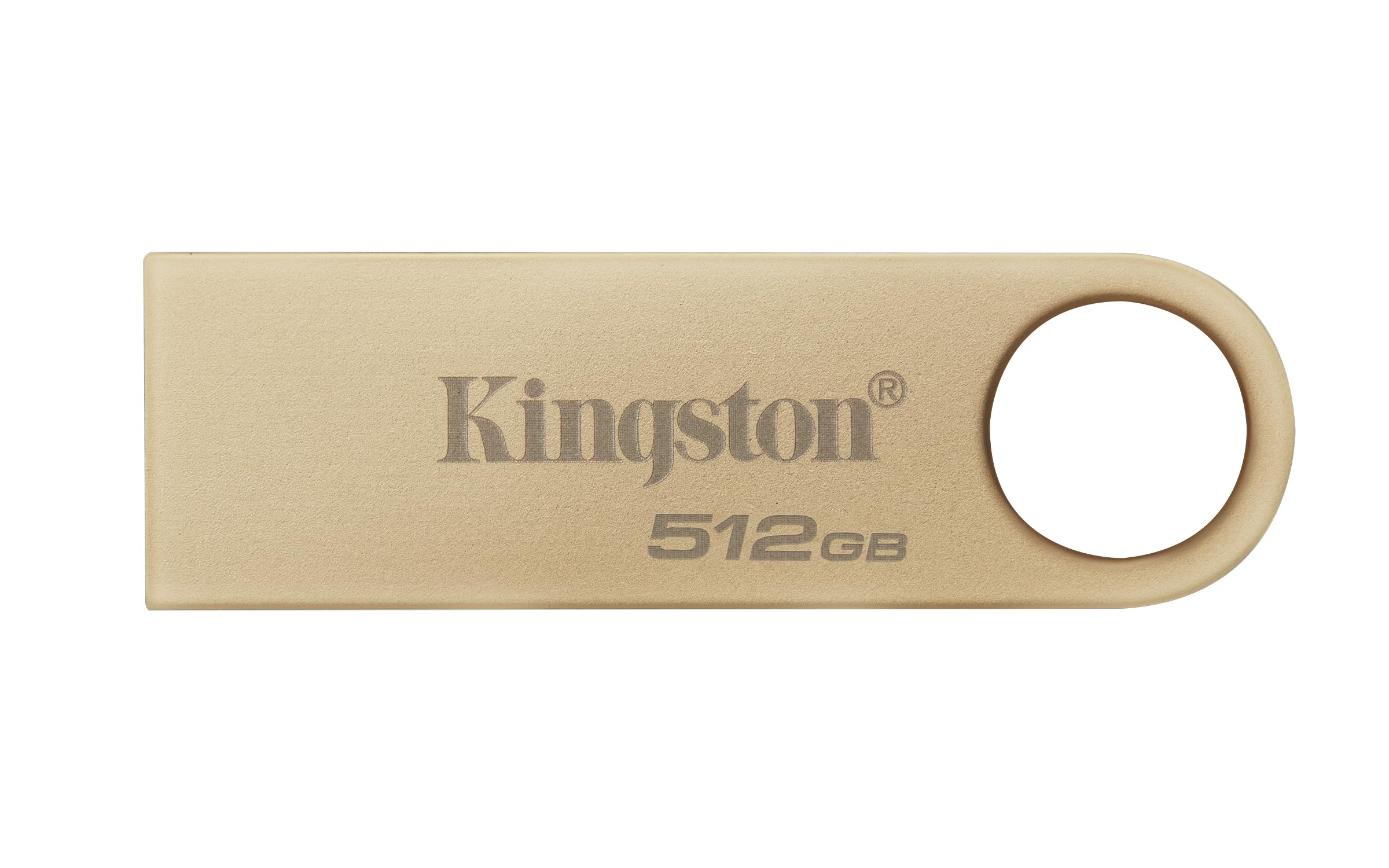
Image: The Kingston DataTraveler SE9 G3 512GB USB Flash Drive, featuring its metallic casing and USB-A connector.
תוכן החבילה
- Kingston DataTraveler SE9 G3 USB Flash Drive (512GB)

Image: The Kingston DataTraveler SE9 G3 512GB USB Flash Drive displayed in its retail packaging.
הגדרה
- הכנס את הכונן: Locate an available USB-A port on your computer or device. Carefully insert the DataTraveler SE9 G3 flash drive into the USB-A port. Ensure it is fully seated.
- זיהוי אוטומטי: Most operating systems (Windows, macOS, Linux) will automatically detect and install the necessary drivers for the flash drive. A notification may appear indicating that the device is ready for use.
- גישה לכונן:
- חלונות: פתח "File Explorer" (or "My Computer"). The drive will appear under "This PC" (or "My Computer") as a removable disk, often labeled "DataTraveler" or similar.
- MacOS: The drive icon will appear on your desktop or in the Finder sidebar under "Locations".
- לינוקס: The drive will typically be mounted automatically and accessible through your file מְנַהֵל.
- עיצוב ראשוני (אופציונלי): The drive comes pre-formatted for general use. If you need to reformat the drive for a specific file system (e.g., NTFS for Windows, HFS+ for macOS, ext4 for Linux) or to resolve issues, use your operating system's disk utility tool. פֶּתֶק: Formatting will erase all data on the drive.

Image: The Kingston DataTraveler SE9 G3 512GB USB Flash Drive plugged into the side of a laptop.
הפעלת הכונן
- מעביר Files:
- העתקה לכונן: גרור ושחרר files or folders from your computer to the DataTraveler SE9 G3 drive icon or its opened window. Alternatively, right-click on files/folders, select "Copy", then navigate to the drive and select "Paste".
- העתקה מהכונן: גרור ושחרר files or folders from the DataTraveler SE9 G3 drive to a location on your computer.
- פליטה בטוחה: To prevent data corruption, always safely eject the flash drive before removing it.
- חלונות: Click the "Safely Remove Hardware and Eject Media" icon in the system tray (bottom-right corner), then select the DataTraveler SE9 G3 drive. Wait for the "Safe to Remove Hardware" message.
- MacOS: גררו את סמל הכונן משולחן העבודה לאשפה, או לחצו על סמל ההוצאה שליד שם הכונן ב-Finder.
- לינוקס: Right-click the drive icon in your file manager and select "Eject" or "Unmount".
תַחזוּקָה
- שמור על זה נקי: Periodically wipe the metal casing with a soft, dry cloth. Avoid using liquid cleaners directly on the USB connector.
- הגן על המחבר: While the DataTraveler SE9 G3 features a durable metal casing, avoid exposing the USB connector to excessive dust, dirt, or moisture.
- הימנע מנזק פיזי: Do not bend, drop, or apply excessive force to the drive. The integrated loop allows for attachment to keychains, reducing the risk of misplacement.
- גיבויים רגילים: While reliable, no storage device is infallible. Regularly back up important data stored on the flash drive to another location.

Image: The Kingston DataTraveler SE9 G3 512GB USB Flash Drive with its integrated loop, attached to a keychain with keys.
פתרון בעיות
- כונן לא זוהה:
- נסה להכניס את הכונן ליציאת USB אחרת במחשב שלך.
- Test the drive on another computer to rule out a computer-specific issue.
- ודא שהכונן מוכנס במלואו ליציאת ה-USB.
- הפעל מחדש את המחשב.
- מהירויות העברה איטיות:
- Ensure you are using a USB 3.0 or 3.2 Gen 1 compatible port on your computer for optimal performance. USB 2.0 ports will result in slower speeds.
- סגור יישומים אחרים שעשויים להשתמש במשאבי מערכת או לבצע פעולות בדיסק.
- Check if your computer's drivers are up to date.
- לא ניתן לכתוב Files לנהיגה:
- בדוק אם הכונן מלא. מחק קבצים מיותרים. fileאו להעביר אותם למיקום אחר.
- אמת את file system. Some file systems (e.g., FAT32) have limitations on individual file size. Reformatting to exFAT or NTFS might be necessary for larger files.
- Ensure you have appropriate write permissions for the drive.
- השחתת נתונים:
- תמיד הוצא את הכונן בבטחה לפני ההסרה.
- If data appears corrupted, try running a disk check utility (e.g., "Error Checking" on Windows, "First Aid" on macOS Disk Utility).
מפרטים
| דֶגֶם | DataTraveler SE9 G3 |
| יְכוֹלֶת | 512GB |
| מִמְשָׁק | USB 3.2 Gen 1 (תואם USB 3.0) |
| קרא מהירות | עד 220MB/s |
| מהירות כתיבה | עד 100MB/s |
| מידות | Approximate: 45mm x 12.2mm x 4.6mm |
| טמפרטורת הפעלה | 0°C עד 60°C (32°F עד 140°F) |
| טמפרטורת אחסון | -20°C עד 85°C (-4°F עד 185°F) |
| תְאִימוּת | Windows 11, 10, 8.1, macOS (v.10.15.x +), Linux (v. 4.4.x +), Chrome OS |
אחריות ותמיכה
Kingston Technology stands by the quality and reliability of its products. The DataTraveler SE9 G3 USB Flash Drive is backed by a limited warranty. For specific warranty terms, technical support, or to register your product, please visit the official Kingston webאֲתַר.
תמיכה מקוונת: www.kingston.com/support
רישום המוצר: www.kingston.com/register

Image: The official Kingston Technology logo.