מָבוֹא
The Logitech Signature M550 Wireless Mouse is designed for enhanced productivity and comfort. Featuring an adaptive SmartWheel for precise and fast scrolling, SilentTouch technology for quiet clicks, and versatile connectivity options, this mouse is compatible with multiple operating systems and devices. This manual will guide you through its setup, operation, and maintenance.
הגדרה
1. התקן את הסוללה
The Logitech Signature M550 mouse requires one AA battery, which is included. To install the battery:
- אתר את תא הסוללה בצד התחתון של העכבר.
- החלק את המכסה החוצה.
- הכנס את סוללת AA, תוך הקפדה על קוטביות נכונה (+/-).
- החזר את מכסה תא הסוללות למקומו.

תמונה: צד תחתון view of the Logitech Signature M550 mouse, highlighting the battery compartment, on/off switch, and the Logi Bolt USB receiver storage slot.
2. Connect Your Mouse
The Signature M550 offers two connection methods: Bluetooth Low Energy or the Logi Bolt USB receiver.
שימוש במקלט ה-USB של Logi Bolt:
- Remove the Logi Bolt USB receiver from the battery compartment.
- חברו את מקלט ה-USB של Logi Bolt ליציאת USB-A זמינה במחשב שלכם.
- Turn on the mouse using the on/off switch on the bottom. The mouse should connect automatically.
שימוש ב-Bluetooth Low Energy:
- Turn on the mouse using the on/off switch on the bottom.
- Press and hold the Easy-Switch button on the bottom of the mouse until the LED light starts blinking rapidly. This indicates pairing mode.
- On your device (computer, tablet, etc.), open Bluetooth settings and search for available devices.
- Select "Logi M550" from the list to complete the pairing process.
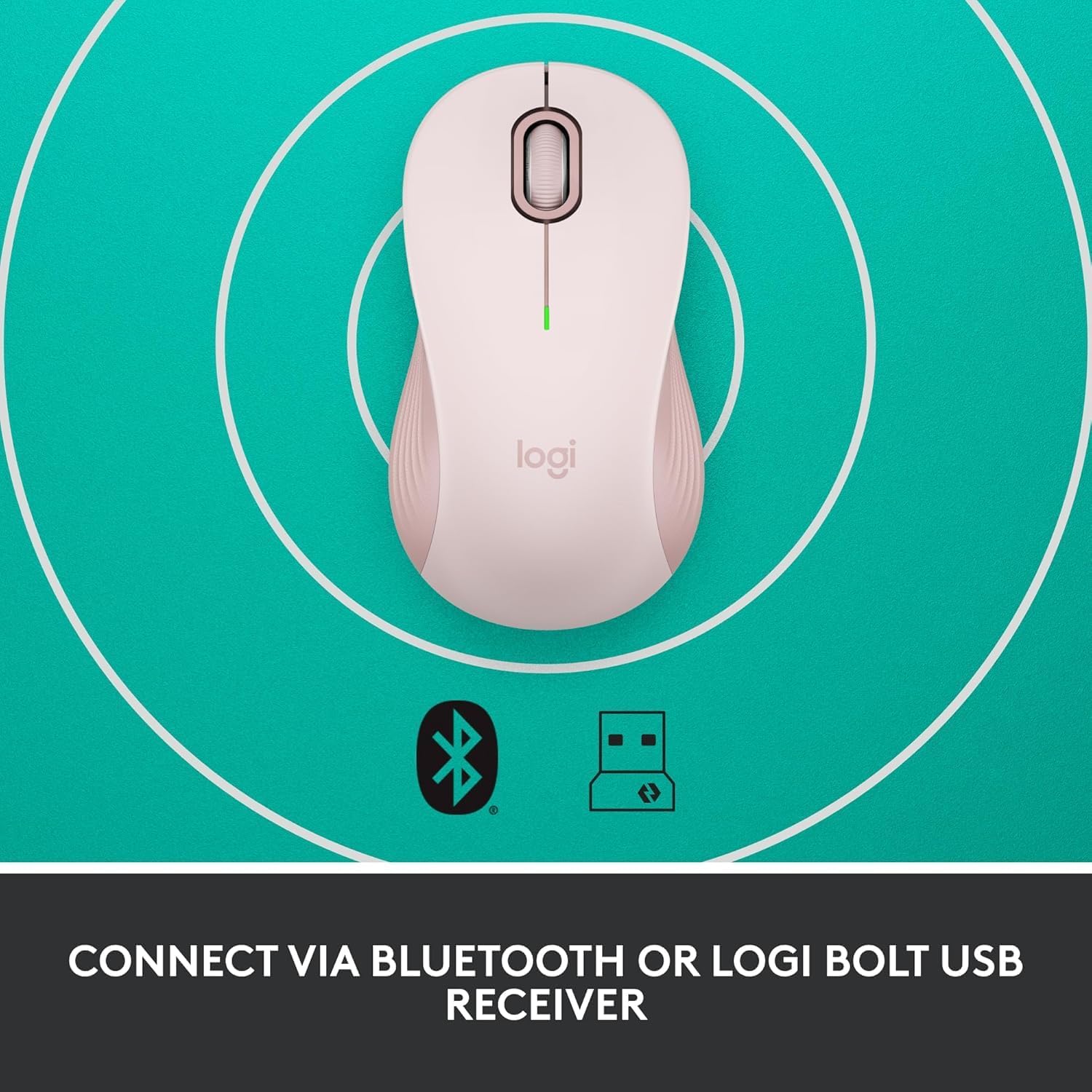
Image: The Logitech Signature M550 mouse on a teal background with icons for Bluetooth and the Logi Bolt USB receiver, illustrating its dual connectivity options.
Video: A demonstration of installing the battery and connecting the Logitech Signature M550 Wireless Mouse via Bluetooth or USB receiver.
Video: A user demonstrating the easy setup process of the Logitech Signature M550, including battery insertion and connectivity.
הוראות הפעלה
גלילה עם SmartWheel
The Signature M550 features an adaptive SmartWheel that allows for two modes of scrolling:
- Line-by-line precision: לניווט מפורט במסמכים וגליונות אלקטרוניים.
- Super-fast free spin: Flick the wheel for rapid scrolling through long web דפים או מסמכים.

Image: A close-up of the Logitech Signature M550 mouse, highlighting the SmartWheel for precision and speed scrolling.
Video: A demonstration of the Logitech Signature M550's SmartWheel functionality, showcasing both precise and super-fast scrolling modes.
Silent Clicks with SilentTouch Technology
Experience a quieter workspace with Logitech's SilentTouch technology, reducing click noise by 90% compared to traditional mice. This allows for focused work without distractions.

Image: A woman using the Logitech Signature M550 mouse at a desk, illustrating the benefit of 90% less clicking noise for a focused work environment.
Multi-Device and OS Compatibility
The Signature M550 offers seamless compatibility across various platforms:
- Windows (including Windows 11)
- macOS
- לינוקס
- Chrome OS
- iPadOS
- דְמוּי אָדָם
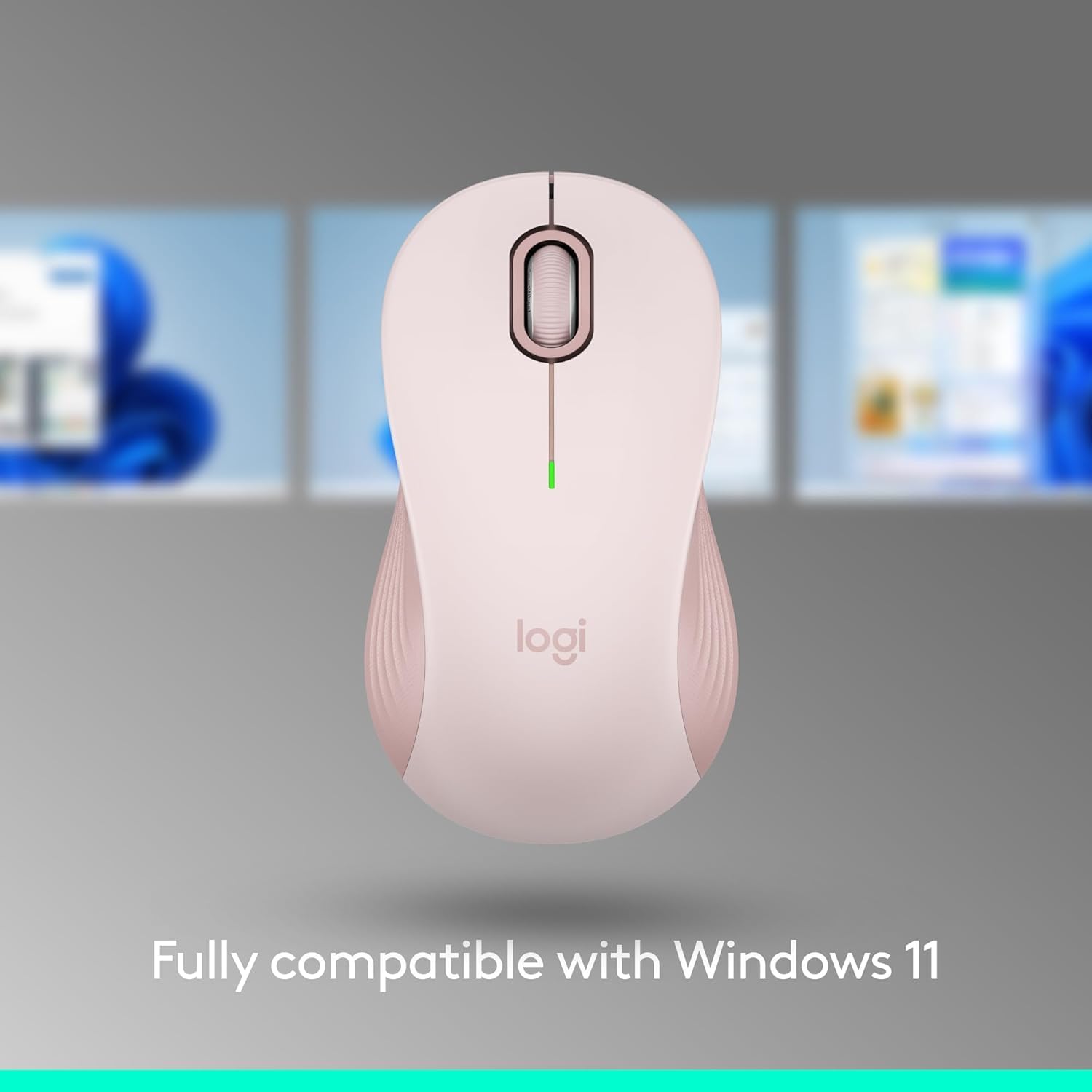
Image: The Logitech Signature M550 mouse displayed with a message confirming its full compatibility with Windows 11.
תַחזוּקָה
החלפת סוללה
The mouse operates on a single AA battery with an average life of 24 months. When the battery is low, the LED indicator on the mouse will blink. To replace the battery, follow the steps outlined in the 'Install Battery' section.
ניקוי
כדי לשמור על ביצועים אופטימליים, נקו את העכבר באופן קבוע בעזרת מטלית רכה ויבשה. הימנעו משימוש בכימיקלים חזקים או בחומרים שוחקים.
פתרון בעיות
בעיות חיבור
- עכבר לא מגיב: Ensure the mouse is turned on and the battery is correctly installed or replaced.
- כשל בצימוד Bluetooth: Make sure your device's Bluetooth is enabled and the mouse is in pairing mode (blinking LED). Try restarting both the mouse and your device.
- USB receiver not detected: Ensure the Logi Bolt USB receiver is securely plugged into a working USB-A port. Try a different USB port.
- הַפרָעָה: Move the mouse closer to your device and away from other wireless devices that might cause interference.
מפרטים
| מותג | Logitech |
| סִדרָה | M550 |
| מספר דגם של פריט | 910-006593 |
| טכנולוגיית קישוריות | בלוטות', USB |
| טכנולוגיית זיהוי תנועה | אוֹפּטִי |
| תכונות מיוחדות | Lightweight, Portable, Soundless, Wireless |
| מקור כוח | מופעל על סוללה |
| סוללות נדרשות | סוללת AA 1 (כלול) |
| חיי סוללה ממוצעים | 24 חודשים |
| משקל פריט | 3.44 אונקיות |
| מידות חבילה | 5.55 x 3.54 x 1.73 אינץ' |
| פלטפורמת חומרה | לינוקס, מק, מחשב אישי |
| מערכות הפעלה נתמכות | Windows, macOS, Linux, Chrome OS, iPadOS, Android |
מידע על אחריות
For detailed warranty information regarding your Logitech Signature M550 Wireless Mouse, please refer to the official Logitech website or the warranty card included with your product. Logitech typically offers a limited hardware warranty for its products.
תְמִיכָה
If you encounter any issues or have questions about your Logitech Signature M550 Wireless Mouse, please visit the official Logitech support webאתר לשאלות נפוצות, מדריכים לפתרון בעיות ופרטי קשר לשירות לקוחות.


