1. הקדמה
Thank you for choosing the ZEBRONICS K4000MW Wireless Keyboard. This manual provides essential information for setting up, operating, maintaining, and troubleshooting your new keyboard. The K4000MW offers versatile connectivity options, including 2.4 GHz wireless and dual Bluetooth, making it compatible with a wide range of devices such as laptops, desktops, tablets, and smartphones. Its compact design and integrated multimedia keys enhance productivity and user convenience.

תמונה 1: מלמעלה למטה view of the ZEBRONICS K4000MW Wireless Keyboard, showcasing its compact layout and black finish.
2. התקנה
2.1 תכולת החבילה
- ZEBRONICS K4000MW Wireless Keyboard
- USB Nano Receiver (for 2.4 GHz connection)
- מדריך למשתמש
2.2 התקנת סוללה
- אתר את תא הסוללה בחלק התחתון של המקלדת.
- פתח את מכסה תא הסוללות.
- Insert the required batteries (not specified in JSON, typically AA or AAA) according to the polarity markings.
- סגור היטב את מכסה תא הסוללות.
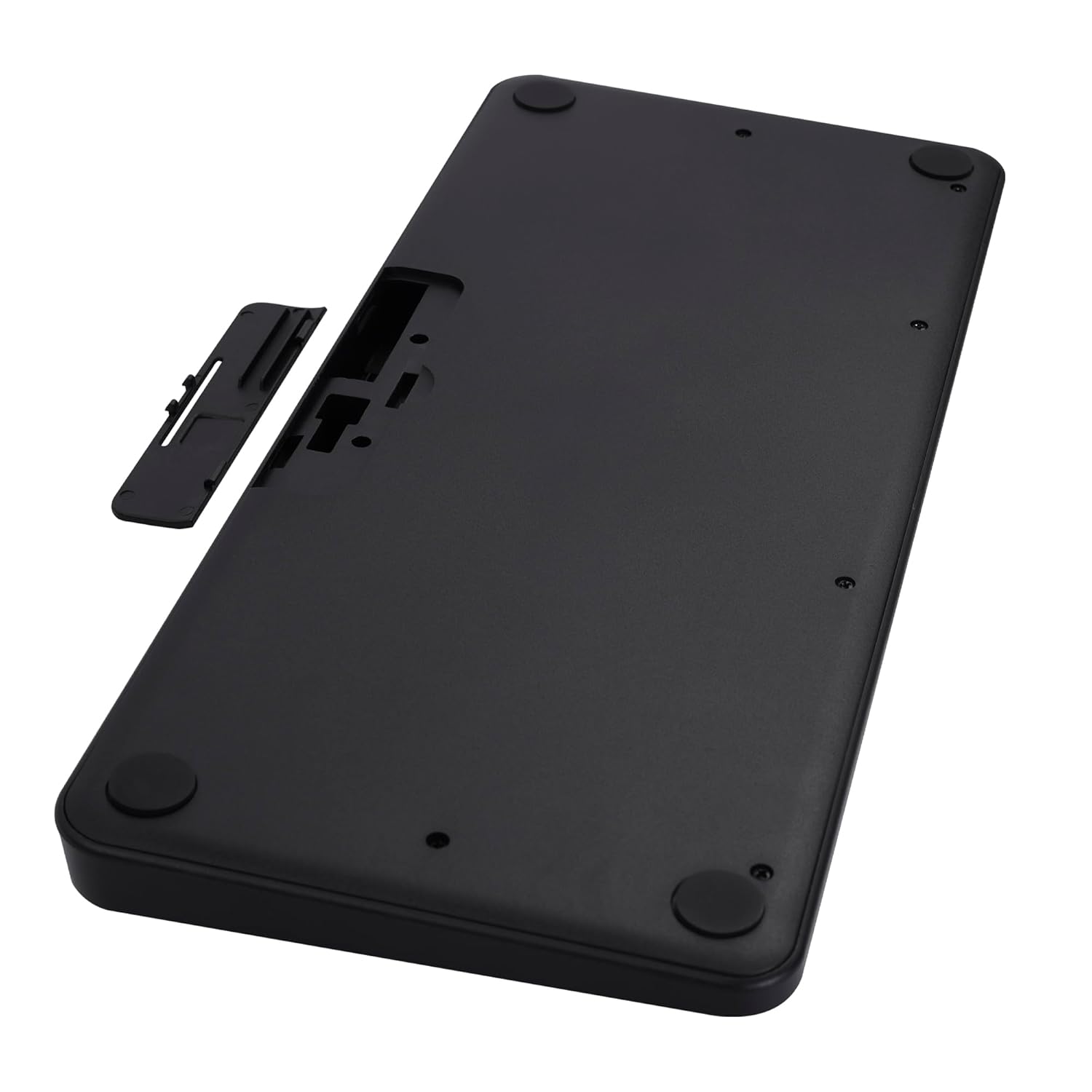
Image 2: The underside of the keyboard, showing the battery compartment and the slot for the USB nano receiver.
2.3 חיבור אלחוטי 2.4 GHz
- Remove the USB nano receiver from its storage slot in the battery compartment.
- Plug the nano receiver into an available USB port on your computer or compatible device.
- The keyboard should automatically connect. The 2.4G LED indicator on the keyboard will illuminate briefly to confirm connection.
2.4 התחברות באמצעות בלוטות'
The keyboard supports up to two Bluetooth connections (BT1 and BT2).
- Pairing for BT1:
א. לחץ והחזק את Fn + BT1 keys simultaneously for 3-5 seconds until the BT1 LED indicator starts blinking rapidly.
b. On your device (laptop, tablet, smartphone), enable Bluetooth and search for available devices.
c. Select "ZEB-K4000MW" from the list of devices to pair.
d. Once paired, the BT1 LED indicator will stop blinking and remain solid for a few seconds. - Pairing for BT2:
a. Follow the same steps as for BT1, but press and hold Fn + BT2 מפתחות.
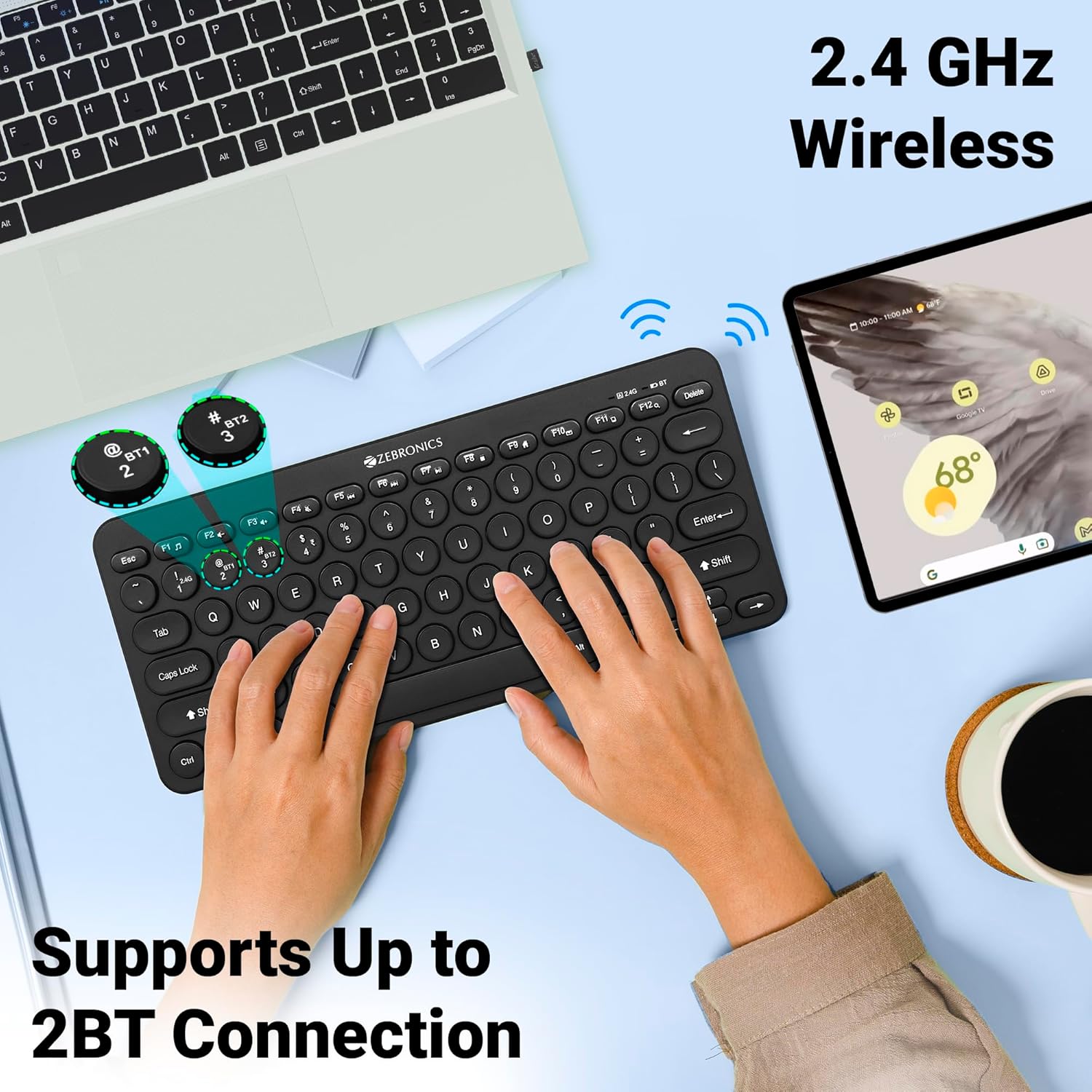
Image 3: The keyboard in use, highlighting the 2.4 GHz wireless and dual Bluetooth connection capabilities with LED indicators.
2.5 מעבר בין מכשירים
כדי לעבור בין מכשירים מחוברים:
- לִלְחוֹץ Fn + 2.4G to switch to the device connected via the 2.4 GHz nano receiver.
- לִלְחוֹץ Fn + BT1 to switch to the device paired with Bluetooth 1.
- לִלְחוֹץ Fn + BT2 to switch to the device paired with Bluetooth 2.
3. הפעלת המקלדת
3.1 הקלדה בסיסית
The keyboard features 78 UV-coated keys designed for comfortable and efficient typing. The layout includes standard alphanumeric keys, function keys, and navigation keys.
3.2 מקשי מולטימדיה
The keyboard integrates 12 multimedia keys (F1-F12) for quick access to media controls and other functions. To use these functions, press the Fn מקש בו זמנית עם מקש הפונקציה הרצוי.
- Fn+F1: נגן מדיה
- Fn+F2: הורדת עוצמת הקול
- Fn+F3: הגברת עוצמת הקול
- Fn+F4: לְהַשְׁתִיק
- Fn+F5: המסלול הקודם
- Fn+F6: הפעל/השהה
- Fn+F7: המסלול הבא
- Fn+F8: לְהַפְסִיק
- Fn+F9: Web דפדפן
- Fn+F10: אֶלֶקטרוֹנִי
- Fn+F11: המחשב שלי
- Fn+F12: מַחשְׁבוֹן
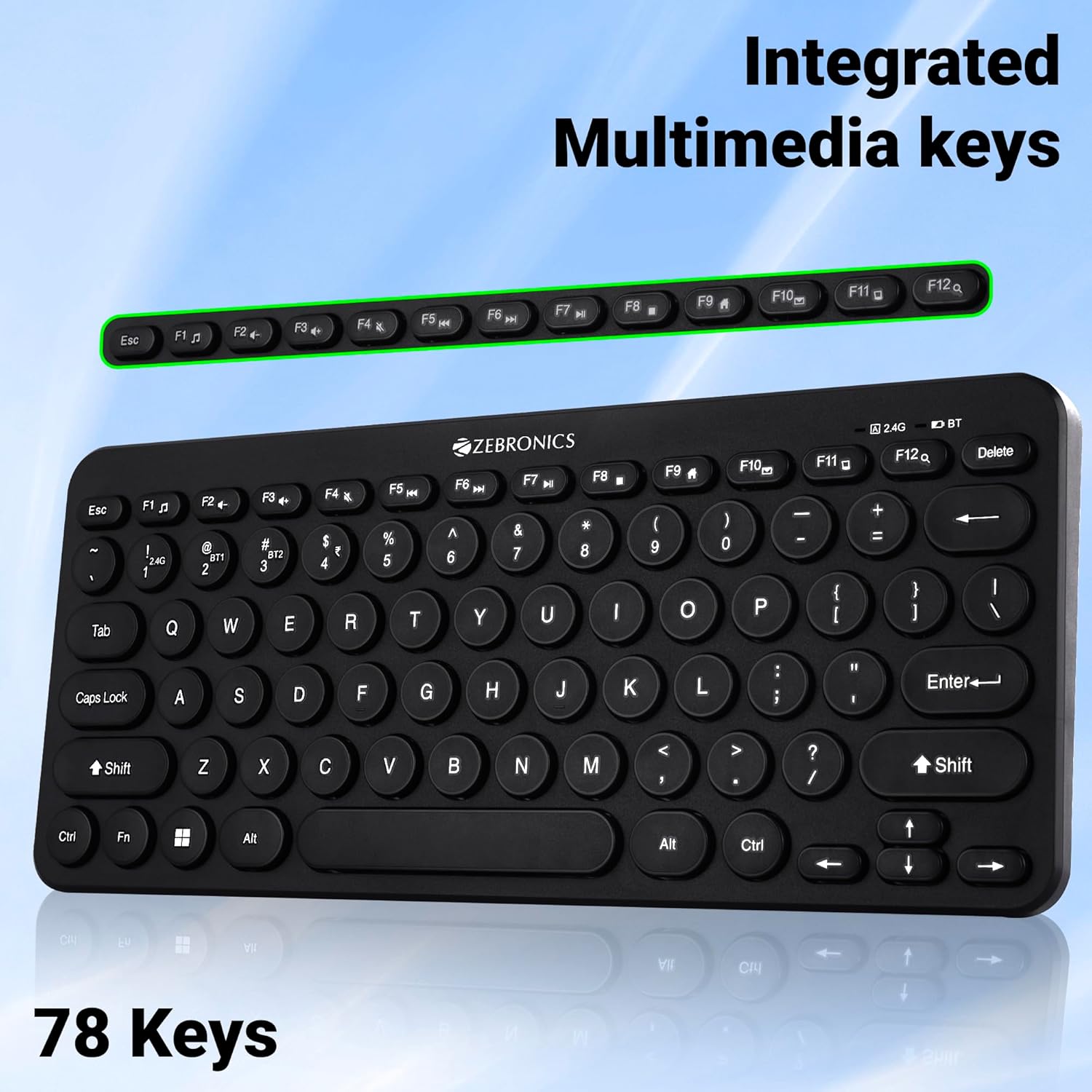
Image 4: The keyboard with the row of function keys (F1-F12) highlighted, indicating their integrated multimedia capabilities.
3.3 Rupee Key
The keyboard includes a dedicated Rupee key, indicating regional inclusivity for users.
3.4 מחווני LED
The keyboard features LED indicators to provide status information:
- LED 2.4G: Indicates 2.4 GHz wireless connection status.
- BT1/BT2 LED: Indicates Bluetooth connection status for BT1 or BT2.
- נורית Caps Lock: דולק כאשר Caps Lock פעיל.
- נורית סוללה נמוכה: Flashes or changes color to indicate low battery power.
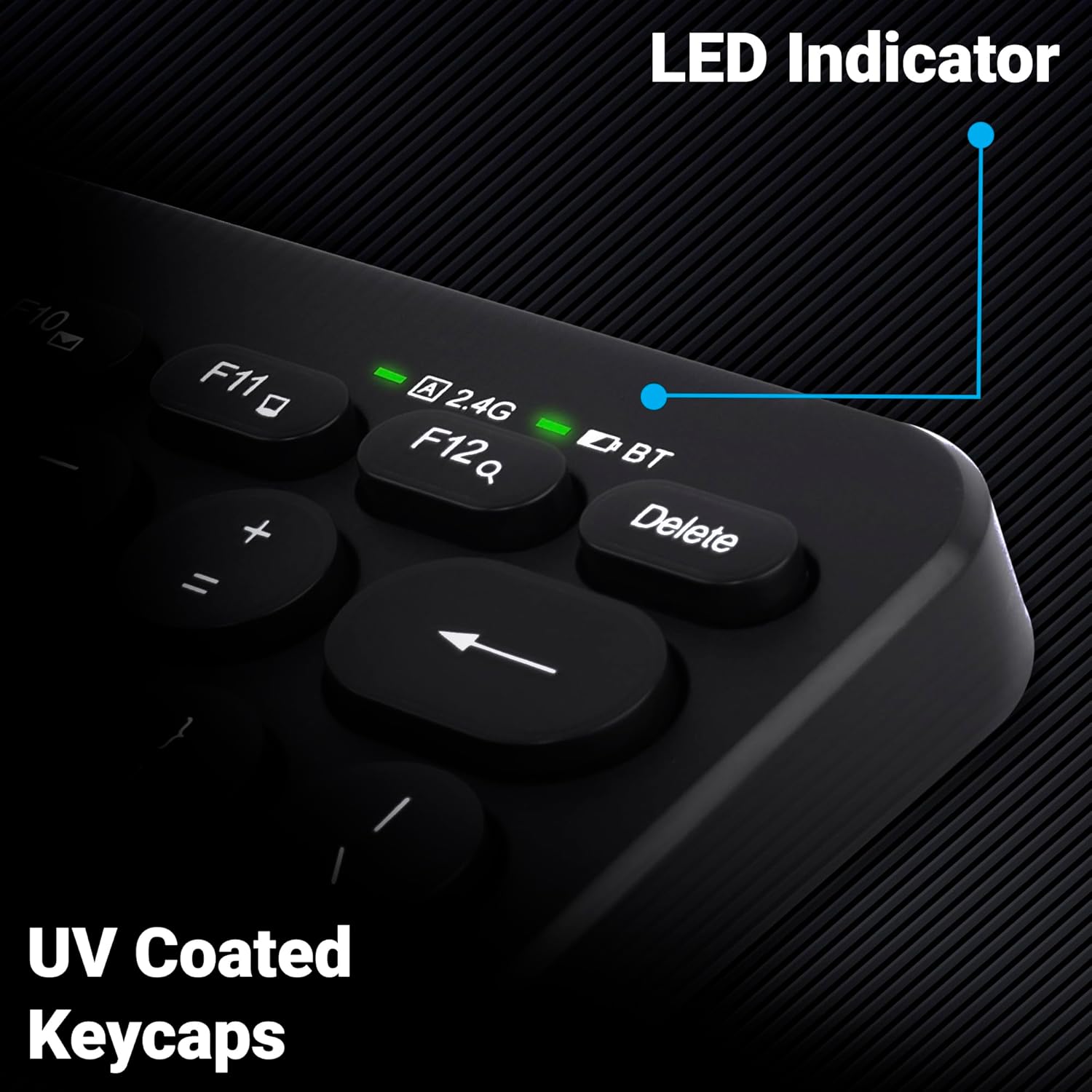
תמונה 5: תקריב view of the keyboard's top right corner, showing the LED indicators for 2.4G, BT, and Caps Lock, along with the UV-coated keycaps.
3.5 תאימות מכשיר
The K4000MW keyboard is designed for broad compatibility, integrating seamlessly with:
- מחשבים ניידים
- שולחנות עבודה
- טאבלטים
- סמארטפונים
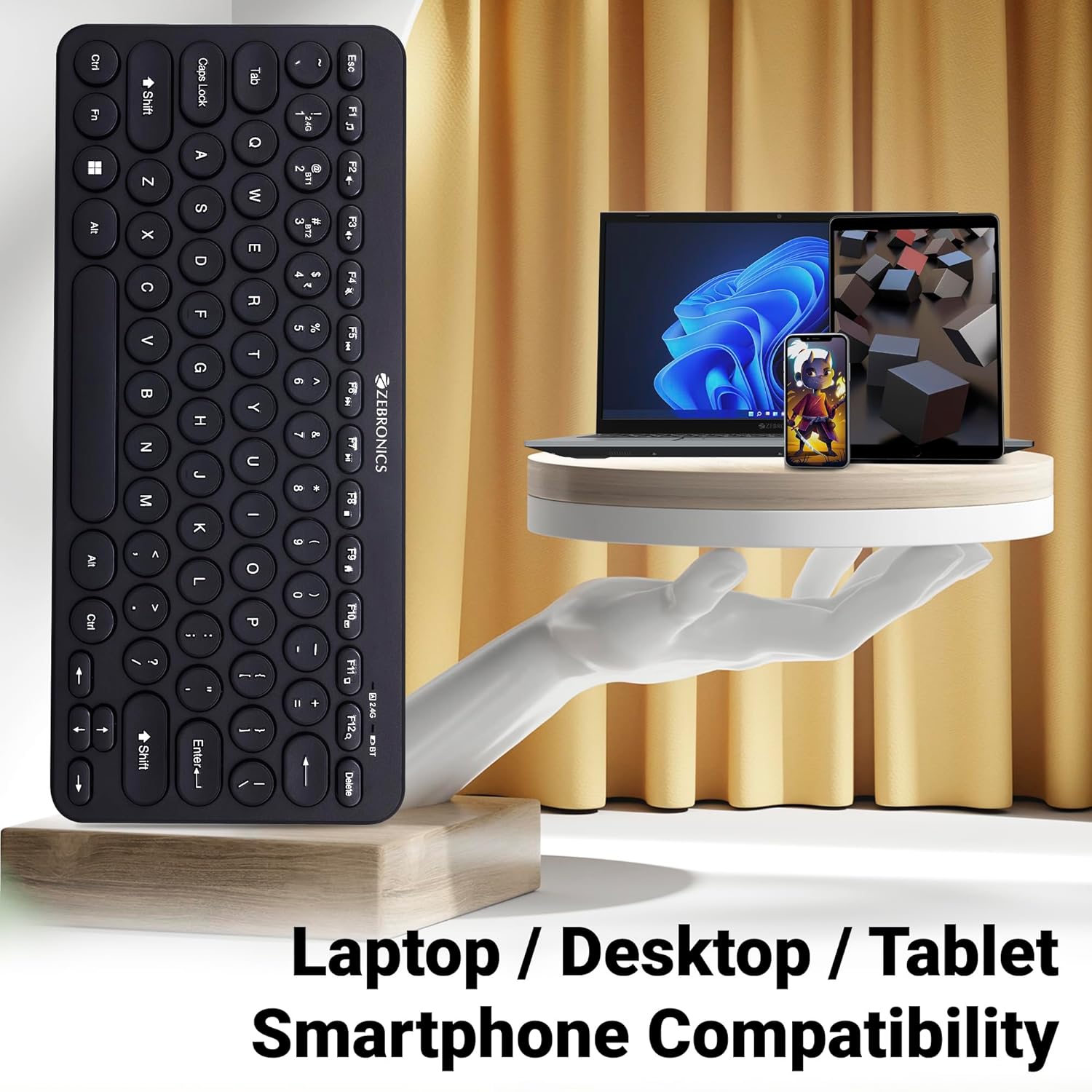
Image 6: The keyboard positioned next to a laptop, tablet, and smartphone, illustrating its multi-device compatibility.
4. תחזוקה
4.1 ניקוי
- השתמש במטלית רכה ויבשה כדי לנגב את פני השטח של המקלדת.
- עבור לכלוך עיקש, מעט דחוףampשטפו את המטלית במים או בתמיסת ניקוי עדינה. הימנעו מלחות מוגזמת.
- Do not use harsh chemicals or abrasive cleaners, as these can damage the keycaps and finish.
- השתמש באוויר דחוס כדי להסיר אבק ופסולת בין המקשים.
4.2 טיפול בסוללה
- Replace batteries when the low battery indicator illuminates to ensure uninterrupted operation.
- If the keyboard will not be used for an extended period, it is recommended to remove the batteries to prevent leakage.
- Store the keyboard in a cool, dry place.
5. פתרון תקלות
5.1 המקלדת לא מגיבה
- בדוק סוללות: ודא שהסוללות מותקנות כראוי ושהן טעונות מספיק. החלף אותן במידת הצורך.
- בדוק חיבור: Verify that the 2.4 GHz nano receiver is securely plugged into the USB port, or that the Bluetooth connection is active and paired.
- החלף ערוצים: If using Bluetooth, ensure you are on the correct BT1 or BT2 channel.
- צימוד מחדש של בלוטות': If connection issues persist, try unpairing and re-pairing the keyboard with your device.
- הַפרָעָה: Move the keyboard closer to the receiver/device and away from other wireless devices that might cause interference.
5.2 Keys Not Working or Lagging
- ניקוי מפתחות: ודא שאין לכלוך תקוע מתחת למקשים.
- רמת סוללה: Low battery can sometimes affect key responsiveness. Replace batteries.
- הַפרָעָה: Wireless interference can cause lag. Try moving closer to the receiver/device.
- תאימות מכשיר: Ensure your device's operating system is compatible with the keyboard.
5.3 בעיות ניתוק Bluetooth
- מֶרְחָק: ודא שהמקלדת נמצאת בטווח הקליטה היעיל של מכשיר ה-Bluetooth שלך.
- הַפרָעָה: Other Bluetooth or wireless devices nearby can cause disconnections.
- Device Bluetooth Driver: Update your device's Bluetooth drivers to the latest version.
- לְתַקֵן: הסר את המקלדת מרשימת ה-Bluetooth של המכשיר שלך ותקן אותה מחדש.
6. מפרטים
| תכונה | פְּרָט |
|---|---|
| מותג | זברוניקה |
| שם הדגם | K4000MW |
| טכנולוגיית קישוריות | 2.4 GHz Wireless, Bluetooth (Dual BT) |
| מספר מפתחות | 78 |
| מקשי מולטימדיה | 12 Integrated Multimedia Keys |
| סוג מכסה מפתח | UV-Coated |
| תכונות מיוחדות | Rupee Key, LED Indicator (Battery, Connectivity, Caps Lock) |
| לְעַצֵב | Slim & Minimalist |
| מכשירים תואמים | Desktop, Laptop, Tablet, Smartphone |
| מַעֲרֶכֶת הַפעָלָה | Windows 10 (ומערכות הפעלה תואמות אחרות) |
| מקור כוח | מופעל על סוללה |
| מידות המוצר (LxWxH) | 29.4 x 13.4 x 3 ס"מ |
| משקל פריט | 320 גרם |
7. אחריות ותמיכה
7.1 מידע אחריות
For specific warranty terms and conditions, please refer to the warranty card included with your product or visit the official ZEBRONICS webאתר. שמור את קבלת הרכישה כהוכחת קנייה לתביעות אחריות.
7.2 תמיכת לקוחות
If you encounter any issues or have questions regarding your ZEBRONICS K4000MW Wireless Keyboard, please contact ZEBRONICS customer support through their official webאתר או פרטי הקשר המופיעים באריזת המוצר.


