מָבוֹא
The Linksys 5G AX1800 Mobile Hotspot is a portable device designed to provide high-speed 5G and WiFi 6 connectivity for multiple devices. With its ultra-thin design and long battery capacity, it allows you to stay connected on the go. This manual provides essential information for the proper setup, operation, maintenance, and troubleshooting of your mobile hotspot.
תכונות מפתח כוללות:
- Portable 5G supersonic speed and bandwidth.
- WiFi 6 speeds up to 1.8 Gbps (AX1800).
- Supports connection for 15+ devices simultaneously.
- Ultra-thin and lightweight design for maximum convenience.
- סוללה עמידה לשימוש ממושך.
- Powered by leading-edge 5G technology by Qualcomm.
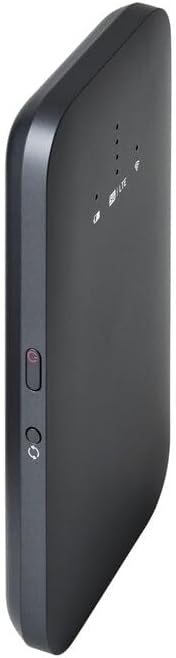
איור 1: חזית view of the Linksys 5G AX1800 Mobile Hotspot, showing LED indicators for battery, 5G/LTE, and Wi-Fi status.
הגדרה
1. התקן את כרטיס ה-SIM
The Linksys 5G AX1800 Mobile Hotspot requires a Nano-SIM card for 5G/LTE connectivity. Ensure the device is powered off before inserting the SIM card.
- אתר את מכסה חריץ כרטיס ה-SIM בצד המכשיר.
- פתח בעדינות את המכסה.
- Insert the Nano-SIM card into the slot with the gold contacts facing down and the notched corner aligned correctly.
- סגור את מכסה חריץ כרטיס ה-SIM היטב.

איור 2: צד view of the mobile hotspot, highlighting the SIM card slot cover.
2. טען את ההתקן
Before first use, fully charge the mobile hotspot. Use the provided charging cable and a compatible USB power adapter.
- Connect one end of the USB cable to the charging port on the device.
- Connect the other end to a USB power adapter or a computer's USB port.
- The battery indicator LED will show charging status. Allow several hours for a full charge.

איור 3: תחתון view of the mobile hotspot, showing the USB-C charging port.
3. הפעלה/כיבוי
To power on the device, press and hold the power button located on the side until the LED indicators light up. To power off, press and hold the power button again until the indicators turn off.

איור 4: צד view of the mobile hotspot, indicating the location of the power button.
הוראות הפעלה
1. חיבור מכשירים לרשת Wi-Fi
Once powered on, the mobile hotspot will broadcast a Wi-Fi network. You can connect up to 15+ devices simultaneously.
- במכשיר שלך (סמארטפון, מחשב נייד, טאבלט), פתח את הגדרות ה-Wi-Fi.
- חפש רשתות Wi-Fi זמינות.
- Select the network name (SSID) of your Linksys Mobile Hotspot. The default SSID and password are usually found on a sticker inside the device or on its packaging.
- הזן את סיסמת ה- Wi-Fi כאשר תתבקש.
- Your device should now be connected to the internet via the mobile hotspot.
2. הבנת מחווני LED
The LED indicators on the front of the device provide important status information:
- מחוון סוללה: מציג את רמת הסוללה הנוכחית ואת מצב הטעינה.
- 5G/LTE Indicator: Indicates the mobile network connection status (e.g., solid blue for 5G, solid green for LTE, blinking for searching).
- מחוון Wi-Fi: Shows if the Wi-Fi network is active and broadcasting.
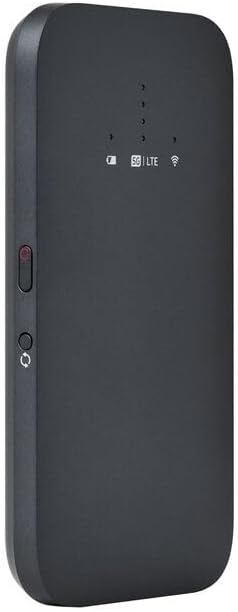
איור 5: חזית בזווית view of the mobile hotspot, clearly showing the LED indicators for battery, 5G/LTE, and Wi-Fi.
3. גישה ל Web ממשק ניהול
For advanced settings, such as changing the Wi-Fi name or password, managing connected devices, or checking data usage, you can access the device's web ממשק ניהול.
- Ensure your device is connected to the mobile hotspot's Wi-Fi network.
- פתח א web דפדפן (למשל, כרום, פיירפוקס, ספארי).
- Enter the default IP address for the hotspot (usually
192.168.1.1or192.168.0.1, refer to the device's documentation or sticker for the exact address) into the address bar and press Enter. - Log in using the default username and password (also found on the device sticker or documentation). It is highly recommended to change the default password for security.
תַחזוּקָה
1. טיפול בסוללה
- הימנע מחשיפת המכשיר לטמפרטורות קיצוניות.
- אין להשאיר את המכשיר פריק לחלוטין למשך פרקי זמן ממושכים.
- השתמש רק באביזרי טעינה מקוריים או תואמים שאושרו.
2. ניקיון
Wipe the device with a soft, dry, lint-free cloth. Do not use liquid cleaners or aerosols directly on the device.
3. עדכוני קושחה
בדוק מעת לעת אם קיימים עדכוני קושחה דרך web management interface. Keeping the firmware updated ensures optimal performance and security.
פתרון בעיות
אין חיבור לאינטרנט
- ודא שכרטיס ה-SIM מוכנס כהלכה ומופעל עם תוכנית גלישה.
- Check the 5G/LTE indicator on the device. If it's blinking or off, the device may be searching for a network or have no signal.
- Restart the mobile hotspot and your connected device.
- Verify that your data plan has not been exhausted.
מהירות Wi-Fi איטית
- Move closer to the mobile hotspot to improve signal strength.
- Reduce the number of connected devices or data-intensive activities.
- בדוק אם יש עומס ברשת באזור שלך.
Device Not Connecting to Hotspot
- Ensure the Wi-Fi indicator on the hotspot is active.
- בדוק שוב את סיסמת ה-Wi-Fi.
- Restart both the hotspot and the device you are trying to connect.
איפוס להגדרות היצרן
If issues persist, you may perform a factory reset. This will revert all settings to their default values, including Wi-Fi name and password. Refer to the device's specific instructions for the reset procedure, usually involving a small reset button.
מפרטים
| תכונה | פְּרָט |
|---|---|
| מותג | לינקסיס |
| שם הדגם | FGHSAX1800 |
| מספר דגם של פריט | FGHSAX1800-AH |
| טכנולוגיית קישוריות | 5G |
| Wi-Fi בתקן | WiFi 6 (AX1800) |
| קצב העברת נתונים | עד 1.8 ג'יגה-ביט לשנייה |
| מחלקה להקת תדרים | Dual-Band |
| סוג אנטנה | פְּנִימִי |
| תכונות מיוחדות | מצב נקודת גישה |
| רכיבים כלולים | חריץ לכרטיס SIM |
| כרך ידtage | 12 וולט |
| מידות חבילה | 14 x 7.5 x 1.55 ס"מ |
| משקל פריט | 185 גרם |
אחריות ותמיכה
For warranty information and technical support, please refer to the warranty card included with your product or visit the official Linksys support webאתר. בדרך כלל ניתן למצוא שם שאלות נפוצות, הורדות מנהלי התקנים ופרטי קשר של שירות לקוחות.
Linksys Official Support: https://www.linksys.com/support


