1. הקדמה
This manual provides essential information for the proper setup, operation, and maintenance of your TECLAST T40HD 10.4-inch Android 13 Tablet. Please read this manual thoroughly before using the device to ensure optimal performance and longevity. Keep this manual for future reference.

תמונה 1.1: חזית ואחורה view of the TECLAST T40HD tablet, showcasing its slim design and camera module.
2. תכולת החבילה
ודא שכל הפריטים המפורטים להלן נמצאים באריזת המוצר שלך:
- TECLAST T40HD Tablet
- מתאם חשמל (עשוי להשתנות בהתאם לאזור)
- כבל נתונים (USB סוג-C)
- Drive Out Pin (for SIM/Micro SD tray)
- כרטיס תחזוקה
- מדריך למשתמש (מסמך זה)
- מגן מסך (מוכן מראש או כלול בנפרד)

Image 2.1: Illustration of the TECLAST T40HD tablet and its standard accessories included in the box.
3. הגדרה ראשונית
3.1 טעינת הטאבלט
Before first use, fully charge the tablet using the provided power adapter and USB Type-C cable. Connect the cable to the tablet's USB-C port and the adapter to a power outlet. The charging indicator will typically show progress on the screen.

Image 3.1: The tablet connected to a charger, indicating battery status, and a user operating the tablet while traveling.
3.2 הפעלה/כיבוי
- כדי להפעיל: לחץ והחזק את לחצן ההפעלה (הממוקם בצד) עד להופעת הלוגו של TECLAST על המסך.
- כדי לכבות: Press and hold the Power button until the power options menu appears. Select 'Power off'.
- לאתחל: מתפריט אפשרויות צריכת החשמל, בחר 'הפעלה מחדש'.
3.3 הכנסת כרטיסי SIM וכרטיסי Micro SD
The TECLAST T40HD supports dual SIM cards and a Micro SD card for expanded storage. Use the provided drive out pin to open the card tray.
- אתר את מגש כרטיס ה-SIM/Micro SD בצד הטאבלט.
- Insert the drive out pin into the small hole next to the tray and press gently until the tray ejects.
- משוך בזהירות את המגש החוצה.
- הכניסו את כרטיסי ה-Nano-SIM ו/או כרטיס ה-Micro SD לחריצים המיועדים לכך במגש, תוך הקפדה על כיוון נכון.
- דחף בעדינות את המגש בחזרה לתוך הטאבלט עד שייכנס למקומו בנקישה.

Image 3.2: The SIM/Micro SD card tray, illustrating the placement of SIM cards.
3.4 הגדרה ראשונית של אנדרואיד
Upon first power-on, the tablet will guide you through the Android 13 setup process. This includes selecting your language, connecting to Wi-Fi, setting up your Google account, and configuring security options like face unlock.
4. הפעלת הטאבלט
4.1 ניווט ומחוות
The TECLAST T40HD runs on Android 13, offering intuitive navigation through gestures and on-screen buttons. Common gestures include:
- בֶּרֶז: בחר פריט או פתח אפליקציה.
- לִגנוֹב: גלילה בין דפים או רשימות.
- צביטה כדי להגדיל: הגדלה או הקטנה של תוכן על המסך.
- Swipe up from bottom: Go to Home screen or open app drawer.
- Swipe from left/right edge: לַחֲזוֹר.
4.2 חיבור לרשתות
- Wi-Fi: Go to Settings > Network & internet > Wi-Fi. Select your network and enter the password.
- נתונים סלולריים (4G LTE): If a SIM card is inserted, enable mobile data in Settings > Network & internet > Mobile network.
- בלוטות': Pair with Bluetooth devices (e.g., headphones, keyboards) via Settings > Connected devices > Bluetooth.
4.3 Multimedia and Gaming
The tablet's 2K HD display and Unisoc T606 Octa-core processor provide a smooth experience for media consumption and gaming.
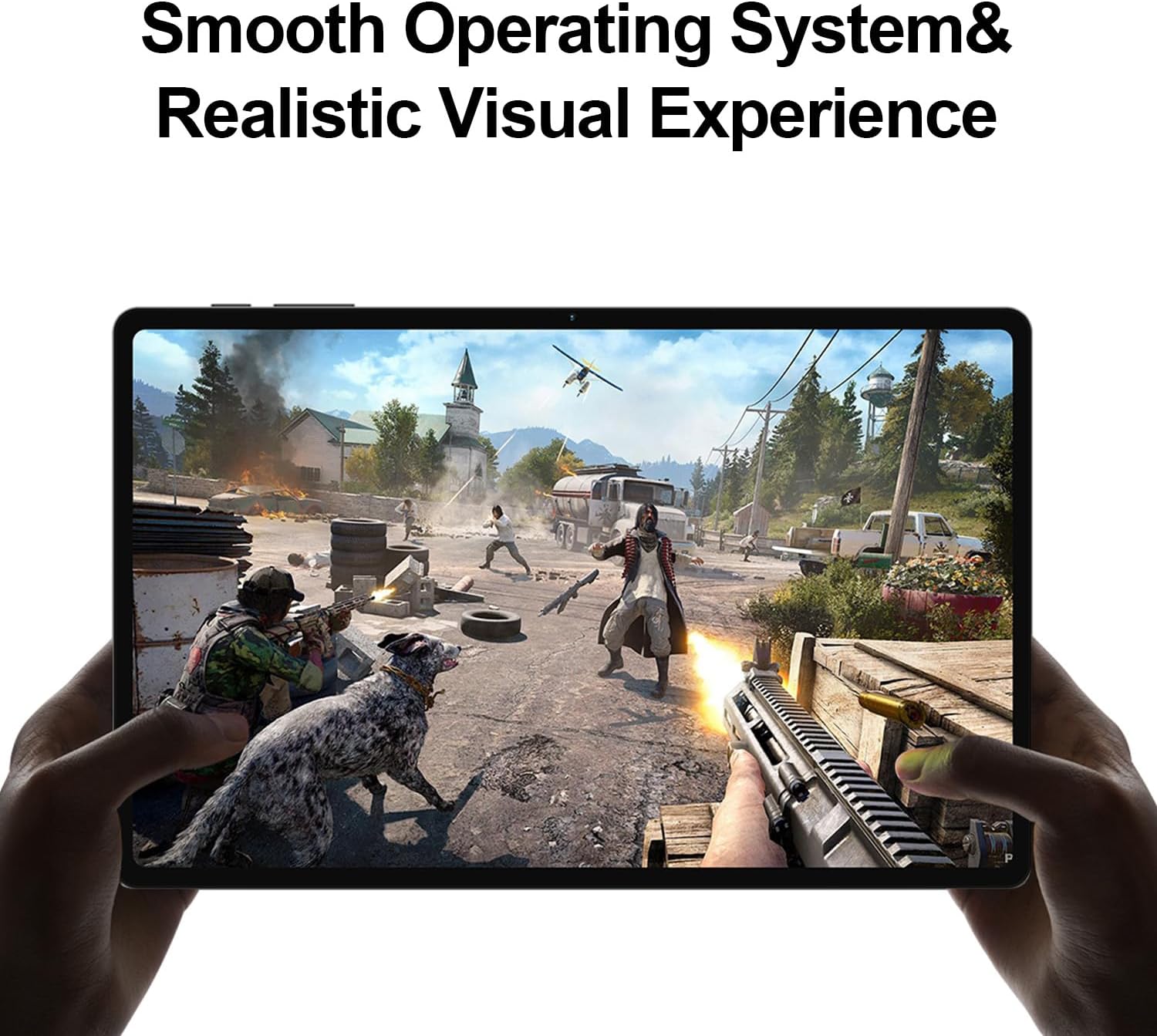
Image 4.1: The tablet displaying a high-fidelity video game, demonstrating its graphical capabilities.

תמונה 4.2: תצוגת הטאבלטasing its battery performance for different usage scenarios.
4.4 ריבוי משימות
Android 13 supports split-screen mode, allowing you to use two apps simultaneously. To activate, open an app, then swipe up slightly from the bottom of the screen to reveal the recent apps. Tap the app icon at the top of the window and select 'Split top'. Choose another app to fill the second half of the screen.

Image 4.3: The tablet demonstrating split-screen functionality for enhanced productivity.
4.5 בקרת הורים
Utilize Android's built-in parental control features to manage screen time, restrict app access, and filter content. Access these settings through the Google Family Link app or directly in the tablet's Settings menu under 'Digital Wellbeing & parental controls'.

Image 4.4: Parental control features displayed on the tablet, enabling management of usage for children.
4.6 ניווט GPS
The integrated GPS functionality allows for precise location tracking and navigation. Use pre-installed map applications or download your preferred navigation apps from the Google Play Store.

Image 4.5: The tablet used for GPS navigation in a vehicle.
4.7 Android 13 Features Overview
The TECLAST T40HD operates on Android 13, offering enhanced privacy controls, improved battery efficiency, smoother overall operation, and various user interface improvements. It also expands compatibility with a wide range of devices and applications.

Image 4.6: Visual representation of the Android 13 operating system interface on the tablet.
4.8 סרטון מוצר רשמי
Video 4.1: An official product video from Teclast USA Official Store, showcasing the key features and design of the TECLAST T40HD Android 13 Tablet.
5. תחזוקה
- ניקוי: השתמשו במטלית רכה ונטולת סיבים לניקוי המסך והגוף. הימנעו מחומרים שוחקים או כימיקלים חזקים.
- עדכוני תוכנה: בדוק באופן קבוע אם קיימים עדכוני מערכת והתקן אותם כדי להבטיח ביצועים ואבטחה מיטביים. עבור אל הגדרות > מערכת > עדכון מערכת.
- טיפול בסוללה: To prolong battery life, avoid extreme temperatures and do not let the battery fully discharge frequently.
- ניהול אחסון: ניקוי מיותר מעת לעת fileולהסיר את ההתקנה של אפליקציות שאינן בשימוש כדי לפנות מקום אחסון.
6. פתרון תקלות
| לְהַנפִּיק | פתרון אפשרי |
|---|---|
| הטאבלט לא נדלק | Ensure the tablet is charged. Connect to the charger for at least 30 minutes before attempting to power on again. |
| המסך לא מגיב | Perform a force restart by holding the Power button for approximately 10-15 seconds. If the issue persists, contact support. |
| בעיות חיבור Wi-Fi | הפעל מחדש את הטאבלט ואת נתב ה-Wi-Fi שלך. שכח את הרשת בהגדרות ה-Wi-Fi והתחבר מחדש. ודא שאתה נמצא בטווח קליטה. |
| אפליקציות קורסות או קופאות | Clear the cache for the problematic app (Settings > Apps > [App Name] > Storage & cache > Clear cache). Update the app or uninstall and reinstall it. Ensure sufficient free storage. |
| ביצועים איטיים | סגור אפליקציות רקע שאינן בשימוש. נקה את המטמון והאפליקציות הזמניות files. Consider a factory reset if performance issues are severe and persistent (back up data first). |
| כרטיס SIM לא זוהה | Ensure the SIM card is correctly inserted into the tray. Restart the tablet. Verify that mobile data is enabled in settings. |
7. מפרטים

תמונה 7.1: נגמרview of the TECLAST T40HD tablet's key technical specifications.
| תכונה | פְּרָט |
|---|---|
| דֶגֶם | T40HD |
| מַעֲרֶכֶת הַפעָלָה | אנדרואיד 13 (מוסמך GMS) |
| לְהַצִיג | 10.4-inch 2K (2000x1200) TDDI IPS, TÜV Rheinland Certified |
| מעבד | יוניסוק T606 שמונה ליבות (1.6 גיגה-הרץ) |
| אַיִל | 16 ג'יגה-בייט (8 ג'יגה-בייט פיזי + 8 ג'יגה-בייט מורחב) |
| אחסון פנימי | 128GB UMCP |
| אחסון ניתן להרחבה | כרטיס מיקרו SD עד 1TB |
| מצלמה אחורית | 13MP + 30W auxiliary camera |
| מצלמה קדמית | 8MP |
| סוֹלְלָה | 7200mAh פולימר ליתיום |
| קישוריות | 4G LTE (Dual SIM), 5G WiFi (2.4/5GHz), Bluetooth 5.0, GPS |
| נמלים | USB Type-C, שקע אוזניות 3.5 מ"מ |
| מידות (LxWxH) | 10.4 x 6 x 0.6 אינץ' |
| מִשׁקָל | 1.9 פאונד |
8. אחריות ותמיכה
8.1 מידע אחריות
TECLAST products typically come with a 1-year warranty from the date of purchase. This warranty covers manufacturing defects. Please refer to the 'Maintenance Card' included in your package for specific warranty terms and conditions. Keep your proof of purchase for warranty claims.
8.2 תמיכת לקוחות
For technical assistance, troubleshooting, or warranty inquiries, please contact TECLAST customer support. You can typically find contact information on the official TECLAST website or through the retailer where you purchased the device. TECLAST aims to respond to inquiries within one working day and offers a 1-year unconditional replacement service for eligible issues.
הערה חשובה: It is recommended to charge the product for more than 30 minutes before turning it on for the first time.


