מָבוֹא
This manual provides essential instructions for the safe and effective operation of your FLIR E5 Pro Thermal Imaging Camera. The FLIR E5 Pro is a handheld infrared camera designed for professional use, offering high-resolution thermal imaging and cloud connectivity for various inspection and diagnostic applications.

Image: The FLIR E5 Pro thermal imaging camera, showing its ergonomic design and display with a thermal image.
1. התקנה ושימוש ראשוני
1.1 פירוק ותכולה
Carefully unpack all items from the product packaging. Verify that all components are present:
- FLIR E5 Pro Infrared Camera
- תיק הובלה קשיח
- Rechargeable Lithium-ion battery (one included, pre-installed or separate)
- USB power supply/charger with international adapters (EU, UK, US, AU)
- כבל USB
- FLIR Thermal Studio Starter software information
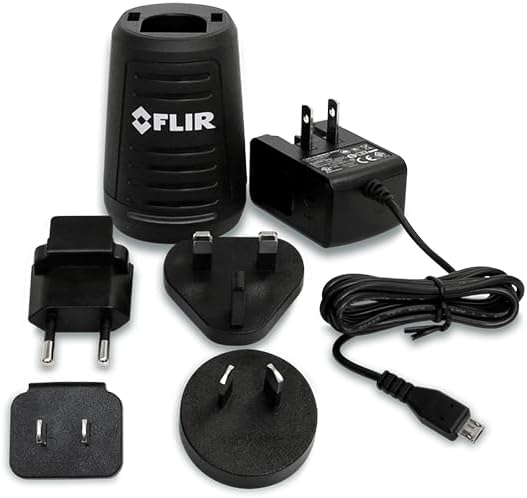
Image: The included USB power supply, charger, and various international plug adapters.
1.2 טעינה והתקנה של הסוללה
The camera uses a rechargeable Lithium-ion battery. Ensure the battery is fully charged before first use.
- Connect the USB cable to the camera and the power supply.
- Plug the power supply into an appropriate electrical outlet using the correct regional adapter.
- The charging indicator on the camera will show charging status.
- For battery installation, refer to the compartment on the camera handle.
1.3 הפעלה/כיבוי
Press and hold the power button located on the camera to turn it on or off. The camera will perform a brief startup sequence.
2. הפעלת המצלמה
2.1 Basic Operation and Image Capture
The FLIR E5 Pro is designed for intuitive point-and-shoot operation. The lens is always in focus, simplifying use.
- One-button image capture: לחץ על כפתור ההדק כדי ללכוד תמונה תרמית.
- לְהַצִיג: View images and navigate menus on the 3.5-inch, 640 x 480 pixel color LCD touchscreen.

תמונה: צד view of the FLIR E5 Pro highlighting key physical features like the lens, flashlight, and trigger button.
2.2 Thermal Imaging Features
- Thermal Resolution: 160 × 120 pixels (19,200 pixels) for detailed thermal images.
- טווח טמפרטורות: Measures temperatures from -20°C to 400°C (-4°F to 752°F).
- MSX Technology: Patented Multi-Spectral Dynamic Imaging (MSX) embosses visual details onto the thermal image, enhancing clarity and making it easier to identify components.
- מצבי תמונה: Select from Thermal MSX, Thermal, Picture-in-Picture, or Digital camera modes.
- פלטות צבעים: Choose from various palettes including Iron, White hot, Black hot, Arctic, Lava, and Rainbow HC to visualize temperature differences effectively.
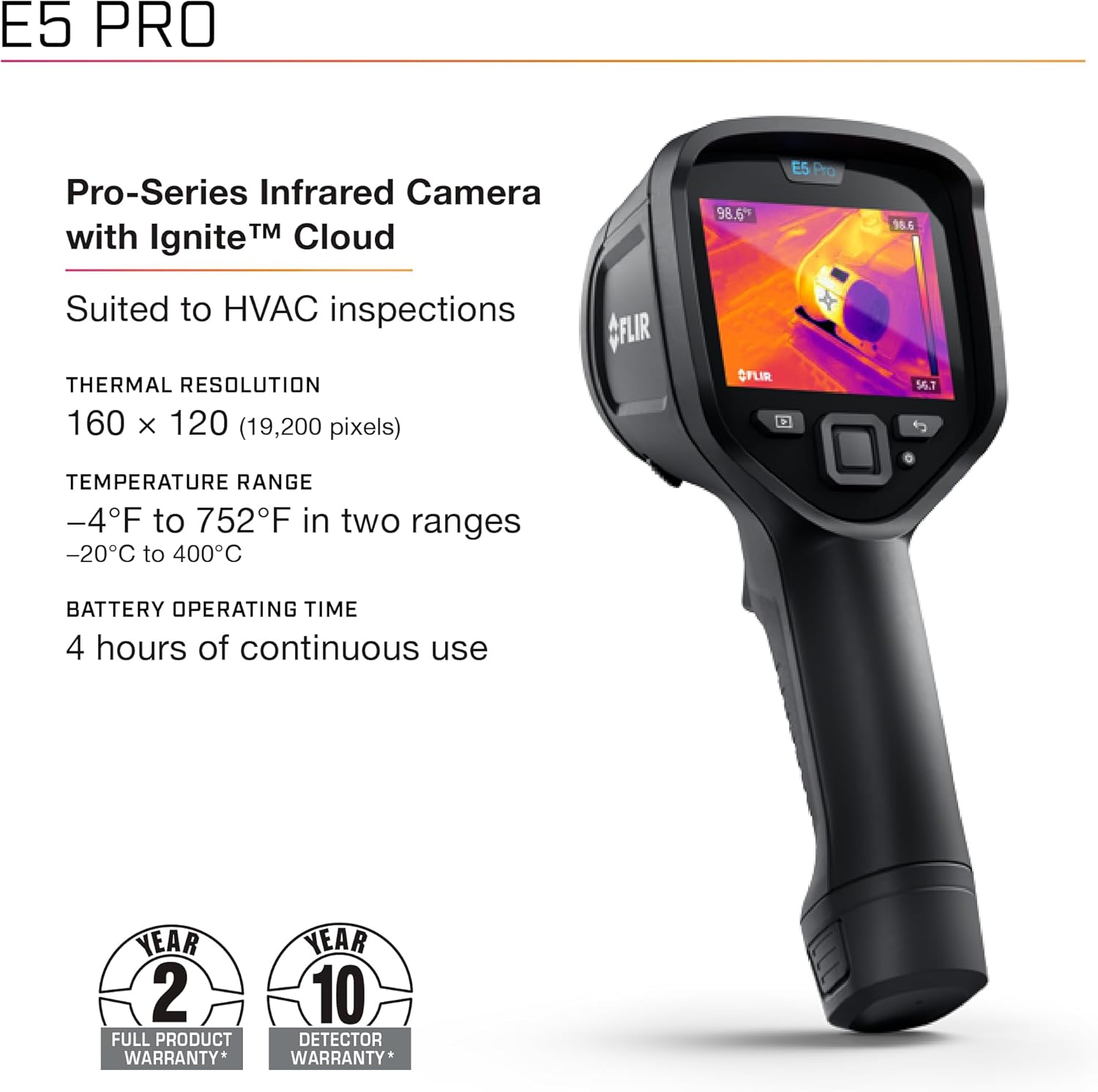
תמונה: מעלview of the FLIR E5 Pro's core specifications including thermal resolution and temperature range.

Image: Details on the FLIR E5 Pro's Wi-Fi capabilities, display specifications, and available imaging options.
2.3 Image Management and Connectivity
- File פוּרמָט: Records standard JPEG images with embedded temperature data.
- FLIR Ignite Cloud: Connect to the FLIR Ignite App via Wi-Fi for automatic storage, editing, and sharing of images in the cloud. This facilitates rapid image transfer and collaboration.
- Touchscreen Annotations: Utilize the 3.5-inch touchscreen for quick on-screen setting changes, adding annotations to images, and saving files directly to the FLIR Ignite cloud.

Image: A hand interacting with the FLIR E5 Pro's touchscreen to add annotations to a thermal image.
2.4 אופטימיזציה של תמונה
The 1-Touch Level/Span feature allows for quick image contrast improvement. By touching an area on the screen, the camera automatically adjusts the level and span to optimize contrast for that specific spot, reducing diagnostic time.

Image: A user adjusting the thermal image contrast on the FLIR E5 Pro using the 1-Touch Level/Span function.
3. תחזוקה
3.1 ניקוי המצלמה
- השתמש רך, דamp cloth to clean the camera body.
- For the lens, use a lens cleaning cloth and solution specifically designed for optics. Avoid abrasive materials.
- Do not immerse the camera in water or use harsh chemicals.
3.2 טיפול בסוללה
- Charge the battery regularly, even if the camera is not in frequent use, to maintain battery health.
- Store the camera and battery in a cool, dry place.
- The battery provides approximately 4 hours of continuous operating time.
3.3 עדכוני תוכנה
The FLIR E5 Pro supports Over-The-Air (OTA) updates, ensuring your camera is always equipped with the latest features and improvements. Connect to Wi-Fi and check for available updates through the camera's menu or the FLIR Ignite App.
4. פתרון תקלות
If you encounter issues with your FLIR E5 Pro, consider the following basic troubleshooting steps:
- המצלמה לא נדלקת: Ensure the battery is charged and correctly installed. Try charging the camera for at least 30 minutes.
- בעיות איכות תמונה: Clean the lens. Ensure proper focus (though the lens is always in focus, debris can affect clarity). Adjust color palettes or use the 1-Touch Level/Span feature.
- בעיות קישוריות: Verify Wi-Fi settings and network connection. Ensure the FLIR Ignite App is updated on your device.
- בעיות תוכנה: Check for and install any available OTA software updates.
For more complex issues or persistent problems, refer to the official FLIR support resources or contact customer service.
5. מפרטים
| תכונה | פְּרָט |
|---|---|
| דֶגֶם | FLIR E5 Pro |
| מספר חלק | 13301-0101 |
| רזולוציה תרמית | 160 × 120 pixels (19,200 pixels) |
| טווח טמפרטורה | -20°C עד 400°C (-4°F עד 752°F) |
| לְהַצִיג | 3.5 inch, 640 × 480 pixel Color LCD touchscreen |
| קישוריות | Wi-Fi, USB |
| סוג סוללה | ליתיום יון |
| זמן הפעלה של הסוללה | כ-4 שעות שימוש רצוף |
| משקל פריט | 1.27 פאונד |
| מידות המוצר | 9.6 x 3.7 x 5.5 אינץ' (244 x 94 x 140 מ"מ) |
| מקור כוח | Battery Powered (220 Volts charger compatible) |
| רכיבים כלולים | Camera, Case, Battery, USB Supply/Charger (EU, UK, US, AU), Software |
6. מידע על אחריות
The FLIR E5 Pro Thermal Imaging Camera comes with a comprehensive warranty:
- 2-Year Full Product Warranty: Covers parts and labor for the camera.
- 10-Year Detector Warranty: Covers the thermal detector, which is a critical component of the camera.
For detailed terms and conditions, please refer to the warranty documentation included with your product or visit the official FLIR webאֲתַר.
7. תמיכה ויצירת קשר
For further assistance, technical support, or to access additional resources, please visit the official FLIR webאֲתַר:
You can also find product registration, software downloads, and frequently asked questions on their support pages.


