1. הקדמה
This manual provides detailed instructions for the setup, operation, maintenance, and troubleshooting of your STRONG 4GMIFI150D CAT4/4G LTE Mobile Hotspot. Please read this manual carefully before using the device to ensure optimal performance and safety.
The STRONG 4GMIFI150D is a portable 4G LTE mobile hotspot designed to provide high-speed internet access on the go. It allows you to share a 4G/3G connection with up to 32 Wi-Fi enabled devices, including tablets, mobile phones, laptops, and gaming consoles.
2. תכולת החבילה
ודא שכל הפריטים נמצאים בחבילה:
- 1x STRONG 4G Portable Hotspot 150D
- 1x USB cable for power supply
- 1x מדריך התקנה מהירה
- 1x Safety instructions and warranty card

Image: Contents of the STRONG 4G Portable Hotspot 150D package, including the device, its retail box, a USB charging cable, a quick installation guide, and safety/warranty information.
3. המכשיר נגמרview
Familiarize yourself with the physical features and display indicators of your mobile hotspot.

תמונה: חזית view of the STRONG 4GMIFI150D Mobile Hotspot. It features a central display screen and a power button below it. The screen shows indicators for 4G signal, LTE Hotspot status, battery level, Wi-Fi signal, SMS reception, current time, and data usage.

תמונה: מפורט view of the STRONG 4GMIFI150D's screen display, illustrating icons for 4G signal strength, battery level, SMS reception information, Wi-Fi signal level, and a section for displaying time and downloaded data.

תמונה: מגוון views of the STRONG 4GMIFI150D Mobile Hotspot, showing its front with the display, side profiles, top, and bottom, highlighting its compact and sleek design.
4. התקנה
4.1. הכנסת כרטיס ה-SIM
The STRONG 4GMIFI150D requires a 4G SIM card to establish an internet connection. Ensure the device is powered off before inserting or removing the SIM card.
- אתר את חריץ כרטיס ה-SIM במכשיר.
- Carefully insert your 4G SIM card into the slot until it clicks into place. Ensure the SIM card is oriented correctly according to the diagram on the device or in the quick installation guide.
- סגור את מכסה חריץ כרטיס ה-SIM אם רלוונטי.
4.2. טעינת ההתקן
Before first use, fully charge the device. The 2100 mAh battery provides up to 8 hours of intensive use.
- Connect the provided USB cable to the micro-USB port on the hotspot.
- חבר את הקצה השני של כבל ה-USB לספק כוח USB (לא כלול) או ליציאת ה-USB של המחשב.
- The battery indicator on the display will show charging progress.
5. הוראות הפעלה
5.1. הפעלה / כיבוי
- כדי להפעיל: לחץ והחזק את לחצן ההפעלה עד שהמסך יידלק.
- לכיבוי: לחץ והחזק את לחצן ההפעלה עד שהמכשיר יכבה.
5.2. חיבור מכשירים לנקודה החמה
Once the hotspot is powered on and has established a 4G connection, you can connect your Wi-Fi enabled devices.
- On your Wi-Fi enabled device (e.g., smartphone, laptop), open the Wi-Fi settings.
- סרוק אחר רשתות Wi-Fi זמינות.
- Select the network name (SSID) of your STRONG 4GMIFI150D hotspot. The SSID and default password (WPA/WPA2) are typically found on a sticker inside the battery compartment or on the device's screen.
- הזן את סיסמת ה- Wi-Fi כאשר תתבקש.
- כעת המכשיר שלך אמור להיות מחובר לאינטרנט דרך נקודה חמה.
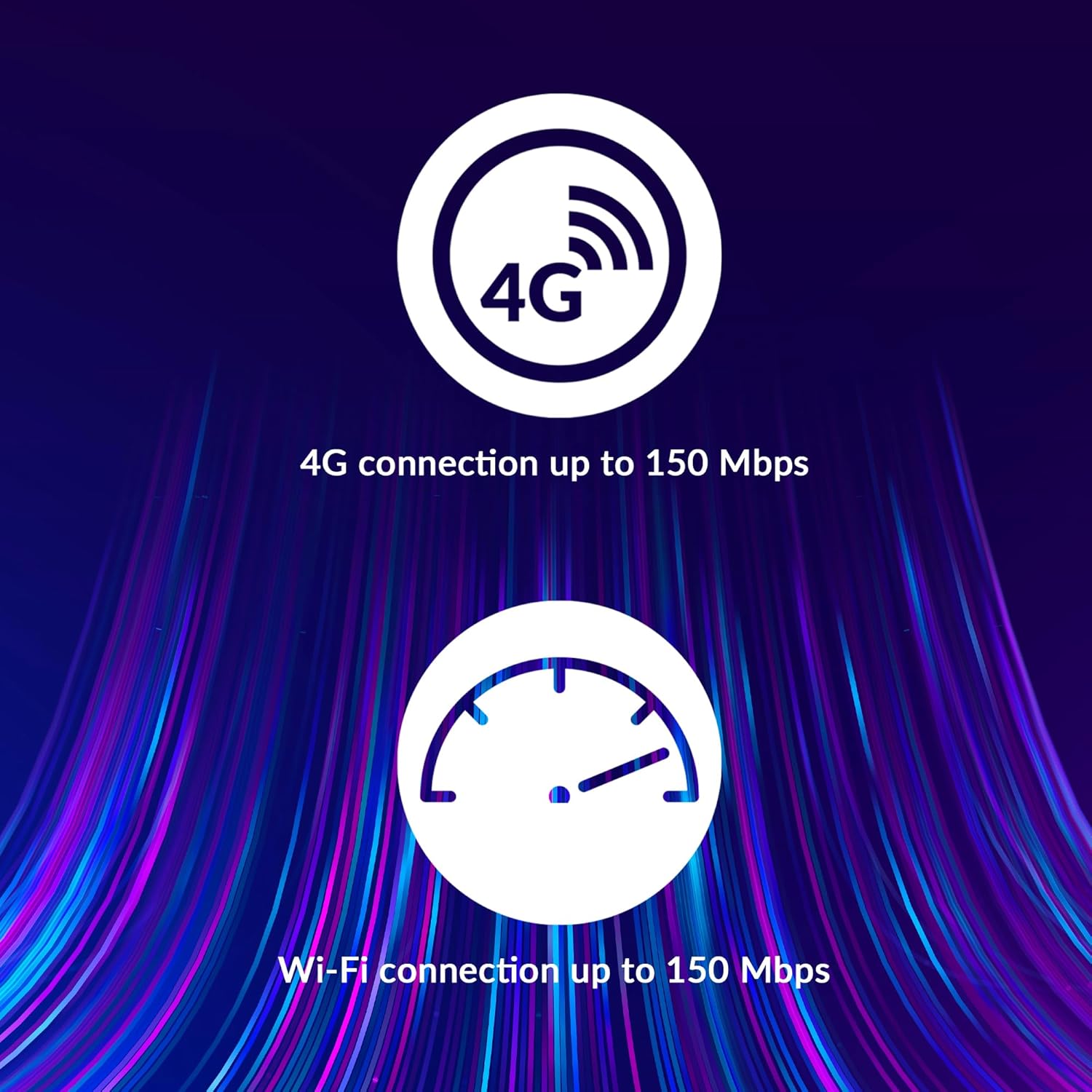
Image: A user holding the STRONG 4GMIFI150D Mobile Hotspot, demonstrating the QR code feature on its screen. This QR code can be scanned by compatible devices to quickly connect to the Wi-Fi network without manually entering the password.
For quick access, you can scan the QR code displayed on the hotspot's screen using a compatible device. This will automatically configure the Wi-Fi connection.
Example QR code content (for reference, actual values vary): WIFI:S:STRONG_XXXX_2.4GHz;T:WPA;P:XXXXXXXXXX;;
5.3. Web ממשק ניהול
For advanced settings and monitoring, access the web ממשק ניהול:
- Connect your device to the hotspot's Wi-Fi network.
- פתח א web browser and enter the default IP address (usually 192.168.0.1 or 192.168.1.1) found in the Quick Installation Guide or on the device.
- הזן את שם המשתמש והסיסמה המוגדרים כברירת מחדל (לדוגמה, admin/admin).
- From here, you can manage Wi-Fi settings, security protocols (WPA/WPA2), PIN code management, and view מצב חיבור.
6. ביצועים
The STRONG 4GMIFI150D offers robust performance for various internet activities.
- 4G Connection Speed: Up to 150 Mbps download speed.
- Wi-Fi Connection Speed: Up to 150 Mbps.
- תמיכה במכשיר: Connect up to 32 Wi-Fi devices simultaneously.
- חיי סוללה: Up to 8 hours of intensive use with the 2100 mAh battery.

Image: A graphic representation highlighting the performance capabilities of the hotspot, showing a 4G connection speed of up to 150 Mbps and a Wi-Fi connection speed of up to 150 Mbps.

Image: A person working on a laptop outdoors with the STRONG 4GMIFI150D Mobile Hotspot placed on the table next to them, illustrating the device's portability and suitability for remote work or travel.
7. תחזוקה
7.1. ניקיון
נגבו את המכשיר בעזרת מטלית רכה ויבשה. אין להשתמש בחומרי ניקוי נוזליים או בתרסיסים.
7.2. טיפול בסוללה
- הימנע מחשיפת הסוללה לטמפרטורות קיצוניות.
- Charge the battery regularly, even if the device is not in use, to maintain its lifespan.
- If the device will not be used for an extended period, store it with a partial charge (around 50%).
7.3. עדכוני קושחה
בדקו מעת לעת את הוראות היצרן webהאתר או של המכשיר web ממשק ניהול עבור עדכוני קושחה זמינים כדי להבטיח ביצועים ואבטחה אופטימליים.
8. פתרון תקלות
| בְּעָיָה | סיבה אפשרית | פִּתָרוֹן |
|---|---|---|
| אין חיבור לאינטרנט | No SIM card inserted, incorrect APN settings, no 4G signal, data plan exhausted. | Ensure SIM card is correctly inserted. Check APN settings via web interface. Move to an area with better signal. Check data plan with your mobile operator. |
| לא ניתן להתחבר ל-Wi-Fi | Incorrect Wi-Fi password, hotspot is off, too many devices connected. | Verify Wi-Fi password. Ensure hotspot is powered on. Disconnect some devices if 32 devices are already connected. |
| מהירות אינטרנט איטית | Weak 4G signal, network congestion, distance from hotspot, too many connected devices. | Relocate the hotspot for better signal. Reduce the number of connected devices. Move closer to the hotspot. |
| המכשיר לא נדלק | Battery drained, faulty battery/charger. | Charge the device for at least 30 minutes. Try a different USB cable or power adapter. |
9. מפרטים
| תכונה | פְּרָט |
|---|---|
| דֶגֶם | 4GMIFI150D |
| מותג | חָזָק |
| סוג קישוריות | Wi-Fi, 4G LTE |
| תקן אלחוטי | 802.11ב |
| מהירות 4G | Up to 150 Mbps (Download) |
| מהירות Wi-Fi | עד 150 Mbps |
| מכשירים נתמכים | עד 32 מכשירי Wi-Fi |
| קיבולת סוללה | ליתיום יון 2100 mAh |
| חיי סוללה | Up to 8 hours (intensive use) |
| מידות המוצר | 19 x 5.7 x 14 ס"מ |
| משקל פריט | 189 גרם |
| בִּטָחוֹן | WPA/WPA2, PIN code management |
| מַעֲרֶכֶת הַפעָלָה | RouterOS (internal) |
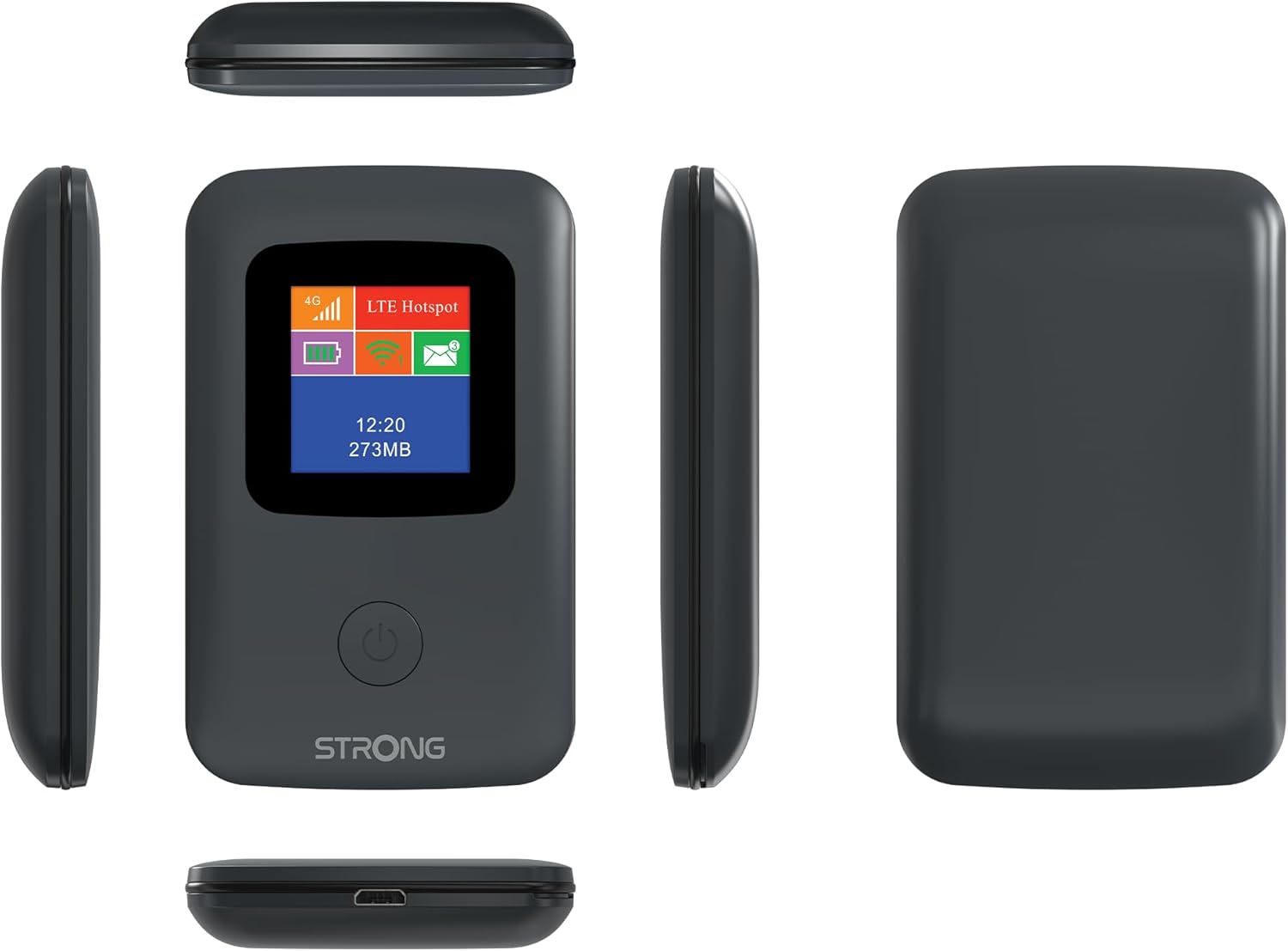
Image: A size comparison showing the STRONG 4GMIFI150D Mobile Hotspot next to a standard credit card, indicating its compact dimensions (92mm height, 58mm width) relative to a credit card (86mm height, 54mm width).
10. אחריות ותמיכה
This product comes with a warranty as detailed in the included warranty card. For technical support, troubleshooting assistance beyond this manual, or warranty claims, please refer to the contact information provided in your product packaging or visit the official Strong webאֲתַר.
אנא שמור את הוכחת הרכישה שלך לצורכי אחריות.
11. מידע בטיחות
- אין לחשוף את המכשיר למים או ללחות מוגזמת.
- הימנע מנפילה או הכפיפה של המכשיר למכות חזקות.
- אל תנסה לפרק או לתקן את המכשיר בעצמך. פנה לאנשי שירות מוסמכים.
- השתמשו רק באביזרים המסופקים או המומלצים.
- יש להשליך את המכשיר והסוללה שלו בצורה אחראית בהתאם לתקנות המקומיות.


