1. הקדמה
This manual provides detailed instructions for the setup, operation, and maintenance of your Logitech POP Mouse. The POP Mouse is a compact, wireless mouse designed for multi-device use with customizable features.

Image: The Logitech POP Mouse in Graphite, showcasinהעיצוב הקומפקטי והארגונומי שלו.
2. תכולת החבילה
- Logitech POP Wireless Mouse
- 1x AA Battery (pre-installed)
- תיעוד משתמש

Image: The Logitech POP Mouse and a single AA battery, representing the items included in the product package.
3. הוראות התקנה
3.1. התקנת סוללה
- Gently remove the top cover of the mouse. The cover is magnetically attached.
- הכניסו את סוללת ה-AA המצורפת, תוך הקפדה על קוטביות נכונה (+/-).
- החזירו את המכסה העליון, וודאו שהוא נצמד למקומו בנקישה.
3.2. התחברות באמצעות בלוטות'
- הפעל את העכבר באמצעות מתג ההפעלה הממוקם בתחתית.
- Press and hold one of the Easy-Switch buttons (1, 2, or 3) on the bottom of the mouse until the LED indicator starts blinking rapidly. This indicates pairing mode.
- On your device (computer, tablet, or phone), open Bluetooth settings.
- Select "Logitech POP Mouse" from the list of available devices to complete the pairing process.
- The LED indicator will glow solid for a few seconds, then turn off, confirming a successful connection.

Image: The underside of the POP Mouse, highlighting the Easy-Switch buttons for multi-device pairing.
4. הוראות הפעלה
4.1. פונקציות בסיסיות
- לחיצה שמאלית: בחירה ראשונית ואינטראקציה.
- מקש ימני: גישה לתפריטים הקשריים.
- גלגל גלילה: ניווט אנכית בין מסמכים ו web דפים.
4.2. SilentTouch Technology
The POP Mouse features SilentTouch Technology, which significantly reduces click noise, providing a quieter user experience without compromising tactile feedback.

Image: A hand operating the POP Mouse, illustrating the quiet operation provided by SilentTouch Technology.
4.3. גלילה באמצעות SmartWheel
ה-SmartWheel עובר אוטומטית בין שני מצבים:
- מצב דיוק: For detailed, line-by-line navigation.
- Speed Scroll Mode: For rapid scrolling through long documents or web דפים.

Image: A user's hand demonstrating the use of the SmartWheel for efficient navigation.
5. התאמה אישית
5.1. Customizable Top Button (Emoji Button)
The top button, located below the scroll wheel, is customizable. By default, it can be configured to open an emoji menu or assign other shortcuts.
- Download and install the Logitech Options+ Software from the official Logitech webאתר (logitech.com/optionsplus).
- Open the Logitech Options+ Software.
- Select your POP Mouse from the detected devices.
- נווט אל הגדרות ההתאמה האישית של הכפתורים.
- Assign your desired function to the top button, such as an emoji shortcut, Snip Screen, Mic Mute, or Voice-to-Text.
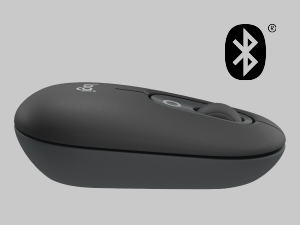
Image: A visual representation of the customizable top button on the POP Mouse, showing its function to access an emoji menu on a connected computer.
6. קישוריות מרובת מכשירים
The Logitech POP Mouse can connect to up to three different devices simultaneously using Bluetooth. You can easily switch between these devices.
6.1. החלפת התקנים
To switch between paired devices, press the Easy-Switch button (1, 2, or 3) on the bottom of the mouse corresponding to the desired device. The LED indicator will briefly light up to confirm the selected channel.
6.2. Logitech FLOW (Advanced Feature)
For seamless control across multiple computers, install Logitech Options+ Software on all devices. With Logitech FLOW enabled, you can move your mouse cursor across screens as if they were a single desktop, even copying and pasting text, images, and files ביניהם.
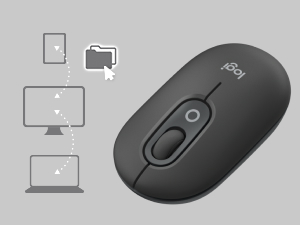
Image: A diagram showing how the POP Mouse can control multiple devices, illustrating the FLOW feature for cross-device interaction.
7. תחזוקה
7.1. החלפת סוללה
The POP Mouse operates on a single AA battery with an estimated life of up to 24 months. When the battery is low, the LED indicator on the bottom of the mouse may flash. Replace the battery by following the steps in Section 3.1.
7.2. ניקיון
לניקוי העכבר, השתמשו במטלית רכה ונטולת סיבים. במקרה של לכלוך עיקש, נגבו מעטampשטפו את המטלית במים. הימנעו משימוש בכימיקלים חזקים או בחומרים שוחקים.
8. פתרון תקלות
| בְּעָיָה | פִּתָרוֹן |
|---|---|
| עכבר לא נדלק. | Ensure the power switch on the bottom of the mouse is in the 'ON' position. Check and replace the AA battery if necessary. |
| עכבר לא מתחבר דרך בלוטות'. |
|
| Cursor movement is erratic or unresponsive. |
|
| Custom button not working. | Ensure Logitech Options+ Software is installed and running on your computer, and the button is correctly configured. |
9. מפרטים
| תכונה | פְּרָט |
|---|---|
| מספר דגם | 910-007165 |
| קישוריות | בלוטות' 5.1 |
| טווח אלחוטי | עד 10 מטרים (32.81 רגל) |
| טכנולוגיית חיישנים | Logitech High Precision Optical Tracking |
| מספר כפתורים | 4 (Left/Right click, Scroll wheel click, Top customizable button) |
| סוג סוללה | 1 x סוללת AA |
| חיי סוללה | עד 24 חודשים (עשוי להשתנות בהתאם לשימוש) |
| מידות (LxWxH) | 14.12 x 2.34 x 1.38 אינץ' (35.86 x 5.94 x 3.51 ס"מ) |
| מִשׁקָל | 2.89 אונקיות (82 גרם עם סוללה) |
| תאימות מערכת הפעלה | Windows 10 or later, macOS 10.15 or later, iPadOS, Chrome OS, Android |

Image: Technical drawing displaying the length, width, and height measurements of the Logitech POP Mouse.
10. אחריות ותמיכה
למידע על אחריות ותמיכה טכנית, אנא בקרו באתר התמיכה הרשמי של Logitech website or refer to the user documentation included in your product package.
- תמיכה מקוונת: support.logi.com
- רישום המוצר: רישום המוצר שלך יכול לעזור לך לקבל תמיכה ועדכונים מהר יותר.


