1. הקדמה
The BuzzTV B5 is an advanced Android 11 TV Box designed to deliver a superior 4K UHD streaming experience. This device allows you to access a wide range of entertainment, including movies, TV shows, and applications, directly on your television. This manual provides essential information for the proper setup, operation, maintenance, and troubleshooting of your BuzzTV B5.
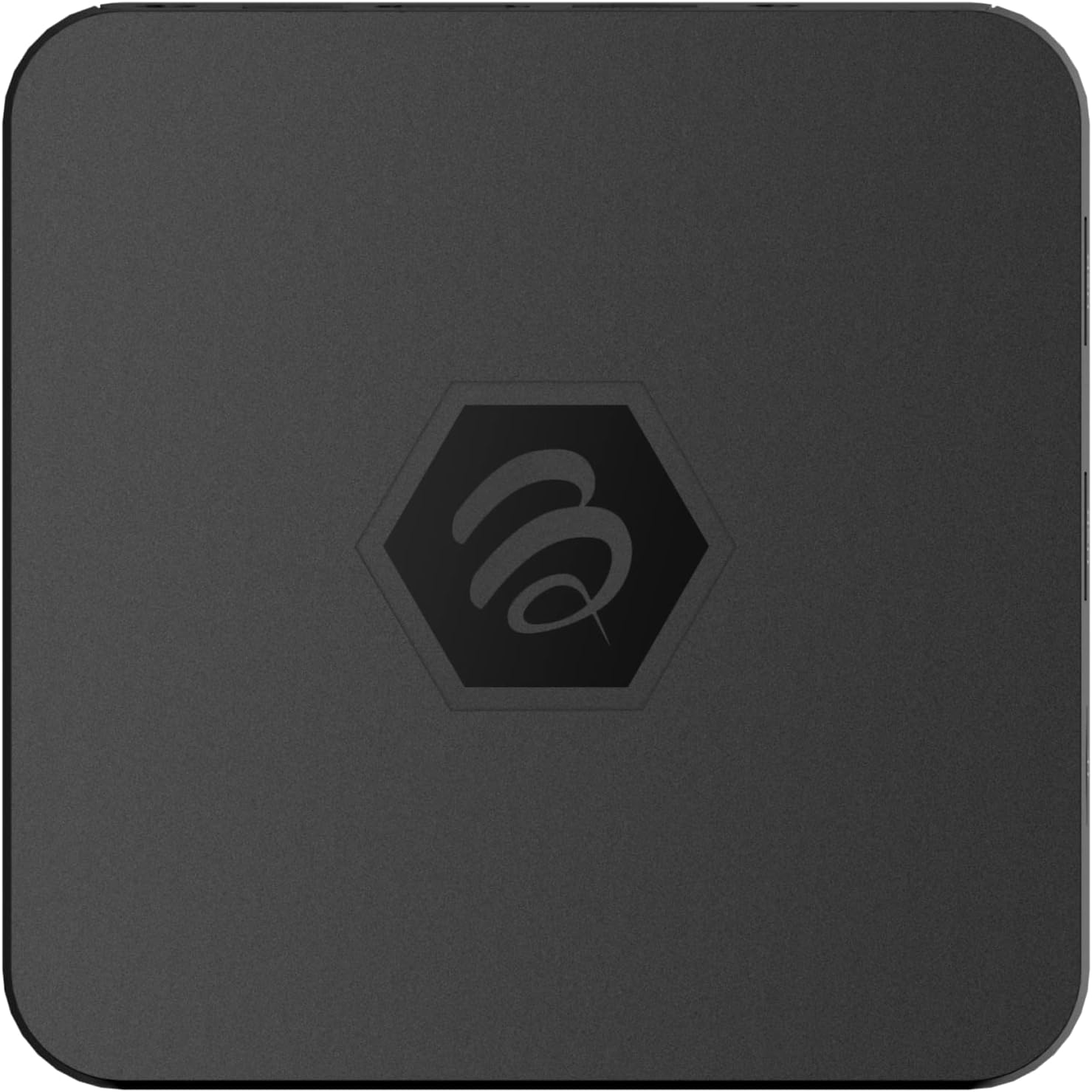
תמונה 1.1: למעלה view of the BuzzTV B5 Android 11 TV Box.
2. תכולת החבילה
Please verify that all items listed below are included in your BuzzTV B5 package:
- BuzzTV B5 Set Top Box
- IR-100 Remote Control
- מתאם ספק כוח
- 2 סוללות AAA (לשלט רחוק)
- כבל HDMI
- מדריך למשתמש (מסמך זה)

Image 2.1: Contents included in the BuzzTV B5 retail package.
3. מדריך התקנה
Follow these steps to set up your BuzzTV B5 TV Box:
- חיבור לטלוויזיה: Connect one end of the provided HDMI cable to the HDMI port on the BuzzTV B5 and the other end to an available HDMI input on your television.
- חבר חשמל: Plug the power supply adapter into the DC 5V port on the BuzzTV B5, then plug the adapter into a wall outlet. The device should power on automatically or can be powered on using the remote control.
- הכנס סוללות לשלט רחוק: Open the battery compartment on the back of the IR-100 Remote Control and insert the two AAA batteries, ensuring correct polarity (+/-).
- חיבור רשת: Once the device boots up, follow the on-screen instructions to connect to your network. You can choose between Wi-Fi (wireless) or Ethernet (wired) connection. For a wired connection, connect an Ethernet cable from your router to the Ethernet port on the BuzzTV B5.
- הגדרה ראשונית: Complete the initial Android setup process, which may include language selection, Google account login, and time zone settings.

Image 3.1: Rear ports of the BuzzTV B5 for connectivity.
4. הוראות הפעלה
The BuzzTV B5 operates on Android 11, providing a user-friendly interface for navigation and content access.
4.1 פונקציות שלט רחוק
The IR-100 Remote Control is your primary interface for the BuzzTV B5. Key functions include:
- לחצן הפעלה: מפעיל או מכבה את המכשיר.
- לוח ניווט (למעלה/למטה/שמאלה/ימינה/אישור): משמש לניווט בתפריטים ובחירת פריטים.
- כפתור חזרה: חוזר למסך או לתפריט הקודם.
- כפתור בית: חוזר למסך הבית הראשי של אנדרואיד.
- לחצני עוצמת הקול: מכוונן את עוצמת השמע.
- App/Menu Buttons: Accesses specific applications or context menus.

Image 4.1: Layout of the IR-100 Remote Control.
4.2 גישה ליישומים
From the home screen, you can access pre-installed applications like Netflix and YouTube, or download new applications from the Google Play Store. Use the navigation pad on your remote to select and launch applications.
סטרימינג 4.3 4K UHD
The BuzzTV B5 supports 4K UHD resolution. Ensure your television is 4K compatible and that you are using a high-speed HDMI cable for optimal picture quality. Streaming quality will also depend on your internet connection speed and the content source.
5. תחזוקה
To ensure the longevity and optimal performance of your BuzzTV B5, consider the following maintenance tips:
- ניקוי: השתמשו במטלית רכה ויבשה לניקוי החלק החיצוני של המכשיר. הימנעו מחומרי ניקוי נוזליים או מחומרים שוחקים.
- אוורור: ודאו שהמכשיר ממוקם באזור מאוורר היטב כדי למנוע התחממות יתר. אין לכסות את פתחי האוורור.
- עדכוני תוכנה: Periodically check for and install system updates to benefit from new features, performance improvements, and security patches. These can usually be found in the device's settings menu.
- מחזור הפעלה: אם המכשיר מאבד את התגובות, נתק את ספק הכוח, המתן 10 שניות ולאחר מכן חבר אותו מחדש כדי לבצע הפעלה מחדש.
6. פתרון תקלות
If you encounter issues with your BuzzTV B5, refer to the following common problems and solutions:
| בְּעָיָה | סיבה אפשרית | פִּתָרוֹן |
|---|---|---|
| אין כוח | מתאם החשמל לא מחובר; השקע לא עובד. | ודא שמתאם החשמל מחובר היטב למכשיר ולשקע חשמל תקין. נסה שקע אחר. |
| אין קליטה בטלוויזיה | Incorrect HDMI input selected; faulty HDMI cable. | Select the correct HDMI input on your TV. Check HDMI cable connections or try a different HDMI cable. |
| השלט רחוק לא מגיב | סוללות ריקות; שלט רחוק לא משויך (אם רלוונטי); חסימה. | Replace AAA batteries. Ensure no obstructions between remote and device. |
| בעיות חיבור לרשת | Incorrect Wi-Fi password; router issues; weak signal. | Verify Wi-Fi password. Restart your router. Move the device closer to the router or use an Ethernet cable. |
| Applications Crashing/Freezing | Insufficient memory; outdated app; software glitch. | Close background apps. Update the app or the device's firmware. Clear app cache/data in settings. |
7. מפרטים
Detailed technical specifications for the BuzzTV B5 Android 11 TV Box:
- מַעֲרֶכֶת הַפעָלָה: מערכת הפעלה אנדרואיד 11
- מעבד: Amlogic S905W2 Quad-Core A-35
- GPU: Mali-G31 MP2
- אַיִל: 2GB DDR
- אִחסוּן: 16GB eMMC
- Wi-Fi: Dual Band AC
- LAN: 10/100 Mbps Ethernet
- בלוטות': 4.2
- יציאות USB: 2x USB 2.0
- חריץ MicroSD: 1
- ממשק חשמל: DC 5V
- יציאת HDMI: 1
- פלט אודיו אופטי: 1
- רזולוציית פלט: 4K (32 FPS)
- מידות: 9.06 x 5.63 x 2.32 אינץ'
- משקל פריט: 1.01 פאונד

Image 7.1: BuzzTV B5 with a summary of its technical specifications.
8. מידע על אחריות
For detailed warranty information regarding your BuzzTV B5, please refer to the warranty card included in your product packaging or visit the official BuzzTV webאתר. תנאי האחריות עשויים להשתנות בהתאם לאזור ולקמעונאי.
9. תמיכה
If you require further assistance or have questions not covered in this manual, please contact BuzzTV customer support or visit their official webאתר לשאלות נפוצות, הורדות תוכנה ומשאבים נוספים.
BuzzTV Official Webאֲתַר: www.buzztv.com


