1. המוצר נגמרview
The Tera Pro 1300 is a compact and versatile barcode scanner designed for efficient data capture. It supports 1D and 2D barcodes, including QR codes, from both printed materials and digital screens. This device offers multiple connection options and features a long-lasting battery for extended use.

Image: The Tera Pro 1300 barcode scanner, a compact device designed for portability and ease of use.
תכולת החבילה:
- Barcode Scanner (x1)
- כבל USB (x1)
- 2.4G USB Dongle (x1)
- מדריך למשתמש (x1)
2. הגדרה וחיבור
The Tera Pro 1300 offers three connection methods: Bluetooth, 2.4GHz Wireless, and USB Wired. Choose the method that best suits your device and environment.

Image: Visual representation of the three connection modes: Bluetooth, 2.4GHz Wireless via USB dongle, and USB Wired connection.
2.1. טעינת הסורק
Before first use, fully charge the scanner using the provided USB cable. Connect the small end of the USB cable to the scanner's charging port and the other end to a USB power adapter or a computer's USB port. A full charge typically takes 3-4 hours.
2.2. חיבור Bluetooth
- ודא שהסורק מופעל.
- Scan the 'Bluetooth Pairing' barcode (refer to the included quick start guide or the full manual for specific barcode).
- On your host device (laptop, PC, mobile phone, tablet), enable Bluetooth and search for available devices.
- Select 'Tera 1300' or a similar name from the list of devices to pair.
- The scanner will indicate successful pairing (e.g., a beep or LED change).
Supports HID, SPP, and BLE modes. Transmission distance is approximately 10m (33ft) in environments with obstacles.
חיבור אלחוטי 2.1.2.4GHz
- הכנס את דונגל ה-USB 2.4G ליציאת USB פנויה במחשב שלך.
- ודא שהסורק מופעל.
- The scanner should automatically connect to the dongle. A successful connection is typically indicated by a beep or LED change.
This mode works with Windows XP/7/8/10, Mac OS, and Linux. The transmission distance can reach up to 60m (200ft) in open, barrier-free environments.
2.4. חיבור USB קווי
- חבר את הסורק למחשב שלך באמצעות כבל ה-USB המצורף.
- The scanner will function as a wired device and will also charge simultaneously.
3. הוראות הפעלה
3.1. סריקה בסיסית
Point the scanner's window at the barcode you wish to scan and press the trigger button. A successful scan will typically result in a beep and/or vibration, and the data will be transmitted to your connected device.
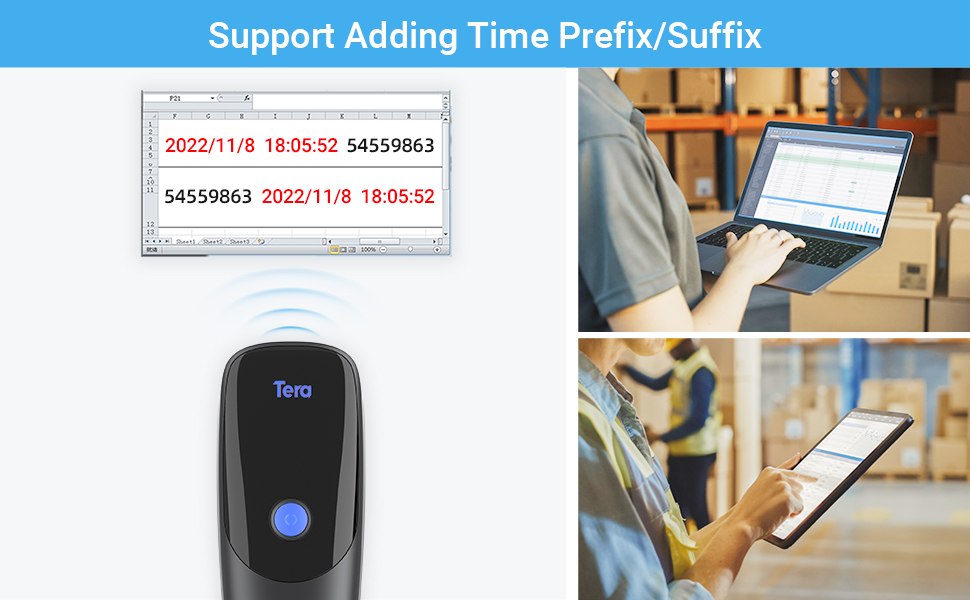
Image: The scanner demonstrates its ability to read various 1D and 2D barcodes, including those that are blurred, damaged, or have wide scanning angles.
3.2. Time Prefix/Suffix Function
This function allows you to add the current time as a prefix or suffix to scanned barcode data. This is useful for tracking the exact time of each scan.
- To enable/disable this feature, scan the specific setting barcodes provided in the full user manual.

תמונה: דוגמהample of barcode data being scanned and displayed on a computer screen, demonstrating the time prefix/suffix function.
3.3. Vibration Alert & Upload Modes
The scanner features a vibration alert, which can be used in quiet environments where audible beeps are undesirable. You can turn off the volume and rely on vibration for scan confirmation.
The scanner supports two upload modes:
- מצב העלאה מיידית: Barcode data is transmitted immediately after scanning.
- מצב אחסון: Barcode data is stored internally in the scanner's memory. This mode is useful when the scanner is out of range of the receiver. The internal storage can hold up to 20,000 barcodes. Data can be batch uploaded to your device when reconnected.
3.4. תמיכה בריבוי שפות
The scanner supports various keyboard layouts for different languages, including English, German, Spanish, Italian, French, Japanese, Belgian, Portuguese, and Dutch. Refer to the full manual for instructions on how to configure the scanner for your desired language.

Image: The scanner supports multiple languages, indicated by flags of various countries.
4. תחזוקה
4.1. טיפול בסוללה
The Tera Pro 1300 is equipped with a 1200mAh battery, providing approximately 12 hours of continuous scanning or up to two weeks of daily use on a full charge. Standby time is approximately 96 hours.
- הימנעו מפריקה מלאה של הסוללה לעתים קרובות כדי להאריך את חייה.
- אחסנו את הסורק במקום קריר ויבש כאשר אינו בשימוש למשך תקופות ממושכות.
- טען את הסורק באופן קבוע, גם אם אינו בשימוש מתמיד, כדי לשמור על תקינות הסוללה.
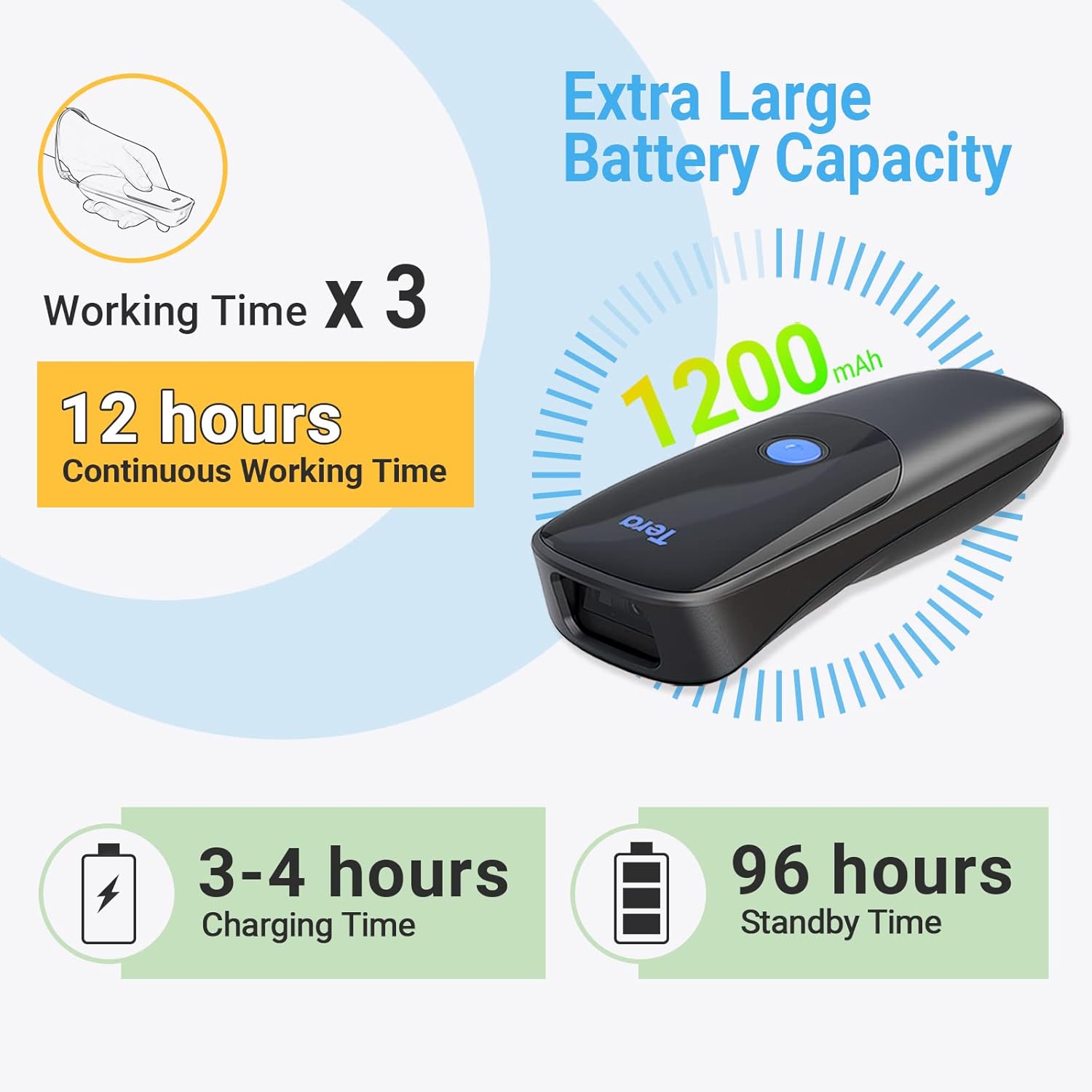
Image: Details on the scanner's 1200mAh battery, offering 12 hours of continuous operation and 3-4 hours charging time.
4.2. ניקיון
לניקוי הסורק, השתמש במטלית רכה ויבשה. עבור לכלוך עיקש, שטפו מעט אתamp cloth can be used, followed by a dry cloth. Avoid using harsh chemicals or abrasive materials, as these can damage the device.
5. פתרון תקלות
If you encounter issues with your Tera Pro 1300 scanner, refer to the following common problems and solutions:
| בְּעָיָה | פתרון אפשרי |
|---|---|
| הסורק לא נדלק. | ודא שהסוללה טעונה. חבר את הסורק למקור חשמל באמצעות כבל ה-USB. |
| Scanner does not connect via Bluetooth/2.4GHz. | Verify the scanner is in the correct pairing mode. Ensure the dongle is properly inserted for 2.4GHz. Check Bluetooth settings on your host device. Try restarting both the scanner and the host device. |
| Scanned data is incorrect or inconsistent. | Ensure the barcode is clean and undamaged. Try scanning from a different angle or distance. Check if the scanner's configuration (e.g., prefix/suffix settings, keyboard layout) is correct for your needs. Perform a factory reset if necessary (refer to the full manual for the reset barcode). |
| Scanner adds extra characters (e.g., 'a') to scanned data. | This often indicates an incorrect keyboard language setting. Scan the appropriate language setting barcode from the full user manual to match your computer's keyboard layout. |
| Scanner does not read certain barcode types. | Ensure the barcode type is supported by the Tera Pro 1300 (see Specifications section). Some less common barcode types may require specific enabling scans from the manual. |
6. מפרטים
| תכונה | פְּרָט |
|---|---|
| מספר דגם | 1300 |
| מידות | 6.65 x 4.61 x 1.65 אינץ' |
| משקל פריט | 7.4 אונקיות |
| מקור כוח | מופעל על סוללה, חשמלי עם חוט |
| קיבולת סוללה | 1200mAh |
| זמן עבודה רציף | עד 12 שעות |
| זמן טעינה | 3-4 שעות |
| זמן המתנה | עד 96 שעות |
| טכנולוגיית קישוריות | 2.4G אלחוטי, Bluetooth, כבל USB |
| מכשירים תואמים | Desktop, Laptop, Smartphone, Tablet (Windows XP/7/8/10, Mac OS, Windows Mobile, Android OS, iOS) |
| 1D Decode Capability | Codabar, Code 11, Code93, MSI, Code 128, UCC/EAN-128, Code 39, EAN-8, EAN-13, UPC-A, ISBN, Industrial 25, Interleaved 25, Standard 25, 2/5 Matrix |
| 2D Decode Capability | QR, PDF417, Data Matrix, Aztec code, Maxi Code |
| זווית אמיתית של View | 10 מעלות |
7. אחריות ותמיכה
For warranty information and technical support, please refer to the official Tera webבאתר או צרו קשר ישירות עם שירות הלקוחות שלהם. פרטי הקשר נמצאים בדרך כלל על אריזת המוצר או על ידי היצרן webאֲתַר.
You can visit the Tera Store for additional product information and support resources: Tera Store on Amazon


