1. הקדמה
This manual provides essential information for setting up, operating, maintaining, and troubleshooting your HP 17 Laptop, Model 17t. Please read these instructions carefully to ensure proper use and longevity of your device.
2. מה בקופסה
- HP 17 Laptop (Model 17t)
- מתאם מתח חכם AC 45 W
- מובנה HD Webcam with integrated dual-array digital microphones (integrated into laptop)
3. המוצר נגמרview
The HP 17 Laptop features a 17.3-inch HD+ touchscreen display, powered by a 12th Gen Intel Core i7-1255U processor. It includes 64GB DDR4 RAM and a 2TB PCIe NVMe M.2 Solid State Drive for high performance and ample storage. Key features include Wi-Fi 6 connectivity, a backlit keyboard, and a fingerprint reader for enhanced security.
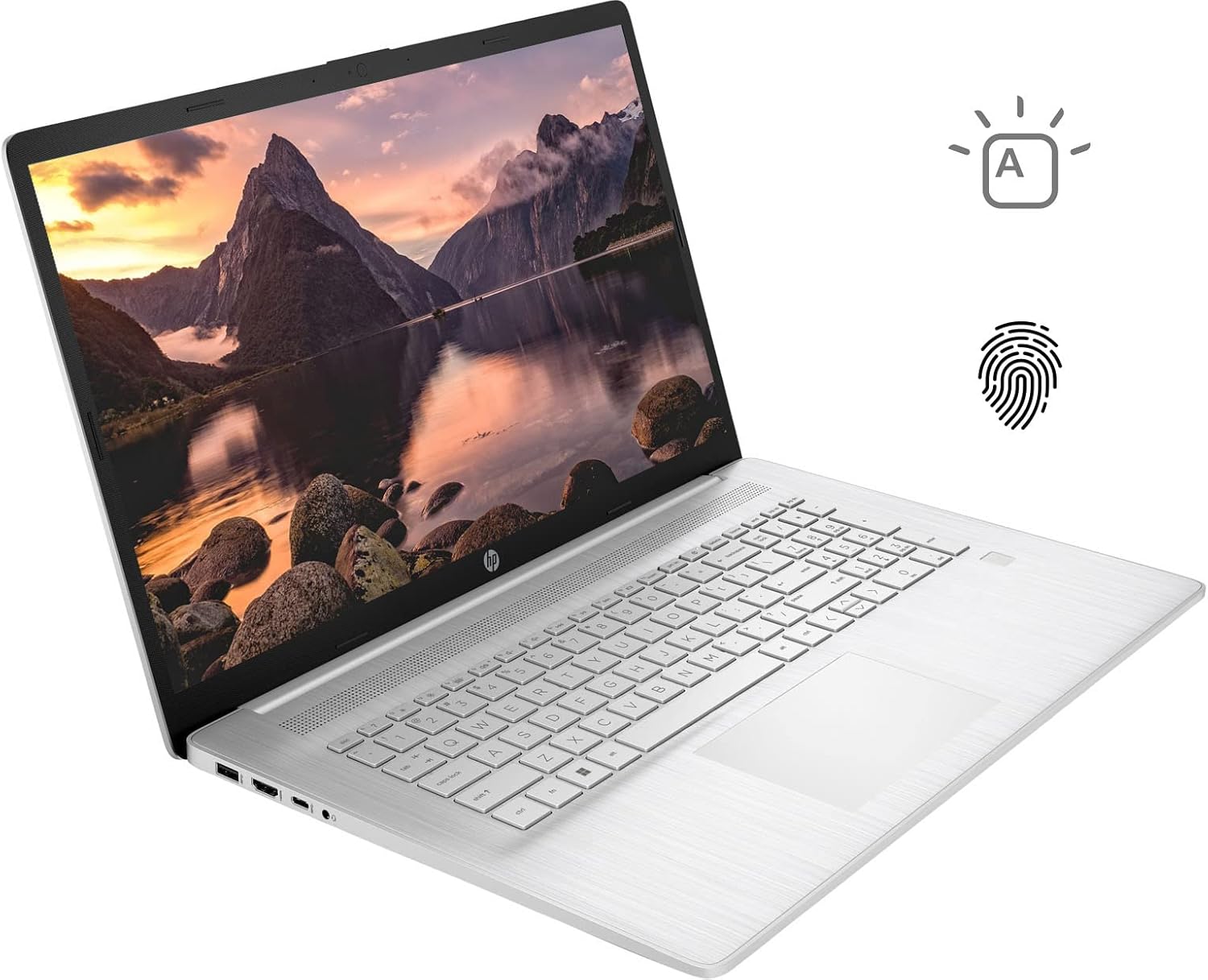
Figure 3.1: HP 17 Laptop with screen displaying a landscape image and keyboard visible.
3.1. יציאות צד שמאל
The left side of the laptop provides essential connectivity options.
- יציאת USB Type-A: לחיבור התקני USB.
- יציאת HDMI: לחיבור לצגים חיצוניים.
- יציאת USB Type-C: להעברת נתונים וחיבור מכשירים תואמים.
- שקע משולב לאוזניות/מיקרופון: עבור קלט ופלט שמע.

Figure 3.2: Left side of the HP 17 Laptop, detailing the USB Type-A, HDMI, USB Type-C, and headphone/microphone combo ports.
3.2. יציאות צד ימין
The right side of the laptop includes additional ports and indicators.
- מחבר חשמל: לחיבור מתאם מתח AC.
- נורית חיווי טעינה: מציג את מצב הטעינה.
- יציאת USB Type-A: לחיבור התקני USB.

Figure 3.3: Right side of the HP 17 Laptop, showing the power connector, charging indicator, and USB Type-A port.
4. התקנה
4.1. הפעלה ראשונית
- Connect the 45 W Smart AC power adapter to the power connector on the right side of the laptop and then to a power outlet.
- פתח את מכסה המחשב הנייד.
- לחץ על לחצן ההפעלה, הממוקם בדרך כלל בפינה הימנית העליונה של משטח המקלדת.
- פעל לפי ההוראות שעל המסך כדי להשלים את הגדרת Windows 11 Home, כולל שפה, אזור, חיבור רשת ויצירת חשבון משתמש.
4.2. חיבור ציוד היקפי
Use the available USB ports (Type-A and Type-C) to connect external devices such as a mouse, external keyboard, or USB storage devices. The HDMI port allows connection to an external monitor or TV.
5. הפעלת המחשב הנייד HP 17 שלך
5.1. פונקציונליות מסך מגע
The 17.3-inch HD+ display supports touch input. You can interact with Windows 11 and applications directly using your fingers for navigation, scrolling, and selection.
5.2. מקלדת עם תאורה אחורית
The keyboard features backlighting for use in low-light conditions. To toggle the backlight, press the F4 key. Repeated presses may cycle through different brightness levels or turn the backlight off.
5.3. קורא טביעות אצבע
For enhanced security and quick login, configure the integrated fingerprint reader through Windows Hello settings. Access these settings via הגדרות > חשבונות > אפשרויות כניסה.
5.4. קישוריות אלחוטית
The laptop supports Wi-Fi 6 and Bluetooth 5.2. To connect to a Wi-Fi network, click the network icon in the taskbar, select your desired network, and enter the password if required. Bluetooth devices can be paired via הגדרות > בלוטות' ומכשירים.
5.5. Webcam and Microphones
ה-HD המשולב webcam and dual-array digital microphones are suitable for video conferencing and online communication. Ensure privacy settings are configured correctly in Windows to control application access to the camera and microphone.
6. תחזוקה
6.1. ניקיון
- מָסָך: השתמש קלות במטלית רכה נטולת מוך דampשטוף במים או בחומר לניקוי מסכים. הימנע מכימיקלים חזקים.
- מקלדת ושלדה: Use a soft, dry cloth. A can of compressed air can help remove dust from between keys.
- ודא שהמחשב הנייד כבוי ומנותק מהחשמל לפני הניקוי.
6.2. טיפול בסוללה
- הימנע מטמפרטורות קיצוניות.
- For optimal battery life, avoid constantly keeping the laptop at 100% charge or letting it fully discharge frequently.
- אחסנו את המחשב הנייד עם טעינה חלקית (כ-50%) אם לא נעשה בו שימוש למשך תקופות ממושכות.
6.3. עדכוני תוכנה
בדוק באופן קבוע אם קיימים עדכוני Windows והתקן אותם באמצעות הגדרות > עדכון Windows. Also, ensure HP drivers and firmware are up to date using the HP Support Assistant application or HP's official webאֲתַר.
7. פתרון תקלות
7.1. המחשב הנייד לא נדלק
- ודא שמתאם ה-AC מחובר היטב הן למחשב הנייד והן לשקע חשמל תקין.
- Check the charging indicator light on the right side of the laptop. If it's not lit, try a different outlet or adapter if available.
- Perform a hard reset: Disconnect the AC adapter, press and hold the power button for 15 seconds, then reconnect the adapter and try to power on.
7.2. בעיות תצוגה
- אין תצוגה: If the laptop powers on but the screen remains black, try connecting an external monitor via HDMI to check if the issue is with the laptop's internal display.
- מסך מגע לא מגיב: Restart the laptop. If the issue persists, check for updated display drivers or run Windows Troubleshooter for hardware and devices.
7.3. בעיות קישוריות Wi-Fi
- ודא ש-Wi-Fi מופעל בהגדרות Windows.
- הפעל מחדש את הנתב והמודם שלך.
- הפעל את פותר בעיות הרשת של Windows.
- עדכן את מנהלי ההתקנים של מתאם האלחוט שלך.
8. מפרטים
| שם הדגם | HP 17t Notebook |
| לְהַצִיג | 17.3" HD+ (1600 x 900) BrightView מסך מגע |
| מעבד | 12th Gen Intel Core i7-1255U (10 Cores, up to 4.70 GHz) |
| גרָפִיקָה | כרטיס מסך אינטל Iris Xe (משולב) |
| אַיִל | 64GB DDR4 |
| אִחסוּן | כונן SSD PCIe NVMe M.2 בנפח 2TB |
| מַעֲרֶכֶת הַפעָלָה | Windows 11 Home |
| קישוריות אלחוטית | Wi-Fi 6 (2x2), Bluetooth 5.2 |
| נמלים | 1x USB Type-C (5Gbps), 2x USB Type-A (5Gbps), 1x HDMI 1.4b, 1x Headphone/Microphone Combo |
| מִקלֶדֶת | Backlit Keyboard, Numeric Keyboard |
| בִּטָחוֹן | קורא טביעות אצבע |
| מַצלֵמָה | מובנה HD Webcam with dual-array digital microphones |
| סוֹלְלָה | 3-cell, 41Wh Lithium-ion prismatic |
| מתאם מתח | מתאם מתח חכם AC 45 W |
| מִשׁקָל | 5.25 פאונד (כ-2.38 ק"ג) |
| מידות (LxWxH) | 15.78 x 10.15 x 0.78 אינץ' (כ-40.08 x 25.78 x 1.98 ס"מ) |
| צֶבַע | כֶּסֶף |
9. אחריות ותמיכה
למידע על אחריות, אנא עיין בתיעוד המצורף למוצר שלך או בקר באתר התמיכה הרשמי של HP website. If you encounter issues not covered in this manual or require further assistance, please contact HP customer support.
ניתן למצוא משאבי תמיכה, מנהלי התקנים ופרטי קשר באתר הרשמי של HP webאֲתַר: www.hp.com/support