מדריך למשתמש למדפסת תרמית ניידת PeriPage A6 Mini
מותג: PeriPage | דגם: A6
1. הקדמה
Thank you for choosing the PeriPage A6 Mini Portable Thermal Printer. This compact and versatile device allows you to print photos, labels, notes, lists, and more directly from your smartphone or PC. With its high-resolution thermal printing technology, you can enjoy clear and crisp prints without the need for ink cartridges. This manual provides essential information on setting up, operating, maintaining, and troubleshooting your new printer.
3. תכולת החבילה
ודא שכל הפריטים נמצאים בחבילה שלך:
- PeriPage A6 Mini Printer
- גליל נייר תרמי
- כבל USB
- מדריך למשתמש

Image: Contents of the PeriPage A6 Mini Printer package, showing the printer, a roll of thermal paper, a USB charging cable, and the user manual.
4. המוצר נגמרview
4.1 תכונות עיקריות
- Ultra HD Printing: 304 DPI resolution for clear and detailed prints.
- הדפסה תרמית ללא דיו: No ink cartridges required, reducing operating costs.
- רב תפקודי: Supports printing of photos, labels, notes, lists, QR codes, web דפים, ועוד.
- קישוריות בלוטות': Seamless wireless connection to iOS and Android smartphones.
- עיצוב נייד: Compact and lightweight with a built-in 1000mAh rechargeable battery.
- תמיכה רב-תכליתית בנייר: Compatible with various thermal paper types including standard, sticky, transparent, and colorful options.
4.2 רכיבי המדפסת
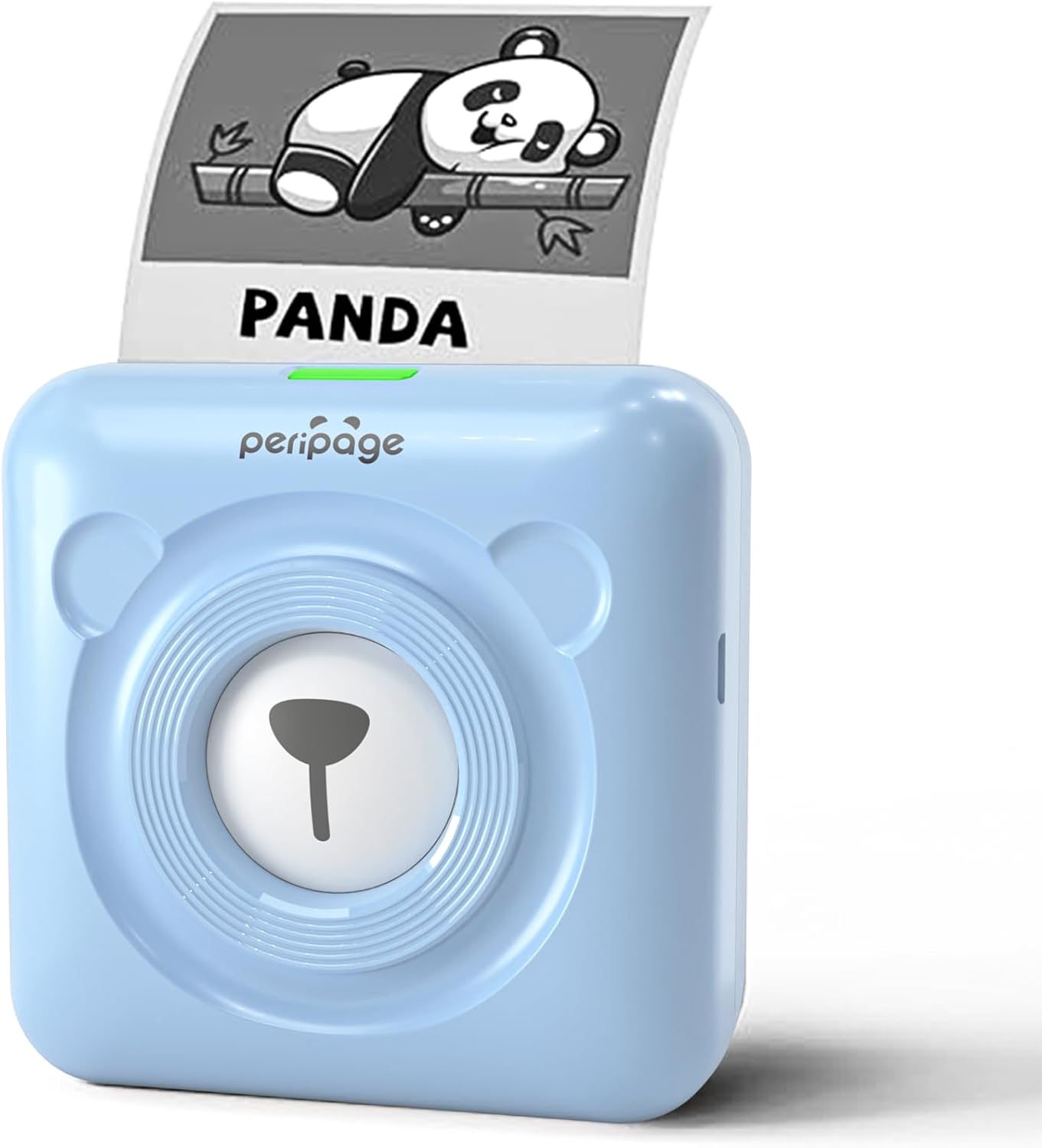
Image: The PeriPage A6 Mini Printer in blue, demonstrating a printed output. The printer features a bear-like design on its front.

Image: A visual comparison highlighting the superior print resolution of the PeriPage A6 Mini Printer (304 DPI) compared to a standard definition printer, showing finer details in the printed image.
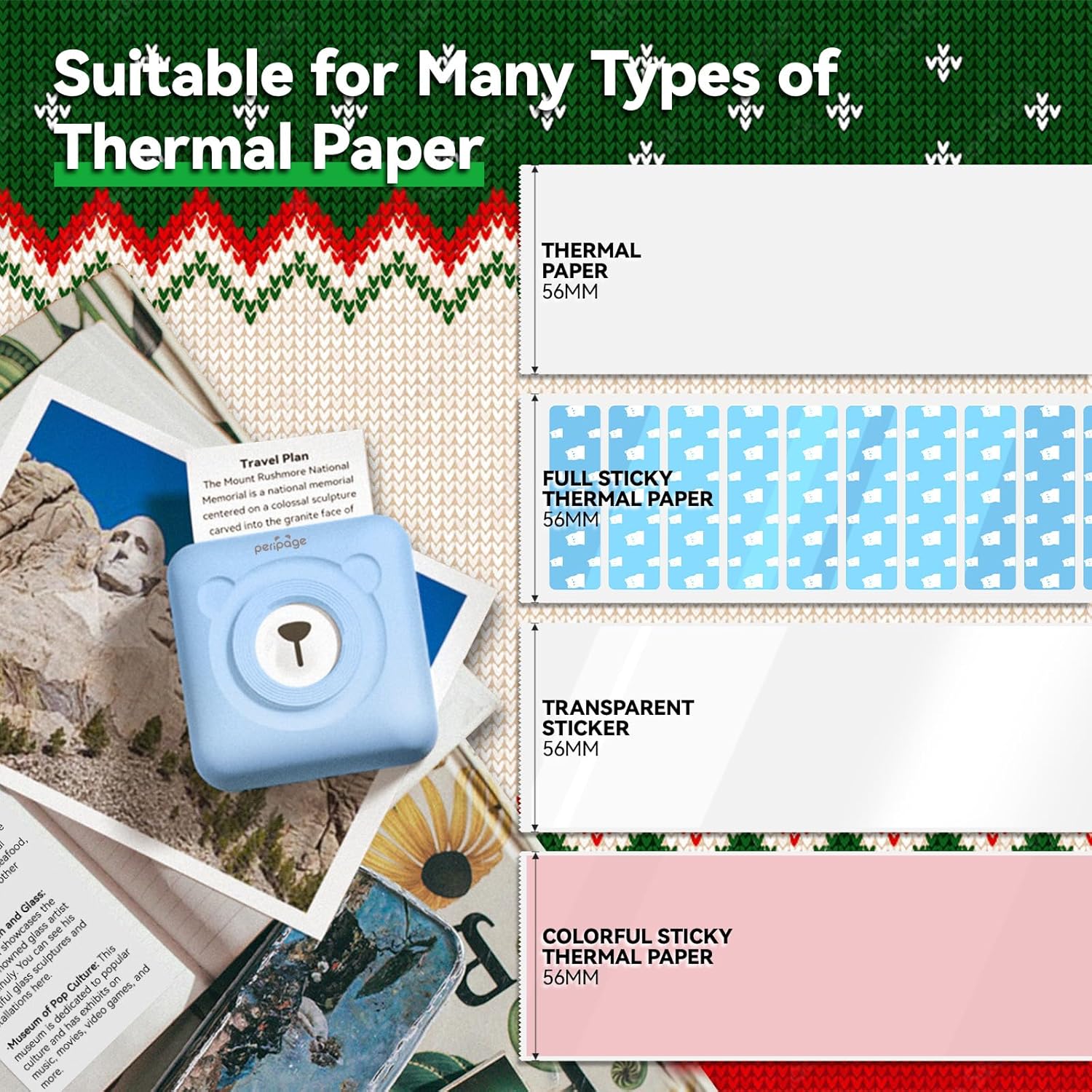
Image: An illustration showing the different types of thermal paper that can be used with the PeriPage A6 Mini Printer, such as standard thermal paper, full sticky thermal paper, transparent stickers, and colorful sticky thermal paper, all 56mm wide.
5. מדריך התקנה
5.1 טעינת המדפסת
Before first use, fully charge the printer using the provided USB cable. Connect the USB cable to the printer's charging port and the other end to a USB power adapter (not included) or a computer's USB port. The indicator light will show charging status.
5.2 התקנת נייר תרמי
- Open the printer cover by gently sliding the release button or pressing the designated area.
- Insert the thermal paper roll into the paper compartment, ensuring the printing side faces the print head.
- Pull a small amount of paper out beyond the print head.
- סגור את מכסה המדפסת בחוזקה עד שייכנס למקומו בנקישה.
5.3 Downloading the PeriPage App
The PeriPage A6 Mini Printer requires the official PeriPage APP for full functionality. You can download it via:
- Searching for "PeriPage" in your device's APP store (Apple App Store for iOS, Google Play Store for Android).
- Scanning the QR code provided in the instruction manual or on the product packaging.
- Visiting the official download page: https://www.ileadtek.com/download/app/peripage.html

Image: A guide illustrating two methods to download the PeriPage App: searching on Google Play or Apple App Store, or scanning a QR code.
5.4 Connecting to Your Device (Bluetooth)
- Ensure your PeriPage A6 printer is turned on.
- הפעל Bluetooth בטלפון החכם שלך.
- Open the PeriPage App. The app will guide you to connect to the printer.
- Select your printer from the list of available Bluetooth devices within the app. The printer's name usually starts with "PeriPage".
- לאחר החיבור, האפליקציה תציין חיבור מוצלח.

Image: A visual representation of connecting the PeriPage A6 Mini Printer to a smartphone via the PeriPage App, showing the app interface and Bluetooth icon.
6. הוראות הפעלה
The PeriPage App offers a wide range of functions to maximize your printer's utility.
6.1 Basic Printing Steps (via App)
- הפעל את המדפסת: לחץ על לחצן ההפעלה במדפסת.
- Open the PeriPage App: Ensure your printer is connected via Bluetooth.
- Select Printing Type: On the app's homepage, choose the type of content you wish to print (e.g., Photo Print, Label Print, Notes, Web Page Printing, OCR Text Recognition).
- Import/Create Content: Select the image, text, or template you want to print. The app provides various fonts and themes.
- התאם הגדרות (אופציונלי): Modify print density, size, or other parameters as needed.
- הֶדפֵּס: Tap the print button in the app. The printer will begin printing.

Image: A five-step visual guide demonstrating the printing process using the PeriPage App: 1. Press button to boot, 2. Enter PeriPage app, 3. Import file, 4. Connect via Bluetooth, 5. Get printed document.
6.2 תרחישי שימוש
The PeriPage A6 is suitable for a variety of applications:
- מִטְבָּח: Print labels for jars and containers.
- לִלמוֹד: Print study notes, lists, or quick references.
- תמונות: Print black and white photos for journaling or scrapbooking.
- מדבקות עשה זאת בעצמך: Create custom stickers for various purposes.
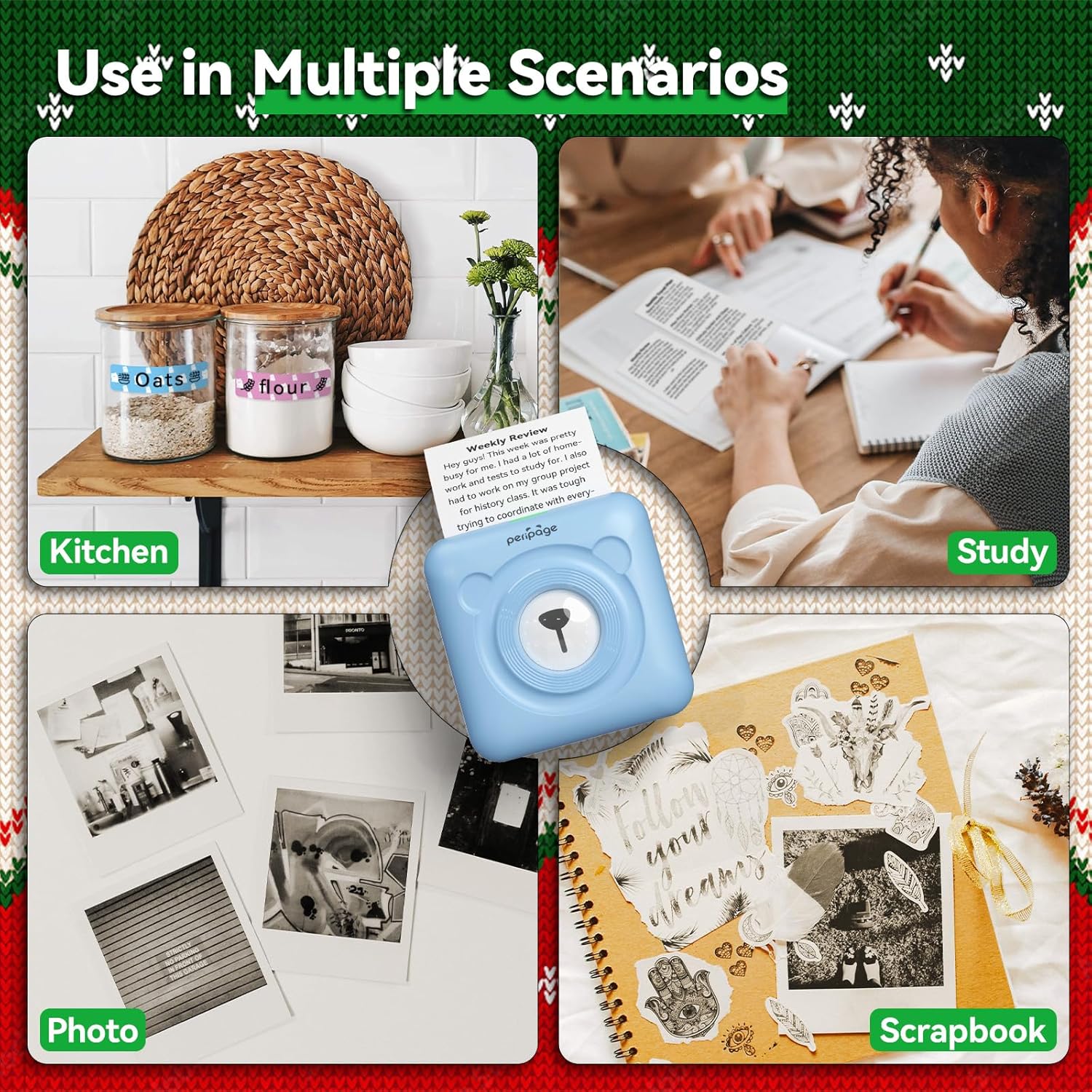
תמונה: דוגמהamples of the PeriPage A6 Mini Printer's use in multiple scenarios, including creating kitchen labels, printing study notes, printing photos, and enhancing scrapbooks.
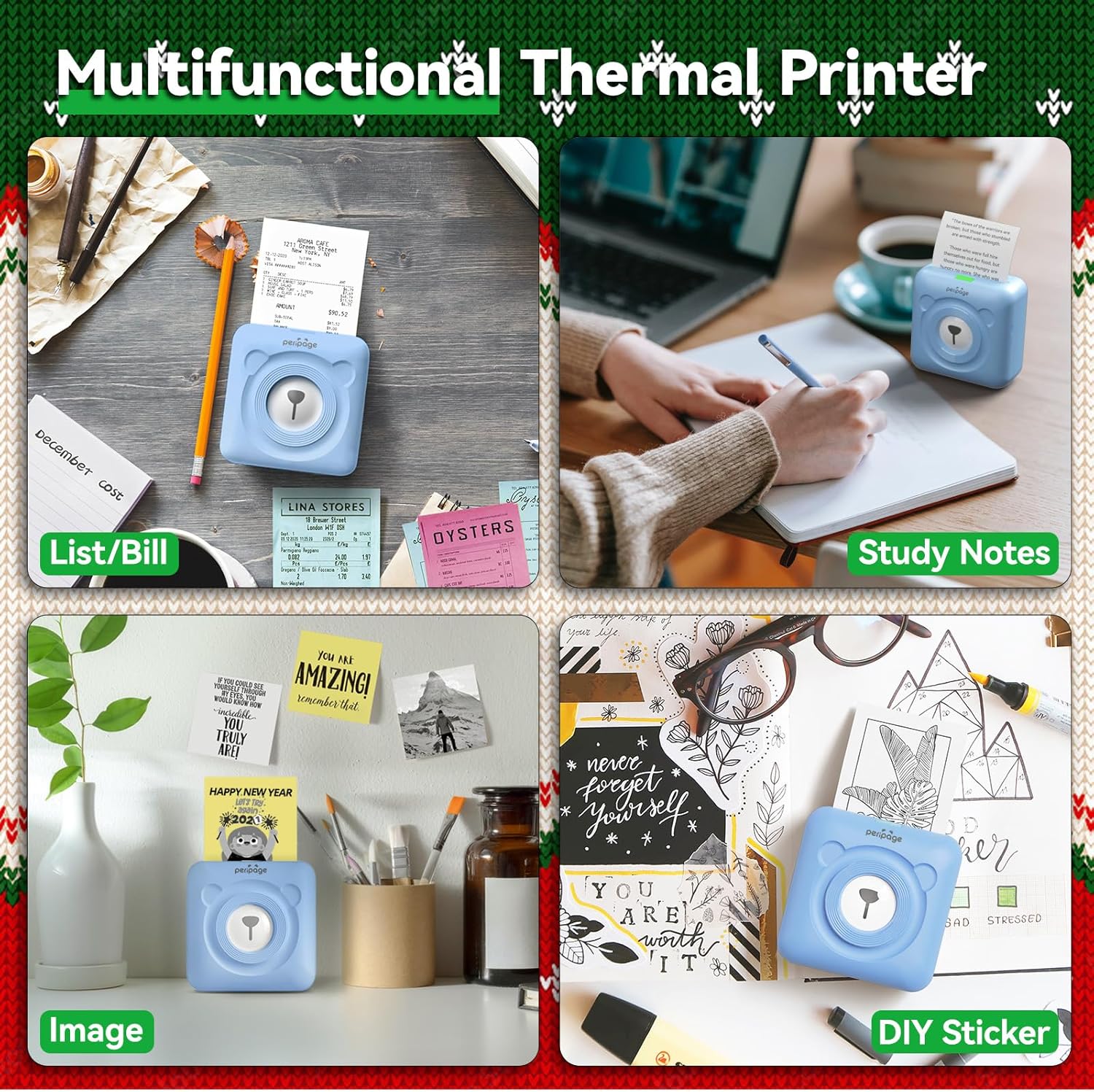
Image: A display of the PeriPage A6 Mini Printer's multifunctional thermal printing capabilities, showing its use for lists/bills, study notes, images, and DIY stickers.
7. תחזוקה
7.1 ניקוי המדפסת
To ensure optimal print quality and prolong the life of your printer, regular cleaning is recommended.
- Turn off the printer and disconnect the power cable before cleaning.
- השתמש במטלית רכה, יבשה ונטולת סיבים כדי לנגב את החלק החיצוני של המדפסת.
- For the print head, gently wipe it with a cotton swab lightly dampיש לשטוף באלכוהול איזופרופילי. יש לאפשר לו להתייבש לחלוטין לפני השימוש.
- אין להשתמש בחומרי ניקוי שוחקים או ממסים.
7.2 טיפול בסוללה
- Charge the printer regularly, even if not in use, to maintain battery health.
- הימנעו מפריקת הסוללה באופן מלא לעתים קרובות.
- אחסנו את המדפסת במקום קריר ויבש כאשר אינה בשימוש למשך תקופות ממושכות.
8. פתרון תקלות
If you encounter issues with your PeriPage A6 Mini Printer, refer to the following common problems and solutions:
| בְּעָיָה | סיבה אפשרית | פִּתָרוֹן |
|---|
| המדפסת לא נדלקת | סוללה חלשה; כפתור ההפעלה לא נלחץ נכון | טען את המדפסת; לחץ והחזק את לחצן ההפעלה למשך מספר שניות. |
| לא ניתן להתחבר באמצעות Bluetooth | בלוטות' כבוי; המדפסת אינה ניתנת לגילוי; בעיה באפליקציה | Ensure Bluetooth is enabled on your phone; Restart printer and phone; Reinstall PeriPage App. |
| איכות הדפסה ירודה / הדפסים חלשים | Paper installed incorrectly; Low battery; Dirty print head; Expired thermal paper | Reinstall paper with printing side facing up; Charge printer; Clean print head; Use new thermal paper. |
| חסימת נייר | Paper not inserted straight; Too much paper pulled out | Open cover and carefully remove jammed paper; Reinsert paper correctly. |
| App is buggy or freezes | Software glitch; Outdated app version | Close and reopen the app; Check for app updates; Reinstall the app. |
9. מפרטים
| תכונה | פְּרָט |
|---|
| מותג | PeriPage |
| שם הדגם | פריפייג' A6 |
| טכנולוגיית הדפסה | תֶרמִי |
| הַחְלָטָה | 304 DPI |
| קישוריות | בלוטות', USB |
| מכשירים תואמים | Smartphones (iOS & Android), PC, Laptops |
| גודל מדיה מקסימלי | 57mm (width) x 30mm (roll diameter) |
| סוֹלְלָה | סוללת ליתיום-יון 1000mAh (כלולה) |
| משקל פריט | 5.6 אונקיות (160 גרם) |
| מידות המוצר | 2.95" D x 2.95" W x 1.57" H |
| רכיבים כלולים | נְיָר |
10. אחריות ותמיכה
10.1 מידע אחריות
Please note that this product is listed with אין אחריות. For specific details regarding returns or defects, please refer to the retailer's policy where the product was purchased.
10.2 תמיכת לקוחות
For further assistance, technical support, or inquiries not covered in this manual, please contact PeriPage customer service through their official website or the contact information provided by your retailer. Ensure you have your product model number (A6) and purchase details ready when contacting support.


