מָבוֹא
This manual provides essential information for setting up, operating, maintaining, and troubleshooting your HP 15 Laptop. Please read this guide thoroughly to ensure proper use and to maximize the performance and longevity of your device.
תחילת העבודה: הגדרה
1. פתיחת קופסאת המחשב הנייד
Carefully remove the laptop and all accessories from the packaging. Ensure all components are present: the HP 15 Laptop, AC power adapter, and any included documentation.
2. מתחבר לכוח
Connect the AC power adapter to the laptop's power port and then plug it into a wall outlet. It is recommended to fully charge the battery before the first use.
3. אתחול ראשוני והגדרת Windows
Press the power button located on the keyboard deck. The laptop will power on, and you will be guided through the Windows 11 Home setup process. Follow the on-screen instructions to configure your language, region, network, and user account.
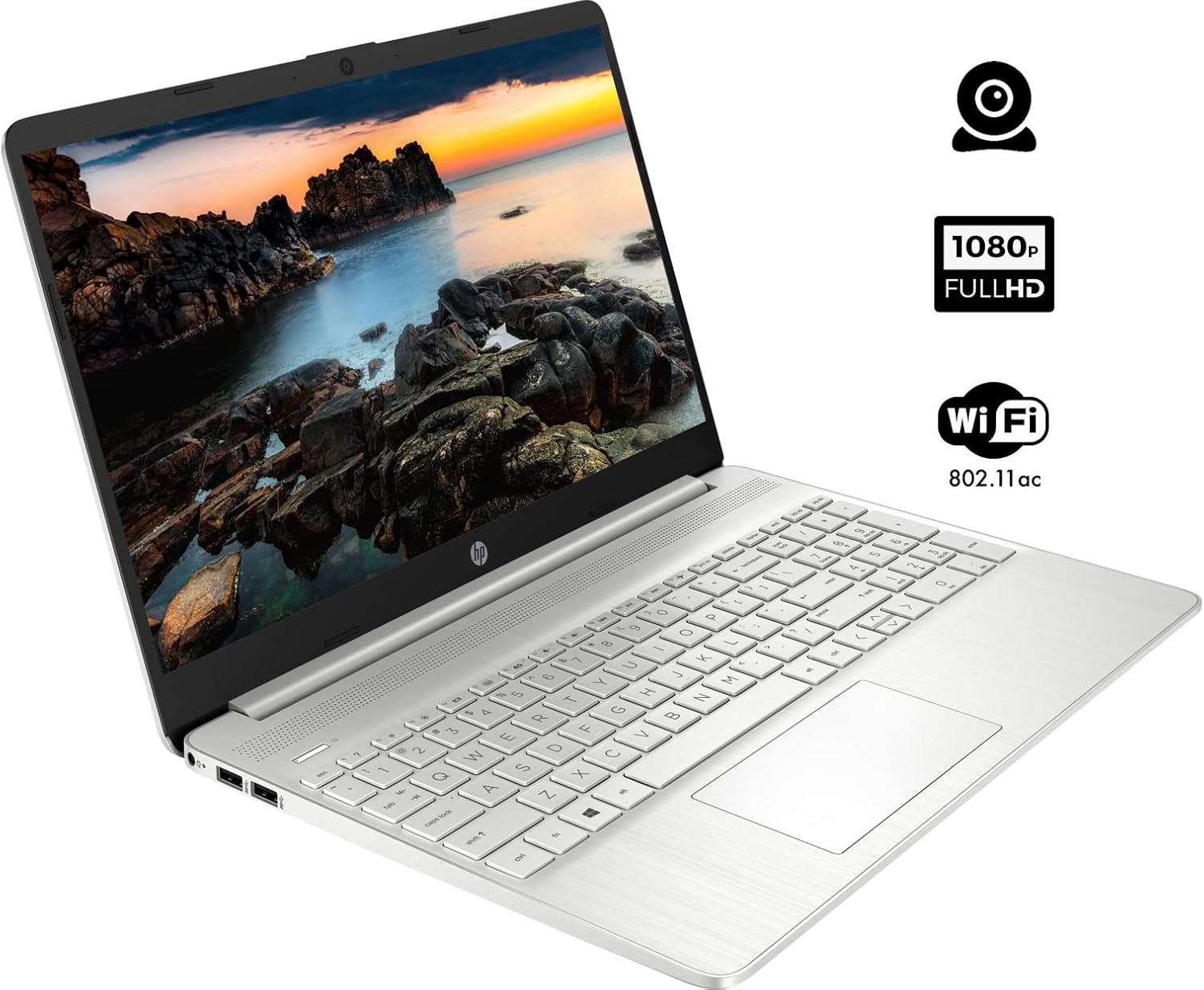
The HP 15 Laptop, ready for initial setup. Ensure the power adapter is connected before first use.
הפעלת המחשב הנייד שלך
1. הפעלה/כיבוי
- הפעלה: לחץ על לחצן ההפעלה.
- כיבוי: לחץ על לחצן התחל של Windows, לאחר מכן בחר הפעלה > כיבוי. Avoid forced shutdowns by holding the power button unless necessary.
2. שימוש במקלדת ובמשטח מגע
- מִקלֶדֶת: Use the integrated keyboard for typing. Function keys (F1-F12) often have secondary actions (e.g., volume, brightness) accessible by pressing the Fn מפתח בו זמנית.
- לוח מגע: The touchpad functions as a mouse. Tap to click, use two fingers to scroll, and pinch to zoom.
3. חיבור ציוד היקפי
Your HP 15 Laptop features various ports for connecting external devices:
- יציאות USB מסוג A: לחיבור התקני USB סטנדרטיים כמו עכברים, מקלדות או כוננים חיצוניים.
- יציאת USB Type-C: יציאה רב-תכליתית להעברת נתונים.
- יציאת HDMI: חיבור לצגים חיצוניים או מקרנים.
- שקע משולב לאוזניות/מיקרופון: לפלט שמע לאוזניות או קלט ממיקרופון.
- קורא כרטיסי SD: הכנס כרטיס SD להעברת נתונים.

This diagram illustrates the various ports available on your HP 15 Laptop, including USB-C, USB-A, HDMI, audio jack, SD card reader, and the power input.
4. התחברות ל-Wi-Fi
כדי להתחבר לרשת אלחוטית:
- לחץ על סמל ה-Wi-Fi בשורת המשימות.
- בחר את הרשת הרצויה מהרשימה.
- Enter the network password if prompted, then click לְחַבֵּר.
5. חיבור התקני בלוטות'
כדי להתאים מכשיר Bluetooth:
- עבור אל הגדרות > בלוטות' ומכשירים.
- ודא שה-Bluetooth מופעל On.
- לִבחוֹר הוסף מכשיר and follow the on-screen instructions to pair your device.

The HP 15 Laptop features an integrated webcam for video calls and supports Wi-Fi 802.11ac for wireless internet connectivity.
תַחזוּקָה
1. ניקוי המחשב הנייד
- מָסָך: השתמש קלות במטלית רכה נטולת מוך דampשטוף במים או בחומר לניקוי מסכים. הימנע מכימיקלים חזקים.
- מקלדת ושלדה: Use a soft cloth to wipe surfaces. Compressed air can remove dust from between keys.
2. עדכוני תוכנה
Regularly update your operating system and drivers to ensure optimal performance and security. Windows Update typically handles this automatically, but you can manually check via הגדרות > עדכון Windows.
3. טיפול בסוללה
- הימנעו מפריקת הסוללה לחלוטין לעתים קרובות.
- If storing the laptop for an extended period, charge the battery to about 50% and store it in a cool, dry place.
פתרון בעיות
סעיף זה עוסק בבעיות נפוצות שאתה עשוי להיתקל בהן.
אין כוח
- ודא שמתאם ה-AC מחובר היטב הן למחשב הנייד והן לשקע חשמל תקין.
- בדוק אם שקע החשמל תקין על ידי חיבור מכשיר אחר.
- אם הסוללה התרוקנה לחלוטין, יש לאפשר לה להיטען מספר דקות לפני שתנסה להפעיל אותה.
בעיות תצוגה
- If the screen is blank, try adjusting the brightness using the function keys (e.g., F2/F3).
- Connect an external monitor via the HDMI port to check if the issue is with the laptop's display or graphics output.
- ודא שמנהלי ההתקן של הגרפיקה מעודכנים.
בעיות קישוריות Wi-Fi
- ודא ש-Wi-Fi מופעל בהגדרות Windows.
- הפעל מחדש את הנתב והמודם שלך.
- ודא שאתה נמצא בטווח קליטה של רשת ה-Wi-Fi.
- Check for updated network drivers.
ביצועים איטיים
- סגור יישומים מיותרים הפועלים ברקע.
- Ensure your operating system and drivers are updated.
- Check for sufficient free space on your storage drive.
- Run a scan for malware or viruses.
מפרטים
Below are the technical specifications for the HP 15 Laptop (Model 15):
| תכונה | פְּרָט |
|---|---|
| גודל תצוגת מסך עומד | 15.6 אינץ' |
| רזולוציית מסך | 1920 x 1080 פיקסלים (FHD) |
| מעבד | AMD Ryzen 5 5500U (6 ליבות, 12 הליכים, עד 4.0 גיגה-הרץ) |
| אַיִל | 12 GB DDR4 |
| כונן קשיח | כונן SSD PCIe NVMe M.2 בנפח 1 טרה-בייט |
| מעבד גרפי | כרטיס מסך משולב של AMD Radeon |
| מַעֲרֶכֶת הַפעָלָה | Windows 11 Home |
| יציאות USB 3.0 | 3 (2x Type-A, 1x Type-C) |
| יציאת HDMI | 1 (HDMI 1.4b) |
| קישוריות | Wi-Fi 802.11ac, Bluetooth |
| Webפִּקָה | מְשׁוּלָב Webמצלמת עם מיקרופון |
| משקל פריט | 3.74 פאונד |
| מידות המוצר | 14.11 x 9.53 x 0.7 אינץ' |
| צֶבַע | כֶּסֶף |

The HP 15 Laptop in its closed state, highlighting its sleek silver design and the HP branding.
מידע על אחריות
מחשב נייד HP 15 אינץ' שלך מגיע עם אחריות יצרן סטנדרטית. למידע מפורט בנוגע לתנאי האחריות, תנאיה ומשכה, אנא עיין בכרטיס האחריות המצורף למוצר שלך או בקר באתר התמיכה הרשמי של HP. webאֲתַר.
תְמִיכָה
For further assistance, technical support, or to download updated drivers and software, please visit the official HP support website. You can also find FAQs and community forums there for additional help.
תמיכה של HP Webאֲתַר: support.hp.com