1. הקדמה
The ACT AC7049 Dual Monitor Docking Station transforms your laptop into a complete workstation. This versatile 11-in-1 docking station allows you to connect up to two Full HD displays (max. 2048 x 1152 resolution) to your laptop via HDMI, using a single USB-C/A cable. It expands your laptop's connectivity with a Gigabit LAN port, microphone and headphone jacks, and six additional USB ports. Featuring DisplayLink® technology, it ensures advanced screen display on both MacOS and Windows computers.
2. תכונות עיקריות
- תמיכה בצג כפול: Connect up to two external displays with HDMI ports, supporting resolutions up to 2048x1152@60Hz.
- תאימות אוניברסלית: Works with laptops featuring a USB-C or USB-A 3.2 Gen1 (USB 3.0) port, compatible with MacOS and Windows thanks to DisplayLink technology.
- קישוריות נרחבת: Includes 2x HDMI, 1x Gigabit Ethernet, 3x USB-A 3.2 Gen 1 (one with fast charging), 4x USB-A 2.0, and 3.5mm audio jacks for microphone and headphones.
- מיקום גמיש: Designed for both vertical and horizontal placement to optimize desk space and port accessibility.
- יציאת טעינה מסוג USB: Dedicated USB port for charging smartphones and tablets.
3. תכולת החבילה
אנא בדקו את החבילה עבור הפריטים הבאים:
- ACT AC7049 Docking Station
- USB-C/A 3.2 Gen1 Connection Cable (USB-A to USB-C)
- מתאם מתח
- מעמד אנכי
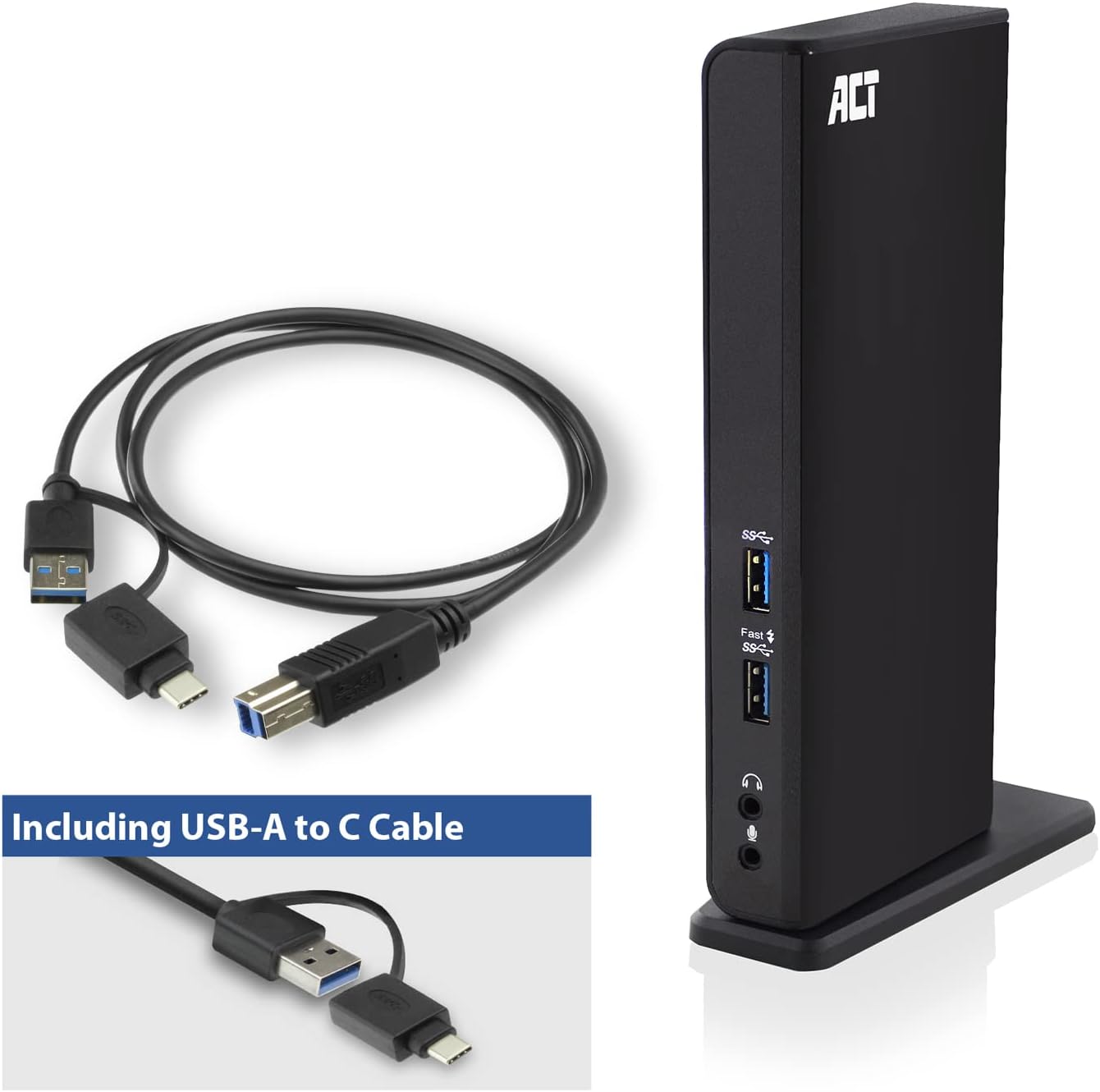
Image: The ACT AC7049 Docking Station shown with its included USB-A to USB-C connection cable and power adapter, highlighting the components provided in the package.
4. מדריך התקנה
4.1. חיבור ספק הכוח
- Connect the power adapter to the DC 5V input port on the back of the AC7049 docking station.
- Plug the power adapter into a wall outlet. The docking station will power on.
4.2. חיבור למחשב הנייד שלך
- Use the provided USB-C/A 3.2 Gen1 connection cable. Connect the USB-B end to the corresponding port on the docking station.
- Connect the other end (USB-A or USB-C, depending on your laptop's port) to an available USB 3.2 Gen1 (USB 3.0) or USB-C port on your laptop.
4.3. Driver Installation (DisplayLink)
The AC7049 utilizes DisplayLink technology for extended monitor functionality. Drivers are typically installed automatically on most operating systems. If not, please follow these steps:
- בקרו באתר הרשמי של DisplayLink webאתר (www.displaylink.com/downloads) to download the latest drivers for your operating system (Windows or MacOS).
- Install the downloaded driver package and follow the on-screen instructions.
- הפעל מחדש את המחשב אם תתבקש.

Image: The official DisplayLink 'Plug and Display' logo, indicating the technology used for multi-monitor support.
5. הוראות הפעלה
5.1. Connecting External Displays
- Connect your HDMI monitors to the two HDMI ports on the back of the docking station.
- Once connected, your operating system should detect the new displays. You can configure display settings (extend, mirror, primary display) through your computer's display settings.

Image: A visual representation of the docking station enabling both 'Mirror your content' and 'Extend your content' display modes across a laptop and two external monitors.
5.2. חיבור ציוד היקפי USB
- יציאות USB קדמיות: Two USB-A 3.2 Gen1 ports (one with fast charging capability) are located on the front for easy access to frequently used devices like USB drives, smartphones, or tablets.
- Rear USB Ports: Four USB-A 2.0 ports are located on the back for connecting peripherals such as keyboards, mice, printers, or other less frequently connected devices.
5.3. חיבור לרשת
Connect an Ethernet cable from your router or network switch to the Gigabit Ethernet port on the docking station. Your laptop will automatically gain wired network access.
5.4. חיבורי שמע
Connect your headphones and/or microphone to the dedicated 3.5mm audio jacks on the front of the docking station.

Image: An isometric diagram showcasing the comprehensive connectivity of the ACT AC7049, demonstrating how a laptop, two monitors, a keyboard, mouse, network cable, headphones, and a smartphone can all be connected simultaneously.
6. אפשרויות מיקום
The ACT AC7049 docking station offers flexible placement options to suit your workspace:
- מיקום אנכי: Use the included stand to position the docking station vertically. This saves desk space and provides easy access to all ports.
- מיקום אופקי: The docking station can also be placed horizontally if preferred.

Image: The ACT AC7049 Docking Station positioned vertically on its stand, highlighting its compact design and accessible ports.
7. תחזוקה
To ensure optimal performance and longevity of your ACT AC7049 Docking Station, follow these maintenance guidelines:
- ניקוי: השתמשו במטלית רכה ויבשה לניקוי החלק החיצוני של תחנת העגינה. הימנעו משימוש בחומרי ניקוי נוזליים או תרסיסים, מכיוון שהם עלולים לגרום נזק למכשיר.
- אוורור: ודא שתחנת העגינה ממוקמת באזור מאוורר היטב כדי למנוע התחממות יתר. אין לחסום פתחי אוורור.
- אִחסוּן: כאשר תחנת העגינה אינה בשימוש למשך תקופות ממושכות, יש לאחסן אותה במקום קריר ויבש, הרחק מאור שמש ישיר וטמפרטורות קיצוניות.
- ניהול כבלים: Keep cables organized and free from kinks or excessive bending to prevent damage to the cables and ports.
8. פתרון תקלות
If you encounter issues with your ACT AC7049 Docking Station, please refer to the following common troubleshooting steps:
- אין פלט תצוגה:
- Ensure the docking station is powered on and correctly connected to your laptop.
- ודא שכבלי ה-HDMI מחוברים היטב הן לתחנת העגינה והן לצגים.
- Check your laptop's display settings to ensure the external monitors are detected and configured correctly (e.g., extended or mirrored).
- Reinstall or update the DisplayLink drivers from www.displaylink.com/downloads.
- נסה לחבר מסך אחד בכל פעם כדי לבודד את הבעיה.
- התקני USB לא עובדים:
- Ensure the docking station is properly connected to your laptop and powered.
- Try connecting the USB device directly to your laptop to confirm it is functional.
- Connect the USB device to a different USB port on the docking station.
- הפעל מחדש את המחשב הנייד שלך.
- אין חיבור רשת:
- ודא שכבל ה-Ethernet מחובר היטב הן לתחנת העגינה והן לנתב/מתג שלך.
- Check your laptop's network settings to ensure the wired connection is enabled.
- בדוק את כבל ה-Ethernet עם התקן אחר במידת האפשר.
- האודיו לא עובד:
- Ensure headphones/microphone are fully plugged into the correct 3.5mm jacks.
- Check your laptop's sound settings to ensure the docking station's audio output/input is selected as the default device.
9. מפרטים
| תכונה | מִפרָט |
|---|---|
| מספר דגם | AC7049 |
| מותג | חוֹק |
| צֶבַע | שָׁחוֹר |
| טכנולוגיית קישוריות | USB-A, USB-C |
| פלט וידאו | 2 x HDMI (Max. 2048 x 1152 @ 60Hz) |
| יציאות USB | 3 x USB-A 3.2 Gen 1 (5Gbps, 1x Fast Charging), 4 x USB-A 2.0 (480Mbps) |
| יציאת רשת | 1 x רשת ג'יגה-ביט אתרנט (RJ45) |
| יציאות אודיו | 1 x 3.5mm Headphone Jack, 1 x 3.5mm Microphone Jack |
| מכשירים תואמים | Laptop, Computer (with USB 3.2 Gen1 / USB 3.0 or USB-C port) |
| תמיכה במערכת הפעלה | Windows, MacOS (via DisplayLink) |
| מידות (L x W x H) | 10.9 x 6 x 18.1 ס"מ (בקירוב) |
| משקל פריט | 317 גרם |
10. אחריות ותמיכה
ACT products are designed for reliability and adhere to international standards and EU legislation. The ACT AC7049 Docking Station comes with a manufacturer's warranty, typically ranging from 2 to 5 years. For specific warranty details and support, please refer to the official ACT webבאתר או צור קשר עם הקמעונאי שלך.
For technical support or further inquiries, please visit the official ACT connectivity webאֲתַר: www.act-connectivity.com


