1. הקדמה
This manual provides detailed instructions for the setup, operation, and maintenance of your Insta360 ONE RS 4K Edition action camera. The Insta360 ONE RS is a versatile modular action camera designed for capturing high-quality photos and videos in various environments, featuring a 4K Boost Lens, FlowState Stabilization, and a rugged, waterproof design.

Figure 1: Insta360 ONE RS 4K Edition camera with its modular design.
2. מה בקופסה
Upon unboxing your Insta360 ONE RS 4K Edition, you will find the following components:
- 1x 4K Boost Lens
- 1x ONE RS Core
- 1x ONE RS Battery Base
- 1x ONE RS Mounting Bracket
סרטון Unboxing
סרטון 1: פתיחת הקופסה הרשמית ומעבר לכךview of the Insta360 ONE RS 4K Edition components.
3. המוצר נגמרview
רכיבי מפתח
The Insta360 ONE RS features a modular design, allowing for interchangeable lenses and components:
- ONE RS Core: The central processing unit with a touchscreen display, status indicator, microphone, and speaker.
- 4K Boost Lens: A high-resolution lens capable of capturing 4K 60fps video and 48MP photos.
- בסיס סוללה: Provides power to the camera modules.
- הרכבה הרכבה: Secures the assembled camera and provides mounting points for accessories.
תכונות עיקריות
- 4K 60fps & 48MP Photos: Capture detailed videos and high-resolution stills.
- ייצוב מצב זרימה: Advanced in-camera stabilization for smooth footage without external gimbals.
- HDR אקטיבי: Enhances dynamic range in videos, preserving details in highlights and shadows.
- Waterproof עיצוב: The camera is waterproof to 16ft (5m) when assembled correctly within its mounting bracket.
- מערכת עדשות מתחלפות: Allows for swapping between different lenses (e.g., 4K Boost, 360 Lens, 1-Inch Wide Angle) to suit various shooting needs.
תכונות מעלview וִידֵאוֹ
Video 2: Detailed explanation of the Insta360 ONE RS 4K Edition's features and components.
תכונות חזותיות

FlowState Stabilization in action.
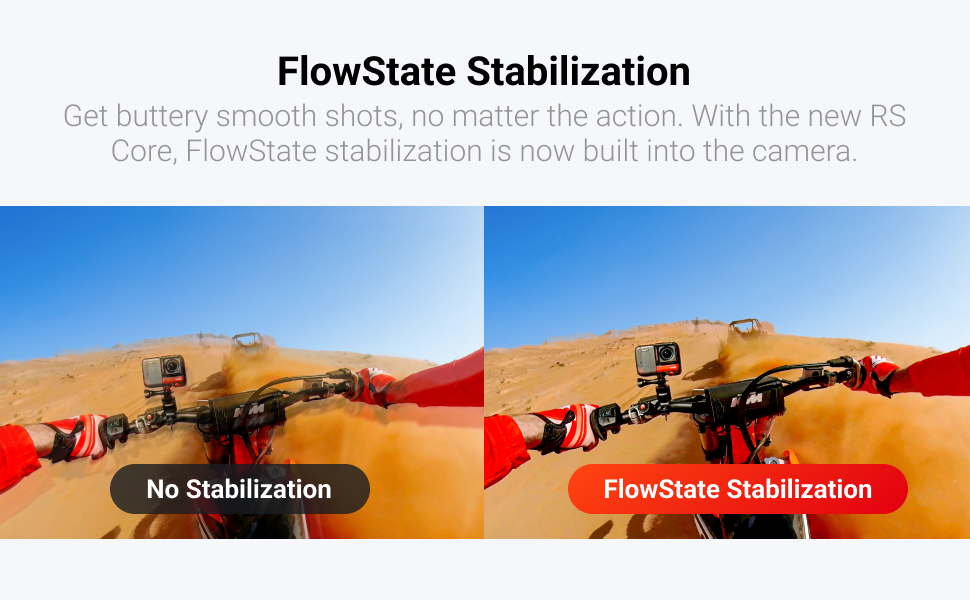
FlowState Stabilization comparison.

Active HDR comparison.
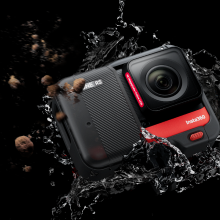
Waterproof design of the camera.
4. התקנה
4.1 Camera Assembly
The Insta360 ONE RS is assembled by connecting the Core, Lens, and Battery Base. Ensure proper alignment of the connection points.
- Align the holes on the side of the lens module to the points on the Core module and press them firmly together until they connect.
- Align the assembled Core and lens with the connecting points of the Battery Base and press them firmly together.
4.2 הכנסת כרטיס MicroSD
A MicroSD card is required for storing photos and videos. Use exFAT formatted MicroSD cards with UHS-I bus interface and Video Speed Class V30 rating (or higher) for optimal performance.
- Push the lock buckle to the right to open the lock cover on the Core module.
- Insert the MicroSD card with the label facing the front side of the Core.
- Close the lock cover securely to ensure waterproofing.
4.3 Activation & Firmware Update
Before first use, the ONE RS needs to be activated via the Insta360 app. It is also recommended to update the firmware to the latest version.
- הפעל את המצלמה על ידי לחיצה על לחצן ההפעלה.
- הפעל Wi-Fi ו-Bluetooth בטלפון החכם שלך.
- Download and open the Insta360 app.
- Tap the camera icon at the bottom of the app and select "Connect".
- Select your ONE RS from the detected devices and follow the on-screen instructions to confirm the connection on the camera's touchscreen.
- If a new firmware version is available, the app will prompt you to download and install it. Follow the instructions and do not power off the camera or exit the app during the update.
הגדרת וידאו
Video 3: Step-by-step guide for camera assembly, MicroSD insertion, and activation/firmware update.
5. הפעלת המצלמה
5.1 הפעלה/כיבוי
- הפעלה: When the camera is off, press the Power Button once to turn it on.
- כיבוי: In standby mode, long-press the Power Button for 2 seconds to power off the camera.
5.2 בקרות בסיסיות
- לחצן תריס: לחץ פעם אחת כדי לצלם תמונה או להתחיל/להפסיק את ההקלטה.
- לחצן הפעלה: In standby mode, press once to turn the touchscreen on or off.
5.3 ניווט מסך מגע
- החלק שמאלה/ימינה: From the center of the touchscreen, swipe left or right to select different shooting modes (e.g., Photo, Video, Timelapse).
- Tap Q Icon: Tap the screen just to the left of the 'Q' icon to select from preset capture modes.
- זום: Tap the screen just to the left of the magnifying glass '+' icon to bring up the zoom controls. Tap to customize Field of View (FOV) options like Ultra Wide, Wide, Linear, or Narrow.
- פרמטרים: Tap the parameters at the bottom of the screen to adjust settings like resolution, frame rate, ISO, white balance, and timer settings.
- גלריית מדיה: Swipe up from the bottom of the screen to access the Media Gallery.
- תפריט קיצורי דרך: Swipe down from the top of the screen to open the Shortcut menu for quick access to settings like brightness, screen lock, stabilization level, LED on/off, grid, and screen rotation.
5.4 שליטה קולית
The camera supports voice commands for hands-free operation.
- הפעלת בקרת קול: Access the Shortcut menu (swipe down) and tap the Voice Control icon to turn it on.
- פקודות: Use commands such as "Take a photo" or "Start recording".
5.5 QuickCapture
QuickCapture allows you to start recording instantly even when the camera is off.
- Enable QuickCapture: Access the Shortcut menu (swipe down) and tap the QuickCapture icon to turn it on.
- Use QuickCapture: When ONE RS is off, press the Shutter Button to power on and start recording immediately.
5.6 הגדרות שמע
The ONE RS features three microphones for improved stereo sound. You can adjust audio settings via the touchscreen.
- Access Audio Mode: Go to Settings > Audio Mode.
- אפשרויות: Select from Wind Reduction (default), Directional Enhancement, or Stereo.
- מיקרופון חיצוני: An external microphone can be used to further enhance audio quality.
סרטון הפעלה
Video 4: Learn how to operate your Insta360 ONE RS, including power, controls, and settings.
6. תחזוקה
6.1 טעינת סוללה
The Insta360 ONE RS Battery Base has a capacity of 1445mAh.
- Use the provided Charge Cable to charge the camera via the USB-C port on the Core module.
- The indicator light will turn red while charging and turn off when the camera is fully charged.
6.2 איטום
The Insta360 ONE RS is waterproof to 16ft (5m) when correctly assembled within its mounting bracket.
- Always ensure the lock cover for the USB-C port and MicroSD card slot is securely closed.
- When using the ONE RS in water, remember to lock the touchscreen to avoid accidental presses. Swipe up to unlock.
6.3 אביזרים נלווים
Various accessories are available to enhance your ONE RS experience, such as selfie sticks, tripods, and specialized mounts.
- The Mounting Bracket helps reinforce connections between camera modules and ensures waterproofing.
- Use the 1/4" Camera Mount Adapter and 1/4" Thumb Screw with the Mounting Bracket to attach the camera to traditional action camera accessories like selfie sticks.
Accessories Video
Video 5: Explore various accessories for the Insta360 ONE RS and how to use them.
7. פתרון תקלות
If you encounter issues with your Insta360 ONE RS, consider the following general troubleshooting steps:
- המצלמה לא מגיבה: Try restarting the camera by long-pressing the Power Button.
- בעיות קושחה: Ensure your camera's firmware is up to date via the Insta360 app.
- בעיות חיבור: Verify that Wi-Fi and Bluetooth are enabled on both your camera and smartphone, and that the Insta360 app is correctly connected.
- חששות איטום: Always double-check that all modules are firmly connected and the lock cover is securely closed before exposing the camera to water.
8. מפרטים
| תְכוּנָה | עֵרֶך |
|---|---|
| שם מותג | Insta360 |
| משקל פריט | 4.5 אונקיות |
| מידות המוצר | 2.76 x 1.97 x 1.57 אינץ' |
| מספר דגם של פריט | CINRSGP/E |
| סוללות | נדרשת סוללת ליתיום יון אחת |
| צֶבַע | שחור ואדום |
| תכונות מיוחדות | 48MP Photo, 6K Widescreen Mode, Active HDR, FlowState Image Stabilization, Time Lapse |
| טכנולוגיית חיישן צילום | CMOS |
| רזולוציית לכידת וידאו | 4K |
| אורך מוקד מרבי | 16 מילימטרים |
| צמצם מקסימלי | 2 פ |
| סוג זיכרון פלאש | מיקרו SD |
| פורמט לכידת וידאו | MP4 |
| גודל מסך | 5 סנטימטרים |
| טכנולוגיית קישוריות | בלוטות' |
9. אחריות ותמיכה
For warranty information, technical support, or further assistance, please refer to the official Insta360 webאתר או צרו קשר ישירות עם שירות הלקוחות שלהם. שמרו את הוכחת הרכישה שלכם לצורך תביעות אחריות.


