1. הקדמה
This manual provides comprehensive instructions for the setup, operation, and maintenance of your Cherry MW 9100 Wireless Rechargeable Mouse. The MW 9100 is a compact, versatile mouse offering dual connectivity options (Bluetooth or 2.4 GHz USB receiver) and a convenient rechargeable battery.
תכונות מפתח כוללות:
- Compact design with charging functionality.
- Flexible operation: use while charging via USB-C cable.
- Dual connectivity: Bluetooth or 2.4 GHz USB receiver.
- Magnetic storage for the USB receiver, ideal for travel.
- Adjustable DPI settings for varied usage.
2. תכולת החבילה
ודא שכל הפריטים נמצאים בחבילה:
- Cherry MW 9100 Wireless Rechargeable Mouse
- כבל טעינה USB-C
- מקלט USB 2.4 GHz
- פאוץ' מגן
- מדריך הוראות (מסמך זה)
3. התקנה
3.1 טעינת העכבר
The Cherry MW 9100 mouse features a built-in rechargeable battery. Before initial use, or when the battery is low, connect the included USB-C cable to the mouse and to a USB power source (e.g., computer USB port, USB wall adapter). The mouse can be used normally while charging.

תמונה 3.1: רֹאשׁ view of the Cherry MW 9100 mouse, showing the charging indicator light.
3.2 חיבור העכבר
The MW 9100 offers two connection methods: 2.4 GHz wireless via USB receiver or Bluetooth.
3.2.1 2.4 GHz Wireless Connection
- Locate the USB receiver. It is magnetically stored in a compartment on the underside of the mouse.
- הכנס את מקלט ה-USB ליציאת USB זמינה במחשב שלך.
- On the underside of the mouse, slide the switch to the "RF" position.
- העכבר אמור להתחבר אוטומטית למחשב שלך.
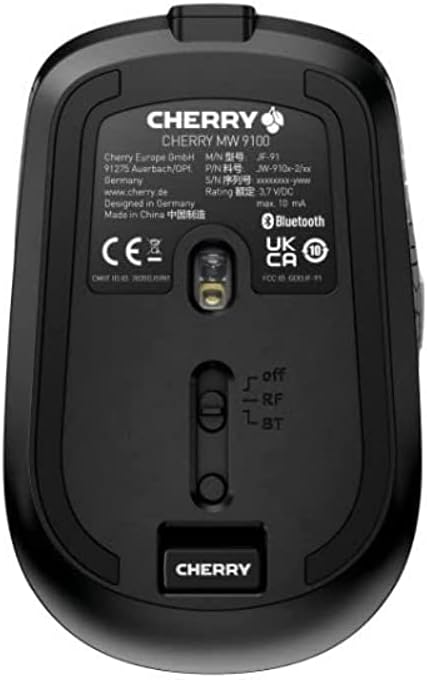
תמונה 3.2: Underside of the Cherry MW 9100 mouse, highlighting the USB receiver storage and the connection mode switch.
3.2.2 חיבור בלוטות'
- On the underside of the mouse, slide the switch to the "BT" (Bluetooth) position.
- Press and hold the small pairing button located near the connection switch on the underside of the mouse until the LED indicator on the mouse starts blinking, indicating pairing mode.
- במחשב או במכשיר שלך, פתח את הגדרות ה-Bluetooth וחפש מכשירים חדשים.
- Select "Cherry MW 9100" from the list of available devices to complete the pairing process.
4. הוראות הפעלה
4.1 פונקציות בסיסיות
The Cherry MW 9100 mouse features standard left and right click buttons, a scroll wheel (which also functions as a middle click button), and two side buttons for navigation (typically forward/back).
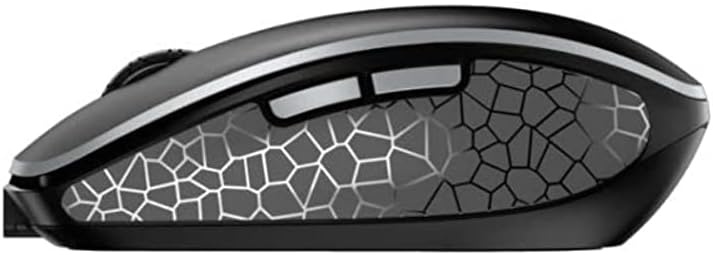
תמונה 4.1: צַד view of the Cherry MW 9100 mouse, illustrating the ergonomic design and side buttons.
התאמת 4.2 DPI
The mouse includes a DPI (Dots Per Inch) button, usually located near the scroll wheel, allowing you to adjust the cursor sensitivity. Press this button to cycle through different DPI settings to match your preference or task requirements.

תמונה 4.2: A hand demonstrating the comfortable grip on the Cherry MW 9100 mouse during use.
5. תחזוקה
To ensure optimal performance and longevity of your Cherry MW 9100 mouse:
- ניקוי: השתמשו במטלית רכה ויבשה לניקוי משטח העכבר. במקרה של לכלוך עיקש, שטפו מעטamp ניתן להשתמש בבד, אך יש לוודא שלא תיכנס לחות למכשיר. יש להימנע מכימיקלים חזקים או מחומרים שוחקים.
- אִחסוּן: When not in use, especially during travel, store the mouse in the provided protective pouch to prevent scratches and damage.
- טיפול בסוללה: הימנעו מפריקת סוללה מלאה לעתים קרובות. טען את העכבר כאשר מופיע מחוון סוללה חלשה.
6. פתרון תקלות
| בְּעָיָה | סיבה אפשרית | פִּתָרוֹן |
|---|---|---|
| העכבר לא מגיב | Low battery, incorrect connection mode, USB receiver not connected, Bluetooth not paired. |
|
| Intermittent connection (Bluetooth) | Interference, device driver issues, distance from device. |
|
| תנועת הסמן אינה יציבה או איטית | Dirty optical sensor, low battery, incorrect DPI setting. |
|
7. מפרטים
| תכונה | פְּרָט |
|---|---|
| מותג | דוּבדְבָן |
| מספר דגם | JW-9100US-2 |
| טכנולוגיית קישוריות | Bluetooth, 2.4 GHz USB Wireless |
| איתור תנועה | אוֹפּטִי |
| תכונות מיוחדות | Lightweight, Portable, Rechargeable |
| מידות המוצר | 4 x 3 x 2 אינץ' |
| משקל פריט | 6.4 אונקיות |
| צֶבַע | שָׁחוֹר |
8. אחריות ותמיכה
למידע על אחריות ותמיכה טכנית, אנא עיינו באתר הרשמי של Cherry website or contact Cherry customer service directly. Keep your proof of purchase for warranty claims.
יַצרָן: דוּבדְבָן
Webאֲתַר: www.cherry.de


