1. הקדמה
This manual provides detailed instructions for the setup, operation, and maintenance of your MOES Smart Temperature Humidity Monitor with IR Remote Control. This device integrates temperature and humidity sensing with universal infrared remote control capabilities, allowing you to monitor your environment and control various IR-enabled appliances via a smartphone application or voice commands.
2. המוצר נגמרview
The MOES Smart Temperature Humidity Monitor is a compact device designed to provide real-time environmental data and smart control. It features an LCD display for immediate readings and connects to your home Wi-Fi network for remote access and automation.

Image 2.1: MOES Smart Temperature Humidity Monitor displaying temperature and humidity, alongside a smartphone showing the companion app interface.
תכונות עיקריות:
- ניטור בזמן אמת: Displays current temperature and humidity on an LCD screen.
- שלט רחוק IR: Controls various infrared appliances such as TVs, air conditioners, and fans.
- קישוריות Wi-Fi: Connects to 2.4GHz Wi-Fi for remote access via the Tuya Smart or Smart Life app.
- אוטומציה חכמה: Create rules to automatically control IR devices based on temperature and humidity changes.
- שליטה קולית: תואם לאמזון אלקסה ולגוגל אסיסטנט להפעלה ללא ידיים.
- מתג יחידת טמפרטורה: מעבר קל בין צלזיוס לפרנהייט.
3. מפרטים
Detailed technical specifications for the MOES Smart Temperature Humidity Monitor.

Image 3.1: Product dimensions and component labels for the MOES Smart Temperature Humidity Monitor.
| תכונה | מִפרָט |
|---|---|
| שם המוצר | שלט IR חכם |
| מספר דגם | WR-TY-THR-BK-MS |
| מידות | 65 מ"מ x 65 מ"מ x 17 מ"מ (2.56 x 2.56 x 0.67 אינץ') |
| משקל פריט | 3.2 אונקיות |
| קלט כוח | DC 5V/1A (Micro USB, adapter not included) |
| מחוון LED | כְּחוֹל |
| דיוק טמפרטורה | ±1 מעלות צלזיוס |
| טווח מדידת טמפרטורה | 0 מעלות צלזיוס - 60 מעלות צלזיוס |
| לחות עבודה | ±5% RH |
| תדר אינפרא אדום | 38KHz |
| מרחק IR | <10 מ' |
| קֶשֶׁר | Wi-Fi 2.4GHz |
| מכשירים תואמים | Air Conditioner, Humidifier, Fan, TV, Set-top Box, Projector, etc. |
| תכונות מיוחדות | Voice Search, App Control, Automation |
4. התקנה
4.1 מה בקופסה
- MOES Smart Temperature Humidity Monitor
- כבל מיקרו USB
- מדריך למשתמש (מסמך זה)
4.2 מבנה פיזי
- חיבור חשמל: Connect the provided Micro USB cable to the Micro USB port on the device and plug the other end into a 5V/1A USB power adapter (not included). The device will power on and the LCD display will activate.
- מיקום: Place the monitor in a central location within the room where you intend to measure temperature and humidity and control IR devices. Ensure there are no obstructions between the monitor and the IR-controlled appliances. The IR distance is typically up to 10 meters.
4.3 התקנה וצימוד של אפליקציה
The MOES Smart Temperature Humidity Monitor works with the Tuya Smart or Smart Life app.
- הורד את האפליקציה: חפש "Tuya Smart" or "Smart Life" in your smartphone's app store (iOS App Store or Google Play Store) and download it.
- הרשמה/התחברות: פתחו את האפליקציה והירשמו לחשבון חדש או התחברו אם כבר יש לכם אחד.
- הוסף מכשיר:
- ודא שהסמארטפון שלך מחובר לרשת Wi-Fi בתדר 2.4GHz.
- באפליקציה, הקישו על סמל ה-"+" בפינה הימנית העליונה כדי להוסיף מכשיר.
- Select "Sensor" or "Universal Remote Control" from the device list, or use the auto-scan feature.
- היכנסו למצב התאמה: On the MOES monitor, press and hold the "Reset Button" (located at the back, often labeled 'C/F Switch' or 'Reset') for 5-7 seconds until the Wi-Fi icon on the LCD display starts blinking rapidly.
- Follow the on-screen instructions in the app to connect the device to your Wi-Fi network. This usually involves confirming the blinking indicator and entering your Wi-Fi password.
- Once successfully paired, the Wi-Fi icon on the monitor will stop blinking and remain solid.
5. הוראות הפעלה
5.1 תצוגת LCD מעלview
The LCD display provides essential information at a glance:

תמונה 5.1: מפורט view of the LCD display and its indicators.
- תצוגת טמפרטורה: Shows the current temperature (in °C or °F).
- תצוגת לחות: Shows the current relative humidity (%).
- אות Wi-Fi: מציין את מצב חיבור ה- Wi-Fi.
- זמן ותאריך: מציג את השעה והתאריך הנוכחיים.
- Week/AM/PM: Shows the day of the week and AM/PM indicator.
5.2 יחידות טמפרטורה להחלפה (°C/°F)
To switch between Celsius and Fahrenheit, briefly press the "Reset Button" on the back of the device. The unit on the LCD display will change accordingly. This can also be adjusted within the Tuya Smart/Smart Life app.

Image 5.2: Switching temperature units via the Smart Life app.
5.3 IR Remote Control Functionality
The device can learn and emit IR signals to control various home appliances.
- Adding IR Devices:
- In the Tuya Smart/Smart Life app, navigate to your MOES monitor device.
- Look for an option like "IR Remote Control" or "Add Remote".
- Select the type of appliance you want to control (e.g., TV, Air Conditioner, Fan, Set-top Box).
- Follow the app's instructions to either select from a pre-programmed library of remote codes or use the "DIY" (Do It Yourself) function to learn commands from your original remote control.
- For DIY learning, point your original remote at the MOES monitor and press the desired button when prompted by the app.
- שליטה במכשירים: Once an IR device is added, you can control it directly from the app interface, even when you are away from home.
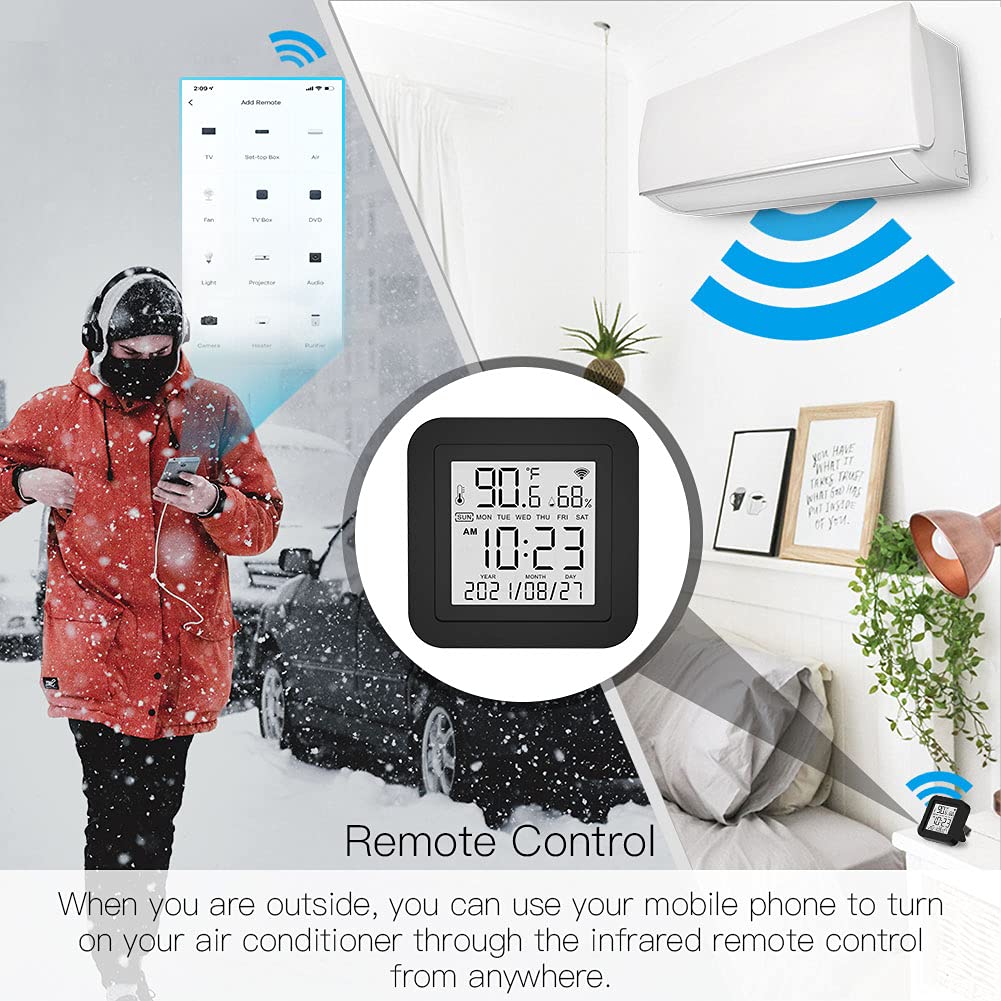
Image 5.3: Remote control functionality via the smartphone app.
5.4 אוטומציה חכמה
Leverage the temperature and humidity data to create automated routines for your IR-controlled devices.
- Access Automation: In the Tuya Smart/Smart Life app, go to the "Smart" or "Automation" section.
- Create a Scene/Automation:
- Select "When device status changes" or "Schedule" as the condition.
- Choose your MOES monitor and set a condition based on temperature or humidity (e.g., "Temperature rises above 26°C" or "Humidity drops below 50%").
- For the task, select "Run the device" and choose the IR-controlled appliance (e.g., Air Conditioner, Humidifier). Set the desired action (e.g., "Turn On", "Set Temperature to 24°C").

תמונה 5.4: דוגמהampשל אוטומציה מבוססת טמפרטורה עבור מזגן.

תמונה 5.5: דוגמהampשל אוטומציה מבוססת לחות עבור מכשיר אדים.
5.5 שליטה קולית
The MOES Smart Temperature Humidity Monitor is compatible with Amazon Alexa and Google Assistant.
- קישור חשבונות: באפליקציית Alexa או Google Home, הפעילו את המיומנות/שירות "Tuya Smart" או "Smart Life" וקשרו את החשבון שלכם.
- גלה מכשירים: Once linked, ask your voice assistant to discover new devices. Your MOES monitor and any configured IR devices will appear.
- פקודות קוליות: You can now use voice commands to control your IR appliances. Examples:
- "אלכסה, תדליקי את הטלוויזיה."
- "Hey Google, set the AC to 22 degrees."
- "Alexa, turn off the fan."

Image 5.6: Voice control integration with Amazon Alexa and Google Assistant.
6. תחזוקה
- ניקוי: Use a soft, dry cloth to clean the device. Do not use liquid cleaners or sprays, as they may damage the internal components.
- מיקום: Avoid placing the device in direct sunlight, near heat sources, or in areas with high humidity to ensure accurate readings and optimal performance.
- עדכוני קושחה: The device's firmware may be updated periodically via the Tuya Smart/Smart Life app. Ensure your app is up-to-date and follow any prompts for device firmware updates.
7. פתרון תקלות
| בְּעָיָה | פתרון אפשרי |
|---|---|
| המכשיר לא נדלק | Ensure the Micro USB cable is securely connected and the power adapter is working. Try a different USB port or adapter. |
| לא ניתן להתחבר ל-Wi-Fi |
|
| שלט רחוק IR לא עובד |
|
| קריאות טמפרטורה/לחות לא מדויקות |
|
| בקרת קול לא מגיבה |
|
| Device unresponsive / needs reset | Press and hold the "Reset Button" on the back of the device for approximately 10 seconds until the device restarts or enters pairing mode. You may need to re-pair it with the app. |
8. אחריות ותמיכה
MOES products are designed for reliability and performance. For warranty information, technical support, or further assistance, please refer to the official MOES webאתר או צרו קשר ישירות עם שירות הלקוחות שלהם. שמרו את קבלת הרכישה כהוכחת קנייה לתביעות אחריות.
משאבים מקוונים:
- בקר ב MOES Store on Amazon לעדכוני מוצרים ואביזרים נלווים.


