1. הקדמה
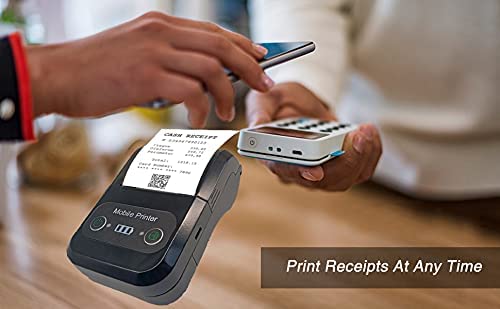
The Milestone MPT-II is a compact and portable 58mm thermal printer designed for various business applications, including retail, restaurants, and mobile logistics. It offers high-speed, clear printing and features Bluetooth connectivity for seamless integration with Android and iOS devices. Its lightweight design and long-lasting battery make it ideal for on-the-go printing needs.

2. תכונות עיקריות
- הדפסת בלוטות': Supports Android and iOS devices for wireless printing.
- הִטַלטְלוּת: Light and compact design allows for printing anywhere, anytime.
- עלות תפעול נמוכה: Direct thermal printing eliminates the need for ink ribbons or cartridges, requiring only thermal paper.
- חיי סוללה ארוכים: Built-in 7.4V/2500mAh rechargeable lithium battery provides up to 4 hours of continuous printing.
- Versatile Interface: Equipped with both USB and Bluetooth connectivity.
- ESC/POS Compatible: Supports standard ESC/POS print commands for broad software compatibility.

3. הגדרה ראשונית
3.1 פתיחת האריזה ותכולה
Carefully unpack the printer and verify all components are present:
- 1 x Milestone MPT-II Thermal Printer
- 1 x כבל USB
- 1 x מתאם USB
- 1 גלילי נייר
- מדריך למשתמש אחד (מסמך זה)
3.2 טעינת המדפסת
- Connect the USB cable to the printer's charging port.
- Plug the USB adaptor into a standard power outlet.
- The charging indicator light will illuminate. Charge the printer fully before first use (approximately 2.5-3 hours for continuous printing).
3.3 טעינת נייר תרמי
- פתחו את מכסה תא הנייר על ידי דחיפה עדינה של התפס.
- Insert the thermal paper roll with the printing side facing outwards (as shown in Figure 2). Ensure the roll is seated correctly.
- משוך חתיכת נייר קטנה החוצה מעבר לקצה החיתוך.
- סגור את מכסה תא הנייר בחוזקה עד שייכנס למקומו בנקישה.
4. הוראות הפעלה
4.1 הפעלה/כיבוי
- כדי להפעיל: לחץ והחזק את לחצן ההפעלה עד שנורית החיווי נדלקת.
- לכיבוי: לחץ והחזק את לחצן ההפעלה עד שנורית החיווי תכבה.
4.2 חיבור בלוטות'
The MPT-II printer supports Bluetooth connectivity for mobile devices.
- ודא שהמדפסת דולקת ונמצאת בטווח קליטה של המכשיר הנייד שלך.
- On your mobile device (Android/iOS), go to Bluetooth settings and turn Bluetooth on.
- חפש available devices. The printer will appear as "MPT-II".
- Select "MPT-II" to pair. If prompted for a password, enter 1234 or 0000.
- Once paired, the printer is ready for use with compatible applications.
4.3 שימוש עם יישומים
For mobile printing, you will need a compatible application. Milestone recommends downloading RAWBT Printer App or MYXPrint App from the Google Play Store. For iOS, search for compatible thermal printer apps in the App Store.
- Open your chosen printing application.
- Navigate to the printer settings within the app.
- Select the "MPT-II" printer from the list of available Bluetooth devices.
- You can now send print commands from the application.

4.4 חיבור USB (למחשב)
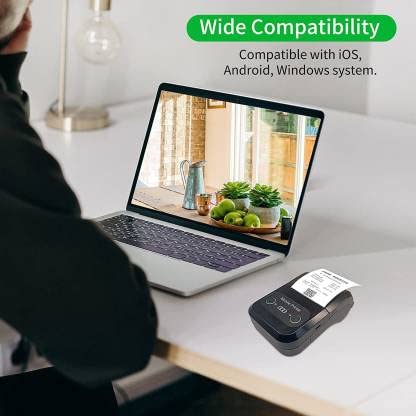
The printer can also be connected to a PC via USB. You may need to install a printer driver, which is typically available from the manufacturer's website or included on a CD with the product (if applicable).
5. תחזוקה
5.1 ניקוי המדפסת
To ensure optimal performance and print quality, regularly clean the printer:
- ראש הדפסה: השתמש במקלון צמר גפן קלות דampנגבו בעדינות את ראש ההדפסה התרמי עם אלכוהול איזופרופילי. הניחו לו להתייבש לחלוטין לפני השימוש.
- נתיב נייר: Use a soft, dry cloth or a small brush to remove any paper dust or debris from the paper path.
- חִיצוֹנִי: נגבו את החלק החיצוני של המדפסת בעזרת מטלית רכהamp בַּד. הימנע משימוש בכימיקלים קשים או בחומרי ניקוי שוחקים.
5.2 טיפול בסוללה
- טען את הסוללה במלואה לפני השימוש הראשון.
- הימנעו מריקון מוחלט של הסוללה לעתים קרובות.
- If storing the printer for an extended period, charge it to about 50% and recharge every few months to prevent battery degradation.
6. פתרון תקלות
| בְּעָיָה | סיבה אפשרית | פִּתָרוֹן |
|---|---|---|
| המדפסת לא נדלקת. | הסוללה חלשה או ריקה. | Charge the printer using the provided USB cable and adaptor. |
| לא ניתן להתחבר דרך בלוטות'. | Bluetooth is off on device; incorrect pairing password; printer not discoverable. | Ensure Bluetooth is enabled on your device. Re-attempt pairing with password 1234 or 0000. Restart both printer and device. |
| No print output or blank paper. | Paper loaded incorrectly; out of paper; print head dirty. | Check paper orientation (printing side out). Replace paper roll if empty. Clean the thermal print head (refer to Maintenance section). |
| איכות הדפסה ירודה (קווים דהויים). | Print head dirty; low battery; poor quality thermal paper. | Clean the print head. Charge the printer fully. Use high-quality thermal paper. |
| Printer beeps continuously. | Paper alarm (out of paper or paper jam); low battery reminder. | Check and replace paper roll or clear jam. Charge the printer. |
7. מפרט טכני
| תכונה | מִפרָט |
|---|---|
| שיטת הדפסה | הדפסת קו תרמית |
| רוחב הדפסה | Paper width 58mm, effective width 58mm |
| צפיפות הדפסה | 576 נקודות/קו |
| הַחְלָטָה | 8 dots/mm, 203 DPI |
| מהירות הדפסה | 70mm/s (Max Print speed Monochrome: 50 ppm) |
| Printer Core Life | 50KM (25% print density or less than 100 million pulses) |
| Printable Content | English, numbers, symbols, characters, pictures, 1D/2D barcode, multi-languages |
| ממשק תקשורת נתונים | USB / בלוטות ' |
| ספק כוח | Machine charging 9V-1.5A |
| סוֹלְלָה | Built-in rechargeable 2600mAh lithium-ion battery (7.4V/2500mAh) |
| Continuous Printing Time | 2.5-3 שעות |
| סט הוראות | תואם ESC / POS |
| חיתוך נייר | Manually tear |
| תאימות מערכת הפעלה | אנדרואיד, iOS, Windows |
| מידות המוצר | 15D x 12W x 6H סנטימטרים |
| משקל פריט | 310 גרם |
| רכיבים כלולים | 1 x Thermal Printer, 1 x USB Cable, 1 x USB Adaptor, 1 x Paper Roll, 1 x User Manual |
8. אחריות ותמיכה
This product comes with a 10-day warranty as per the purchase terms. For any technical assistance, troubleshooting beyond this manual, or warranty claims, please contact your retailer or the manufacturer's customer support. Refer to your purchase documentation for specific contact details.
יַצרָן: צִיוּן דֶרֶך
יְבוּאָן: SB RETAILS, SECTOR 28, PRADHIKARAN, PUNE-44, +918888881631


