1. הקדמה
This manual provides detailed instructions for the setup, operation, and maintenance of your CHERRY DW 9100 Slim Wireless Keyboard and Mouse Set. This rechargeable desktop set offers both 2.4 GHz wireless and Bluetooth connectivity, featuring a slim design and silent keystroke SX Scissor Mechanism for comfortable and efficient use in various environments.

Image 1.1: The CHERRY DW 9100 Slim Wireless Keyboard and Mouse Set, including the USB nano receiver.
2. תכולת החבילה
אנא בדקו את תוכן האריזה בעת פתיחת הקופסה כדי לוודא שכל הרכיבים נמצאים:
- CHERRY DW 9100 Slim Wireless Keyboard
- CHERRY DW 9100 Slim Wireless Mouse
- מקלט USB ננו
- כבל טעינה USB-C
- מדריך למשתמש (מסמך זה)
3. התקנה
3.1 טעינת המכשירים
Both the keyboard and mouse are equipped with rechargeable lithium batteries.
- חבר את כבל הטעינה USB-C המצורף ליציאת USB-C במקלדת ובעכבר.
- חבר את הקצה השני של הכבל ליציאת USB עם חשמל (למשל, מחשב, מתאם USB לקיר).
- The status LED on each device will indicate the charging status. A full charge is indicated when the LED changes color or turns off (refer to Section 4.3 for LED indicators).
3.2 חיבור אלחוטי 2.4 GHz
For a stable and fast wireless connection, use the included USB nano receiver.
- Locate the USB nano receiver.
- חבר את מקלט הננו-USB ליציאת USB זמינה במחשב שלך.
- On both the keyboard and mouse, locate the connectivity switch. Set the switch to the 2.4 גיגה-הרץ position (often indicated by a receiver icon or "RF").
- המכשירים אמורים להתחבר אוטומטית למחשב שלך.
3.3 התחברות באמצעות בלוטות'
The set supports Bluetooth connectivity for devices that have Bluetooth capabilities.
- On both the keyboard and mouse, locate the connectivity switch. Set the switch to the בלוטות' position (often indicated by a Bluetooth icon).
- On your computer or device, open the Bluetooth settings.
- Initiate the pairing process on your device. The keyboard and mouse should appear in the list of discoverable devices (e.g., "CHERRY DW 9100 Keyboard", "CHERRY DW 9100 Mouse").
- Select each device to pair them. Follow any on-screen prompts, such as entering a pairing code for the keyboard.
פֶּתֶק: The keyboard and mouse can be paired with multiple Bluetooth devices. Use the connectivity switch to toggle between paired devices or 2.4 GHz mode.
4. הוראות הפעלה
4.1 פונקציות מקלדת
The CHERRY DW 9100 Slim Keyboard features a full-size layout with an SX Scissor Mechanism for silent and precise keystrokes.
- מפתחות סטנדרטיים: כל מקשי האלפאנומריים והסמלים הסטנדרטיים פועלים כצפוי.
- מקשי פונקציה (F1-F12): למקשים אלה עשויות להיות פונקציות משניות (למשל, בקרת מדיה, עוצמת קול, בהירות) הנגישות על ידי לחיצה על Fn key simultaneously. Refer to your operating system's settings for specific function key behavior.
- לוח מקשים נומרי: Provides dedicated number entry.

תמונה 4.1: צד פרוfile of the CHERRY DW 9100 Slim Keyboard, highlighting its thin design.

Image 4.2: Visual representation of the CHERRY SX Scissor Mechanism, responsible for silent and precise keystrokes.
4.2 פונקציות עכבר
The CHERRY DW 9100 Slim Mouse features 6 buttons and a scroll wheel for versatile navigation.
- לחיצה שמאלה/ימינה: כפתורי עכבר סטנדרטיים.
- גלגל גלילה: לגלילה אנכית וככפתור לחיצה אמצעית.
- כפתורי צד: משמש בדרך כלל לניווט קדימה/אחורה ב web דפדפנים.
- מתג DPI: A button, usually near the scroll wheel, allows adjustment of the mouse's sensitivity (DPI - Dots Per Inch). Pressing this button cycles through different DPI settings, indicated by the mouse's status LED.

תמונה 4.3: למעלה view of the CHERRY DW 9100 Slim Mouse, showing the left/right click buttons, scroll wheel, and DPI switch.
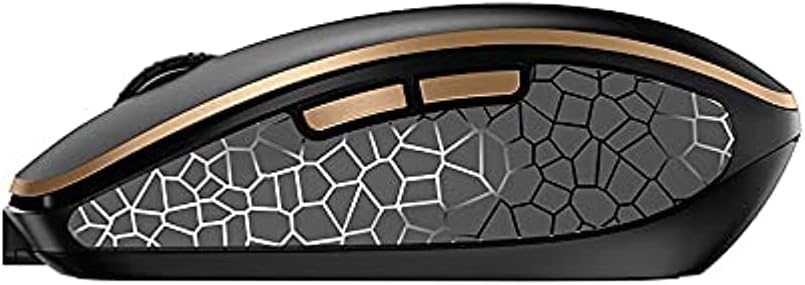
תמונה 4.4: צד view of the CHERRY DW 9100 Slim Mouse, illustrating the ergonomic design and side buttons.
4.3 נוריות סטטוס
Both the keyboard and mouse feature status LEDs to provide information on battery level, charging status, and mouse resolution.
- סוללה חלשה: The LED will flash or illuminate in a specific color (e.g., red) when the battery level is low, indicating that charging is required.
- טְעִינָה: The LED will illuminate while charging and typically change color or turn off when fully charged.
- Mouse Resolution (DPI): When adjusting the DPI, the mouse LED may briefly flash to indicate the current setting.
5. תחזוקה
5.1 ניקוי
כדי לשמור על הביצועים והמראה של המכשירים שלך:
- נתק את המכשירים מהמחשב לפני הניקוי.
- השתמש במטלית רכה נטולת מוך מעט דampהסתיים במים או בתמיסת ניקוי עדינה.
- Avoid using harsh chemicals, abrasive cleaners, or solvents, as these can damage the surfaces.
- עבור המקלדת, השתמש באוויר דחוס כדי להסיר אבק ופסולת בין המקשים.
5.2 טיפול בסוללה
The integrated lithium batteries are designed for long-term use.
- טען את המכשירים כאשר מופיע מחוון סוללה חלשה.
- הימנעו מפריקת הסוללות באופן מלא לעתים קרובות כדי להאריך את חייהן.
- If storing the devices for an extended period, charge them to approximately 50% before storage.
6. פתרון תקלות
If you encounter issues with your CHERRY DW 9100 Slim set, refer to the following common solutions:
6.1 בעיות קישוריות
- No Connection (2.4 GHz):
- Ensure the USB nano receiver is securely plugged into a working USB port.
- Verify the keyboard and mouse connectivity switches are set to the 2.4 גיגה-הרץ מַצָב.
- נסה לחבר את המקלט ליציאת USB אחרת.
- Ensure the devices are sufficiently charged.
- אין חיבור (בלוטות'):
- Ensure the keyboard and mouse connectivity switches are set to the בלוטות' מַצָב.
- Confirm Bluetooth is enabled on your computer/device.
- Remove previous pairings from your device's Bluetooth settings and attempt to re-pair.
- Ensure the devices are sufficiently charged.
6.2 בעיות חשמל וטעינה
- מכשירים שאינם נטענים:
- Check that the USB-C charging cable is properly connected to both the device and the power source.
- Try a different USB-C cable or a different USB power source.
- ודא שמקור הכוח פעיל.
- חיי סוללה קצרים:
- Ensure devices are fully charged before use.
- Battery life can vary based on usage patterns.
6.3 בעיות מעקב עכבר
- Inaccurate or No Tracking:
- ודא שחיישן העכבר נקי וללא לכלוך.
- Use the mouse on a suitable surface (e.g., mouse pad). Highly reflective or transparent surfaces may cause issues.
- כוונן את הגדרת ה-DPI באמצעות מתג ה-DPI בעכבר.
7. מפרטים
| תכונה | פְּרָט |
|---|---|
| מספר דגם | JD-9100US-2 |
| מידות המוצר | 17.32 x 5.12 x 0.59 אינץ' |
| משקל פריט | 2.35 פאונד |
| סוללות | Rechargeable Lithium (USB-C) |
| טכנולוגיית קישוריות | Bluetooth, 2.4 GHz Radio Frequency (USB) |
| תכונה מיוחדת | Rechargeable, Silent Keystroke (SX Scissor Mechanism) |
| מכשירים תואמים | מחשב אישי |
| יַצרָן | דוּבדְבָן |
Note on Batteries: The product description indicates USB-C rechargeable lithium batteries. The specification "1 AA batteries required. (included)" in the source data appears to be a discrepancy. Please rely on the USB-C rechargeable feature for this model.
8. אחריות ותמיכה
CHERRY products are manufactured to high-quality standards. For detailed warranty information, including terms and conditions, please refer to the official CHERRY webהאתר או כרטיס האחריות המצורף למוצר שלך.
For technical support, troubleshooting assistance beyond this manual, or to inquire about replacement parts, please visit the official CHERRY support portal or contact their customer service directly.
- Official CHERRY Webאֲתַר: www.cherry.de/en/ (or regional equivalent)
- תמיכת לקוחות: עיין ב webהאתר לפרטי יצירת קשר.