1. הקדמה
The BirdDog PF120 is a high-performance Full HD NDI box camera designed for professional video production environments. It features an Exmor R back-illuminated sensor, 20x optical zoom, and a full color matrix, all housed within a durable all-metal chassis. This manual provides essential information for the proper setup, operation, and maintenance of your PF120 camera.
2. תכולת החבילה
אנא ודא שכל הפריטים המפורטים להלן כלולים בחבילה שלך. אם פריטים חסרים או פגומים, צור קשר עם הספק שלך באופן מיידי.
- BirdDog PF120 Full HD NDI 20x Box Camera
- מתאם מתח (DC 12V)
- מכסה לעדשה
- תיעוד (מדריך התחלה מהירה, מידע בטיחות)
3. המוצר נגמרview
The BirdDog PF120 is engineered for versatility and robust performance. Key features include:
- Full NDI support for seamless integration into IP workflows.
- 20x optical zoom for detailed close-ups.
- Exmor R back-illuminated sensor for superior low-light performance.
- Durable all-metal housing.
- Multiple connectivity options including HDMI, NDI/PoE, RS-232, and USB2.0.
3.1 מצלמה Viewורכיבים

איור 3.1: צד קדמי view of the BirdDog PF120 camera, showcasing the lens and the BirdDog logo on the side panel.
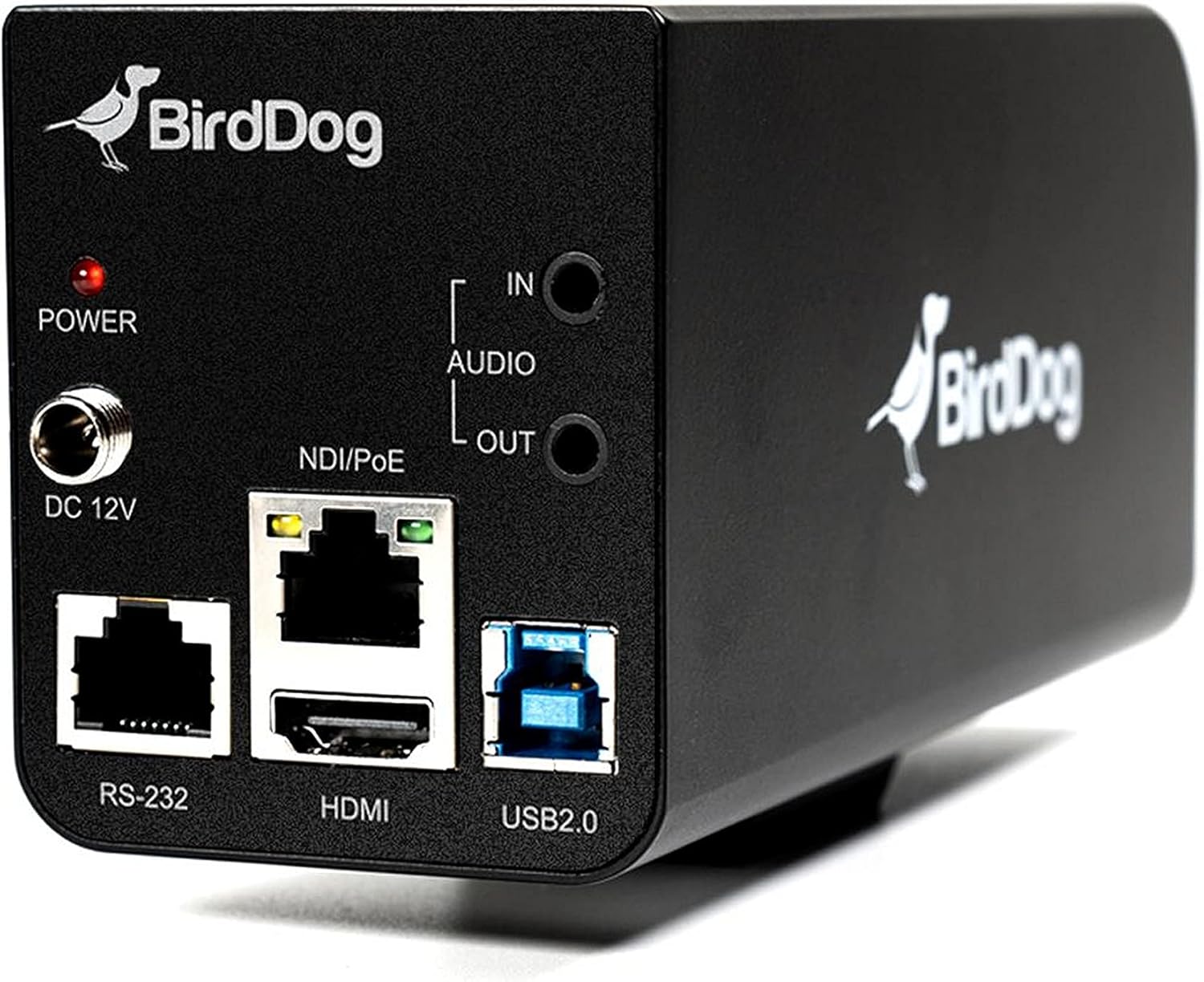
איור 3.2: Rear panel of the BirdDog PF120, displaying the power input (DC 12V), audio input/output, NDI/PoE port, HDMI output, RS-232 port, and USB2.0 port.
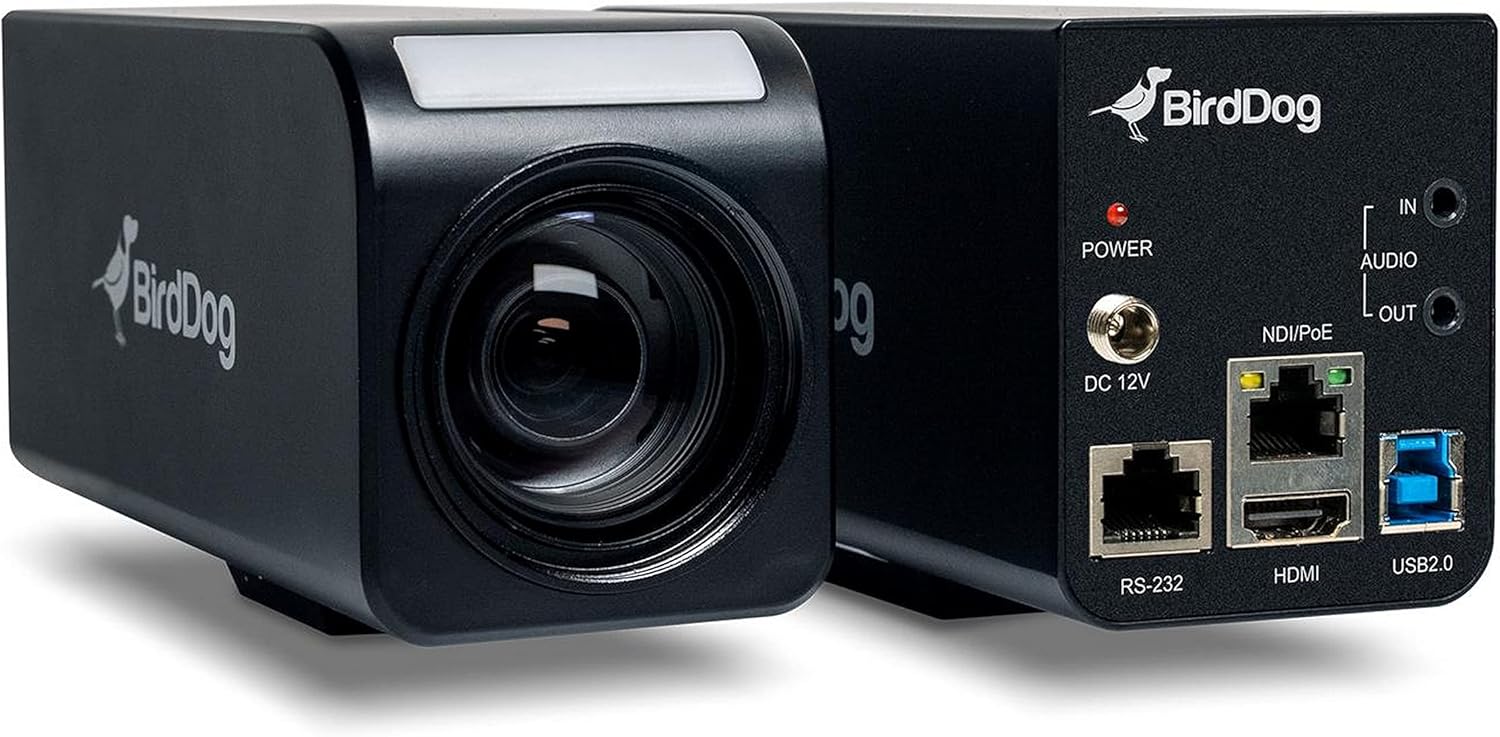
איור 3.3: מְשׁוּלָב view of the BirdDog PF120, showing both the front lens assembly and the rear connectivity panel.

איור 3.4: רֹאשׁ view of the BirdDog PF120 camera, highlighting the sleek design and BirdDog branding.
4. התקנה
4.1 הפעלה
- Connect the supplied DC 12V power adapter to the "DC 12V" port on the rear of the camera.
- חבר את מתאם החשמל לשקע חשמל מתאים.
- Alternatively, if using a PoE-enabled network switch, connect an Ethernet cable to the "NDI/PoE" port. The camera will power on via Power over Ethernet.
4.2 Network Connection (NDI)
- Connect an Ethernet cable from the "NDI/PoE" port on the camera to your network switch or router.
- Ensure your network is configured to support NDI protocols.
- The camera will obtain an IP address automatically via DHCP. For static IP configuration, refer to the BirdDog Central application or web מִמְשָׁק.
4.3 פלט וידאו
- NDI Output: The primary video output is via NDI over the Ethernet connection.
- יציאת HDMI: Connect an HDMI cable from the "HDMI" port on the camera to a monitor or video switcher for direct video monitoring.
5. הפעלת המצלמה
5.1 גישה ל Web מִמְשָׁק
- Once connected to the network, use the BirdDog Central application or an IP scanner to discover the camera's IP address.
- פתח א web דפדפן והזן את כתובת ה-IP של המצלמה כדי לגשת אליה web מִמְשָׁק.
- מה web interface, you can configure video settings, network parameters, and control camera functions.
5.2 בקרת מצלמה
The PF120 can be controlled via:
- NDI Tools: Utilize NewTek NDI Tools (e.g., NDI Studio Monitor) for basic control.
- BirdDog Central / Cam Control: BirdDog's dedicated software provides comprehensive control over camera settings, including zoom, focus, iris, and color matrix.
- RS-232: Connect a compatible serial controller to the RS-232 port for hardware control.
- שְׁלַט רָחוֹק: The camera supports remote control methods as specified in the product documentation.
5.3 זום ומיקוד
The PF120 features a 20x optical zoom lens. Zoom and focus adjustments are typically made through the web interface or compatible control software.
6. תחזוקה
- ניקוי: Use a soft, dry cloth to clean the camera body. For the lens, use a specialized lens cleaning solution and microfiber cloth. Avoid abrasive cleaners.
- עדכוני קושחה: Periodically check the BirdDog webאתר לעדכוני קושחה. עדכון הקושחה מבטיח ביצועים אופטימליים וגישה לתכונות חדשות.
- אִחסוּן: כאשר המצלמה אינה בשימוש למשך תקופות ממושכות, יש לאחסן אותה במקום קריר ויבש, הרחק מאור שמש ישיר וטמפרטורות קיצוניות.
7. פתרון תקלות
7.1 אין כוח
- ודא שמתאם החשמל מחובר היטב הן למצלמה והן לשקע חשמל תקין.
- If using PoE, verify that the Ethernet cable is connected to a PoE-enabled port on your switch and that the switch is providing power.
7.2 No NDI Signal
- בדוק את חיבור כבל ה-Ethernet.
- Verify that the camera has obtained an IP address (check your router's DHCP client list or use BirdDog Central).
- Ensure your network firewall is not blocking NDI traffic.
- Confirm that NDI tools or software on your receiving device are correctly configured to discover NDI sources.
7.3 בעיות באיכות התמונה
- Check lens for smudges or dust and clean if necessary.
- Adjust focus settings via the web ממשק או תוכנת בקרה.
- Review exposure, white balance, and color matrix settings in the camera's web מִמְשָׁק.
8. מפרטים
| תכונה | פְּרָט |
|---|---|
| מספר דגם | BD-BDPF120 |
| רזולוציית לכידת וידאו | 1080p |
| רזולוציית וידאו יעילה | 720 פיקסלים |
| זום אופטי | 20x |
| סוג זום | Digital Zoom, Optical Zoom |
| טכנולוגיית קישוריות | חוטי |
| פרוטוקול קישוריות | Wi-Fi (for control/management, NDI is primary video) |
| שיטת בקרה | Remote, Iris, RS-232 |
| מקור כוח | AC/DC, PoE |
| מהtage | 5 וואט |
| חוֹמֶר | מַתֶכֶת |
| מידות פריט (L x W x H) | 9.9 x 9 x 3.6 אינץ' |
| משקל פריט | 2.94 פאונד |
| סוג הרכבה | Wall Mount (as per spec, but typically box cameras are versatile) |
| דירוג הגנה בינלאומי | IP65 |
| טכנולוגיית תאורה נמוכה | צבע לילה |
9. אחריות ותמיכה
For warranty information and technical support, please refer to the official BirdDog website or contact your authorized BirdDog reseller. Keep your proof of purchase for warranty claims.
BirdDog Official Webאֲתַר: www.bird-dog.tv


