1. הקדמה
Thank you for choosing the DELTACO GAMING DM210 Ultralight RGB Gaming Mouse. This manual provides essential information for setting up, operating, and maintaining your new gaming mouse. The DM210 is designed for performance, featuring an ultralight construction, customizable RGB lighting, and programmable buttons to enhance your gaming experience.
2. תכולת החבילה
- 1x DELTACO GAMING DM210 Ultralight RGB Gaming Mouse
- 1x מדריך למשתמש
3. המוצר נגמרview
The DELTACO GAMING DM210 mouse features an ergonomic design with a honeycomb shell for reduced weight and improved airflow. It includes 7 buttons for versatile control and customizable RGB lighting.
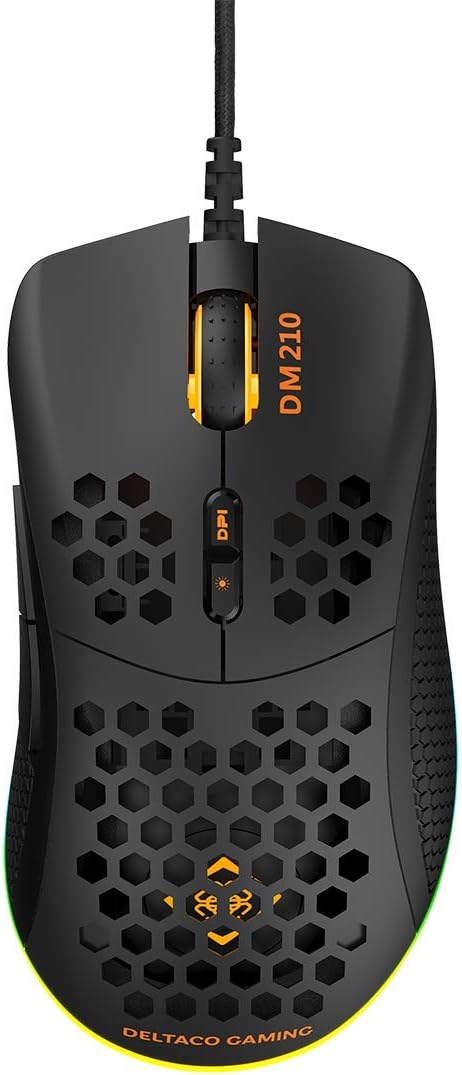
תמונה 3.1: רֹאשׁ view of the DM210 mouse. This image displays the left and right click buttons, the scroll wheel, and the two DPI adjustment buttons located below the scroll wheel. The ultralight honeycomb shell design is visible across the top surface of the mouse.
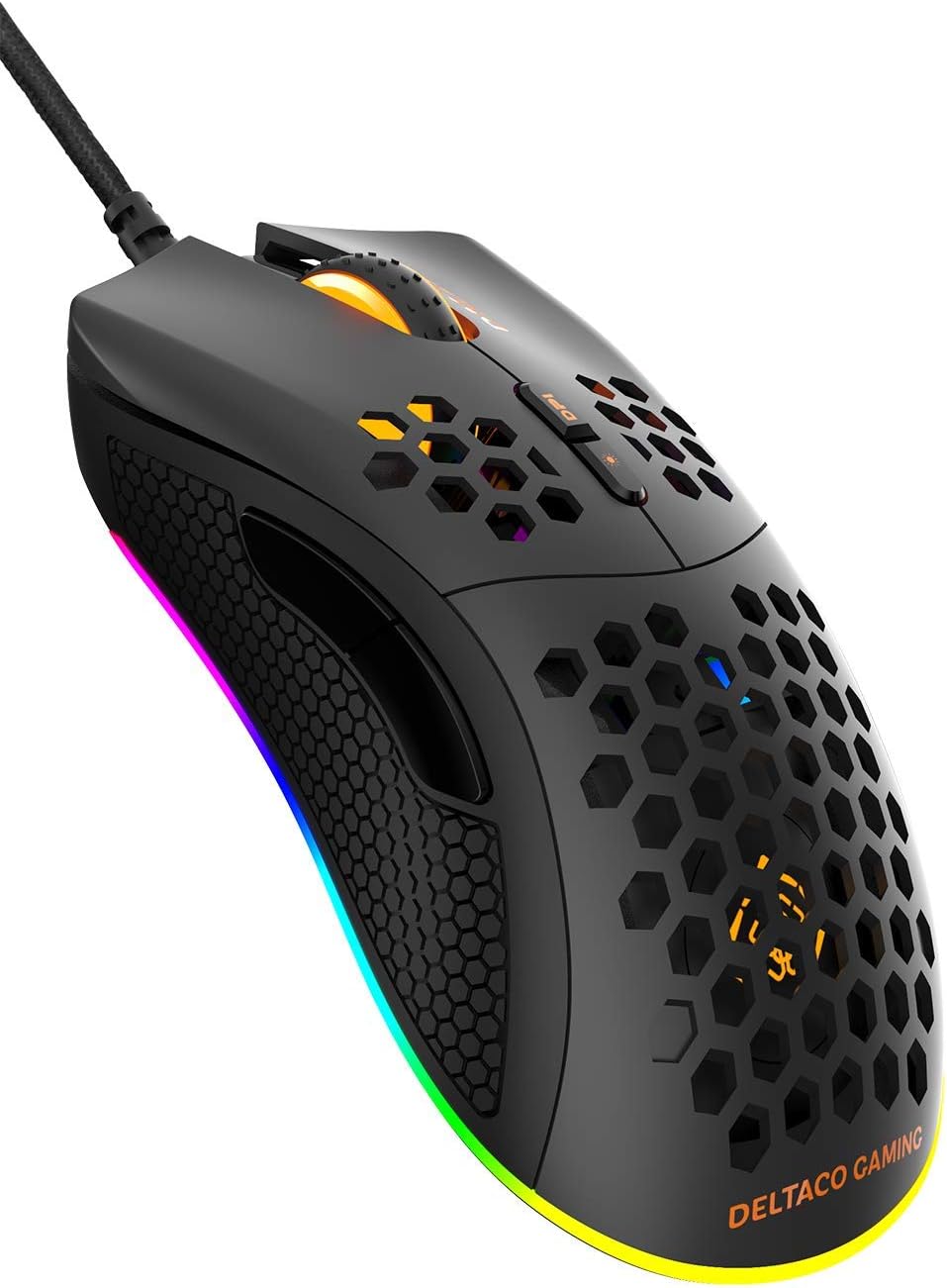
תמונה 3.2: בזווית view of the DM210 mouse from the front-right. This image highlights the two side buttons (forward and back) located on the left side of the mouse, designed for easy thumb access. The RGB lighting strip along the base of the mouse is also visible.
פונקציות כפתור:
- כפתור לחיצה שמאלי: פונקציית לחיצה ראשית סטנדרטית.
- כפתור לחיצה ימנית: פונקציית לחיצה משנית סטנדרטית.
- גלגל גלילה: לגלילה בין מסמכים ו web דפים. מתפקד גם ככפתור לחיצה אמצעי.
- כפתור DPI+: מגביר את רגישות ה-DPI.
- כפתור DPI: Decreases the DPI sensitivity. (Note: The product description mentions a single DPI button and a separate LED button. For this model, the two buttons below the scroll wheel are typically for DPI adjustment.)
- לחצן קדימה: מנווט קדימה ב web דפדפנים או יישומים.
- כפתור חזרה: מנווט אחורה ב web דפדפנים או יישומים.
4. התקנה
- חבר את העכבר: Plug the USB connector of the DELTACO GAMING DM210 mouse into an available USB port on your computer.
- התקנת דרייבר: Your operating system (Windows 7/8/10) will automatically detect and install the necessary drivers. This process may take a few moments.
- התקנת תוכנה (אופציונלי): For advanced customization, including programmable buttons and RGB lighting effects, download the DELTACO GAMING software. Refer to the product packaging or the official DELTACO GAMING website for the software download link.
5. הוראות הפעלה
5.1. כוונון DPI
The DM210 mouse features multiple DPI (Dots Per Inch) settings, allowing you to adjust cursor sensitivity on the fly. Use the DPI buttons (located below the scroll wheel) to cycle through the available DPI levels:
- 400 DPI
- 800 DPI
- 1200 DPI
- 1600 DPI
- 3200 DPI
- 6400 DPI
Each DPI level may be indicated by a specific LED color or pattern, depending on the current RGB settings.
5.2. בקרת תאורת RGB
The mouse features dynamic RGB lighting. While some basic lighting modes might be accessible via a dedicated button (if present, often combined with DPI control), full customization of the RGB loop and logo lighting is achieved through the DELTACO GAMING software. The software allows you to select from 16 million colors and various lighting effects.
5.3. כפתורים ותוכנות ניתנים לתכנות
The 7 buttons on the DM210 mouse are programmable using the DELTACO GAMING software. This software allows you to:
- Remap button functions to suit your preferences.
- Create macros for complex in-game actions.
- Adjust polling rate (up to 1000 Hz).
- התאמה אישית של אפקטים וצבעי תאורת RGB.
Install the software from the official DELTACO GAMING website for access to these advanced features.
6. תחזוקה
To ensure the longevity and optimal performance of your DELTACO GAMING DM210 mouse, follow these maintenance guidelines:
- ניקוי: השתמש רך, מעט דamp cloth to clean the surface of the mouse. Avoid using harsh chemicals, abrasive cleaners, or solvents, as these can damage the finish and internal components.
- טיפול בכבלים: Avoid sharp bends or excessive pulling on the USB cable. Store the cable neatly when not in use to prevent tangling and damage.
- סְבִיבָה: Keep the mouse away from extreme temperatures, direct sunlight, and excessive moisture.
7. פתרון תקלות
If you encounter issues with your DELTACO GAMING DM210 mouse, refer to the following common solutions:
- עכבר לא מגיב:
- ודא שכבל ה-USB מחובר היטב ליציאת USB תקינה במחשב שלך.
- נסה לחבר את העכבר ליציאת USB אחרת.
- הפעל מחדש את המחשב.
- בדוק את העכבר במחשב אחר כדי לקבוע אם הבעיה היא בעכבר או במערכת שלך.
- DPI לא משתנה:
- ודא שאתה לוחץ על כפתורי כוונון ה-DPI הנכונים.
- If using the software, check if DPI settings have been reconfigured or if a specific profile הוא פעיל.
- תאורת RGB לא עובדת/לא נכונה:
- Verify the mouse is properly connected.
- Check the DELTACO GAMING software for lighting settings and ensure they are configured as desired.
- ודא שהתוכנה מעודכנת.
- כפתורים שאינם פועלים כראוי:
- If using the DELTACO GAMING software, check button assignments to ensure they haven't been accidentally remapped.
- Test the mouse on another computer to rule out software conflicts on your primary system.
8. מפרטים
| מותג | DELTACO GAMING |
| דֶגֶם | DM210 (GAM-108) |
| קישוריות | USB |
| הגדרות DPI | 400 / 800 / 1200 / 1600 / 3200 / 6400 |
| שיעור סקרים | 1000 הרץ |
| כפתורים | 7 (ניתן לתכנות) |
| מִשׁקָל | 70 גרם |
| תְאוּרָה | RGB (16 מיליון צבעים) |
| תְאִימוּת | Windows 7/8/10 |
| צֶבַע | שָׁחוֹר |
9. מידע על אחריות
The DELTACO GAMING DM210 Ultralight RGB Gaming Mouse comes with a אחריות לשנה from the date of purchase. This warranty covers manufacturing defects and ensures the product meets its specified performance. Please retain your proof of purchase for warranty claims. For detailed warranty terms and conditions, refer to the official DELTACO GAMING webאתר או צור קשר עם תמיכת הלקוחות.
10. תמיכה
For further assistance, software downloads, frequently asked questions (FAQs), and the latest product information, please visit the official DELTACO GAMING website. You can also contact DELTACO GAMING customer support for technical issues or warranty inquiries.


