1. הקדמה
Welcome to the user manual for your new LTC NB681 Nimbleback Wired 65% Mechanical Keyboard. This guide provides detailed instructions on setting up, operating, maintaining, and troubleshooting your keyboard to ensure optimal performance and longevity. Please read this manual thoroughly before using the product.

Figure 1: LTC NB681 Nimbleback Wired 65% Mechanical Keyboard
Video 1: LTC NB681 65% Hot Swappable Keyboard Overviewסרטון זה מספק סקירה כלליתview of the keyboard's features and design.
Video 2: LTC Nimbleback NB681 Keyboard. This video showcases the keyboard's aesthetics and some functionalities.
2. תכונות עיקריות
The LTC NB681 Nimbleback Keyboard is designed with a range of features to enhance your typing and gaming experience:
- Compact but Practical 65% Layout: Ultra-compact design with 68 keys, balancing functionality with space-saving. Includes practical arrow, navigation, and control keys.
- מתגים הניתנים להחלפה חמה: Features a hot-swap PCB, allowing free replacement of 3-pin/5-pin MX-style switches (e.g., Gateron, Kailh). Equipped with quiet linear red switches for nimble reactions and quiet typing.
- 2 USB 2.0 Ports and Type-C Wired Connection: Two built-in USB passthrough ports for connecting peripheral devices like a mouse or flash drive, or for charging mobile devices. The Type-C wired connection ensures high-speed and stable data transmission.
- תאורת RGB דינמית: Offers 18 preset backlight modes with 5 adjustable brightness and flowing speed levels, providing gorgeous color schemes and reactive effects.
- Professional Software Support: Customize keypress combinations, assign macros, and personalize RGB lighting effects using the powerful LTC drive software. Compatible with Windows 7/8/10, iOS, and Mac systems.
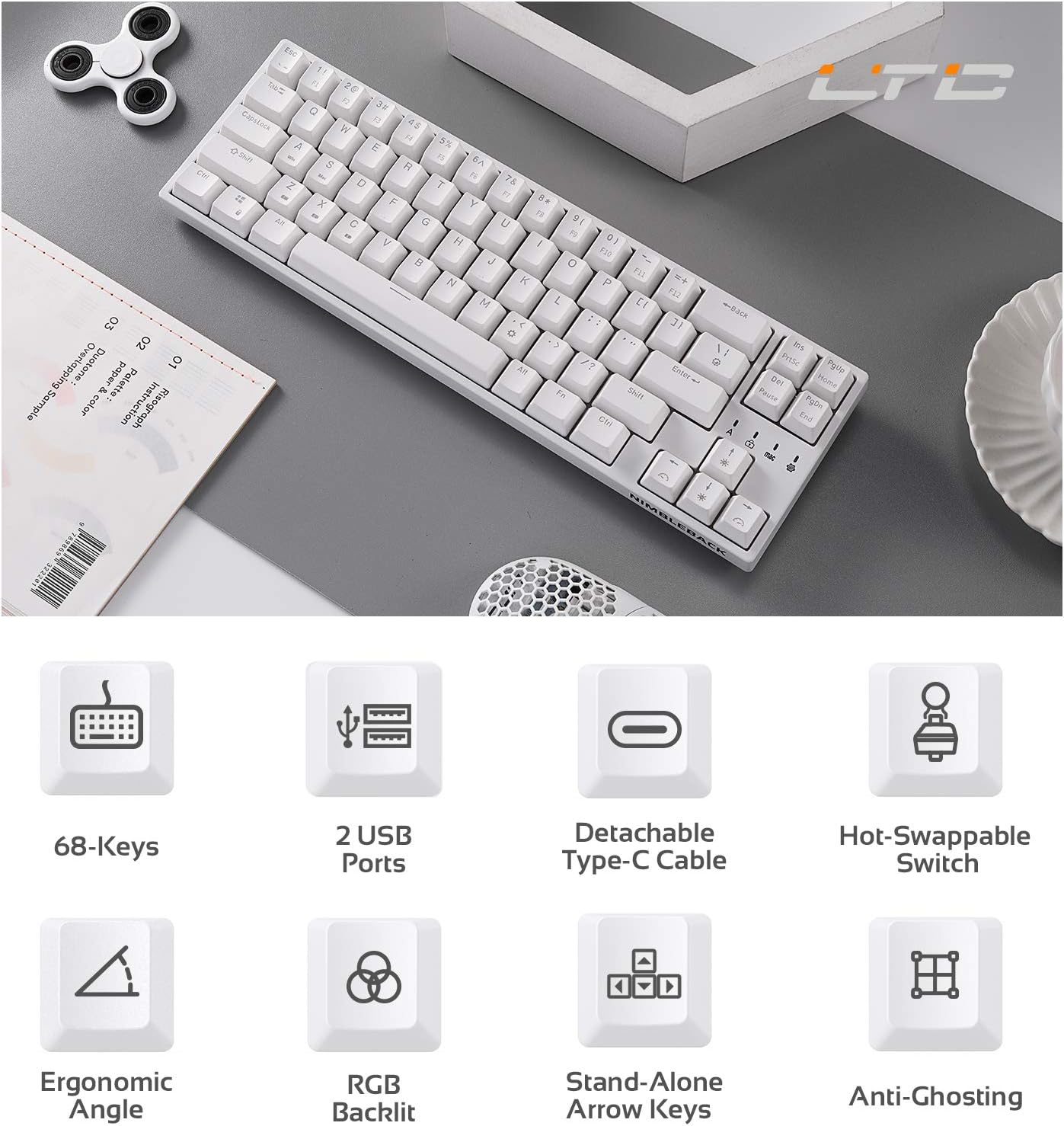
Figure 2: Visual representation of key features including 68-keys, 2 USB ports, detachable Type-C cable, hot-swappable switch, ergonomic angle, RGB backlit, stand-alone arrow keys, and anti-ghosting.
3. התקנה
Follow these steps to set up your LTC NB681 keyboard:
- Unboxing: Carefully remove the keyboard and all accessories from the packaging. Ensure you have the keyboard, USB-C cable, and any included tools (e.g., keycap puller, switch puller).
- חבר את כבל ה-USB-C: Plug the USB-C end of the provided cable into the Type-C port on the keyboard. Connect the other end (USB-A) to an available USB port on your computer.
- הכרה ראשונית: המחשב שלך אמור לזהות ולהתקין באופן אוטומטי את מנהלי ההתקנים הדרושים. פעולה זו עשויה להימשך מספר רגעים.
- מיקום: Place the keyboard on a stable, flat surface. You can adjust the typing angle using the foldable feet on the underside of the keyboard for ergonomic comfort.
- התקנת תוכנה (אופציונלי אך מומלץ): For advanced customization, download the LTC drive software from the official LTC website. Install it on your Windows or Mac system to remap keys, assign macros, and customize RGB lighting.
Video 3: LTC NB681 Keyboard Unboxing! This video demonstrates the unboxing process and shows the included accessories.

Figure 3: Close-up of the keyboard's 2 built-in USB 2.0 passthrough ports and the detachable Type-C wired connection port.
4. הפעלת המקלדת
4.1 פונקציות בסיסיות
- הקלדה סטנדרטית: The keyboard functions as a standard QWERTY keyboard.
- Arrow, Navigation, and Control Keys: Despite its compact size, the NB681 includes dedicated arrow keys and essential navigation/control keys for convenience.
בקרת תאורה אחורית RGB 4.2
The NB681 features dynamic RGB backlighting with multiple customization options:
- שינוי מצבים: לִלְחוֹץ Fn + \| (pipe key) to cycle through 18 preset backlight modes.
- התאמת בהירות: לְהִשְׁתַמֵשׁ Fn + חץ למעלה כדי להגביר את הבהירות ו Fn + חץ למטה כדי להפחית את הבהירות (5 רמות).
- התאמת מהירות: לְהִשְׁתַמֵשׁ Fn + חץ שמאלה to decrease flowing speed and Fn + חץ ימינה to increase flowing speed (5 levels).

איור 4: תצוגת המקלדתasing its dynamic 16.8 million RGB backlight with 19 modes and 5 brightness/speed levels.
4.3 מתגים הניתנים להחלפה חמה
The hot-swappable design allows you to easily change switches without soldering:
- הסר את מכסה המקשים: השתמש במושך מכסה המקשים המצורף כדי להסיר בעדינות את מכסה המקשים הרצוי.
- הסר את המתג: השתמש במשיכת המתג המצורפת כדי לאחוז בזהירות במתג ולמשוך אותו ישר למעלה.
- הכנס מתג חדש: Align the pins of the new 3-pin or 5-pin MX-style switch with the holes on the PCB. Press firmly until it clicks into place.
- החלפת מכסה מקשים: החזר את מכסה המקשים למתג החדש.

Figure 5: Close-up demonstrating the hot-swappable switch feature, allowing easy replacement of 3-pin or 5-pin mechanical switches.
Video 4: LTC NB681 Red Switch Keyboard Sound Test. This video provides an audio demonstration of the keyboard's red switches.
4.4 Professional Software Customization
The dedicated software allows for in-depth customization:
- מיפוי מחדש של מפתחות: Change the function of any key to suit your preferences.
- הקצאת מאקרו: Create and assign complex macros for gaming or productivity tasks.
- התאמה אישית של תאורת RGB: Design your own lighting effects, colors, and patterns beyond the preset modes.

Figure 6: Screenshot showing the professional software interface for customizing RGB backlight, remapping keys, and assigning macros.
5. תחזוקה
תחזוקה נכונה מבטיחה את אורך החיים והביצועים של המקלדת שלך:
- ניקוי רגיל: Use a soft brush or compressed air to remove dust and debris from between the keycaps. For deeper cleaning, remove keycaps and wipe the surface with a slightly damp cloth. Ensure the keyboard is disconnected before cleaning.
- טיפול במתג: The hot-swappable design makes switch replacement easy if a switch becomes faulty or if you wish to try different switch types. Avoid excessive force when inserting or removing switches to prevent damage to the PCB sockets.
- ניהול כבלים: Keep the USB-C cable untangled and avoid sharp bends to prevent internal wire damage.
6. פתרון תקלות
If you encounter issues with your LTC NB681 keyboard, try the following steps:
- המקלדת לא מגיבה:
- ודא שכבל ה-USB-C מחובר היטב גם למקלדת וגם למחשב.
- נסה לחבר את המקלדת ליציאת USB אחרת במחשב שלך.
- בדוק את המקלדת במחשב אחר כדי לקבוע אם הבעיה היא במקלדת או במחשב המקורי.
- נורות RGB לא עובדות/לא נכונות:
- Check the brightness settings using Fn + חץ למעלה/למטה.
- מעבר בין מצבי תאורה שונים באמצעות Fn + \|.
- If using the software, ensure the lighting profiles are correctly applied and the software is up to date.
- מקשים לא נרשמים/הקלדה כפולה:
- This could indicate a faulty switch. Use the switch puller to remove the problematic switch and replace it with a spare or a known good switch.
- ודא שהמתג מותקן במלואו בשקע שלו.
- תוכנה לא מזהה מקלדת:
- Ensure the keyboard is connected directly to the computer (avoiding USB hubs if possible).
- הפעל מחדש את המחשב ואת התוכנה.
- Reinstall the LTC drive software.
If these steps do not resolve the issue, please contact LTC customer support for further assistance.
7. מפרטים
| תכונה | תֵאוּר |
|---|---|
| מספר דגם | NB681 |
| מַעֲרָך | 65% (68 מקשים) |
| קישוריות | USB מסוג C קווי |
| מתגים | Hot-Swappable (3-pin/5-pin MX-style compatible) |
| תאורה אחורית | RGB (18 preset modes, 5 brightness/speed levels) |
| מעבר USB | 2 x יציאות USB 2.0 |
| תְאִימוּת | Windows 7/8/10, iOS, Mac |
| משקל פריט | 2 פאונד |
| מידות | 14.96 x 6.14 x 1.92 אינץ' |
| יַצרָן | LTC |
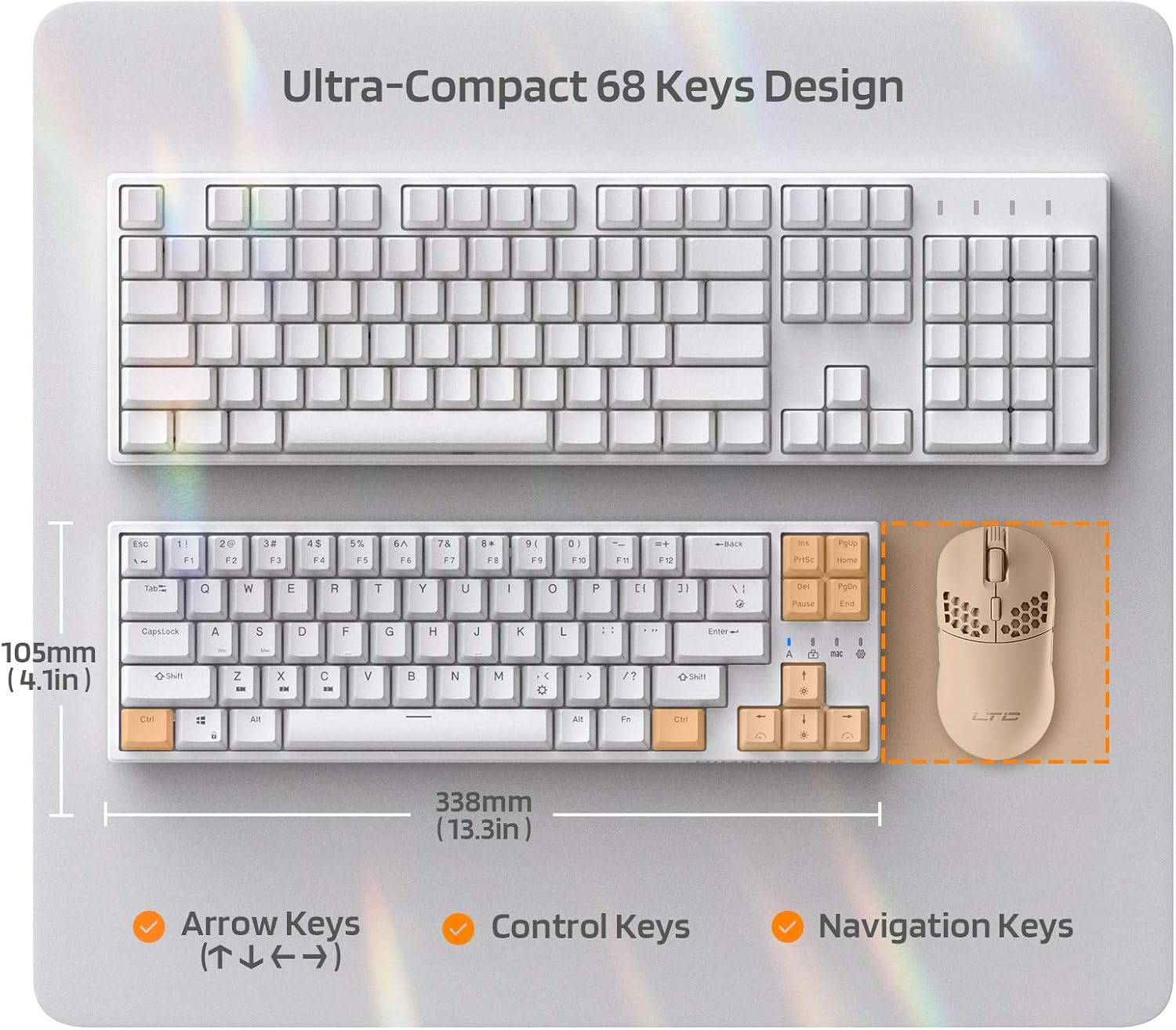
Figure 7: Comparison of the ultra-compact 68-key design with a full-size keyboard, highlighting its space-saving benefits.

Figure 8: Illustration of the ergonomic design with foldable feet for 10-degree and 5-degree typing angles, and anti-slip pads.
8. אחריות ותמיכה
For detailed warranty information and customer support, please refer to the official LTC webהאתר או מסמכי הרכישה שלך.
You can also find additional resources and a downloadable PDF user manual here: מדריך למשתמש רשמי (PDF)
למוצרים נוספים ותמיכה, בקרו באתר LTC Store on Amazon.


