1. הקדמה
This manual provides essential information for the safe and efficient operation of your iProda 2 in 1 Laptop, Model M1169YM. Please read this manual thoroughly before using the device and retain it for future reference. This convertible laptop features an 11.6-inch touchscreen, powered by an Intel N4100 processor, and runs on Windows 10 Pro.

Image: The iProda 2 in 1 Laptop can be used in multiple configurations, including traditional laptop, tent, stand, and tablet modes, showcasinהרבגוניות שלו.
2. מידע בטיחות
יש להקפיד על אמצעי הזהירות הבאים כדי למנוע נזק למכשיר או פגיעה עצמית:
- אין לחשוף את המכשיר לטמפרטורות קיצוניות, לאור שמש ישיר או לחות גבוהה.
- הימנעו מהפלת המכשיר או מחשיפתו לפגיעות חזקות.
- Use only the provided or approved power adapter for charging.
- הרחק את המכשיר ממים ומנוזלים אחרים.
- אל תנסה לפרק או לתקן את המכשיר בעצמך. פנה לאנשי שירות מוסמכים.
3. תכולת החבילה
ודא שכל הפריטים נמצאים בחבילה שלך:
- iProda 2 in 1 Laptop (Model M1169YM)
- מתאם מתח
- מדריך למשתמש (מסמך זה)
4. המוצר נגמרview
The iProda 2 in 1 Laptop is designed for versatility, offering multiple usage modes and essential connectivity options.
4.1. תכונות עיקריות
- מסך מגע IPS בגודל 11.6 אינץ': A responsive 10-point precision touchscreen with 1920x1080 resolution for interactive use.
- עיצוב להמרה: 360-degree hinge allows seamless transition between laptop, tablet, tent, and stand modes.
- Intel N4100 Processor: Provides efficient performance for daily tasks.
- Windows 10 Pro: Pre-installed operating system for productivity and security.
- אחסון ניתן להרחבה: Supports M.2 2242 SSD for additional storage capacity.

Image: Key features of the iProda laptop, including its touchscreen, operating system, display specifications, and camera resolution.

Image: The laptop's 360-degree hinge allows it to convert into a tablet, enabling direct interaction via its precision touchscreen.
4.2. יציאות וכפתורים
Familiarize yourself with the various ports and buttons on your laptop:
- סוג C נמל: Used for power supply and data transfer.
- מיקרו HDMI: לחיבור לצגים חיצוניים.
- מיקרו USB: לחיבור התקני USB.
- חריץ כרטיס TF: For expanding storage with a TF (MicroSD) card.
- לחצן הפעלה: כדי להפעיל/לכבות את המכשיר או להעביר אותו למצב שינה.
- לחצני עוצמת הקול: To adjust audio output.
- שקע אוזניות: לחיבור אוזניות או רמקולים חיצוניים.

תמונה: מפורט view of the laptop's side panels, indicating the location and function of each port and button for easy identification.
5. התקנה
5.1. טעינת הסוללה
Before first use, fully charge the laptop's battery. Connect the provided power adapter to the Type-C port on the laptop and plug it into a power outlet. The charging indicator light will illuminate.
5.2. אתחול ראשון והתקנת Windows
- לחץ והחזק את לחצן ההפעלה עד שהמסך יידלק.
- פעל לפי ההוראות שעל המסך כדי להשלים את ההגדרה הראשונית של Windows 10 Pro, כולל בחירת שפה, חיבור רשת ויצירת חשבון משתמש.
6. הפעלת המחשב הנייד
6.1. שימוש במסך המגע
The 10-point precision touchscreen allows for intuitive interaction with Windows 10 Pro. Use gestures such as tapping, swiping, pinching, and stretching to navigate, zoom, and interact with applications.
6.2. מקלדת ומשטח מגע
The integrated keyboard and touchpad provide traditional input methods. The touchpad supports multi-touch gestures for scrolling, zooming, and switching applications.

Image: The laptop's full-size American keyboard and responsive touchpad, designed for comfortable typing and navigation.
6.3. מצבי המרת
The 360-degree hinge allows you to switch between various modes:
- מצב מחשב נייד: Standard configuration for typing and productivity.
- מצב טאבלט: Fold the screen back completely for a tablet experience, ideal for browsing or drawing.
- מצב אוהל: Position the laptop like a tent for media consumption or presentations.
- מצב עמידה: Flip the keyboard face down to use the screen as a display, suitable for watching videos.

Image: The laptop configured in tent mode, demonstrating its flexibility for viewing content without the keyboard in the way.
7. הרחבת אחסון
The laptop comes with 64GB eMMC storage. You can expand the storage capacity by installing an M.2 2242 SSD (128GB/256GB/512GB, not included).
7.1. Installing an M.2 2242 SSD
To install an M.2 2242 SSD:
- Power off the laptop and disconnect the power adapter.
- Carefully open the back cover of the laptop.
- Locate the M.2 slot.
- Insert the M.2 2242 SSD into the slot and secure it with the appropriate screw (if provided).
- החזר את הכיסוי האחורי למקומו.
- Upon booting, you may need to initialize and format the new SSD through Windows Disk Management.
Note: If you are unsure about this procedure, it is recommended to seek professional assistance.

Image: Visual representation of the M.2 SSD slot, illustrating how additional storage can be integrated into the laptop.
8. קישוריות
8.1. חיבור אינטרנט אלחוטי
The laptop supports dual-frequency 2.4GHz/5GHz Wi-Fi. To connect to a wireless network:
- לחץ על סמל ה-Wi-Fi במגש המערכת.
- בחר את הרשת הרצויה מהרשימה.
- הזינו את סיסמת הרשת אם תתבקשו ולחצו על 'התחבר'.
8.2. External Display (Micro HDMI)
Connect an external monitor or TV using a Micro HDMI to HDMI cable. Once connected, you can configure display settings (duplicate, extend, second screen only) through Windows display settings.
8.3. התקני USB
Use the Micro USB port or the Type-C port (with an appropriate adapter) to connect peripherals such as a mouse, keyboard, or external storage devices.
9. תחזוקה
9.1. ניקיון
To clean the laptop, power it off and disconnect the power adapter. Use a soft, lint-free cloth slightly dampened with water or a screen cleaner for the display. Avoid harsh chemicals or abrasive materials.
9.2. טיפול בסוללה
כדי להאריך את חיי הסוללה:
- הימנעו מפריקת הסוללה באופן מלא לעתים קרובות.
- Do not expose the laptop to high temperatures.
- If storing the laptop for an extended period, ensure the battery is charged to around 50-70%.
10. פתרון תקלות
הנה פתרונות לבעיות נפוצות שאתה עשוי להיתקל בהן:
| בְּעָיָה | פִּתָרוֹן |
|---|---|
| המחשב הנייד לא נדלק. | Ensure the battery is charged. Connect the power adapter and try again. If still unresponsive, perform a hard reset by holding the power button for 10-15 seconds. |
| המסך ריק או מהבהב. | Restart the laptop. Check if an external display is connected and interfering. Update display drivers if possible. |
| בעיות חיבור Wi-Fi. | ודא שה-Wi-Fi מופעל. הפעל מחדש את הנתב ואת המחשב הנייד. בדוק את הגדרות הרשת ב-Windows. |
| מסך המגע לא מגיב. | Restart the laptop. Ensure the screen is clean. Check for any pending Windows updates or driver updates for the touchscreen. |
11. מפרטים
Technical specifications for the iProda 2 in 1 Laptop (Model M1169YM):
| תכונה | פְּרָט |
|---|---|
| מותג | iProda |
| מספר דגם | M1169YM |
| מַעֲרֶכֶת הַפעָלָה | Windows 10 Pro |
| גודל מסך | 11.6 אינץ' |
| רזולוציית מסך | 1920 x 1080 פיקסלים (1080p) |
| מעבד | Intel N4100 (up to 2.4 GHz Burst Frequency) |
| אַיִל | 4 GB DDR4 |
| כונן קשיח | 64 GB eMMC |
| כרטיס מסך | Integrated (UHD 600 Graphics) |
| סוג אלחוטי | 2.4 GHz / 5 GHz Dual-frequency Wi-Fi |
| חיי סוללה ממוצעים | 8 Hours (3500mAh, 27Wh) |
| משקל פריט | 3.63 פאונד |
| מידות המוצר | 11.99 x 11.6 x 0.5 אינץ' |
| טכנולוגיית קישוריות | HDMI, USB Type-C, Micro USB |
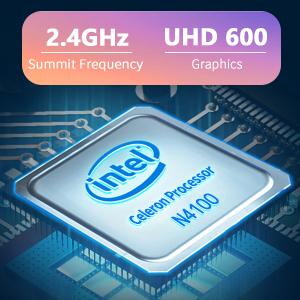
Image: The Intel Celeron N4100 processor, central to the laptop's performance, highlighting its clock speed and integrated graphics capabilities.

Image: The laptop's battery specifications, indicating its power capacity for extended use.
12. אחריות ותמיכה
For warranty information and technical support, please refer to the documentation included with your purchase or visit the official iProda website. Contact information for customer service can typically be found on the manufacturer's support page.


