מָבוֹא
תודה על הרכישהasing the FEKER 61 Key RGB Gateron Switch Wireless Bluetooth Mechanical Gaming Keyboard. This manual provides detailed instructions on how to set up, operate, maintain, and troubleshoot your new keyboard. Please read this manual thoroughly before using the product to ensure optimal performance and longevity.
תוכן החבילה

Image: The FEKER 61 Key RGB Gateron Switch Wireless Bluetooth Mechanical Gaming Keyboard, its retail box, a USB-C cable, a keycap puller, and a switch puller.
- FEKER 61 Key RGB Mechanical Keyboard
- כבל USB-C ל-USB-A
- פולר Keycap
- חולץ מתג
- מדריך למשתמש (מסמך זה)
תכונות מפתח

Image: A diagram highlighting the key features of the FEKER 01 keyboard, including fully programmable keys, compact layout, Bluetooth 5.0, 1550mAh battery, customizable RGB backlight, and Outemu mechanical switches.
- Full RGB Backlight: Each key features independent RGB backlighting, allowing for extensive customization.
- מכסי מפתחות PBT: Equipped with durable double-shot PBT keycaps, which are more resistant to shine and wear compared to ABS keycaps.
- Dual FN Keys: Includes FN1 and FN2 keys, providing enhanced possibilities for layer function customization.
- Long Endurance Time: Features a 1900mAh large capacity battery with a built-in protection circuit to prevent battery damage.
- חיבור במצב כפול: Supports both Bluetooth 4.0 and Type-C USB-C wired connections for wide compatibility.
- תאימות רחבה: Compatible with multiple operating systems including iOS, Windows, Linux, and Android.
- NKRO Support: Supports N-Key Rollover (NKRO) in wired mode for precise input.

Image: An illustration displaying the four available switch options: Blue Switch, Brown Switch, Red Switch, and Black Switch, indicating the variety of mechanical switches this keyboard can be equipped with.
מפרטים
| תְכוּנָה | עֵרֶך |
|---|---|
| מותג | PD |
| דֶגֶם | 61 Key RGB Mechanical Keyboard |
| טכנולוגיית קישוריות | Bluetooth 4.0, USB-C |
| תאימות מערכת הפעלה | אנדרואיד, iOS, Linux, Windows |
| תכונות מיוחדות | Backlit (Full RGB), Programmable Keys, PBT Keycaps |
| קיבולת סוללה | 1900mAh (Li-ion) |
| כרך ידtage | 5 וולט (DC) |
| משקל פריט | 3 ק"ג |
| צֶבַע | שָׁחוֹר |
הגדרה
1. טעינת המקלדת
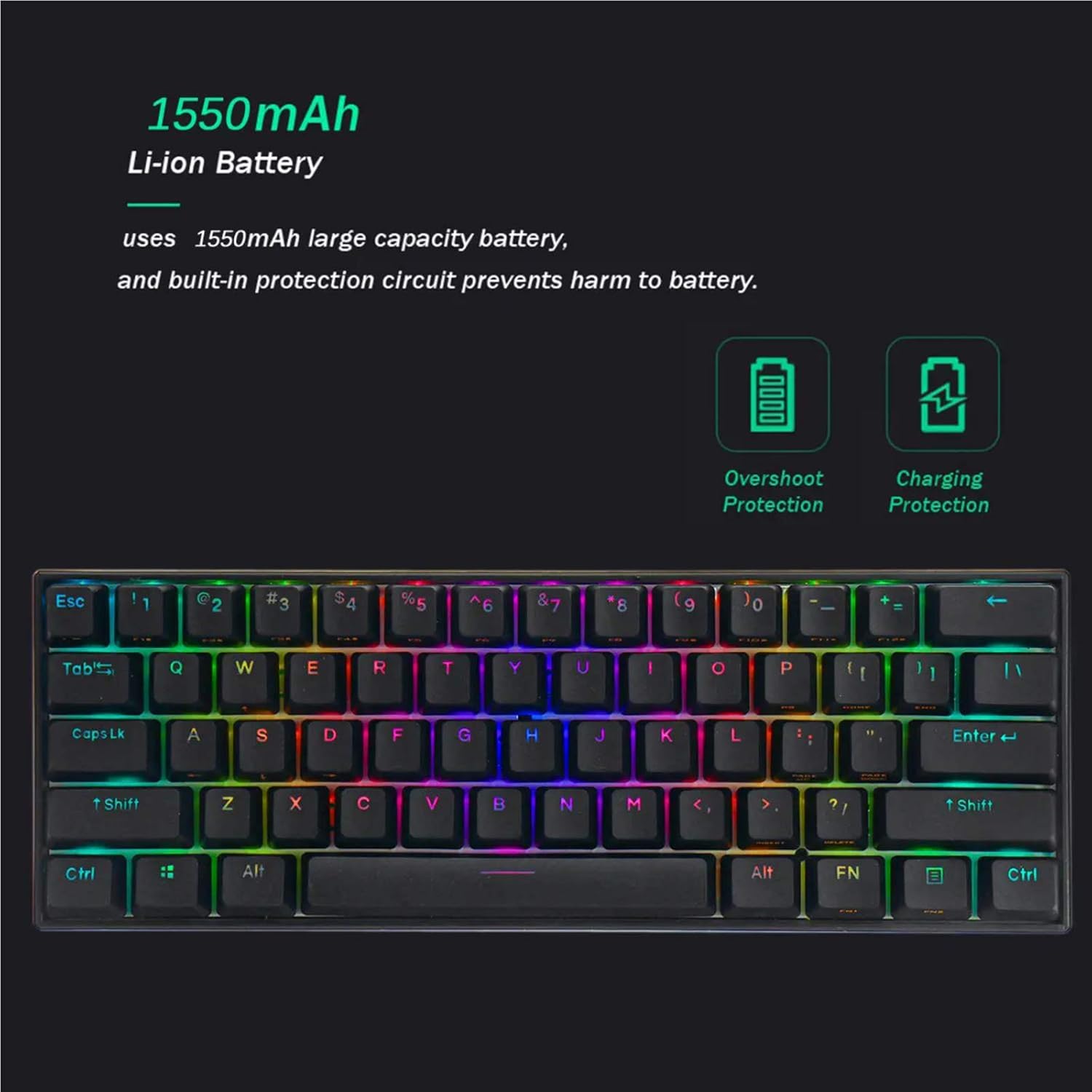
Image: A visual representation of the keyboard's 1550mAh Li-ion battery, highlighting its overshoot protection and charging protection features.
Before first use, it is recommended to fully charge the keyboard.
- חבר את כבל ה-USB-C המצורף ליציאת ה-USB-C של המקלדת.
- חבר את הקצה השני של הכבל למקור חשמל USB (למשל, יציאת USB של המחשב, מתאם USB לקיר).
- The keyboard's indicator light will show charging status (refer to LED indicator section for details). A full charge typically takes a few hours.
2. מצבי חיבור
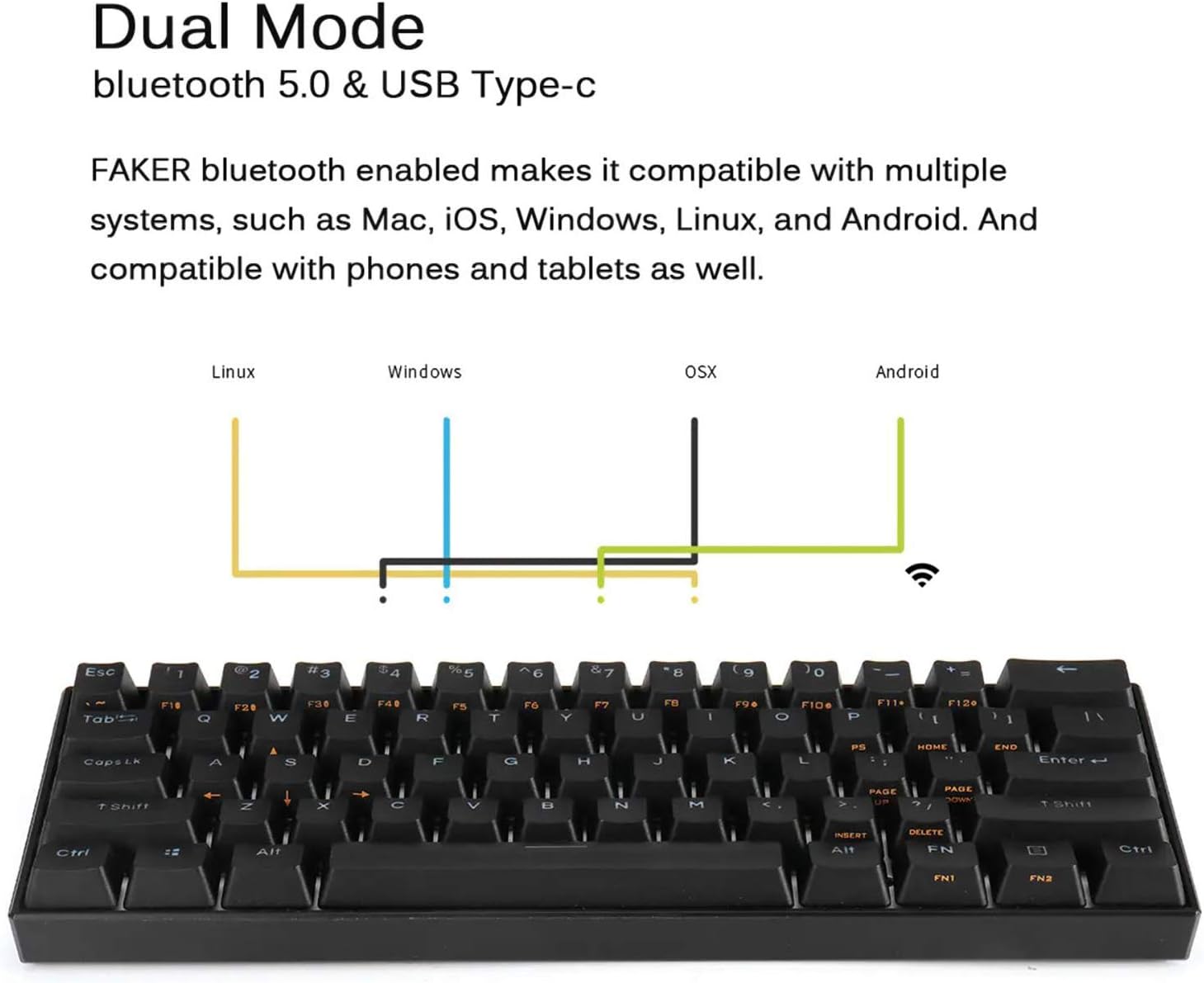
Image: A diagram showing the dual mode connection capabilities (Bluetooth 5.0 & USB Type-C) of the FEKER keyboard, along with its compatibility across Linux, Windows, OSX, and Android operating systems.
מצב קווי (USB-C)
- חבר את כבל ה-USB-C למקלדת ולמחשב שלך.
- The keyboard will automatically switch to wired mode. This mode supports NKRO.
Bluetooth Mode (Wireless)
- ודא שהמקלדת טעונה.
- Turn on the Bluetooth switch located on the bottom of the keyboard.
- במכשיר שלך (מחשב, טאבלט, טלפון), הפעל את Bluetooth וחפש מכשירים חדשים.
- Select "FEKER Keyboard" (or similar name) from the list of available devices to pair.
- אם תתבקש, הזן את קוד ההתאמה המוצג על המסך באמצעות המקלדת ולחץ על Enter.
- The keyboard can store multiple Bluetooth profiles. Refer to the keyboard's specific key combinations (often FN + Q/W/E/R/T) for switching between paired devices.
מִבצָע
1. פונקציות בסיסיות של המקלדת
The FEKER 61 Key keyboard features a compact layout. Many functions are accessed via the FN (Function) keys.
FN Key Combinations (Examples):
- FN + [מקש]: Accesses secondary functions printed on keycaps (e.g., F1-F12, multimedia controls, arrow keys).
- FN1 / FN2: The keyboard features two FN keys (FN1 and FN2) which can be programmed to access different layers of functions, offering greater customization. Consult the software section for programming details.
- FN + Backspace: Delete (common for 60% keyboards).
- FN + P: Print Screen (example, check keycap legends).
- FN + ; / ': Home / End (example, check keycap legends).
- FN + , / .: Page Up / Page Down (example, check keycap legends).
2. בקרת תאורת RGB אחורית
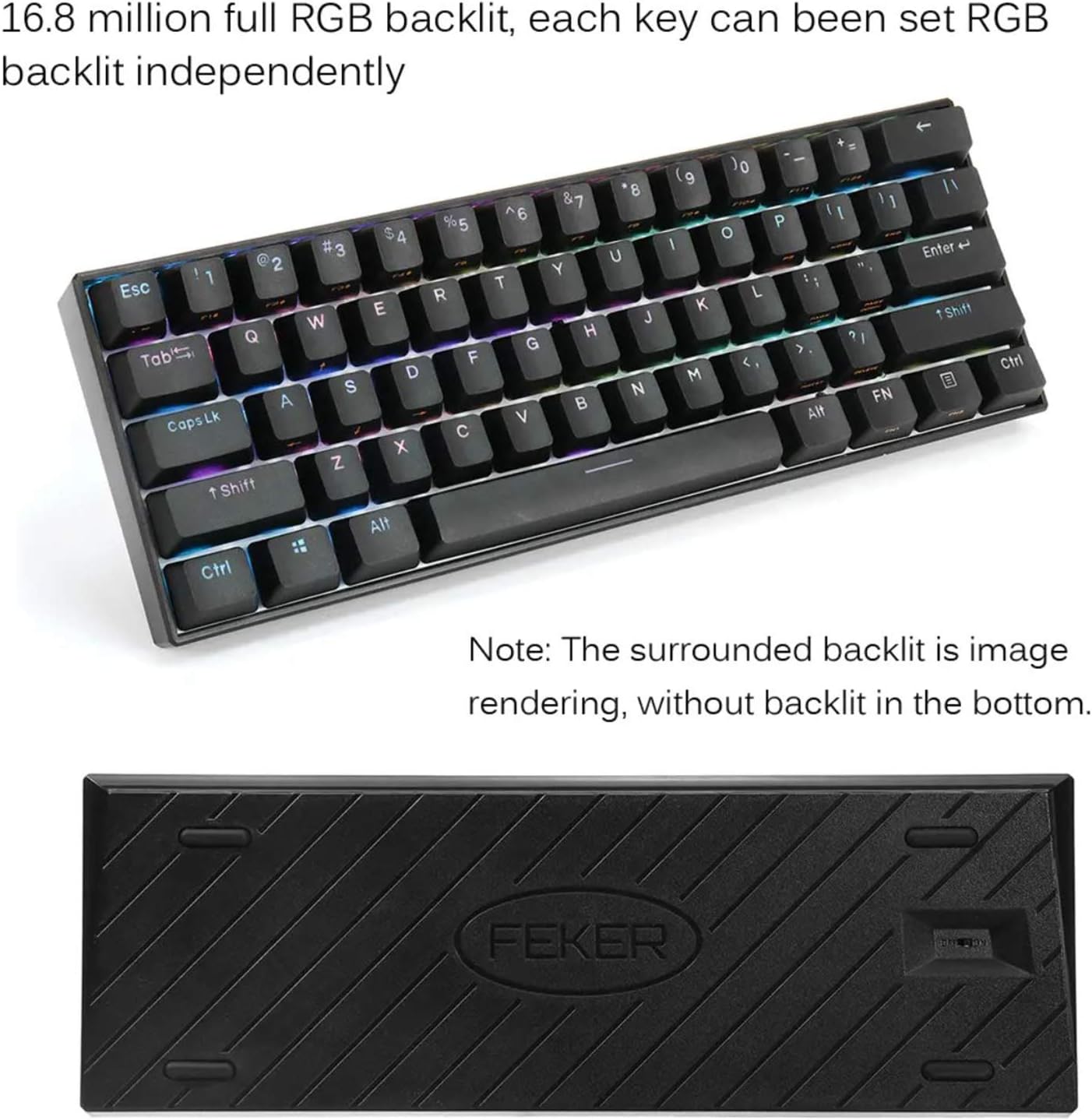
Image: The FEKER 61 Key keyboard displaying its 16.8 million full RGB backlight, with a note clarifying that the surrounding backlight in the image is a rendering and not present on the physical product's bottom.
The keyboard offers extensive RGB backlight customization.
- שינוי מצבי תאורה: Use FN + specific keys (often FN + \| or FN + Right Shift) to cycle through various preset lighting effects.
- התאמת בהירות: Use FN + Up/Down Arrow keys (or similar, check keycap legends) to increase or decrease backlight brightness.
- התאמת מהירות: Use FN + Left/Right Arrow keys (or similar) to change the speed of dynamic lighting effects.
- התאמה אישית של צבעים: For full color customization and per-key lighting, use the dedicated software.
3. תוכנת התאמה אישית

Image: A screenshot of the FEKER keyboard's customization software interface, showing options for profile management, customization, lighting, gaming mode, and macros, emphasizing the ability to customize any color for every single key.
The FEKER keyboard comes with dedicated software for advanced customization of key assignments, macros, and RGB lighting.
- הורדת תוכנה: Visit the official PD or FEKER website to download the latest version of the keyboard customization software.
- הַתקָנָה: Follow the on-screen instructions to install the software on your Windows or macOS computer.
- Key Reassignment: Remap any key to a different function, macro, or multimedia control.
- הקלטת מאקרו: Create and assign complex macro sequences to any key.
- התאמה אישית של תאורה:

Image: A screenshot of the "CUSTOMIZE" tab within the FEKER keyboard software, illustrating options for remapping keys and setting up profiles.

Image: A screenshot of the "LIGHTING" tab in the FEKER keyboard software, showing controls for color, direction, speed, and brightness of the RGB backlight, including various lighting effects like "Rolling".
- Choose from a wide array of preset effects.
- Create custom per-key lighting profiles.
- Adjust color, speed, and brightness for each effect.
- מִקצוֹעָןfile הַנהָלָה: Save and load different profileעבור יישומים או משחקים שונים.
תַחזוּקָה
- ניקוי:
- Disconnect the keyboard before cleaning.
- השתמש במטלית רכה נטולת מוך מעט דampנגב את מכסי המקשים והמסגרת בעזרת מים או תמיסת ניקוי עדינה.
- עבור אבק ופסולת בין המקשים, השתמשו באוויר דחוס או במברשת קטנה.
- The included keycap puller can be used to remove keycaps for deeper cleaning.
- טיפול בסוללה:
- הימנעו מפריקת הסוללה באופן מלא לעתים קרובות.
- יש לאחסן את המקלדת במקום קריר ויבש אם לא נעשה בה שימוש למשך תקופות ממושכות.
- אל תחשוף את המקלדת לטמפרטורות קיצוניות.
- אִחסוּן: When not in use, store the keyboard in a clean, dry environment away from direct sunlight and excessive dust.
פתרון בעיות
- Keyboard Not Responding (Wired Mode):
- ודא שכבל ה-USB-C מחובר היטב גם למקלדת וגם למחשב.
- נסה יציאת USB אחרת במחשב שלך.
- בדוק עם כבל USB-C אחר אם זמין.
- הפעל מחדש את המחשב.
- Keyboard Not Connecting (Bluetooth Mode):
- Ensure the keyboard's Bluetooth switch is ON.
- ודא שהמקלדת טעונה.
- ודא ש-Bluetooth מופעל במכשיר שלך ושהוא ניתן לגילוי.
- נסה לנתק ולצימוד מחדש את המקלדת מהגדרות ה-Bluetooth של המכשיר שלך.
- ודא שאין מכשירים אחרים שמפריעים לאות ה-Bluetooth.
- If using multiple Bluetooth profiles, ensure you are on the correct profile (e.g., FN + Q/W/E).
- Keys Not Working / Double Typing:
- Check if there's any debris under the keycap. Use the keycap puller to remove and clean.
- If it's a specific switch issue, and the keyboard is hot-swappable, consider replacing the switch using the switch puller.
- Ensure the keyboard firmware is up to date (check the manufacturer's webאֲתַר).
- RGB Backlight Not Working / Flickering:
- Ensure backlight brightness is not set to minimum or off.
- בדוק את הגדרות התאורה בתוכנת ההתאמה האישית.
- Ensure the keyboard is sufficiently charged, as low battery can affect lighting.
- Try resetting the keyboard (refer to software or manufacturer's webאתר לקבלת הוראות איפוס ספציפיות).
אחריות ותמיכה
For warranty information, technical support, or further assistance, please refer to the warranty card included with your product or visit the official PD/FEKER webאֲתַר.
Webאֲתַר: www.example.com/support (Placeholder - please refer to actual product documentation for correct URL)