1. הקדמה
This manual provides essential information for the safe and efficient use of your Amazon Fire HD 10 tablet (2021 release). Please read it thoroughly before operating your device.
תכונות מפתח
- Fast and Responsive: Powered by an octa-core processor and 3 GB RAM, offering 50% more RAM than the previous generation.
- סוללה עמידה לאורך זמן: Up to 12 hours of battery life for reading, browsing, video, and music.
- תצוגה חיה: 10.1-inch 1080p Full HD display, 10% brighter than the previous generation, with over 2 million pixels.
- Ample Storage: Available with 32 GB or 64 GB internal storage, expandable up to 1 TB with a microSD card (sold separately).
- תאימות אפליקציה: Access to popular apps like Netflix, Facebook, Disney+, Instagram, TikTok, and more via Amazon’s Appstore.
- כלי פרודוקטיביות: Supports apps like Microsoft Office, OneNote, and Dropbox for enhanced productivity.
- עיצוב עמיד: Thinner and lighter than the previous generation, with a screen strengthened by aluminosilicate glass.
- פונקציונליות מסך מפוצל: Allows two compatible apps to be open side-by-side for multitasking.
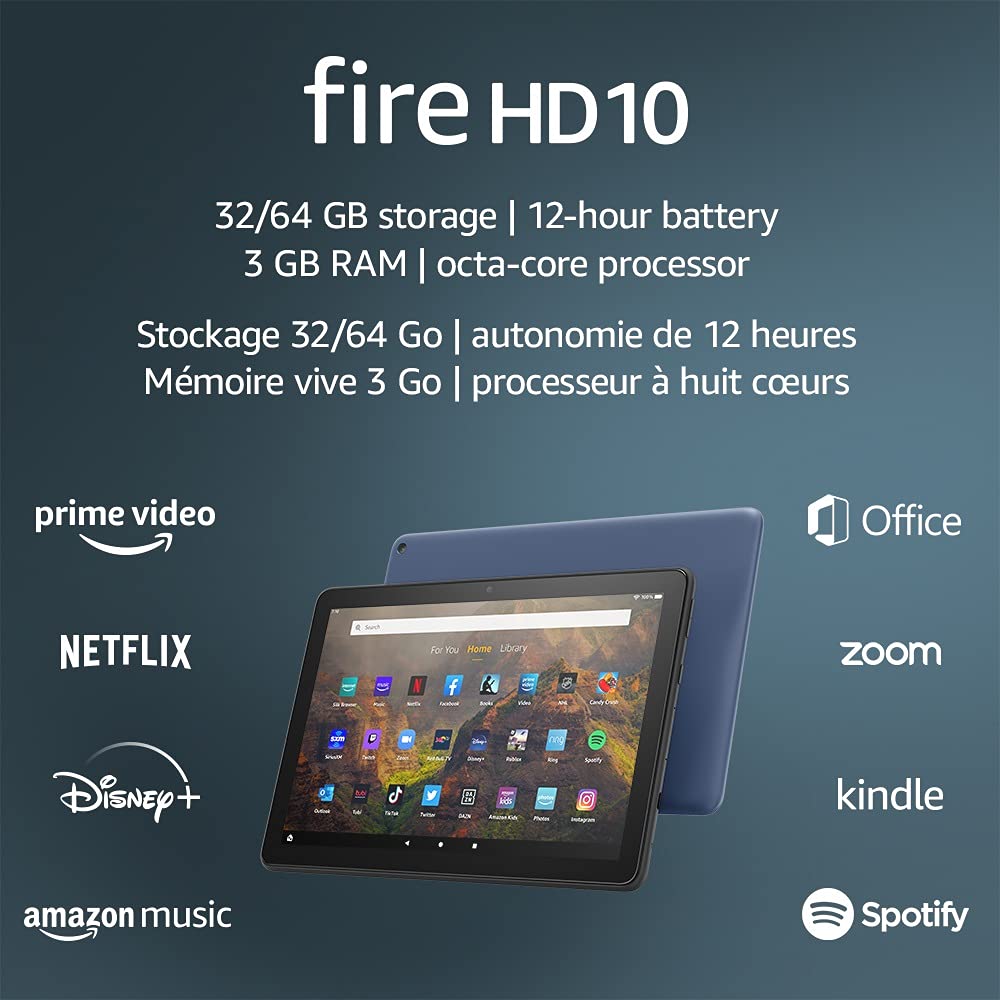
Image 1.1: The Amazon Fire HD 10 tablet highlighting its 32/64 GB storage, 12-hour battery, 3 GB RAM, and octa-core processor, alongside logos of supported applications such as Prime Video, Netflix, Disney+, Amazon Music, Office, Zoom, Kindle, and Spotify.
2. התקנה
2.1 פתיחת האריזה וטעינה ראשונית
Upon receiving your Fire HD 10 tablet, carefully remove all components from the packaging. Before first use, it is recommended to fully charge the device.
- Connect the provided USB-C (2.0) cable to the tablet's USB-C port.
- Plug the other end of the USB-C cable into the 9W power adapter.
- חבר את מתאם החשמל לשקע בקיר.
- A full charge from 0% to 100% typically takes approximately 4 hours while the device is in standby mode.
2.2 הפעלה/כיבוי
- כדי להפעיל: Press and hold the power button located on the side of the tablet until the Amazon logo appears on the screen.
- כדי לכבות: Press and hold the power button until a power options menu appears. Select 'Power Off'.
- לאתחל: מתפריט אפשרויות צריכת החשמל, בחר 'הפעלה מחדש'.
2.3 קישוריות Wi-Fi
To access online content and services, connect your Fire HD 10 to a Wi-Fi network.
- ממסך הבית, החליקו מטה מלמעלה כדי לפתוח את לוח ההגדרות המהירות.
- הקש על סמל ה-Wi-Fi.
- בחר את רשת ה-Wi-Fi הרצויה מרשימת הרשתות הזמינות.
- אם תתבקש, הזן את סיסמת הרשת והקש על 'התחבר'.
- The tablet supports 2.4 GHz and 5.0 GHz networks. Ad-hoc (peer-to-peer) Wi-Fi networks are not supported.
2.4 הגדרת חשבון
During the initial setup process, you will be guided to register your Fire HD 10 to an Amazon account. This is necessary to download apps, access Amazon content, and utilize cloud services.
- Follow the on-screen prompts to sign in with an existing Amazon account or create a new one.
- Ensure your account details are accurate for full functionality.
3. הוראות הפעלה
3.1 ניווט בממשק
The Fire HD 10 tablet features a touch-sensitive display for interaction.
- בֶּרֶז: כדי לבחור פריט, פתח אפליקציה או הפעל כפתור.
- לִגנוֹב: כדי לגלול בין דפים, רשימות או לעבור בין מסכי בית.
- צביטה-להגדלה: כדי להגדיל או להקטין תמונות, web דפים, או מסמכים.
- לחיצה ארוכה: כדי לגשת לתפריטי הקשר או להזיז סמלי אפליקציות.
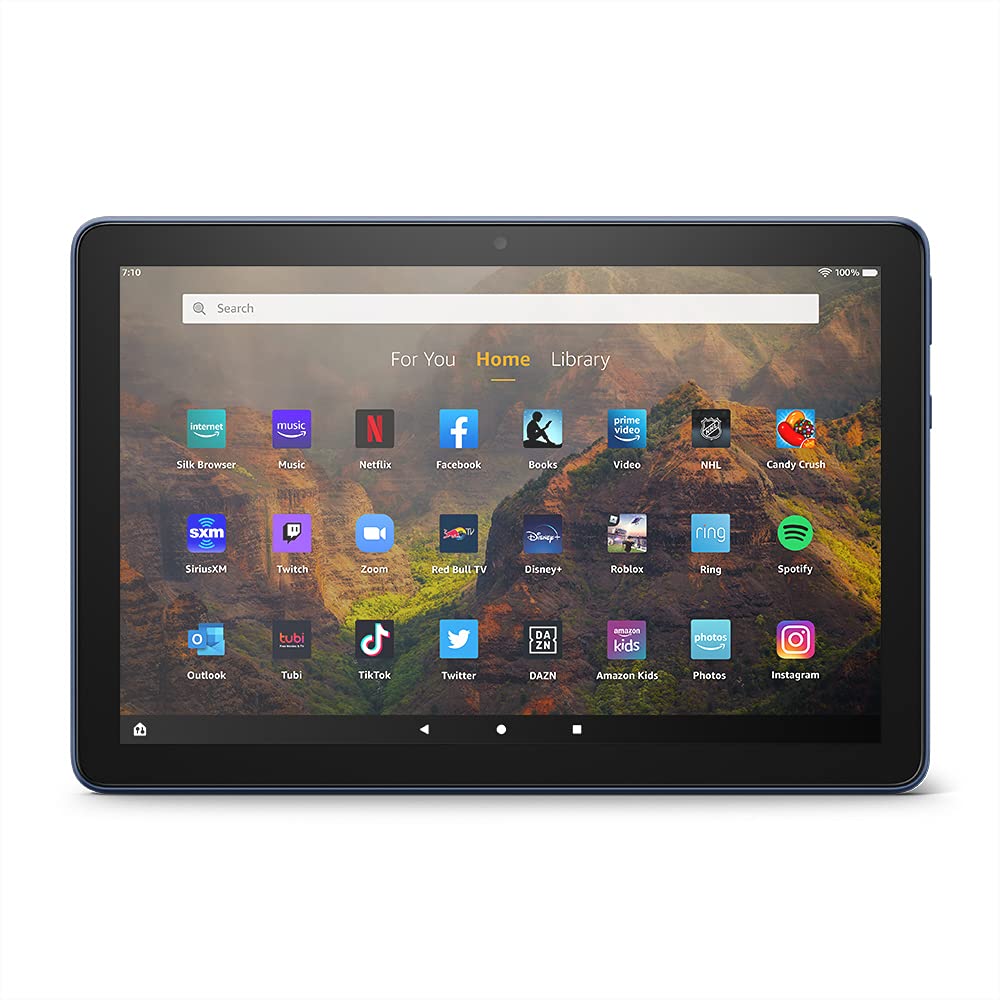
Image 3.1: The Amazon Fire HD 10 tablet's home screen, showcasing a grid of application icons including Silk Browser, Music, Netflix, Facebook, Books, Video, NHL, Candy Crush, SiriusXM, Twitch, Zoom, Red Bull TV, Disney+, Roblox, Ring, Spotify, Outlook, Tubi, TikTok, Twitter, DAZN, Amazon Kids, Photos, and InstagRAM.
3.2 שימוש ביישומים
Applications can be downloaded from the Amazon Appstore. Google Play is not supported.
- Tap an app icon on the Home screen to launch it.
- To find new apps, open the 'Appstore' application.
- Some apps may require a subscription for full access.

Image 3.2: A collage of content available on the Amazon Fire HD 10 tablet, featuring book covers like 'The Silent Patient', Amazon Original series and movies such as 'The Wilds', 'Coming to America', 'The Expanse', 'Dune', 'Hanna', 'One Night in Miami', 'Sound of Metal', 'The Marvelous Mrs. Maisel', 'Upload', and 'The Boys', alongside social media app logos for TikTok, Facebook, and Twitter.
3.3 Split Screen Multitasking
The Fire HD 10 supports split screen functionality, allowing two compatible applications to run side-by-side.
- פתחו את היישום הראשון שברצונכם להשתמש בו.
- Swipe up from the bottom of the screen to reveal the navigation bar.
- Long-press the icon of the first app in the recent apps view.
- Select 'Split Screen' from the options.
- Choose a second compatible app from your recent apps or app drawer to fill the other half of the screen.

Image 3.3: The Amazon Fire HD 10 tablet, shown with an optional Bluetooth keyboard case, demonstrating its split-screen capability. Two applications are open simultaneously: a calendar app on the left and a messaging app on the right, illustrating enhanced productivity.
3.4 שימוש במצלמה
The tablet is equipped with a 2 MP front-facing camera and a 5 MP rear-facing camera, both capable of 720p HD video recording.
- Open the 'Camera' app from your Home screen or app drawer.
- הקש על לחצן הצמצם כדי לצלם תמונה.
- עבור בין המצלמה הקדמית לאחורית באמצעות סמל המצלמה.
- בחר מצב וידאו כדי להקליט סרטונים.
3.5 Audio and Bluetooth
The Fire HD 10 includes dual integrated speakers and a 3.5 mm stereo jack for headphones. It also supports Bluetooth 5.0 LE.
- Connect wired headphones or external speakers via the 3.5 mm jack.
- To pair Bluetooth devices (headphones, speakers, microphones, LE accessories):
- Go to 'Settings' > 'Connected Devices' > 'Bluetooth'.
- ודא ש- Bluetooth מופעל.
- Select your device from the list of available devices and follow pairing instructions.
3.6 ניהול אחסון
Your Fire HD 10 comes with either 32 GB or 64 GB of internal storage. You can expand this by up to 1 TB using a microSD card.
- To insert a microSD card: Locate the microSD slot on the side of the tablet, open the cover, and gently insert the card until it clicks into place.
- Manage storage by going to 'Settings' > 'Storage'. Here you can view usage and move compatible apps or media to the microSD card.
4. תחזוקה
4.1 טיפול בסוללה
- Avoid exposing the tablet to extreme temperatures, as this can degrade battery performance.
- להשגת אורך חיים אופטימלי של הסוללה, הימנעו מריקון מלא של הסוללה באופן תכוף או משמירה על טעינה של 100% למשך תקופות ממושכות.
- Use only the provided 9W power adapter and USB-C cable for charging.
4.2 ניקוי ההתקן
- Turn off the tablet before cleaning.
- השתמש במטלית רכה ונטולת סיבים כדי לנגב בעדינות את המסך והגוף.
- עבור כתמים עקשניים, מעט דמוי עורampשטפו את המטלית במים. הימנעו משימוש בכימיקלים חזקים, חומרי ניקוי שוחקים או תרסיסים.
4.3 עדכוני תוכנה
Amazon periodically releases software updates to improve performance and add new features. Ensure your device is connected to Wi-Fi to receive these updates.
- Updates are typically downloaded and installed automatically.
- You can manually check for updates by going to 'Settings' > 'Device Options' > 'System Updates'.
5. פתרון תקלות
5.1 המכשיר אינו מגיב
- If the device is frozen or unresponsive, press and hold the power button for approximately 20 seconds to force a restart.
- Ensure the device has sufficient battery charge. Connect it to the charger and try powering it on again.
5.2 בעיות חיבור Wi-Fi
- Verify that Wi-Fi is enabled in Quick Settings or 'Settings' > 'Wireless'.
- ודא שאתה נמצא בטווח קליטה של נתב ה-Wi-Fi שלך.
- הפעל מחדש את הנתב והמודם של ה-Wi-Fi.
- Forget the network in 'Settings' > 'Wireless' and reconnect, re-entering the password if necessary.
5.3 אפליקציות קורסות או לא נטענות
- סגור ופתח מחדש את האפליקציה.
- Clear the app's cache: Go to 'Settings' > 'Apps & Games' > 'Manage All Applications', select the problematic app, and tap 'Clear Cache'.
- ודא שהתוכנה של הטאבלט שלך מעודכנת.
- אם הבעיה נמשכת, שקול להסיר את ההתקנה ולהתקין מחדש של האפליקציה.
5.4 חיי סוללה קצרים
- הפחת את בהירות המסך.
- סגור יישומים שאינם בשימוש הפועלים ברקע.
- כבה את ה-Wi-Fi או את ה-Bluetooth כאשר אינם בשימוש.
- הגבל את השימוש בנתוני רקע עבור אפליקציות.
- Check 'Settings' > 'Battery' to identify apps consuming the most power.
6. מפרטים
| תכונה | פְּרָט |
|---|---|
| דוֹר | דור 11, שחרור 2021 |
| לְהַצִיג | צג מבריק בגודל 10.1 אינץ' ברזולוציית 1080p (1920 x 1200) עם מעל 2 מיליון פיקסלים (224 ppi). מסך מחוזק בזכוכית אלומינוסיליקט. |
| גוֹדֶל | 247mm x 166mm x 9.2 מ"מ |
| מִשׁקָל | 465 grams (Actual size and weight may vary) |
| מעבד ו- RAM | מתומן ליבות 2.0 GHz עם 3 GB של זיכרון RAM |
| אִחסוּן | 32 GB (24.2 GB available) or 64 GB (55.0 GB available) internal storage. Expandable up to 1 TB with microSD card. |
| חיי סוללה | Up to 12 hours of mixed usage (reading, web, video, music). Varies by settings and usage. |
| זמן טעינה | Approx. 4 hours (0-100%) with provided 9W adapter in standby. |
| קישוריות WiFi | Supports 2.4 GHz and 5.0 GHz networks. Does not support ad-hoc networks. |
| נמלים | USB-C (2.0) for charging, microSD slot for external storage. |
| שֶׁמַע | 3.5 mm stereo jack, dual integrated speakers, external volume controls. |
| חיישנים | מד תאוצה, חיישני תאורת סביבה. |
| מפרט המצלמה | 2 MP front-facing, 5 MP rear-facing cameras with 720p HD video recording. |
| מיקרופונים | 2 built-in microphones. |
| שירותי מיקום | Location-based services via WiFi. |
| צבעים זמינים | Black, Denim. |
| בלוטות' | Built-in Bluetooth 5.0 LE with A2DP support for stereo headphones, speakers, microphone, and LE accessories. |
6.1 תכונות נגישות
The Fire HD 10 tablet includes various accessibility features to assist users. These can be accessed via 'Settings' > 'Accessibility'.
- קוֹלView קורא מסך: Provides spoken feedback for users who are blind or visually impaired.
- מגדיל מסך: Allows users to zoom in/out and pan around the screen.
- גישת מתג: Enables interaction for users with motor impairments via compatible Bluetooth devices.
- קינדל קרא בקול רם: Alexa can read Kindle books aloud.
- הגדרות תצוגה: Includes options for Closed Captioning, Font Size, Display Size, High Contrast Text, Color Inversion, Color Correction, and Convert Stereo to Mono audio. (Note: Captions are not available for all content.)
7. אחריות ותמיכה
7.1 מידע אחריות
Your Amazon Fire HD 10 tablet comes with a 1-year limited warranty and service. Optional 1-year, 2-year, and 3-year extended warranties are available for purchase separately for customers in Canada.
Use of the Fire HD 10 tablet is subject to Amazon's Conditions of Use and associated terms.
7.2 כלול בקופסה
The following items are included with your Fire HD 10 tablet:
- טאבלט Fire HD 10
- כבל USB-C (2.0)
- מתאם חשמל 9W
- מדריך להתחלה מהירה
7.3 תמיכה נוספת
For additional assistance, please visit the Amazon Device Support website or contact Amazon Customer Service.


