1. הקדמה
This manual provides detailed instructions for the setup, operation, and maintenance of your Tera Wireless Barcode Scanner, Model 8541733886. Please read this manual thoroughly before using the device to ensure proper functionality and to prevent damage.
The Tera Wireless Barcode Scanner offers versatile connectivity and efficient scanning capabilities for various barcode types, both printed and digital.
2. המוצר נגמרview
2.1 רכיבים
החבילה כוללת בדרך כלל:
- Tera Wireless Barcode Scanner
- Hands-Free Stand
- דונגל USB אלחוטי 2.4GHz
- USB טעינה/כבל נתונים
- מדריך הוראות (מסמך זה)

Image: Tera Wireless Barcode Scanner, showing the scanner unit, flexible stand, 2.4GHz USB dongle, and USB cable.
2.2 תכונות עיקריות
- 3 Connection Modes: Supports Bluetooth, 2.4GHz wireless, and USB 2.0 wired connections.
- תאימות רחבה: Works with POS systems, iOS, Android, Windows, Mac OS, and Linux. Supports Bluetooth HID, SPP, and BLE protocols.
- סריקה מהירה ומדויקת: Equipped with an ARM32Bit Cortex CPU and a Japan-manufactured scanner head, achieving decoding speeds up to 500 scans per second.
- Dual Upload Modes:
- מצב העלאה מיידית: Barcodes are transmitted to your device immediately upon scanning.
- מצב אחסון לא מקוון: Stores up to 50,000 barcodes internally when out of range, allowing for later upload.
- Multi-Language Barcode Support: Capable of scanning barcodes in English, Spanish, German, French, Italian, and Japanese. Ensure your keyboard language matches the selected language for correct input.
- Versatile Barcode Symbologies:
- 1D: UPC-A, UPC-E, EAN-8, EAN-13, Code 128, Code 39, Code 93, Code 11, Interleaved 2 of 5, Matrix 2 of 5, Standard 2 of 5, Coda bar, MSI Plessey, RSS, etc.
- 2D: QR Code, Data Matrix, PDF417, Aztec code, Maxicode, etc.
- עֲמִידוּת: Designed to withstand impacts from drops of up to 1.5 meters (5 feet) onto concrete.
- חיי סוללה ארוכים: Built-in 2200mAh battery supports approximately 57,000 scans on a full charge, with up to 15 days of standby time.
3. התקנה
3.1 טעינת הסורק
Before first use, fully charge the scanner. Connect the USB charging cable to the scanner's charging port and to a USB power source (e.g., computer USB port, USB wall adapter). The indicator light will show charging status.

Image: Illustration showing the scanner's 2200mAh battery capacity and its ability to withstand a 1.5-meter drop.
3.2 מצבי חיבור
הסורק תומך בשלוש שיטות חיבור:

Image: Visual representation of the three connection modes: Bluetooth, 2.4G Wireless via USB dongle, and USB Wired connection.
3.2.1 USB Wired Mode (Plug & Play)
- חבר את הסורק ישירות למחשב שלך באמצעות כבל ה-USB המצורף.
- The computer will typically recognize the device automatically without requiring driver installation.
- הסורק מוכן לשימוש.

Image: The scanner connected to a laptop, illustrating its plug-and-play functionality and compatibility with various operating systems including Windows, Mac OS, Linux, and Android.
3.2.2 מצב אלחוטי 2.4GHz
- Insert the 2.4GHz USB dongle into an available USB port on your computer or device.
- הפעל את סורק הברקודים. הוא אמור להתחבר אוטומטית עם הדונגל.
- A successful connection is usually indicated by a specific sound or light on the scanner.
3.2.3 מצב Bluetooth
- Ensure your device (smartphone, tablet, computer) has Bluetooth enabled.
- Put the scanner into Bluetooth pairing mode (refer to the scanner's quick start guide for specific instructions, usually by scanning a special barcode).
- On your device, search for available Bluetooth devices and select "Tera Barcode Scanner" (or similar name).
- אשר את הצימוד אם תתבקש.
פֶּתֶק: Wireless range varies. Indoors with obstacles, Bluetooth range is approximately 33ft, and 2.4GHz wireless is approximately 98ft. Outdoors in barrier-free environments, Bluetooth range is approximately 65ft, and 2.4GHz wireless is approximately 328ft.
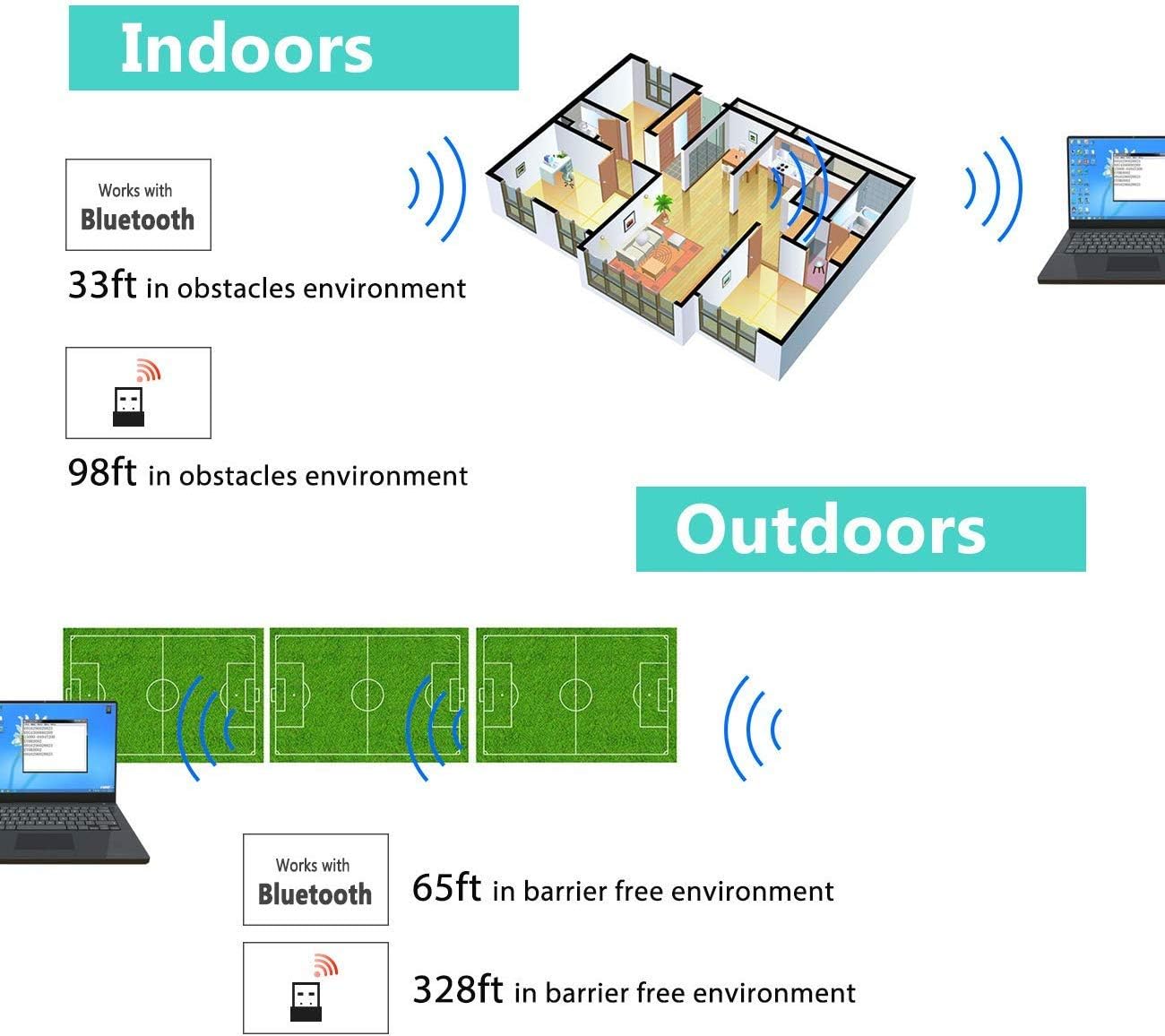
Image: Diagram illustrating the effective wireless range of the scanner in both indoor (with obstacles) and outdoor (barrier-free) environments for Bluetooth and 2.4GHz connections.
4. הוראות הפעלה
4.1 סריקת ברקודים
The scanner can read both 1D and 2D barcodes, including QR codes, from printed materials and digital screens.
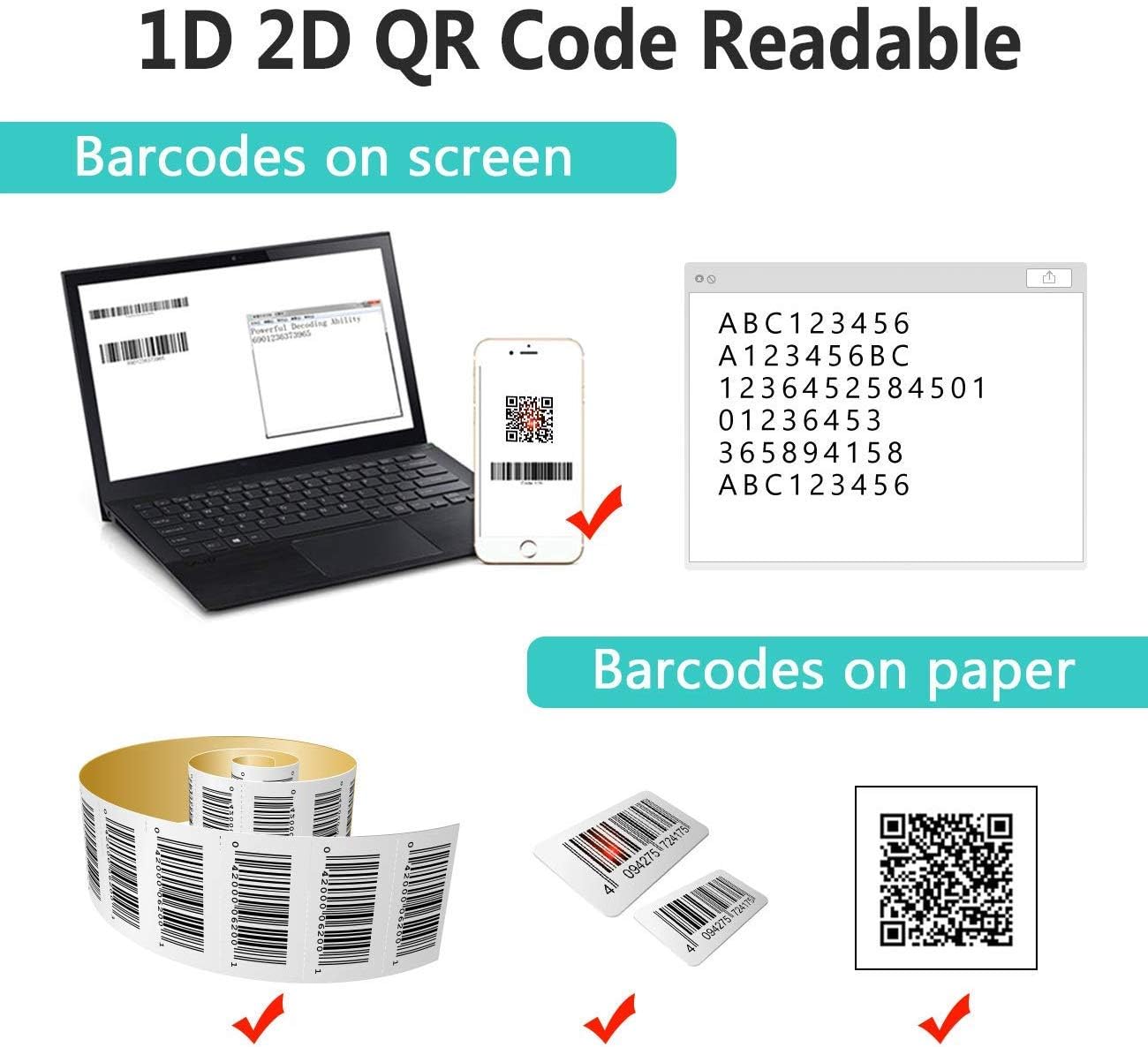
Image: The scanner demonstrating its ability to read 1D and 2D barcodes from both digital screens (laptop, smartphone) and physical printed labels.
כדי לסרוק ברקוד:
- Point the scanner's window at the barcode.
- Press the trigger button (or allow the sensor to activate in automatic modes).
- A successful scan is indicated by a beep and/or a green light.
4.2 מצבי סריקה
The scanner supports three primary scanning modes:

Image: The barcode scanner mounted on its stand, highlighting its 360-degree rotation capability and the three available scanning modes: Key Trigger Mode, Sensor Activated Mode, and Continuous Scan Mode.
- מצב טריגר מפתח: Scan by manually pressing the trigger button for each barcode.
- Sensor Activated Mode: The scanner automatically activates when a barcode is detected in its field of view.
- מצב סריקה רציפה: The scanner continuously emits a scan beam, reading any barcode that passes through it.
Refer to the quick start guide or programming barcodes for instructions on how to switch between these modes.
4.3 מצבי העלאת נתונים
The scanner offers two methods for uploading scanned data:
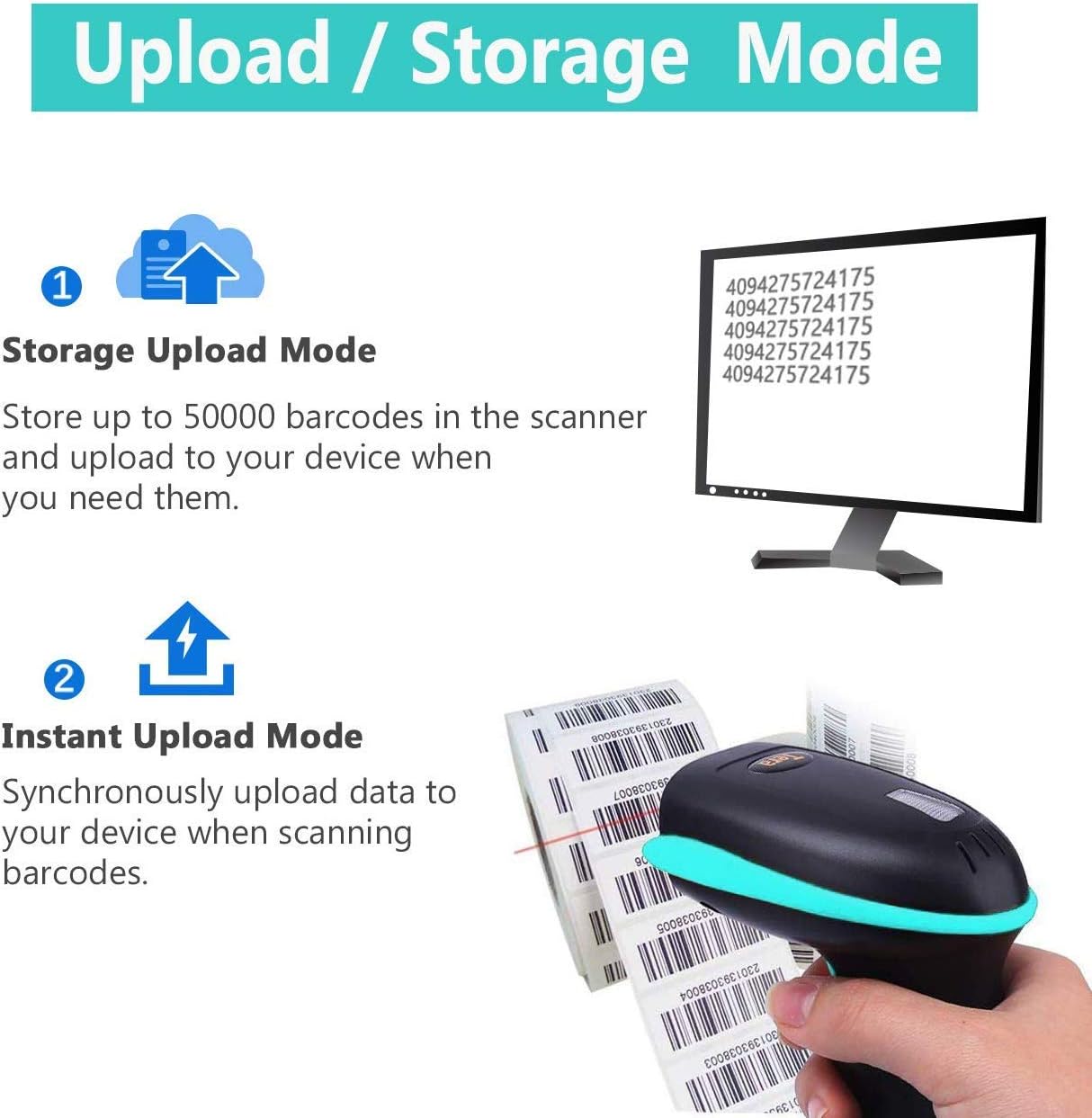
Image: Illustration of the two data upload modes: Storage Upload Mode, where barcodes are stored internally and uploaded later, and Instant Upload Mode, where data is transmitted immediately.
- מצב העלאה מיידית: Barcodes are sent to your connected device immediately after scanning. This is suitable for real-time data entry.
- מצב אחסון לא מקוון: If the scanner is out of range or not connected, it will store scanned barcodes internally. Up to 50,000 barcodes can be stored. Once reconnected, you can upload the stored data to your device.
To switch between upload modes, scan the appropriate programming barcode found in the quick start guide.
5. תחזוקה
5.1 ניקוי
- השתמשו במטלית רכה ונקייה מעטampened with water or a mild cleaning solution to wipe the scanner's exterior.
- Do not use abrasive cleaners, solvents, or excessive liquid, as these can damage the device.
- Keep the scanning window clean and free of dust or smudges to ensure optimal reading performance.
5.2 טיפול בסוללה
- טען את הסורק באופן קבוע, במיוחד אם הוא עומד להיות מאוחסן למשך תקופה ממושכת.
- הימנעו מפריקת סוללה מלאה לעתים קרובות, שכן הדבר עלול לקצר את חייה.
- יש לאחסן את הסורק במקום קריר ויבש כאשר אינו בשימוש.
5.3 אחסון
When not in use, store the scanner in a safe place to prevent physical damage. The included stand can be used for convenient storage and hands-free operation.
6. פתרון תקלות
| בְּעָיָה | סיבה אפשרית | פִּתָרוֹן |
|---|---|---|
| הסורק לא נדלק. | סוללה חלשה. | טען את הסורק למשך 2-3 שעות לפחות. |
| הסורק לא קורא ברקודים. |
|
|
| לא הועברו נתונים למכשיר. |
|
|
| Scanner beeps continuously or behaves erratically. | Configuration error or internal issue. | Perform a factory reset (refer to the quick start guide for the reset barcode). If the issue persists, contact support. |
7. מפרטים
- מספר דגם: 8541733886
- מידות המוצר: 6.1 x 2.55 x 3.54 אינץ'
- משקל פריט: 1.05 פאונד
- סוֹלְלָה: סוללת ליתיום-יון אחת (2200mAh)
- קישוריות: Bluetooth, 2.4GHz Wireless, USB 2.0 Wired
- מכשירים תואמים: Desktop, Laptop, Smartphone (POS, iOS, Android, Windows, Mac OS, Linux)
- מקור כוח: חשמל עם חוט (לטעינה)
- יַצרָן: טרה
- זמין ראשון: 7 במאי 2019
8. אחריות ותמיכה
8.1 מידע אחריות
For specific warranty details, please refer to the warranty card included with your product or visit the official Tera webאתר. שמור את קבלת הרכישה כהוכחת קנייה לתביעות אחריות.
8.2 תמיכת לקוחות
If you encounter any issues not covered in this manual or require further assistance, please contact Tera customer support. Contact information can typically be found on the product packaging, the official Tera webבאתר, או דרך הקמעונאי שלך.
בעת פנייה לתמיכה, אנא הכינו את מספר הדגם של המוצר (8541733886) ואת פרטי הרכישה.


Image: Illustrations representing customer service and technical support teams available to assist users.


