1. הקדמה
This manual provides essential information for setting up, operating, and maintaining your Acer Aspire Z24-890-UA91 All-in-One Desktop. Please read this guide thoroughly to ensure proper use and to maximize the performance and longevity of your device.

תמונה 1.1: חזית view of the Acer Aspire Z24-890-UA91 All-in-One Desktop, showcasing the display, wireless keyboard, and mouse.
2. תכולת החבילה
ודא שכל הפריטים המפורטים להלן כלולים באריזת המוצר שלך:
- Acer Aspire Z24-890-UA91 All-in-One Desktop
- מקלדת אלחוטית
- עכבר אלחוטי
- כבל חשמל
3. התקנה
Follow these steps to set up your Acer Aspire Z24-890-UA91 All-in-One Desktop:
- חבר חשמל: Plug the power cord into the power port on the rear of the desktop, then into a wall outlet.
- Connect Wireless Peripherals: The wireless keyboard and mouse connect via a USB RF dongle. This dongle is pre-installed in a USB 2.0 port located at the bottom of the display. Ensure the keyboard and mouse have batteries installed.
- הפעלה: Press the power button, typically located on the side or bottom edge of the display. The system will boot up.
- התקנה ראשונית של Windows: פעל לפי ההוראות שעל המסך כדי להשלים את תהליך ההגדרה של Windows 10 Home. זה כולל הגדרת חשבון המשתמש, חיבור הרשת והעדפות אחרות.

Image 3.1: Easy access ports located at the bottom of the display, including the USB port for the wireless dongle, headphone jack, and SD card reader.
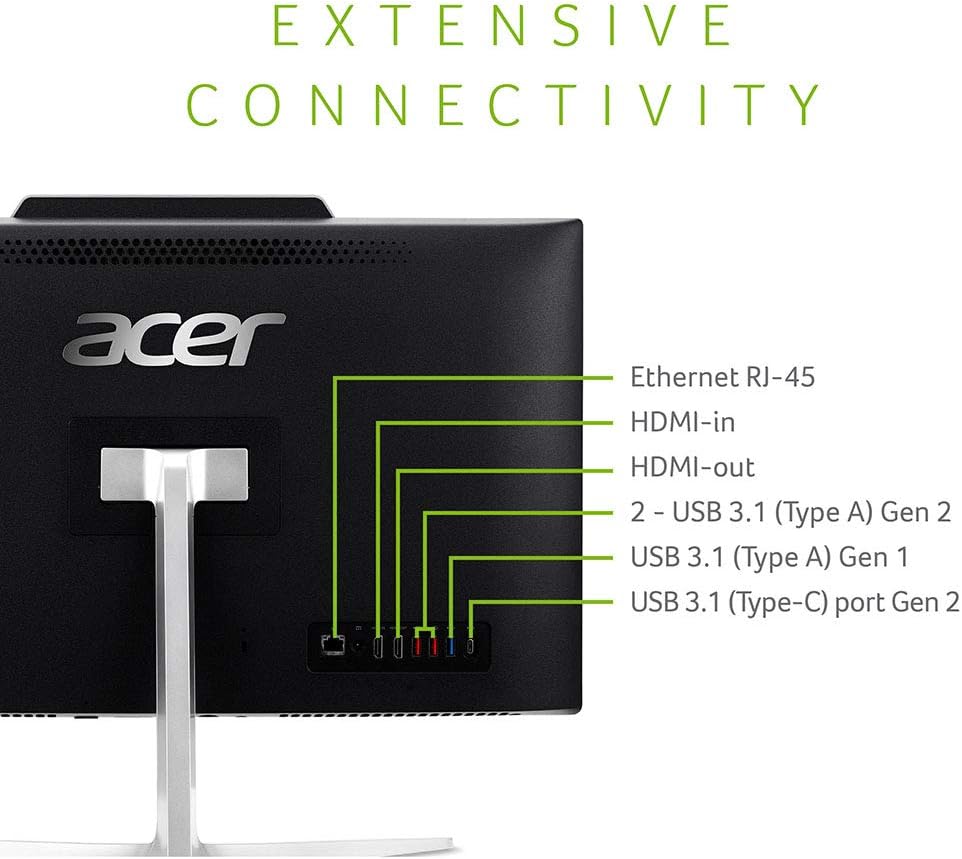
Image 3.2: Rear connectivity ports for external devices and network connections.
4. המוצר נגמרview
The Acer Aspire Z24-890-UA91 is an All-in-One desktop designed for efficient computing. It features a 23.8-inch Full HD display and is powered by a 9th Gen Intel Core i5-9400T processor.
4.1 תכונות עיקריות
- לְהַצִיג: 23.8" Full HD (1920 x 1080) widescreen edge-to-edge LED Back-lit display.
- מעבד: 9th Generation Intel Core i5-9400T Processor (up to 3.4GHz).
- זֵכֶר: זיכרון RAM DDR4 בנפח 12 ג'יגה-בייט.
- אִחסוּן: 512GB SSD.
- כונן אופטי: 8x DVD-Writer Double-Layer Drive (DVD-RW).
- קישוריות: 802.11AC Wi-Fi, Gigabit Ethernet LAN, Bluetooth 4.2 LE.
- שֶׁמַע: Two built-in 2W stereo speakers with optimized Dolby Audio Premium and Acer TrueHarmony technology.
- Webפִּקָה: Built-in 2.0MP Full HD (1080P) Webcam and dual built-in digital microphones.
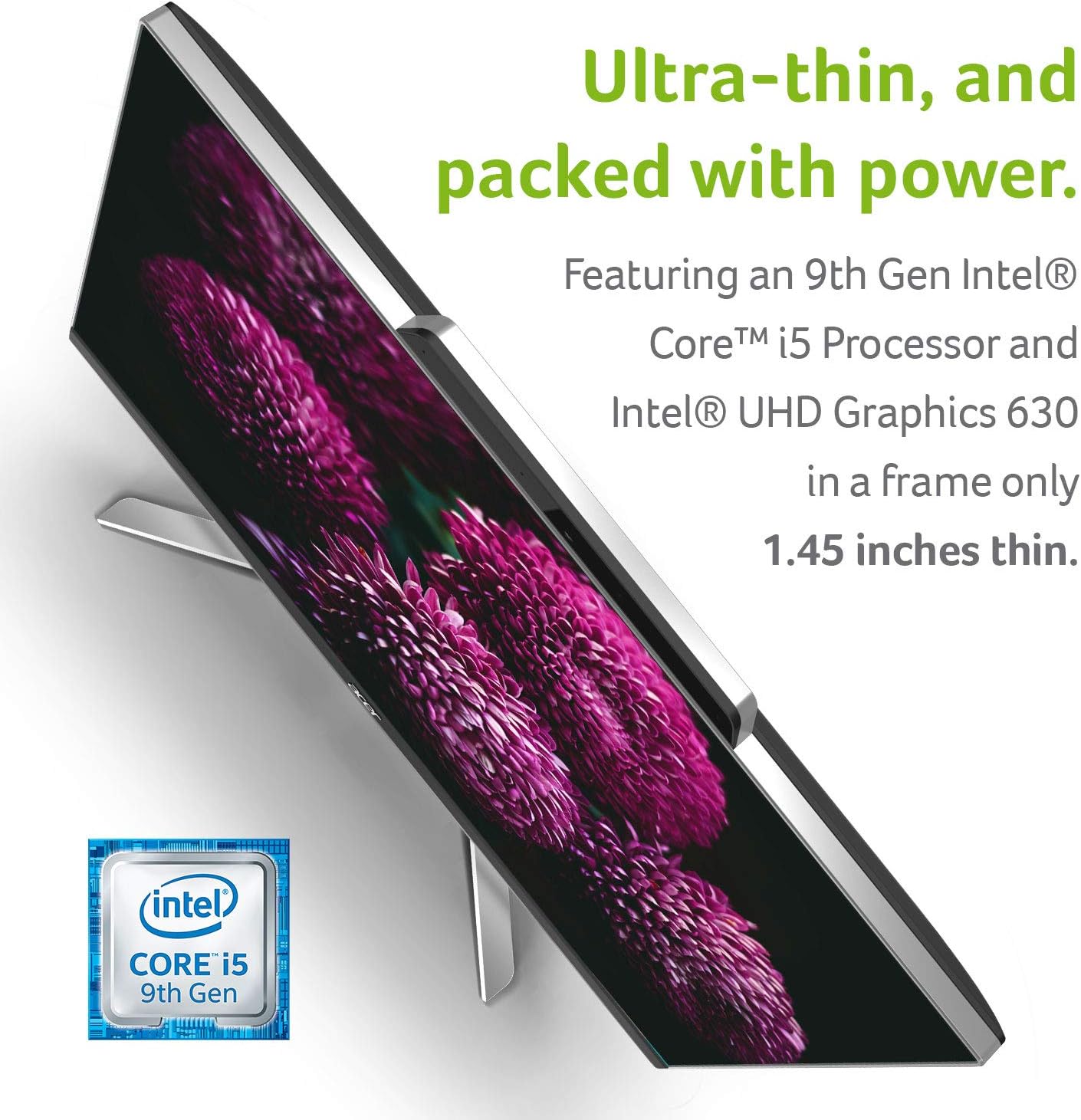
תמונה 4.1: ה-slim profile of the desktop, illustrating its compact design.
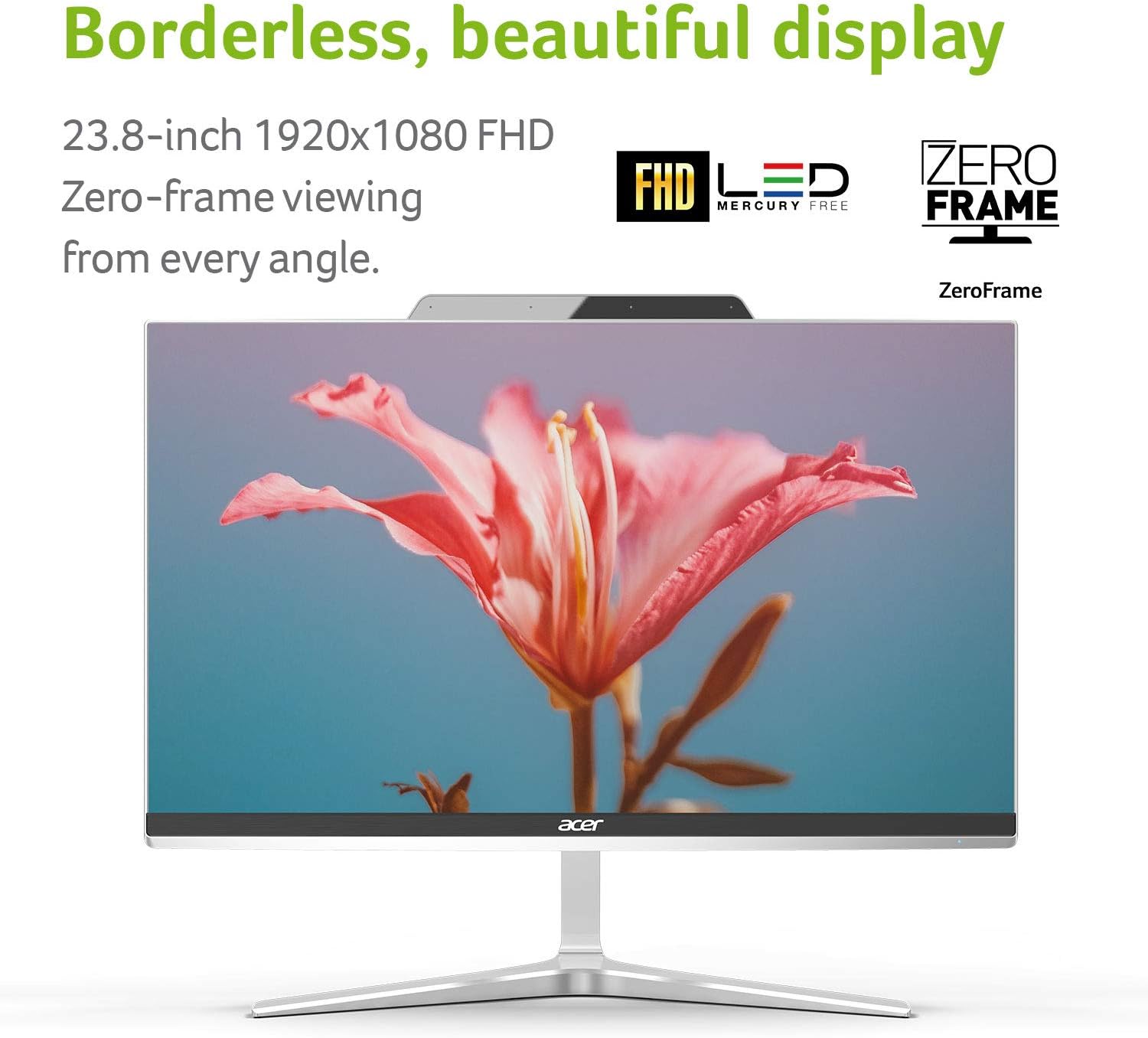
Image 4.2: The borderless display design for an immersive viewניסיון.
5. הוראות הפעלה
5.1 הפעלה/כיבוי
- כדי להפעיל, לחץ על לחצן ההפעלה.
- To power off, click the Start button in Windows, then select Power > Shut down. Alternatively, press and hold the power button for a few seconds to force a shutdown (use only if the system is unresponsive).
5.2 שימוש בכונן האופטי
The integrated DVD-Writer Double-Layer Drive (DVD-RW) is located on the side of the display. Press the eject button on the drive to open the tray, insert a disc, and close the tray. Windows will typically prompt you with options for playing or viewing the disc content.

תמונה 5.1: צד view illustrating the location of the optical drive.
5.3 קישוריות רשת
- Wi-Fi: To connect to a wireless network, click the Wi-Fi icon in the Windows taskbar, select your desired network, and enter the password if required. The system supports 802.11AC Wi-Fi.
- אתרנט: For a wired connection, plug an Ethernet cable into the RJ-45 port on the rear of the desktop.
5.4 שימוש ב Webcam and Microphones
The built-in 2.0MP Full HD webcam and dual digital microphones are ready for video conferencing and recording. Access them through compatible applications such as Camera, Skype, or other communication software.

Image 5.2: Visual representation of the integrated webcam and wireless capabilities.
6. תחזוקה
Regular maintenance helps ensure the optimal performance and longevity of your desktop.
- ניקוי: השתמשו במטלית רכה ונטולת סיבים כדי לנקות את המסך והמשטחים החיצוניים. במקרה של סימנים עקשניים,ampשטפו את המטלית מעט במים או בחומר ניקוי המתאים למסכים. הימנעו מכימיקלים חזקים.
- עדכוני תוכנה: בדוק והתקן באופן קבוע עדכוני Windows ועדכוני מנהלי התקנים כדי להבטיח יציבות ואבטחה של המערכת.
- גיבוי נתונים: גיבוי מעת לעת של דברים חשובים fileלכונן חיצוני או לאחסון ענן כדי למנוע אובדן נתונים.
- אוורור: Ensure the ventilation openings on the desktop are not blocked to prevent overheating.
7. פתרון תקלות
This section addresses common issues you might encounter with your Acer Aspire Z24-890-UA91 desktop.
7.1 אין כוח
- Ensure the power cord is securely connected to both the desktop and a working electrical outlet.
- ודא ששקע החשמל תקין על ידי חיבור מכשיר אחר.
- Check if the power button on the desktop is fully pressed.
7.2 בעיות תצוגה
- If the screen is blank, ensure the desktop is powered on.
- Adjust the display brightness settings in Windows.
- If an external monitor is connected, ensure the correct display output is selected (e.g., by pressing Windows key + P).
7.3 בעיות קישוריות אלחוטית
- ודא ש-Wi-Fi מופעל בהגדרות Windows.
- הפעל מחדש את הנתב והמודם האלחוטיים שלך.
- Check if the wireless network adapter drivers are up to date.
7.4 מקלדת או עכבר אינם מגיבים
- Check the batteries in the wireless keyboard and mouse.
- Ensure the USB RF dongle is securely plugged into the designated USB 2.0 port at the bottom of the display.
- Try plugging the dongle into a different USB port to rule out a port issue.
8. מפרטים
Detailed technical specifications for the Acer Aspire Z24-890-UA91 All-in-One Desktop:
| תכונה | מִפרָט |
|---|---|
| גודל תצוגת מסך עומד | 23.8 אינץ' |
| רזולוציית מסך | 1920 x 1080 פיקסלים |
| רזולוציית מסך מקסימלית | 1920 x 1080 פיקסלים |
| מעבד | 3.4 GHz core_i5 (9th Gen Intel Core i5-9400T) |
| אַיִל | 12 GB DDR4 |
| כונן קשיח | SSD 512 גיגה-בייט |
| מעבד גרפי | Intel UHD Graphics 630 |
| סוג אלחוטי | 802.11ac |
| מספר יציאות USB 2.0 | 1 (for wireless dongle) |
| מספר יציאות USB 3.0 | 4 (2x USB 3.1 Gen 2, 1x USB 3.1 Gen 1, 1x USB 3.1 Type-C Gen 2) |
| מַעֲרֶכֶת הַפעָלָה | Windows 10 Home |
| משקל פריט | 17.5 pounds (6.99 kg system unit only) |
| מידות המוצר | 21.29 x 1.45 x 17.3 אינץ' |
| סוג כונן אופטי | DVD-RW |
9. אחריות ותמיכה
Your Acer Aspire Z24-890-UA91 All-in-One Desktop comes with a אחריות מוגבלת על חלקים ועבודה לשנה אחת, which includes Toll-Free Tech Support.
For further assistance, technical support, or warranty claims, please visit the official Acer support website or contact Acer customer service. You can find more information and resources on the חנות המותגים Acer.


