מָבוֹא
This manual provides comprehensive instructions for the Samsung Galaxy Tab E 8.0 (model SM-T377A) tablet. This device features an 8-inch HD touchscreen, a Quad-Core CPU, 1.5GB of RAM, 16GB of internal storage, Bluetooth, and 4G LTE AT&T connectivity, running on Android 5.1 Lollipop. Please read this manual carefully to ensure proper use and maintenance of your device.

איור 1: חזית view of the Samsung Galaxy Tab E 8.0 tablet displaying the home screen.
1. התקנה
1.1 תכולת החבילה
ודא שהחבילה שלך מכילה את הפריטים הבאים:
- Samsung Galaxy Tab E 8.0 (SM-T377A) Tablet
- כבל טעינה USB
- מתאם מתח
- מדריך התחלה מהירה (אם כלול)
1.2 טעינת הסוללה
Before initial use, fully charge the tablet's battery. Connect the USB charging cable to the tablet's charging port and the other end to the power adapter. Plug the adapter into a wall outlet. The charging indicator will appear on the screen. A full charge typically takes several hours.
1.3 הפעלה/כיבוי
- כדי להפעיל: לחץ והחזק את לחצן ההפעלה (הממוקם בצד) עד להופעת לוגו סמסונג.
- כדי לכבות: לחץ והחזק את לחצן ההפעלה, ולאחר מכן בחר 'כיבוי' מהאפשרויות שעל המסך.
1.4 אשף ההתקנה הראשונית
עם ההפעלה הראשונה, הטאבלט ידריך אותך בתהליך ההתקנה הראשוני. זה כולל:
- בחירת שפה: בחר את השפה המועדפת עליך.
- חיבור Wi-Fi: Select an available Wi-Fi network and enter the password to connect to the internet.
- חשבון גוגל: Sign in with an existing Google account or create a new one. This is essential for downloading apps from the Google Play Store.
- תאריך ושעה: הגדר את התאריך והשעה הנכונים.
- בִּטָחוֹן: הגדר נעילת מסך (קוד סודי, תבנית נעילה או סיסמה) לאבטחת המכשיר.
1.5 התקנת כרטיס SIM (עבור דגמי 4G LTE)
If your model supports 4G LTE, you may need to install a SIM card to access mobile data and cellular services. Refer to the diagram below for SIM card tray location.

איור 2: אחורי view of the tablet, indicating the camera and AT&T branding.
- אתר את מגש כרטיס ה-SIM בצד הטאבלט.
- Use the provided SIM ejector tool (or a small paperclip) to gently press into the small hole on the tray.
- משוך החוצה את מגש כרטיס ה-SIM.
- Place the SIM card into the tray with the gold contacts facing down, ensuring it fits correctly.
- הכנס בזהירות את המגש בחזרה לתוך הטאבלט.
2. הוראות הפעלה
2.1 ניווט בסיסי
The Samsung Galaxy Tab E 8.0 uses a capacitive multi-touch display for interaction.
- לָגַעַת: הקש על סמל כדי לפתוח אפליקציה או לבחור פריט.
- גע והחזק: לחץ והחזק פריט לקבלת אפשרויות נוספות או כדי להזיז אותו.
- לִגנוֹב: גרור את האצבע על פני המסך כדי לגלול בין דפים או רשימות.
- קַמצוּץ: השתמשו בשתי אצבעות כדי להגדיל או להקטין תמונות ו web דפים.
כפתורים פיזיים:
- כפתור בית: חוזר למסך הבית.
- כפתור חזרה: חוזר למסך הקודם.
- לחצן אפליקציות אחרונות: מציג רשימה של יישומים בשימוש לאחרונה.

Figure 3: Tablet in landscape mode showing the home screen.
2.2 חיבור לרשתות
- Wi-Fi: עבור אל הגדרות > Wi-Fi, turn Wi-Fi on, select your network, and enter the password.
- בלוטות': עבור אל הגדרות > Bluetooth, הפעל את Bluetooth והתאם עם מכשירים זמינים.
- נתונים סלולריים (4G LTE): עבור אל הגדרות > שימוש בנתונים to enable or disable mobile data. Ensure a valid SIM card is installed.
2.3 שימוש במצלמה
The tablet features a 5 MP rear camera with autofocus. To use the camera:
- הקש על מַצלֵמָה סמל במסך הבית או במגירת האפליקציות.
- מסגר את התמונה שלך באמצעות המסך כ viewמוֹצֵא.
- הקש על תְרִיס כפתור כדי לצלם תמונה.
- מעבר בין מצבי צילום ווידאו לפי הצורך.
2.4 ניהול יישומים
You can download and manage applications through the Google Play Store or Samsung's Galaxy Apps.

Figure 4: The Galaxy Apps store interface on the tablet.
- הורדת אפליקציות: פתח את חנות Play or אפליקציות גלקסי, search for the desired app, and tap 'Install'.
- הסרת התקנה של אפליקציות: עבור אל הגדרות > יישומים > מנהל יישומים, בחר את האפליקציה ולחץ על 'הסר התקנה'.
2.5 מצב ילדים
The tablet supports Kids Mode, providing a child-friendly interface with parental controls.
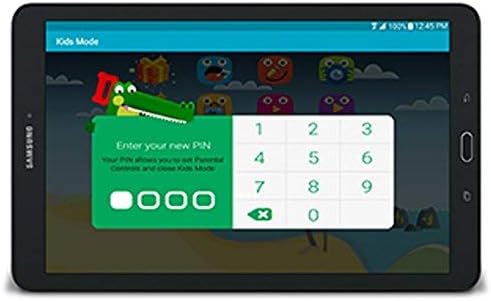
Figure 5: Kids Mode interface with PIN entry for parental controls.
- אתר והקש על מצב ילדים סמל.
- Follow the on-screen instructions to set up a PIN and configure allowed apps and usage limits.
- To exit Kids Mode, tap the exit icon and enter your PIN.
3. תחזוקה
3.1 טיפול בסוללה
To maximize battery life (average 12 hours) and longevity:
- הימנע מטמפרטורות קיצוניות.
- אל תתנו לסוללה להתרוקן לחלוטין לפני טעינה תכופה.
- סגור יישומים שאינם בשימוש הפועלים ברקע.
- הפחת את בהירות המסך במידת האפשר.
3.2 ניקוי ההתקן
Use a soft, lint-free cloth to clean the screen and body of the tablet. Avoid abrasive materials or harsh chemicals that could damage the display or finish.
3.3 עדכוני תוכנה
בדוק מעת לעת אם קיימים עדכוני תוכנה כדי להבטיח ביצועים ואבטחה מיטביים. עבור אל הגדרות > אודות המכשיר > עדכון תוכנה.
3.4 ניהול אחסון
The tablet has 16GB of internal storage. To manage storage:
- מחקו באופן קבוע דברים מיותרים files, תמונות וסרטונים.
- הסר את ההתקנה של יישומים שאינם בשימוש.
- שקלו להשתמש בשירותי אחסון ענן לגיבויים.
- הטאבלט תומך באחסון הניתן להרחבה באמצעות כרטיס microSD (נמכר בנפרד).
4. פתרון תקלות
4.1 בעיות ופתרונות נפוצים
- המכשיר לא נדלק:
- Ensure the battery is charged. Connect the charger and wait a few minutes before attempting to power on.
- Press and hold the Power button for at least 10-15 seconds to perform a forced restart. - המסך לא מגיב או קפוא:
- Perform a forced restart by pressing and holding the Power button for 10-15 seconds.
- If the issue persists, consider a factory reset (see 4.2). - בעיות טעינה:
- Ensure the charging cable and adapter are securely connected and are not damaged.
- Try a different wall outlet or USB port.
- Use only Samsung-approved charging accessories. - כרטיס ה-SIM לא זוהה:
- Ensure the SIM card is correctly inserted into the tray (refer to 1.5).
- הפעל מחדש את הטאבלט.
- Verify that the SIM card is active with your service provider. - חיי סוללה גרועים:
- מחדשview battery care tips in section 3.1.
- Close background apps and reduce screen brightness.
- Check for apps consuming excessive battery in הגדרות > סוללה.
4.2 איפוס להגדרות היצרן
איפוס להגדרות היצרן ימחק את כל הנתונים מהטאבלט שלך וישחזר אותו להגדרות היצרן המקוריות. גבה נתונים חשובים לפני שתמשיך.
- עבור אל הגדרות > גיבוי ואיפוס > איפוס לנתוני יצרן.
- בֶּרֶז אפס את המכשיר, אז מחק הכל.
- הטאבלט יופעל מחדש ויתחיל בתהליך האיפוס.
5. מפרטים
| תכונה | מִפרָט |
|---|---|
| שם הדגם | Galaxy Tab E 8.0 (SM-T377A) |
| מַעֲרֶכֶת הַפעָלָה | אנדרואיד 5.1 Lollipop |
| גודל תצוגה | 8 אינץ' |
| רזולוציית מסך | 1280 x 800 פיקסלים |
| מעבד | Qualcomm Snapdragon 410 (1.2 GHz Quad-Core) |
| אַיִל | 1.5 ג'יגה-בייט |
| אחסון פנימי | SSD 16 גיגה-בייט |
| אחסון ניתן להרחבה | MicroSD (up to 128GB, not included) |
| מצלמה אחורית | 5 MP (Autofocus) |
| מצלמה קדמית | Not specified (typically lower resolution) |
| קישוריות אלחוטית | 802.11abg, 802.11bgn Wi-Fi, Bluetooth |
| קישוריות סלולרית | 4G LTE (AT&T) |
| נמלים | 1x USB 2.0 |
| חיי סוללה | Up to 12 Hours (average) |
| משקל פריט | 12.6 אונקיות |
| מידות המוצר | 10 x 10 x 10 אינץ' |
6. אחריות ותמיכה
6.1 אחריות מחודשת של אמזון
This product is covered by the Amazon Renewed Guarantee. If you are not satisfied with your purchase, renewed products are eligible for replacement or refund within 90 days of receipt.
6.2 תמיכה נוספת
For additional assistance, please refer to the official Samsung support website or contact your retailer. Keep your purchase receipt and product information handy when seeking support.


