מָבוֹא
The GameSir M2 MFi Wireless Gamepad is an Apple MFi certified gaming controller designed for an enhanced gaming experience across various Apple devices. This controller is compatible with Apple TV, iPhone, iPad, iPod touch, and Mac, requiring iOS 7 or later, or Mac OS 10.6 or later. It offers a professional gaming experience for various game genres including shooting, fighting, action, and sports. The M2 controller features Bluetooth 4.0 connectivity for lag-free performance and pressure-sensitive buttons for precise control.
This manual provides detailed instructions for setting up, operating, maintaining, and troubleshooting your GameSir M2 gamepad.

הגדרה
מה יש בקופסה
- GameSir M2 MFi Wireless Gamepad
Please note that a charging cable is not included in the box. The controller uses a Lightning cable for charging.
טעינת הבקר
Before initial use, ensure the GameSir M2 controller is fully charged. The controller is powered by a Lithium Polymer battery (included).
- Locate the Apple Lightning charging port on the controller.
- Connect a standard Apple Lightning cable (not included) to the controller's charging port and a power source.
- The LED indicator on the controller will show charging status. Refer to the LED indicator section for details.

התאמה למכשיר שלך
The GameSir M2 uses Bluetooth 4.0 for wireless connectivity. Follow these steps to pair it with your Apple device:
- Ensure your Apple device (iPhone, iPad, Apple TV, Mac) has Bluetooth enabled.
- Turn on the GameSir M2 controller.
- On your Apple device, navigate to the Bluetooth settings.
- Select the GameSir M2 from the list of available devices to pair.
- Once paired, the controller's indicator light will confirm the connection.

הפעלת הבקר
פריסת הבקר ותפקודיו
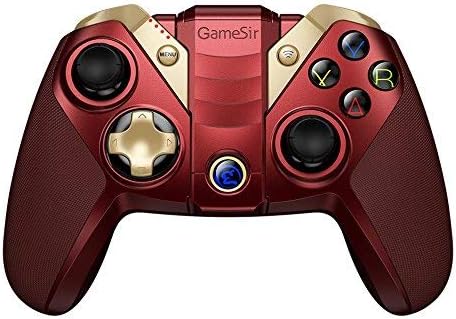
The GameSir M2 features a standard gamepad layout with dual analog sticks, a D-pad, action buttons (A, B, X, Y), and shoulder buttons (L1, L2, R1, R2). The controller also includes an overmolding LED crystal logo button.

Using the Built-in Smartphone Holder
The GameSir M2 includes a built-in adjustable bracket to securely hold your smartphone, allowing for portable gaming.
- Gently extend the adjustable bracket located on the top of the controller.
- Carefully place your smartphone into the bracket, ensuring it is securely held without obstructing the screen or buttons.
- התאם את הזווית לאופטימלי viewבמהלך המשחק.

תאימות משחק
The GameSir M2 is compatible with games that are MFi (Made for iPhone/iPad/iPod) gamepad-supported and certified by Apple. It fully supports games like Fortnite. However, it does not support games such as PUBG.
The controller also supports Tello Drones, enhancing the control experience for drone operation.

סרטון מוצר רשמי
Watch the official product video for a visual guide on the GameSir M2 controller's features and usage.
תַחזוּקָה
To ensure the longevity and optimal performance of your GameSir M2 controller, follow these maintenance guidelines:
- ניקוי: השתמשו במטלית רכה ויבשה לניקוי הבקר. הימנעו משימוש בכימיקלים חזקים או בחומרים שוחקים שעלולים לפגוע במשטח.
- אִחסוּן: יש לאחסן את הבקר במקום קריר ויבש, הרחק מאור שמש ישיר וטמפרטורות קיצוניות.
- טיפול בסוללה: For extended storage, charge the battery to approximately 50% to prevent deep discharge. Avoid fully discharging the battery frequently.
- טיפול: הימנעו מהפלת הבקר או מחשיפתו לפגיעות חזקות, שכן הדבר עלול לגרום נזק לרכיבים פנימיים.
פתרון בעיות
If you encounter issues with your GameSir M2 controller, refer to the following common troubleshooting steps:
- הבקר לא מתחבר:
- ודא שהבקר טעון.
- Verify Bluetooth is enabled on your Apple device.
- Try unpairing and re-pairing the controller in your device's Bluetooth settings.
- הפעל מחדש את הבקר ואת מכשיר Apple שלך.
- כפתורים לא מגיבים או מפגרים:
- Ensure the controller is within range of your device and there are no significant obstructions.
- Check for any firmware updates for the controller (refer to GameSir's official website for information).
- Confirm the game you are playing supports MFi controllers.
- Shoulder Buttons (L1/R1, L2/R2) Issues:
- Some users report that shoulder buttons may require pressing closer to the bottom edge to register input. Adjust your grip if necessary.
- Analog Stick Drift/Incorrect Input:
- If an analog stick consistently registers input in one direction (e.g., down-left), this may indicate stick drift. Try recalibrating the controller if an option is available through GameSir software, or contact support if the issue persists.
- No Vibration Feedback:
- The GameSir M2 controller does not feature vibration feedback. This is a design characteristic, not a malfunction.
מפרטים
| מותג | GameSir |
| סִדרָה | M2-RD |
| מספר דגם | M2-RD |
| פלטפורמת חומרה | מק |
| תאימות מערכת הפעלה | iOS 7 or later, Mac OS 10.6 or later |
| משקל פריט | 0.528 אונקיות |
| מידות המוצר (LxWxH) | 0.31 x 0.2 x 0.51 אינץ' |
| צֶבַע | M2 controller (Red) |
| מקור כוח | מופעל על סוללה |
| סוללות | סוללת ליתיום פולימר אחת (כלול) |
| טכנולוגיית קישוריות | בלוטות' |
| מכשירים תואמים | Smartphone, TV, Tablet (Apple devices) |
אחריות ותמיכה
For warranty information, product registration, or technical support, please visit the official GameSir webאתר או צרו קשר עם שירות הלקוחות שלהם. שמרו את קבלת הרכישה כהוכחת קנייה עבור כל תביעת אחריות.
גיימסיר הרשמי Webאֲתַר: www.gamesir.hk


