1. הקדמה
This manual provides detailed instructions for the setup, operation, maintenance, and troubleshooting of your MAYFLASH Arcade Stick F300 Elite. This arcade stick is designed for a wide range of gaming platforms, offering a premium gaming experience with high-quality components.

איור 1: חזית view of the MAYFLASH Arcade Stick F300 Elite.
תכונות עיקריות:
- תאימות רחבה: Supports Switch/Switch 2, PS4, PS3, Xbox Series X/S, Xbox One/S, Xbox 360, PC (Windows, macOS), Steam Deck, and Android.
- רכיבי פרימיום: Equipped with 9 highly responsive Sanwa buttons and a precision 4-way Sanwa joystick for optimal performance.
- מצבי קלט: Supports XINPUT and DINPUT for PC use.
- פונקציית טורבו: Integrated Turbo feature for enhanced gameplay.
- Modding Capability: Designed for easy customization, allowing joystick and button replacement.
סרטון 1: אובר רשמיview of the MAYFLASH Arcade Stick F300 Elite by MAYFLASH LIMITED.
2. הוראות התקנה
Follow these steps to connect your F300 Elite Arcade Stick to your desired gaming platform.
2.1 Connecting to Consoles and PC
- Identify the USB Cable: The arcade stick features an integrated USB cable for connection.
- בחר מצב קלט: Use the switch on the top left of the arcade stick to select the appropriate input mode (XINPUT/NS for PC/Switch, DINPUT/PS3 for PS3/Android).
- Connect to Platform: Plug the USB cable into an available USB port on your console or PC.
- Controller Authentication (for PS4/Xbox): For PS4, Xbox One, Xbox Series X/S, and Xbox 360, you must connect the original wired controller (or a compatible third-party controller) to the USB port on the back of the arcade stick for authentication. This is required for the arcade stick to function correctly on these platforms.
- תאימות PS5: For PS5 compatibility, the F300 Elite requires a MAYFLASH Magic-S Ultimate Adapter or MagicBoots-S5 Converter (sold separately). Connect the adapter/converter to the arcade stick's USB port, then connect the adapter/converter to your PS5.

Figure 2: Connection diagram illustrating compatibility with various gaming systems.

Figure 3: Close-up of the USB port for controller authentication or adapter connection.
3. הוראות הפעלה
Familiarize yourself with the controls and special functions of your F300 Elite Arcade Stick.
3.1 פריסת בקרה
The arcade stick features a standard 8-button layout with a joystick. Additional control buttons are located on the top panel.

איור 4: מפורט view of the control panel, including Turbo, Share, and Options buttons.
3.2 מצבי קלט
- XINPUT/NS: Use this mode for PC (Windows), Xbox Series X/S, Xbox One/S, Xbox 360, and Nintendo Switch.
- DINPUT/PS3: Use this mode for PC (older games), PS3, and Android devices.
3.3 פונקציית טורבו
The Turbo function allows a button to be pressed repeatedly as long as it is held down. To activate or deactivate Turbo for a specific button:
- לחץ והחזק את טורבו לַחְצָן.
- תוך כדי אחיזה טורבו, press the desired action button (e.g., A/X, B/O, X/□, Y/△, RB/R1, LB/L1, RT/R2, LT/L2).
- Release both buttons. The Turbo function is now active for that button. Repeat the process to deactivate.
3.4 Special Button Combinations
- TURBO + SHARE = L3
- TURBO + OPTIONS = R3
4. תחזוקה והתאמה אישית
The F300 Elite is designed for durability and customization. Regular cleaning and optional component replacement can extend its lifespan and tailor it to your preferences.
4.1 ניקוי
Wipe the surface of the arcade stick with a soft, dry cloth. Avoid using harsh chemicals or abrasive materials that could damage the finish or components.
4.2 Component Modding
The F300 Elite is built with modding enthusiasts in mind. The internal components are accessible for customization, allowing you to replace the joystick and buttons to suit your playstyle or aesthetic preferences.
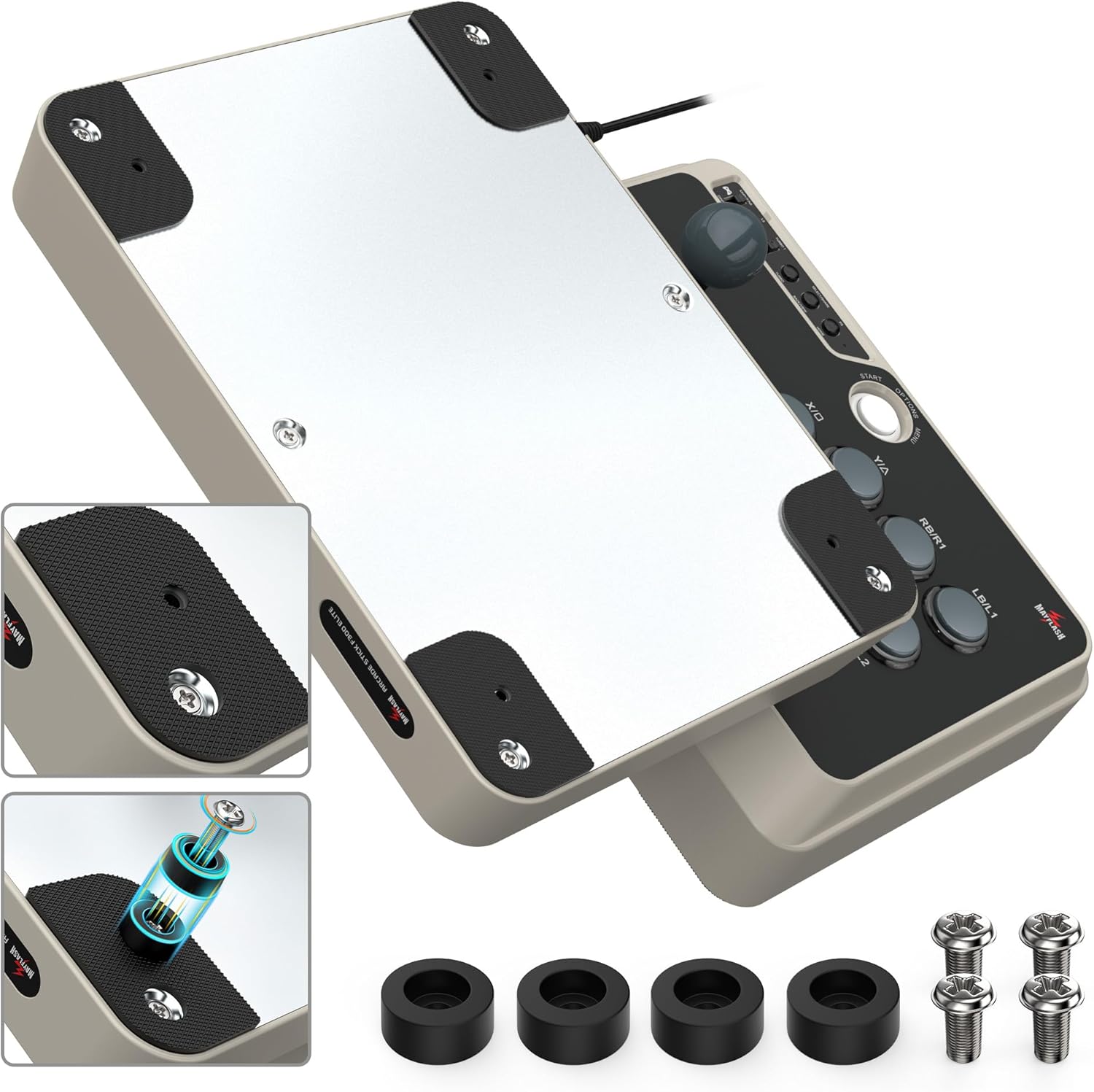
Figure 5: Illustration of the joystick's internal structure, demonstrating ease of replacement.

איור 6: דוגמהample of Sanwa buttons, indicating their moddable nature.
To access internal components, carefully remove the screws on the bottom panel of the arcade stick. Exercise caution to avoid damaging internal wiring.

איור 7: תחתון view of the F300 Elite, highlighting screw positions for internal access.
5. פתרון תקלות
If you encounter issues with your F300 Elite Arcade Stick, refer to the following common problems and solutions.
5.1 בעיות חיבור
- Not recognized by console/PC: Ensure the correct input mode (XINPUT/NS or DINPUT/PS3) is selected. For PS4/Xbox, verify that an authenticated original controller is connected to the arcade stick's USB port. Try a different USB port on your console/PC.
- PS5 not working: The F300 Elite requires a separate MAYFLASH Magic-S Ultimate Adapter or MagicBoots-S5 Converter for PS5 compatibility. Ensure this adapter is correctly connected and updated if necessary.
5.2 Button/Joystick Malfunction
- Unresponsive buttons/joystick: Check all cable connections. If you have recently modded the device, ensure all internal connections are secure.
- Incorrect input: Verify the input mode switch is set correctly for your platform.
5.3 Turbo Function Issues
- Turbo not activating: ודא שאתה לוחץ ומחזיק את טורבו button simultaneously with the desired action button.
- Tournament use: Be aware that the Turbo function may lead to disqualification in competitive tournament settings.
6. מפרטים
Detailed technical specifications for the MAYFLASH Arcade Stick F300 Elite.
| תכונה | פְּרָט |
|---|---|
| מותג | מייפלש |
| מספר דגם | F300Elite |
| פלטפורמת חומרה | Nintendo Switch, PC/Mac, PlayStation 4, Xbox One, Xbox Series X |
| תאימות מערכת הפעלה | אנדרואיד, ווינדוס |
| משקל פריט | 4.4 פאונד (כ-2 ק"ג) |
| מידות המוצר (LxWxH) | 11.81 x 8.86 x 2.2 אינץ' (כ-30 x 22.5 x 5.6 ס"מ) |
| סוג בקר | מַקֵל נוֹעַם |
| טכנולוגיית קישוריות | USB |
| רכיבים | Sanwa Buttons, Sanwa Joystick |

Figure 8: Dimensions and key features of the F300 Elite Arcade Stick.
7. אחריות ותמיכה
MAYFLASH products are thoroughly tested to ensure quality. Your warranty begins from the date of purchase.
7.1 מידע אחריות
All MAYFLASH products come with a warranty. Please retain your proof of purchase for warranty claims.
7.2 תמיכת לקוחות
If you have any questions, require assistance with setup, operation, or encounter any difficulties with your device, please contact the MAYFLASH service team. They are available to provide support and guidance.


