1. הקדמה
This manual provides essential information for setting up, operating, maintaining, and troubleshooting your Microsoft Surface Pro Model 1796. The Surface Pro is a versatile 2-in-1 device designed to function as both a high-performance laptop and a portable tablet. Please read these instructions carefully to ensure optimal use and longevity of your device.
2. המוצר נגמרview
The Microsoft Surface Pro Model 1796 features a 12.3-inch PixelSense multi-touch display, an Intel Core i5 processor, 4GB of RAM, and a 128GB SSD. It operates on Windows 10 Pro, offering a full desktop experience in a portable form factor. The device supports a detachable keyboard (Surface Pro Signature Type Cover) and a digital pen (Surface Pen), both sold separately, to enhance its functionality.

Figure 2.1: Microsoft Surface Pro in tablet mode, displaying the lock screen.
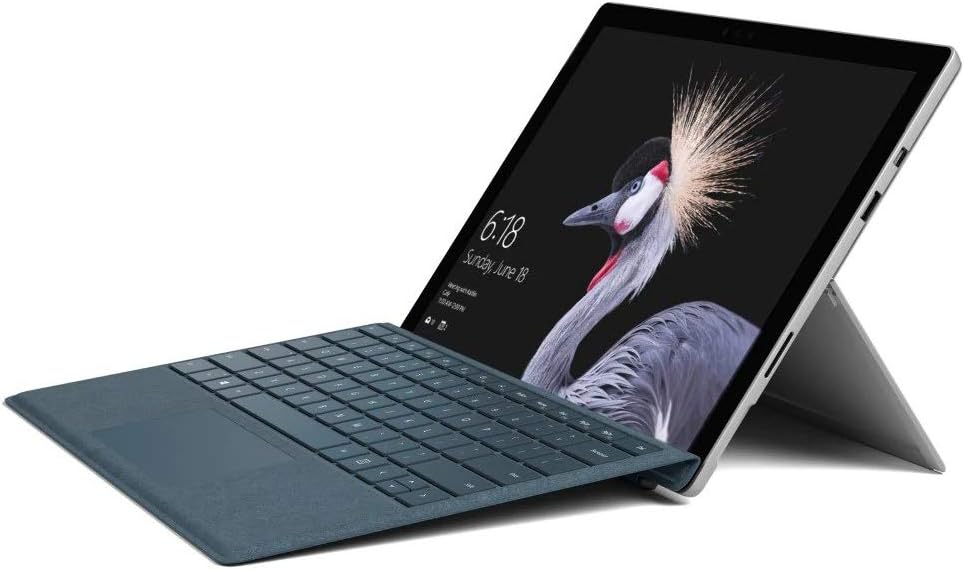
Figure 2.2: Microsoft Surface Pro with Signature Type Cover attached, configured as a laptop.

Figure 2.3: Microsoft Surface Pro tablet and detached Signature Type Cover.
3. התקנה
3.1 הפעלה ראשונית
- Connect the power supply to the Surface Pro and a power outlet.
- לחץ על כפתור ההפעלה הממוקם בקצה העליון של המכשיר.
- פעל לפי ההוראות שעל המסך כדי להשלים את ההגדרה הראשונית של Windows 10 Pro, כולל בחירת שפה, חיבור רשת ויצירת חשבון משתמש.
3.2 חיבור אביזרים
- Surface Pro Signature Type Cover: Align the Type Cover with the magnetic connector along the bottom edge of the Surface Pro until it clicks into place.
- עט משטח: The Surface Pen connects via Bluetooth. Go to הגדרות > מכשירים > Bluetooth ומכשירים אחרים to pair the pen.
3.3 טעינת המכשיר
Use the provided power adapter to charge your Surface Pro. The charging port is located on the right side of the device. A full charge provides approximately 13 hours of typical device usage.
4. הוראות הפעלה
4.1 ניווט בסיסי
- לָגַעַת: Use multi-touch gestures on the PixelSense display for navigation, zooming, and scrolling.
- סוג כיסוי: Utilize the keyboard and trackpad for traditional laptop input.
- עט משטח: Write, draw, and annotate directly on the screen.
4.2 תכונות Windows 10 Pro
Your Surface Pro comes with Windows 10 Pro, offering features such as:
- הלו של חלונות: For fast, secure, password-free sign-in using facial recognition.
- קורטנה: Your personal digital assistant.
- מיקרוסופט אדג': ברירת המחדל web דפדפן.
- מצב טאבלט: Automatically or manually switch to a touch-optimized interface when the Type Cover is detached.
4.3 הגדרות תצוגה
The 12.3-inch PixelSense display has a resolution of 2736 x 1824 pixels. You can adjust display settings such as brightness, resolution, and scaling through הגדרות > מערכת > תצוגה.
5. תחזוקה
5.1 ניקוי ההתקן
- השתמש במטלית רכה נטולת מוך דampened with water or an approved screen cleaner to clean the display.
- For the device body, use a soft, dry cloth. Avoid harsh chemicals or abrasive materials.
5.2 עדכוני תוכנה
Regularly check for and install Windows updates to ensure your device has the latest security patches and features. Go to הגדרות > עדכון ואבטחה > Windows Update.
5.3 טיפול בסוללה
- הימנעו מטמפרטורות קיצוניות, שכן הן עלולות לפגוע בחיי הסוללה.
- להשגת תקינות סוללה אופטימלית, הימנעו מפריקה מלאה של הסוללה באופן עקבי או שמירה על טעינה של 100% למשך פרקי זמן ממושכים.
6. פתרון תקלות
6.1 בעיות נפוצות
- המכשיר לא נדלק: Ensure the device is charged. Try holding the power button for 10-15 seconds to perform a force restart.
- המסך לא מגיב: Restart the device. If the issue persists, check for driver updates.
- בעיות ביצועים: Close unnecessary applications, check for Windows updates, or run a disk cleanup.
6.2 פנייה לתמיכה
For more complex issues or technical assistance, please visit the official Microsoft Support website or contact their customer service. Have your device's model number (FJU-00001) and serial number ready.
7. מפרטים
| תכונה | מִפרָט |
|---|---|
| שם הדגם | FJU-00001 |
| גודל תצוגה | 12.3 אינץ' |
| רזולוציית מסך | 2736 x 1824 פיקסלים |
| מעבד | אינטל Core i5 (2.6 גיגה-הרץ) |
| אַיִל | 4 GB DDR3 |
| אִחסוּן | SSD 128 גיגה-בייט |
| מעבד גרפי | Intel HD Graphics 620 |
| מַעֲרֶכֶת הַפעָלָה | Windows 10 Pro |
| סוג אלחוטי | 802.11b, 802.11g, 802.11n |
| חיי סוללה ממוצעים | 13 שעות |
| משקל פריט | 1.7 פאונד |
| מידות המוצר | 11.5 x 0.33 x 7.93 אינץ' |
| אֲחוֹרִי Webרזולוציית מצלמת | 5 מגה פיקסל |
8. אחריות ותמיכה
Your Microsoft Surface Pro Model 1796 is covered by a limited hardware warranty provided by Microsoft. For detailed warranty terms and conditions, please refer to the documentation included with your purchase or visit the official Microsoft support webאתר. שמור את הוכחת הרכישה שלך לצורך תביעות אחריות.
For technical support, driver downloads, and service information, please visit support.microsoft.com. You may need to provide your device's serial number and model information.


