מָבוֹא
This manual provides instructions for setting up, operating, and maintaining your Mercury MW3030R Dual Band Wireless Router. Please read this manual carefully before use to ensure proper installation and optimal performance.
מידע בטיחות
- אין לחשוף את המכשיר למים או ללחות מוגזמת.
- אל תנסה לפרק או לתקן את המכשיר בעצמך.
- השתמש רק במתאם החשמל שסופק עם המכשיר.
- ודא אוורור נאות סביב הנתב כדי למנוע התחממות יתר.
תוכן החבילה
ודא שהחבילה שלך מכילה את הפריטים הבאים:
- Mercury MW3030R Wireless Router
- מתאם מתח
- כבל Ethernet
- מדריך התקנה מהיר (מדריך זה משמש כמדריך מפורט)
המוצר נגמרview
הכירו את רכיבי הנתב והמחוונים שלו.
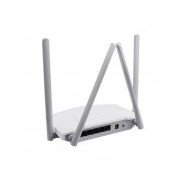
איור 1: אֲחוֹרִי view of the Mercury MW3030R router. This image displays the four external antennas, the WAN port (typically blue), multiple LAN ports (typically yellow), and the power input jack. The reset button and WPS button are also usually located on the rear panel.
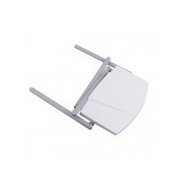
איור 2: מלמעלה למטה view of the Mercury MW3030R router with its antennas folded. This perspective highlights the router's sleek, white casing and its overall compact form factor, suitable for various placements.
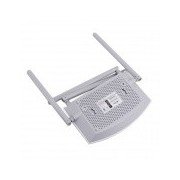
איור 3: תַחתִית view of the Mercury MW3030R router. This image shows the ventilation holes designed for heat dissipation and the product label, which typically contains important information such as the default Wi-Fi name (SSID), password, and web management address.
מחווני LED:
- LED מתח: מציין את מצב החשמל של הנתב.
- LED אינטרנט: מציין את מצב חיבור האינטרנט.
- LED WLAN: מציין פעילות אלחוטית.
- נוריות LAN: Indicate connection status for each LAN port.
הגדרה
1. חיבור חומרה
- הפעלה: Connect the power adapter to the router's power port and plug it into a wall outlet. Wait for the Power LED to become stable.
- התחברות לאינטרנט (WAN): Connect one end of an Ethernet cable to your modem's LAN port and the other end to the router's WAN port (usually distinctively colored, e.g., blue).
- חיבור התקנים (LAN): For wired connections, connect your computer or other devices to the router's LAN ports (usually yellow) using Ethernet cables.
- אנטנות: Adjust the four antennas for optimal signal coverage.
2. תצורה ראשונית (Web מִמְשָׁק)
- התחבר לנתב: Connect your computer to the router either via an Ethernet cable to a LAN port or wirelessly using the default Wi-Fi SSID and password printed on the router's label (refer to Figure 3).
- גִישָׁה Web דפדפן: פתח א web browser (e.g., Chrome, Firefox) and type the default access address (e.g., http://192.168.1.1 or http://tplinkwifi.net) לשורת הכתובת ולחצו על Enter.
- כְּנִיסָה לַמַעֲרֶכֶת: הזן את שם המשתמש והסיסמה המוגדרים כברירת מחדל (בדרך כלל מנהל עבור שניהם, או כפי שמצוין על תווית הנתב).
- הפעלת הגדרה מהירה: Follow the on-screen instructions of the Quick Setup Wizard to configure your internet connection type (e.g., PPPoE, Dynamic IP, Static IP) and wireless settings (SSID, password).
- שנה סיסמת ברירת מחדל: מטעמי אבטחה, מומלץ מאוד לשנות את סיסמת הכניסה המוגדרת כברירת מחדל עבור הנתב. web ממשק ניהול.
הוראות הפעלה
מתחבר ל-Wi-Fi
- במכשיר האלחוטי שלך (סמארטפון, מחשב נייד), חפש רשתות Wi-Fi זמינות.
- Select your router's Wi-Fi network name (SSID) that you configured during setup.
- Enter the Wi-Fi password you set.
- המכשיר שלך אמור להיות מחובר כעת לאינטרנט.
מבצע כפול
The MW3030R supports both 2.4GHz and 5.0GHz wireless bands. The 2.4GHz band offers wider coverage, while the 5.0GHz band provides faster speeds with less interference over shorter distances. You can connect your devices to either band based on your needs.
רשת אורחים
גישה לנתב web interface to enable and configure a separate guest network. This allows guests to access the internet without accessing your main network resources.
תַחזוּקָה
- עדכוני קושחה: בדקו באופן קבוע את הוראות היצרן webאתר לעדכוני קושחה. עדכון קושחה יכול לשפר את הביצועים, להוסיף תכונות חדשות ולתקן פגיעויות אבטחה.
- הפעלה מחדש של הנתב: אם אתם חווים בעיות רשת, נסו להפעיל מחדש את הנתב על ידי ניתוק ספק הכוח, המתנה של 10 שניות ולאחר מכן חיבורו מחדש.
- ניקוי: שמרו על הנתב נקי מאבק. השתמשו במטלית רכה ויבשה. אין להשתמש בחומרי ניקוי נוזליים.
- מיקום: מקם את הנתב במקום מרכזי, הרחק ממכשולים ומכשירים שעלולים לגרום להפרעות (למשל, מיקרוגלים, טלפונים אלחוטיים).
פתרון בעיות
אין גישה לאינטרנט
- Check if the Internet LED on the router is lit or blinking correctly.
- ודא שכבל ה-Ethernet מהמודם שלך מחובר היטב ליציאת ה-WAN של הנתב.
- הפעל מחדש את המודם והנתב.
- בדוק את הגדרות חיבור האינטרנט שלך בנתב web מִמְשָׁק.
מהירות אלחוטית איטית
- Ensure your device is connected to the 5.0GHz band if it supports it, for faster speeds.
- Move closer to the router or adjust antenna positions.
- בדוק אם יש הפרעות ממכשירים אלקטרוניים אחרים.
- Reduce the number of devices connected to the network or bandwidth-intensive activities.
לא ניתן לגשת לנתב Web מִמְשָׁק
- ודא שהמכשיר שלך מחובר לנתב (חוטי או אלחוטי).
- Verify the IP address you are typing in the browser is correct (e.g., http://192.168.1.1).
- נסה לנקות את המטמון של הדפדפן שלך או להשתמש בדפדפן אחר.
- If you forgot the login password, you may need to perform a factory reset (Warning: This will erase all your settings).
מפרטים
| תכונה | תֵאוּר |
|---|---|
| דֶגֶם | MW3030R |
| תקנים אלחוטיים | IEEE 802.11ac/n/g/b/a |
| תֶדֶר | 2.4GHz ו-5.0GHz (כפול פס) |
| מהירות אלחוטית | Up to 600Mbps (combined) |
| אנטנות | 4 אנטנות חיצוניות |
| ממשקים | 1x WAN Port, Multiple LAN Ports (typically 3 or 4) |
| ספק כוח | External Power Adapter (provided) |
אחריות ותמיכה
The Mercury MW3030R router comes with a standard manufacturer's warranty. For detailed warranty information, technical support, or service inquiries, please refer to the official Mercury webאתר או צרו קשר עם תמיכת הלקוחות שלהם. שמרו את קבלת הרכישה שלכם לצורך תביעות אחריות.


